
Upgrading to the latest version of Red Hat Ansible Automation Platform (AAP) may be simple or complex, depending on your answers to the following questions:
- Are you upgrading from a recent version? For instance, from AAP 2.1 to AAP 2.3?
- Are you upgrading from an older version, such as Tower 3.7 to AAP 2.3?
- Do you have a cluster of controllers or a single node?
- Are you using a private automation hub?
- What version of Red Hat Enterprise Linux (RHEL) runs your AAP (or Tower)? What is your new target version?
- Are you running on-premises physical or virtual servers or in the cloud? And what is your new target for the upgrade?
There are many different scenarios. This article's intent is not to exhaust the subject, as your scenario could be very specific, but rather to give you some pointers and ideas to consider when planning your upgrade.
[ Write your first playbook in this hands-on interactive lab. ]
Ansible Automation Platform and Ansible Tower
Ansible Automation Platform (previously known as Ansible Tower) is a downstream project from the open source community working on AWX.
Both AAP and Ansible Tower are commercially supported by Red Hat, while the open source community supports AWX. AAP introduces several new features beyond Tower, which you can read about in Ansible vs. Red Hat Ansible Automation Platform.
When planning an upgrade, keep in mind that the main component known as Tower now corresponds to AAP controller.
The N-2 rule
The general idea for an AAP or Tower upgrade is that you can directly upgrade from a version that is 2 or fewer releases behind.
For example, if you are on Tower 3.5.x and want to go to 3.8.x, there are 2 possible paths:
- 3.5.x –> 3.6.x –> 3.8.x, or
- 3.5.x –> 3.7.x –> 3.8.x
With AAP, the direct paths are:
- 2.2.x –> 2.3.x
- 2.1.x –> 2.3.x
One exception to the N-2 rule is that you can go from AAP 1.2 to 2.3.
If you are used to semantic versioning, please notice that with AAP, the N-2 rule applies to the second digit in the version number.
For more details on navigating these possibilities, check out What are the recommended upgrade paths for Ansible Tower/Ansible Automation Platform?
From that page, you will find 2 other very useful resources:
- Red Hat Ansible Automation Platform lifecycle contains information about AAP versions, versions of its subcomponents (controller, execution environments, navigator, builder, private hub, RHEL, PostgreSQL), and lifecycle dates. The lifecycle dates (or when a certain version becomes out of support) are important to consider when performing an upgrade.
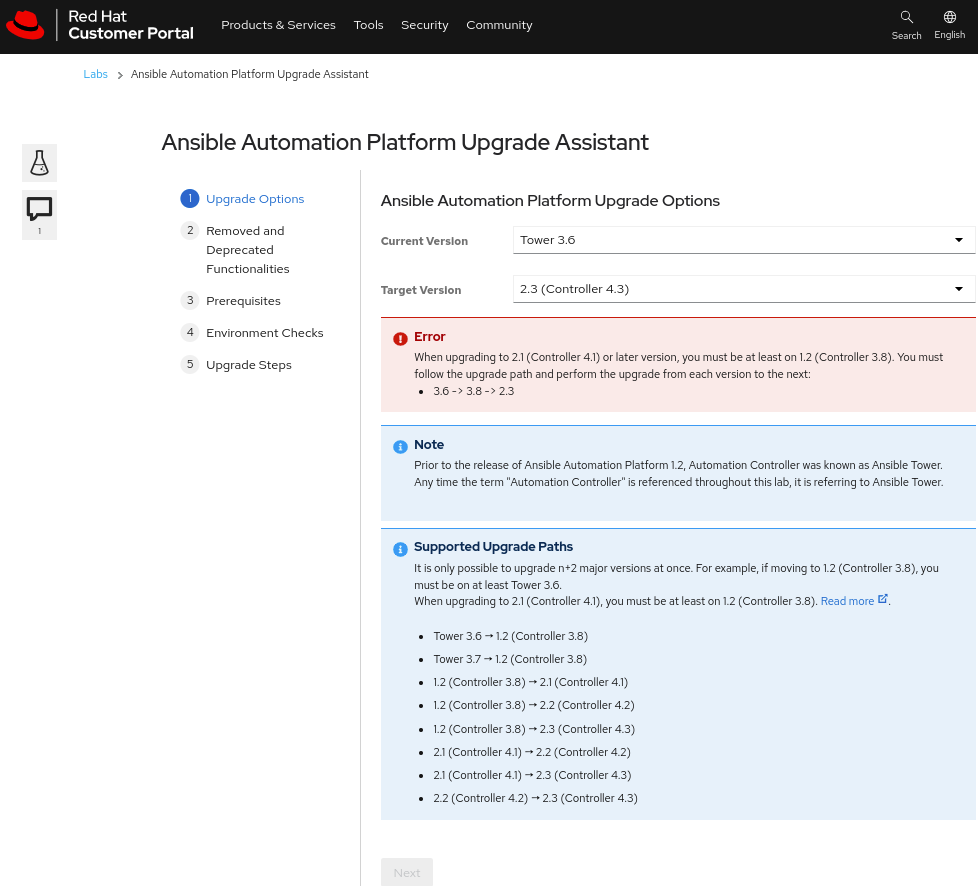
- Ansible Automation Platform Upgrade Assistant: An interactive tool to report your current and target AAP or Tower version and provide specific recommendations and information for each scenario. Below is an example of the initial screen:
[ Download now: A system administrator's guide to IT automation. ]
Back up your data
No matter your scenario, you must back up your AAP or Tower configuration before upgrading. I covered this topic in How to back up and restore Red Hat Ansible Automation Platform. One obvious reason is that you should always have 1 (or more) ways to recover to a good state if anything bad happens during upgrades or other times.
The backup script setup.sh -b I mentioned in the article above is one way to secure your configuration. Another option is if you have virtual machine (VM) snapshots of your AAP or Tower controllers (including the database content) and can revert all of them to a consistent state.
But backups have a second utility: loading the configuration from an existing AAP to another one. That is useful if you are building another environment or installing a new set of servers in a different place or infrastructure (for example, from on-premises to the cloud).
In this 2nd scenario, a critical thing to remember is to use the same AAP and PostgreSQL version to make and restore the backup.
An upgrade scenario
Using the same version of AAP and PostgreSQL to back up and restore is essential to guarantee binary and logical compatibility when restoring the data.
Note: I recommend you have a test or sandbox environment to test your upgrade scenario.
In a hypothetical scenario where the current version is Tower 3.8 on RHEL 8 and the target is AAP 2.3 on RHEL 9, the suggested path would be:
- Back up your current installation.
- Upgrade the Tower 3.7 on the RHEL 8 server to AAP 1.2.
- Check everything.
- Upgrade again, from AAP 1.2 to AAP 2.3.
- Check everything.
- Make another backup of your current installation (AAP 2.3).
- Install the same AAP version on a new RHEL 9 server.
- Copy the AAP 2.3 backup from the old RHEL 8 server.
- Restore that backup on the new RHEL 9 server.
- Check that your configuration exists on the new environment.
As they say, an ASCII picture is worth a thousand words.
+-----------+
| Tower 3.7 |
| on RHEL8  |
+-----------+
     |
     | Upgrade
     v
+-----------+
| AAP 1.2   |
| on RHEL8  |
+-----------+
     |
     | Upgrade
     v
+-----------+               +-----------+
| AAP 2.3   |  - - - - - >  | AAP 2.3   |
| on RHEL8  |     Migrate   | on RHEL9  |
+-----------+               +-----------+
When upgrading, check the differences between Tower and AAP components, such as additional controllers, automation hub, and others. These will reflect on your inventory files.
[ Want to test your sysadmin skills? Take a skills assessment today. ]
The upgrade process
I assume that if you have some version of AAP or Tower, you already know about the installation process. The upgrade uses the same procedure but with a different package.
I recommended reading the official documentation to plan your upgrade, understand the prerequisites, and describe the latest features and release notes.
The following list is not a replacement for reading the full documentation, but a high-level description of the steps involved in the upgrade process:
- Back up your current configuration.
- Get the binaries for the new version.
- Expand the new binaries on the new server (or the same server for an in-place upgrade). Ensure the new version follows the N-2 rule.
- Compare the new inventory file with the one used in the previous installation:
- Reuse the information from the old inventory file that should exist in the new one (you may be pointing to new servers, if it is not an in-place upgrade).
- Inspect new fields added to the new version of the inventory.
- Adjust the new inventory for the existence of new components like automation hub or execution nodes.
- Run the upgrade
setup.shwith the proper parameters for your environment. - Verify the installation and access to AAP.
- If this was an in-place upgrade, the configuration from the previous version still exists, so ensure your previously defined objects are up.
- Otherwise, if this is part of a new server, the next step is restoring the backup from your old environment. In that case, after completing the restore, you should see the objects from your old AAP or Tower in the new instance.
What if my new AAP is managed and in the cloud?
There are some new options for running AAP as a managed service in the cloud that do not allow access to restoring resources in the traditional way.
The approach is more complex for cases like these, involving:
- Exporting the configuration from the old AAP or Tower environment using the
awxcommand line - Using the
controller_configurationcollection to rebuild the objects in the new AAP
Cloud-based AAP deserves a dedicated article. I will address the topic soon.
Wrap up
There are many variables to consider when planning and executing an AAP or Tower upgrade. Every environment has its own particularities, so it is impossible to provide a simple recipe in a short article.
Having a test or sandbox environment to test and validate your procedure before doing it in a higher-level environment is critical.
The official documentation is comprehensive, and the AAP Upgrade Assistant provides many important facts to consider given your scenario's origin and target. You can also check Ansible Automation Platform 1.2 to 2 Migration Guide for more information.
[ Get tips from organizations adopting AAP for innovation in this collection of case studies. ]
关于作者
Roberto Nozaki (RHCSA/RHCE/RHCA) is an Automation Principal Consultant at Red Hat Canada where he specializes in IT automation with Ansible. He has experience in the financial, retail, and telecommunications sectors, having performed different roles in his career, from programming in mainframe environments to delivering IBM/Tivoli and Netcool products as a pre-sales and post-sales consultant.
Roberto has been a computer and software programming enthusiast for over 35 years. He is currently interested in hacking what he considers to be the ultimate hardware and software: our bodies and our minds.
Roberto lives in Toronto, and when he is not studying and working with Linux and Ansible, he likes to meditate, play the electric guitar, and research neuroscience, altered states of consciousness, biohacking, and spirituality.


