
A volume group (VG) is the central unit of the Logical Volume Manager (LVM) architecture. It is what we create when we combine multiple physical volumes to create a single storage structure, equal to the storage capacity of the combined physical devices. Physical volumes are devices that are initialized using LVM, i.e., hard disk drives, solid-state drives, partitions, etc.
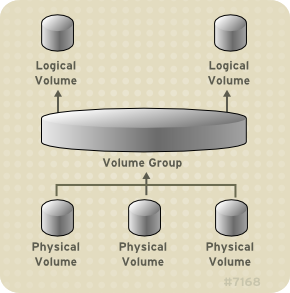
When we take two 1Gb physical volumes and create a volume group, we end up with a consolidated storage capacity of 2Gb. Now that we have a basic understanding of what a volume group is, let's take a look at how to create and configure these in Linux. I will be using Red Hat Enterprise Linux 8 for the following examples.
[root@rhel ~]# pvs
  PV         VG   Fmt  Attr PSize   PFree
  /dev/sda2  rhel lvm2 a--  <29.00g    0
  /dev/sdb        lvm2 ---    1.00g 1.00g
  /dev/sdc        lvm2 ---    1.00g 1.00g>
You will notice that /dev/sdb and /dev/sdc are initialized as physical volumes but do not belong to a Volume Group (whereas /dev/sda2 belongs to the volume group rhel).
[ Want to test your sysadmin skills? Take a skills assessment today. ]
Group creation
Ok, now that we have nailed down the "what and why," let's configure a volume group using the two physical volumes illustrated above. You can see the creation and initialization of these groups in my article, How to create physical volumes in Linux using LVM.
We are going to combine /dev/sdb and /dev/sdc into a volume group. First, we will need to name the group. For test purposes, I will call our group LVMvgTEST. Now that we have decided on a name, let's use a single command to add both physical volumes to the new volume group. This command needs to be run as root or with sudo.
[root@rhel ~]# vgcreate LVMvgTEST /dev/sdb /dev/sdc
Volume group "LVMvgTEST" successfully created
You can see in the output that the volume group was successfully created. Now we can use the pvs command to see the change to our storage architecture.
[root@rhel ~]# pvs
  PV         VG        Fmt  Attr PSize    PFree
  /dev/sda2  rhel      lvm2 a--   <29.00g       0
  /dev/sdb   LVMvgTEST lvm2 a--  1020.00m 1020.00m
  /dev/sdc   LVMvgTEST lvm2 a--  1020.00m 1020.00m
Now you can see that /dev/sdb and /dev/sbc are a part of our LVMvgTEST volume group.
Next steps…
Congratulations on the volume group creation! If you're thinking, "Well, what now?" I recommend that you continue exploring LVM and use lvcreate to create logical volumes. There are many ways to do this, so do your research! I will cover these in a future article, so keep an eye out for that!
[ Free online course: Red Hat Enterprise Linux technical overview. ]
关于作者
Tyler is the Sr. Community Manager at Enable Sysadmin, a submarine veteran, and an all-round tech enthusiast! He was first introduced to Red Hat in 2012 by way of a Red Hat Enterprise Linux-based combat system inside the USS Georgia Missile Control Center. Now that he has surfaced, he lives with his wife and son near Raleigh, where he worked as a data storage engineer before finding his way to the Red Hat team. He has written numerous technical documents, from military procedures to knowledgebase articles and even some training curricula. In his free time, he blends a passion for hiking, climbing, and bushcraft with video games and computer building. He is loves to read and enjoy a scotch or bourbon. Find him on Twitter or on LinkedIn.


