Prior to OpenShift 4.10, the console only supported static plugins such as OpenShift Virtualization and OpenShift Container Storage as ways to enable teams to contribute features to the UI. Static plugins live inside console code, requiring teams to align with the console update cadence.
In OpenShift 4.10, the console added the ability to support dynamic plugins, enabling operators to contribute their UIs at runtime. Operators can now update their UIs on their own cadence and as often as they would like.
In order for dynamic plugin UIs to appear in the console, cluster admins must enable the console plugin. This can be done both during and after operator install.
This blog will review how to:
- Enable dynamic plugin UIs during operator install
- Enable/disable plugin UIs after operator install (via details and cluster settings)
- Manage operators with multiple plugins
Enable dynamic plugin UIs during operator install
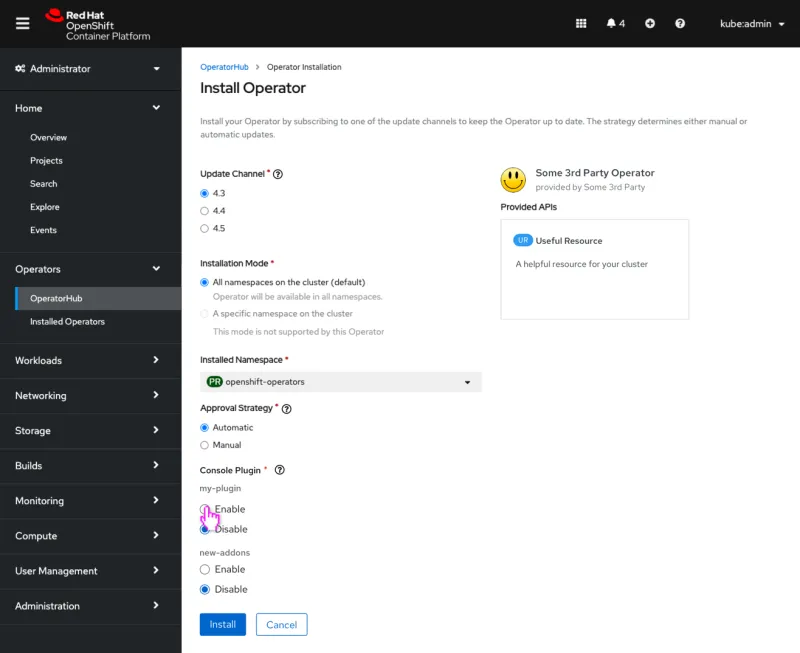
A new field, console plugin, appears on the operator installation form for operators that include dynamic plugin UIs. Trusted operators have their dynamic plugin UIs enabled by default, while untrusted operators disable their dynamic plugin UIs by default and surface an inline alert conveying implications when “enable” is selected.
Trusted Operators
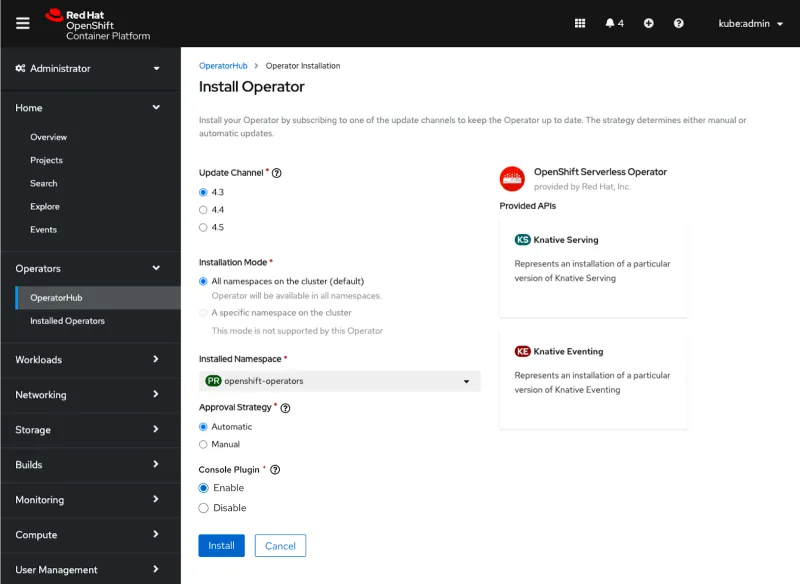
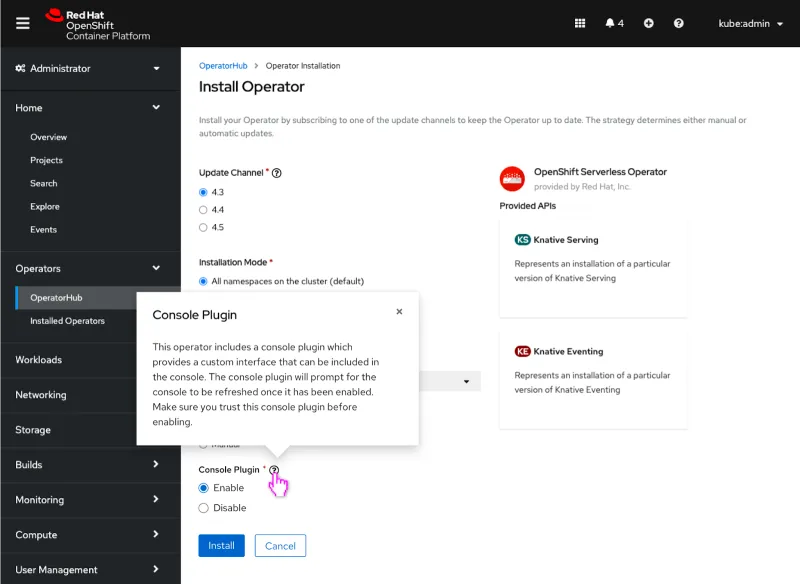
A note on “trusted”: Disconnected environments require all operator sources to be manually enabled, so they all (even Red Hat & certified operators) will appear as “untrusted”.
Untrusted Operators
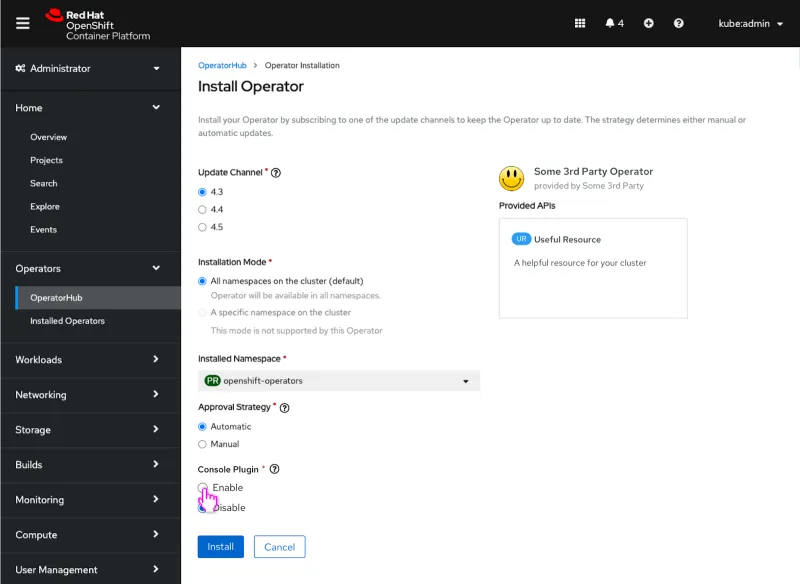
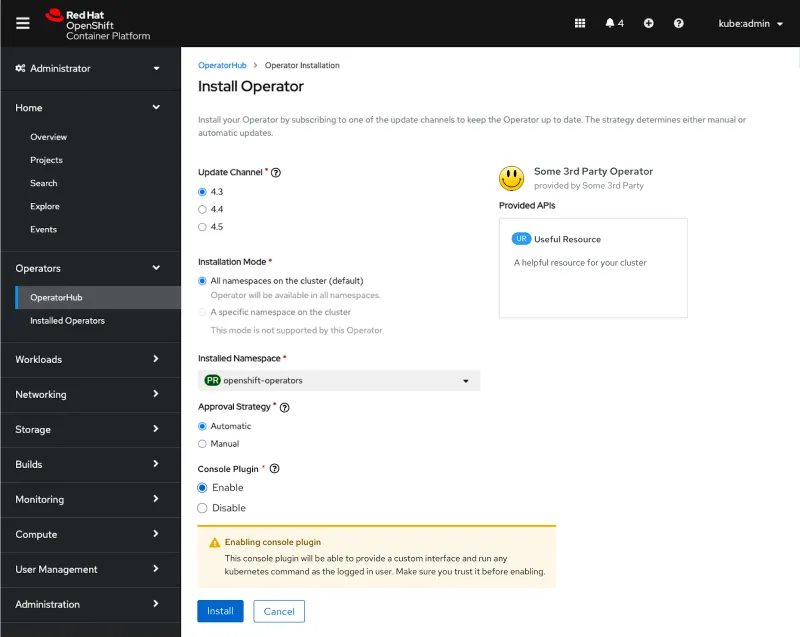
Enable and disable dynamic plugin UIs in corresponding operator details
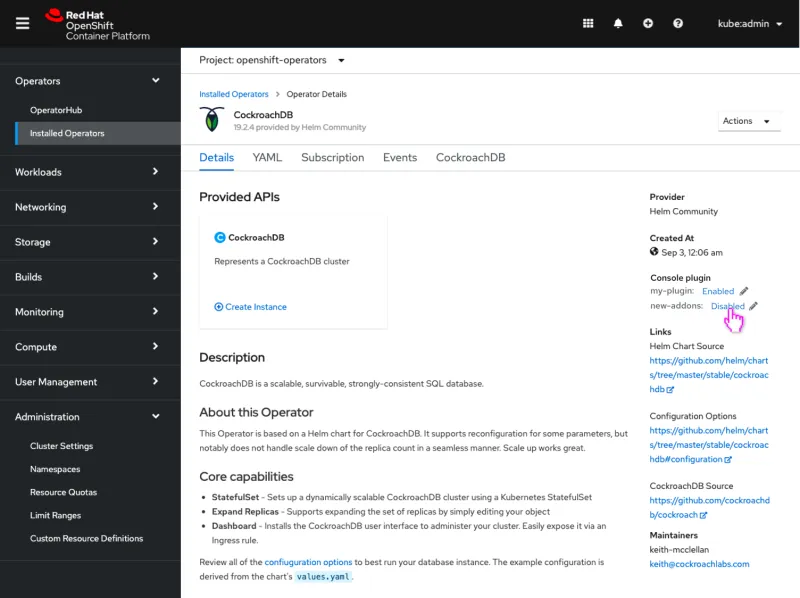
Operators with dynamic plugin UIs now include a console plugin setting on their details page to convey whether the corresponding dynamic plugin UI is enabled or disabled. Admins can enable and disable the console plugin here at any time by clicking on the field descriptor.
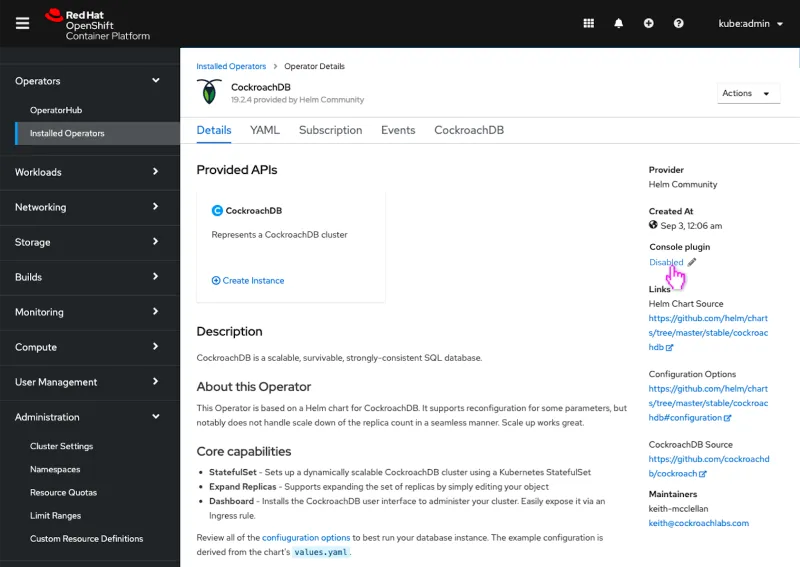
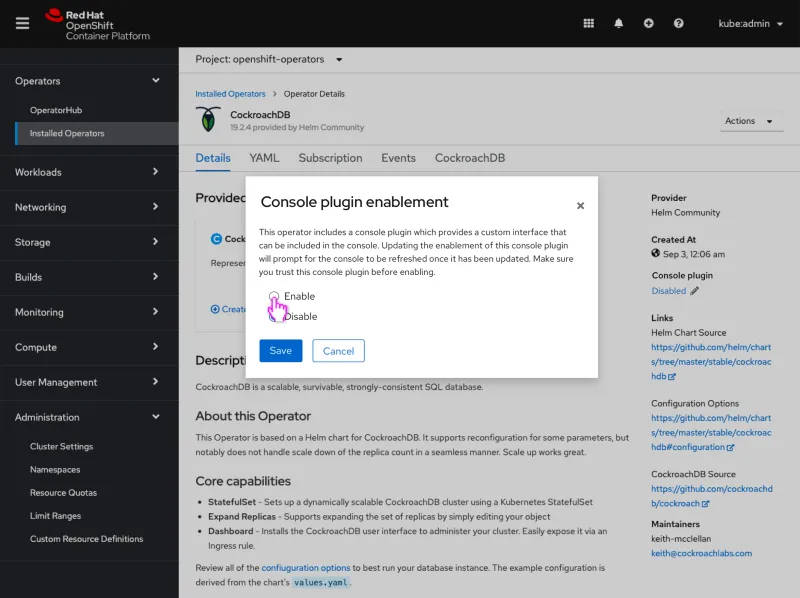
Note: the modal for untrusted operators would carry the same alert messaging as the operator install form above.
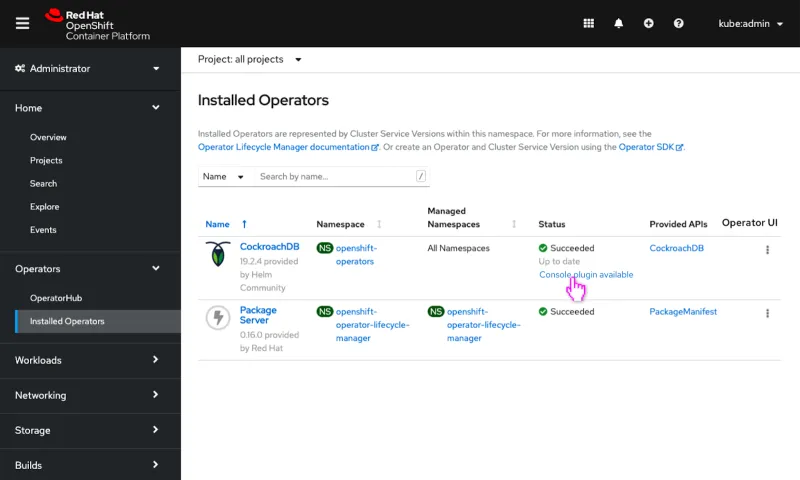
In addition to the operator details page, admins can also see if there is an associated console plugin available on the installed operators page. Clicking the Console plugin available link will navigate users to the details page to configure the plugin.
Enable and disable dynamic plugin UIs in cluster settings
Admins now have the ability to manage dynamic plugin UIs delivered by console operators in cluster settings. "In addition to enabling and disabling the console operator dynamic plugin UIs, users can monitor the UIs to see if they are operating as intended.
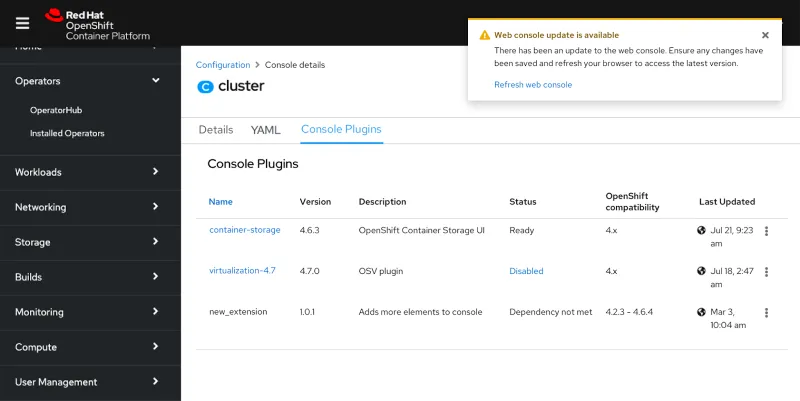
After enabling or disabling a dynamic plugin, we surface a toast notification to prompt users to refresh their console to reflect the updated UI setting.
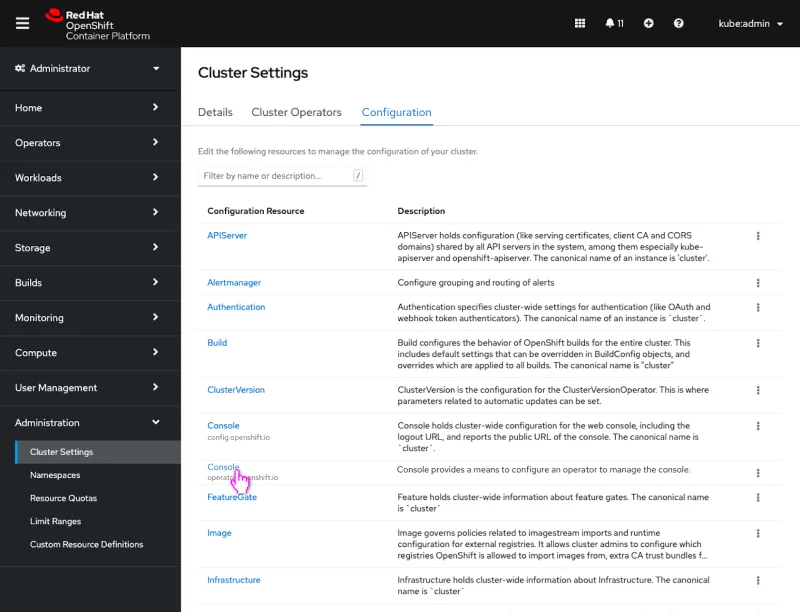
The enablement of dynamic plugins happens on the Console operator configuration resource, Console [operator.openshift.io/v1], and can now be accessed in Cluster Settings. Previously only global configuration resources Console [config.openshift.io/v1] were shown.
All operator config resources will now be shown in the Configuration tab, formally called Global Configuration. Any resources that have both an operator and global configuration version will have the API displayed beneath the resource.
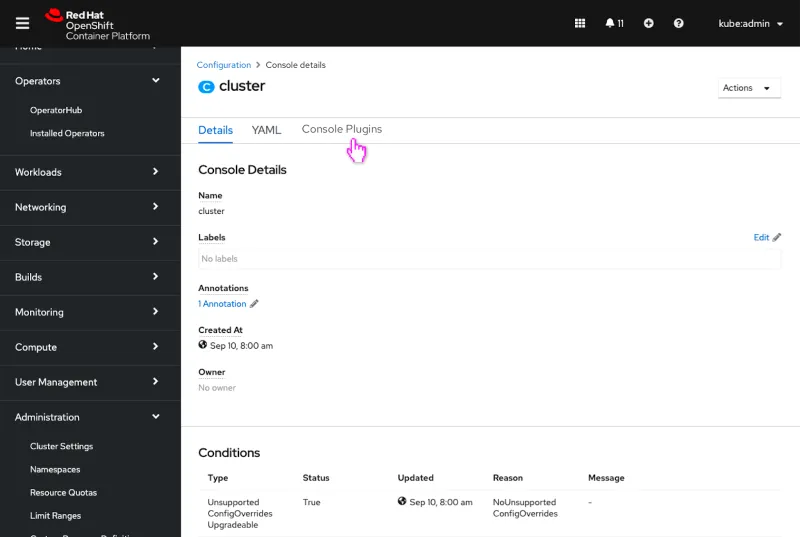
Clicking on a Console operator configuration resource will navigate users to the details and surface a new Console Plugins tab which displays the corresponding dynamic plugins.
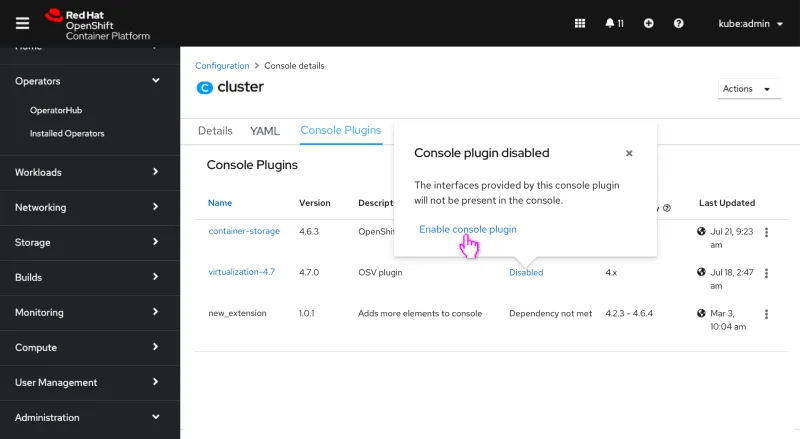
The Console Plugins tab lists out the various dynamic plugins on the cluster, including those associated with an operator and those that are not. The table includes the dynamic plugins’ name, version, description, status, versions of OpenShift it is compatible with in SemVer format, and when it was last updated. Admins can enable and disable functionality in the table or via the kabab menu at the end of each row.
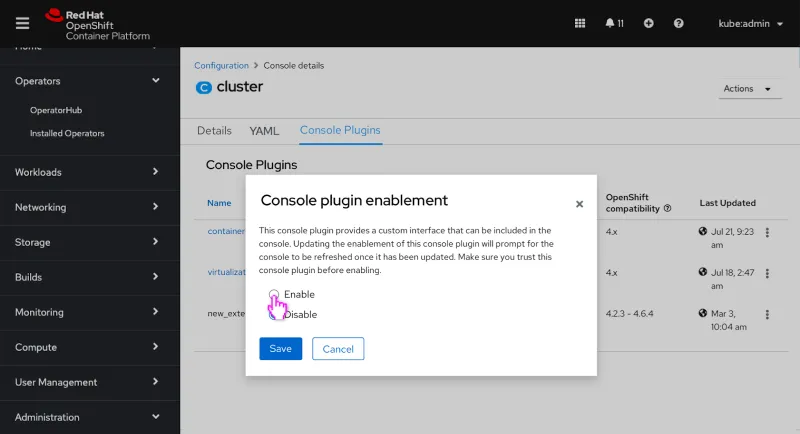
Upon enabling or disabling the plugin, the user can see the status change. Once the plugin enablement updates, any user with a console open will see a toast notification alerting them that their console has updated, and that they should refresh.
In the future, admins will be notified of dynamic plugins that fall out of the supported OpenShift version range at the time of a cluster upgrade.
Operators with multiple plugins
In rare cases, it’s possible that an operator may contribute multiple plugins. It’s unlikely to occur, but in the event that it does, the console UI supports enabling and disabling multiple plugins.
Connect with us
We’re always growing and evolving our improvements to OpenShift with a customer-first mindset. Be on the lookout for more enhancements in future releases. And don’t forget to sign up to participate in future research opportunities to share your OpenShift experiences.
Let us know your thoughts. We’d love to connect with users like you. Stay up to speed with the OpenShift design team on our OpenShift Design site, and be sure to catch us on the OpenShift Twitch channel.



