
Introducing SSH access with OpenShift
We’re on a continuous mission to enhance the Virtualization user experience in OpenShift, including expanding the customization options available for OpenShift users. As part of this effort, OpenShift Virtualization now includes a Secure Shell (SSH) access feature that provides a secure, passwordless way to gain access to a virtual machine (VM).
Let’s dive into how the new addition of SSH improves administrator and developer user experiences.
Adding SSH access to existing OpenShift Virtualization workflows
SSH access grants users like you quick and secure access to a virtual machine. In OpenShift 4.8, SSH access will be enabled in the virtual machine creation flow. You’ll be able to create a VM and inject authorized keys into it when you boot, and store suggested authorized SSH keys for creating future VMs.
As you create virtual machines, you’ll be escorted from step to step with relevant information on how to securely access your virtual machines by uploading authorized keys and enabling SSH access.
Creating a virtual machine with SSH access
In OpenShift 4.8, you have the choice to create a virtual machine from a template or from a guided virtual machine creation wizard. Both options allow you to enable SSH access for a more secure and easy login experience.
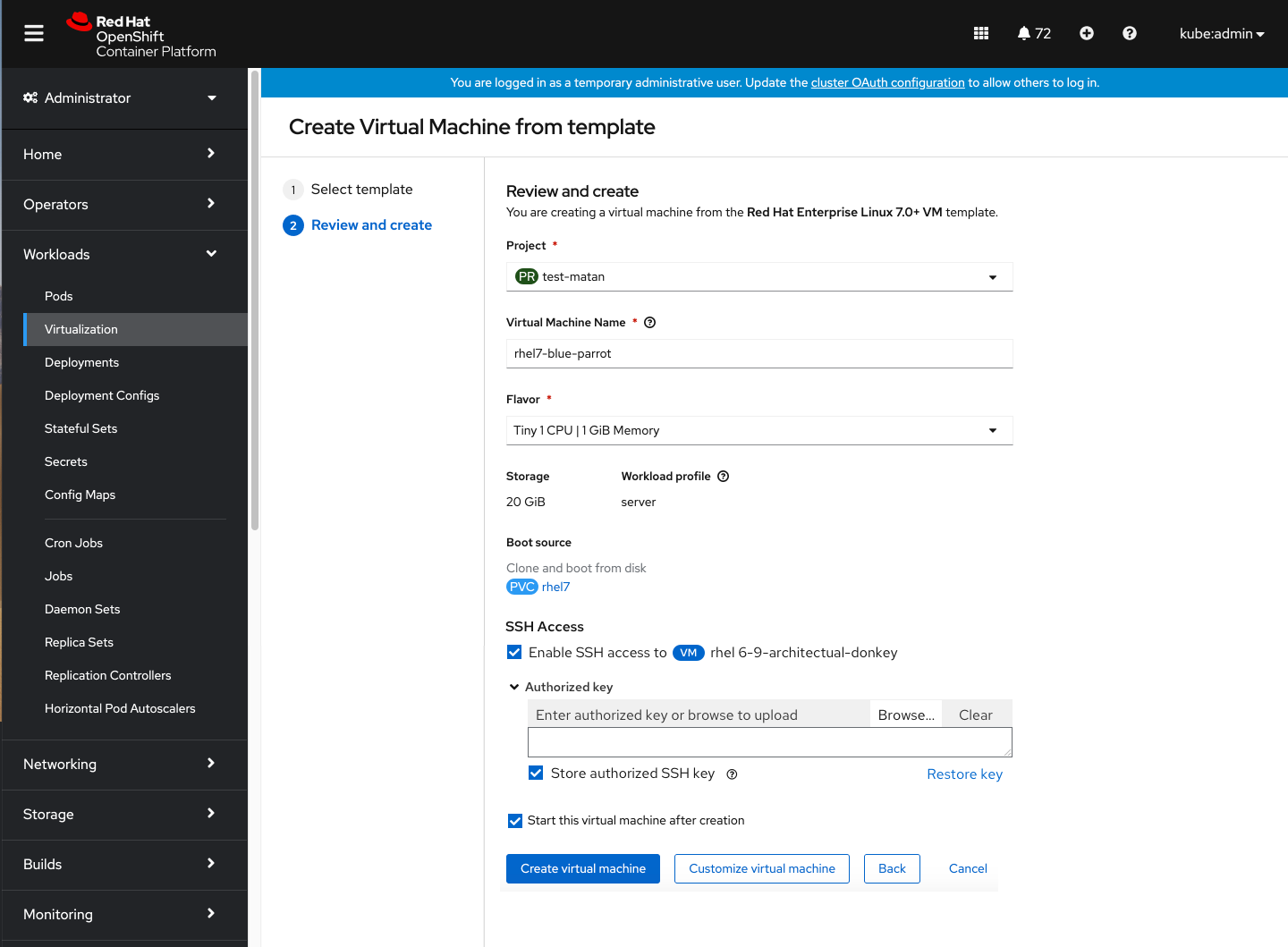
When you select a template to create a virtual machine from, SSH access will be added to the virtual machine by default and you’ll need to fill in the authorized key in order to enable it.
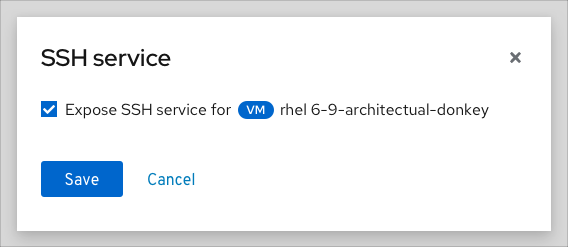
To enable SSH access for a virtual machine, check the “Enable SSH access” option in the SSH access modal.
Whenever the system detects that a user already stored an authorized key, it will pre-populate the Authorized key input with that existing data. If an authorized key is not detected, SSH access will still be enabled with a password — you won’t get blocked from continuing to create the virtual machine.
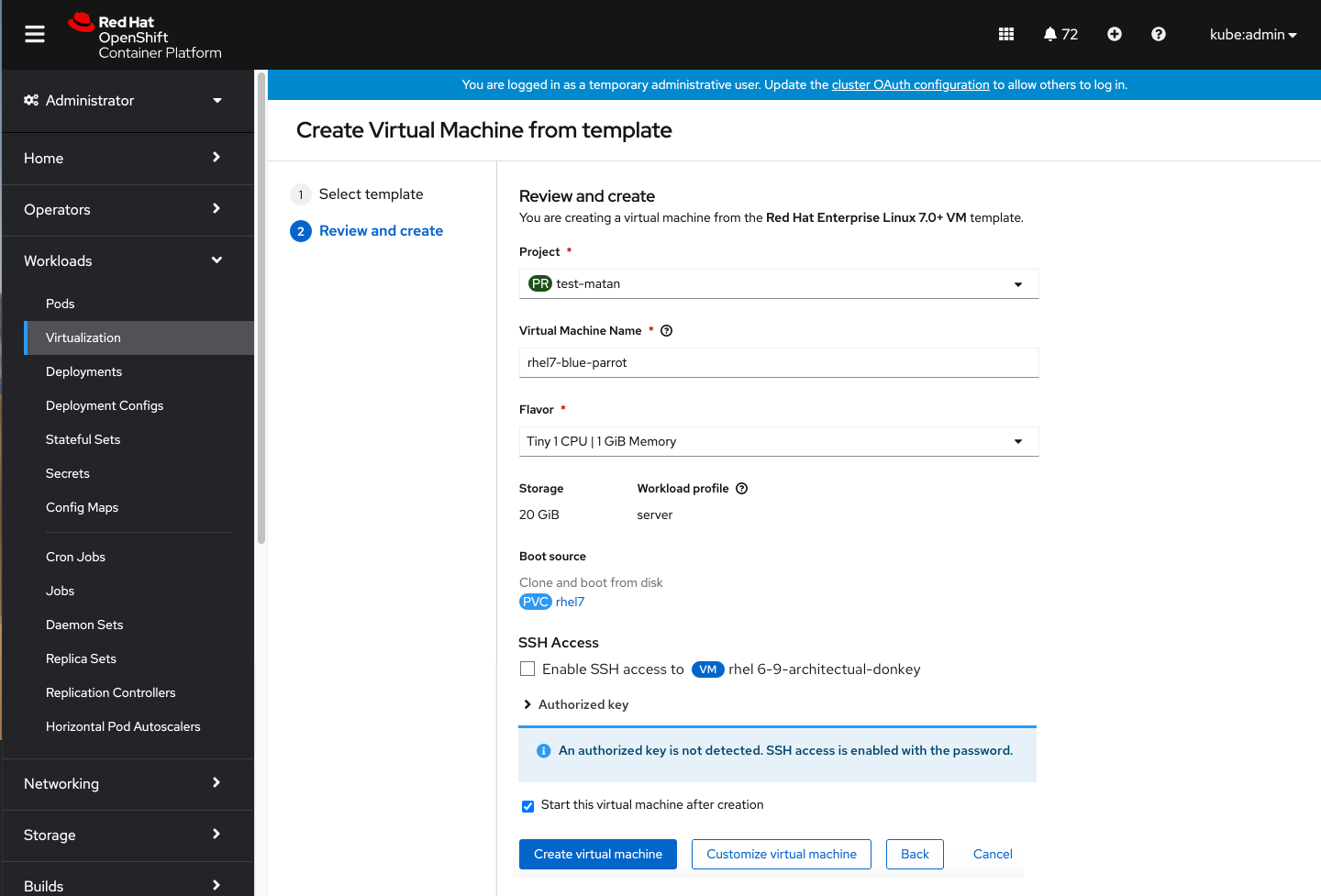
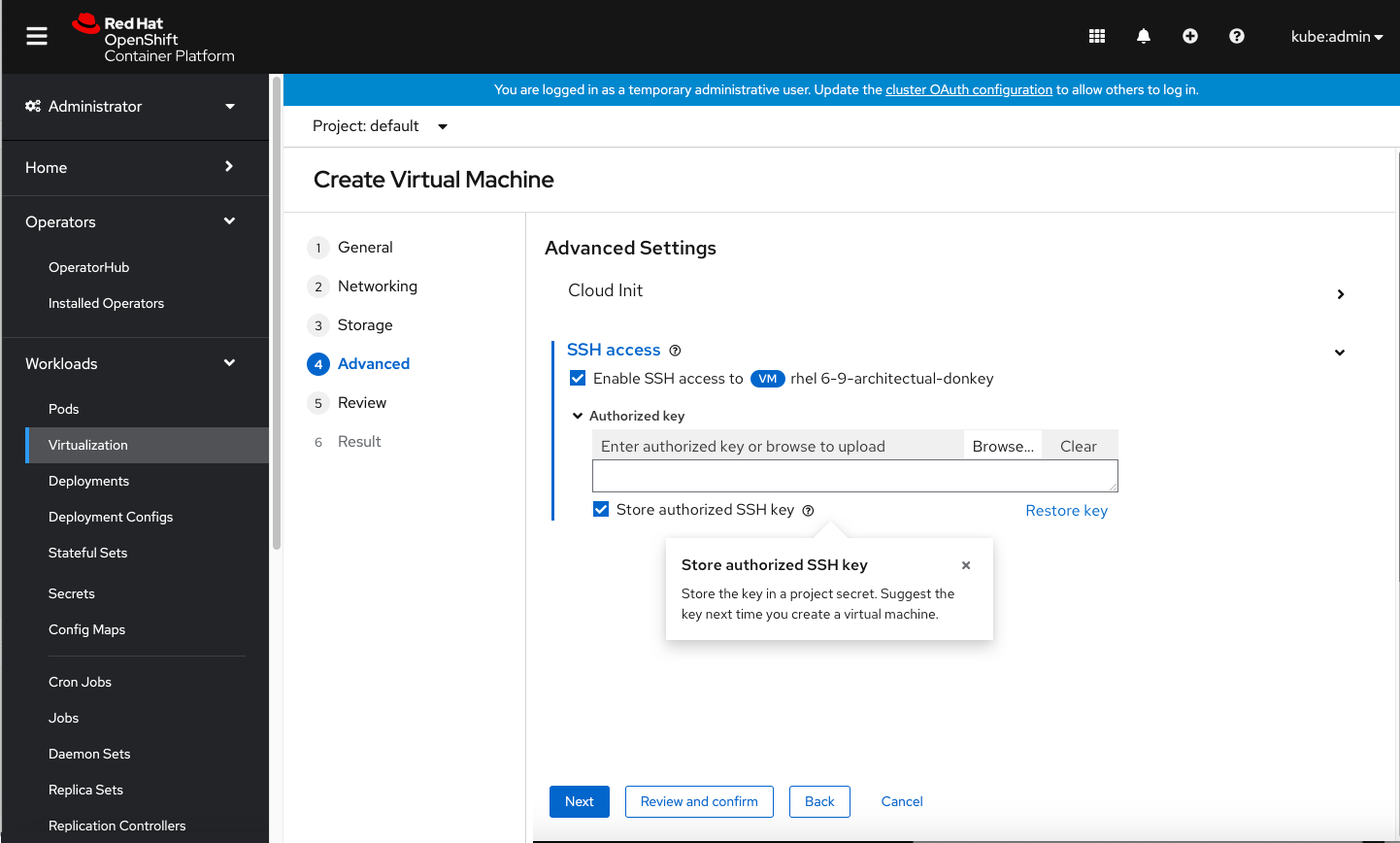
Check the Store authorized SSH key box to save an authorized key and have it suggested to you the next time you create a virtual machine.
Even though SSH access defaults to using the authorized key, you may choose to use a customized key for your specific VM.
If you select the option to store the authorized SSH key in a project secret, the system will suggest it the next time you create a virtual machine. If you initially edit the authorized key and later decide you’d like to use a stored one, click Restore key to restore the original stored key.
The last step to log into a virtual machine is to copy and paste the SSH command into the OpenShift console. In OpenShift 4.8, a Copy SSH command action will be added to the virtual machine’s kebab actions menu and to the virtual machine’s details page as well.

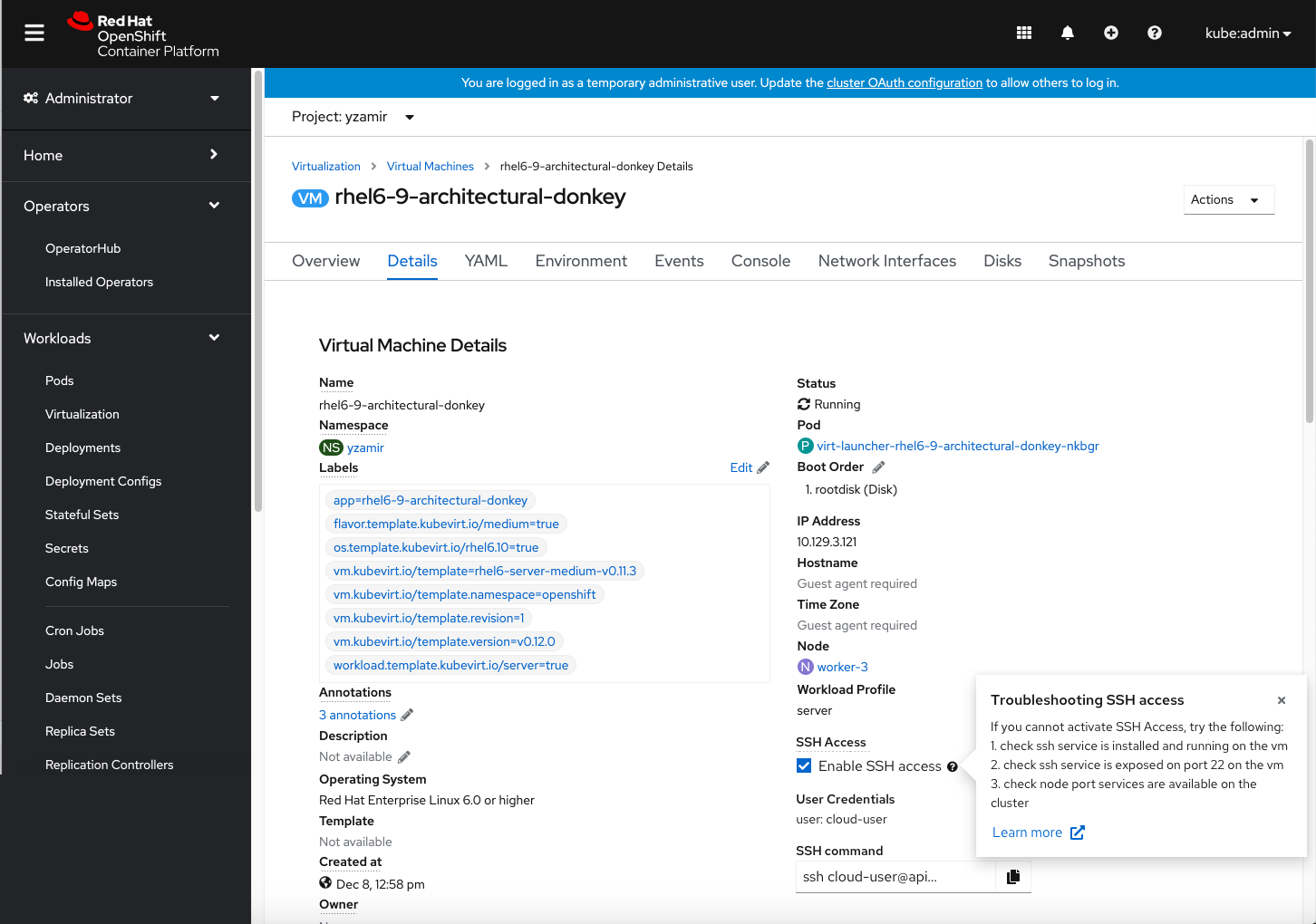
Virtual machine details page
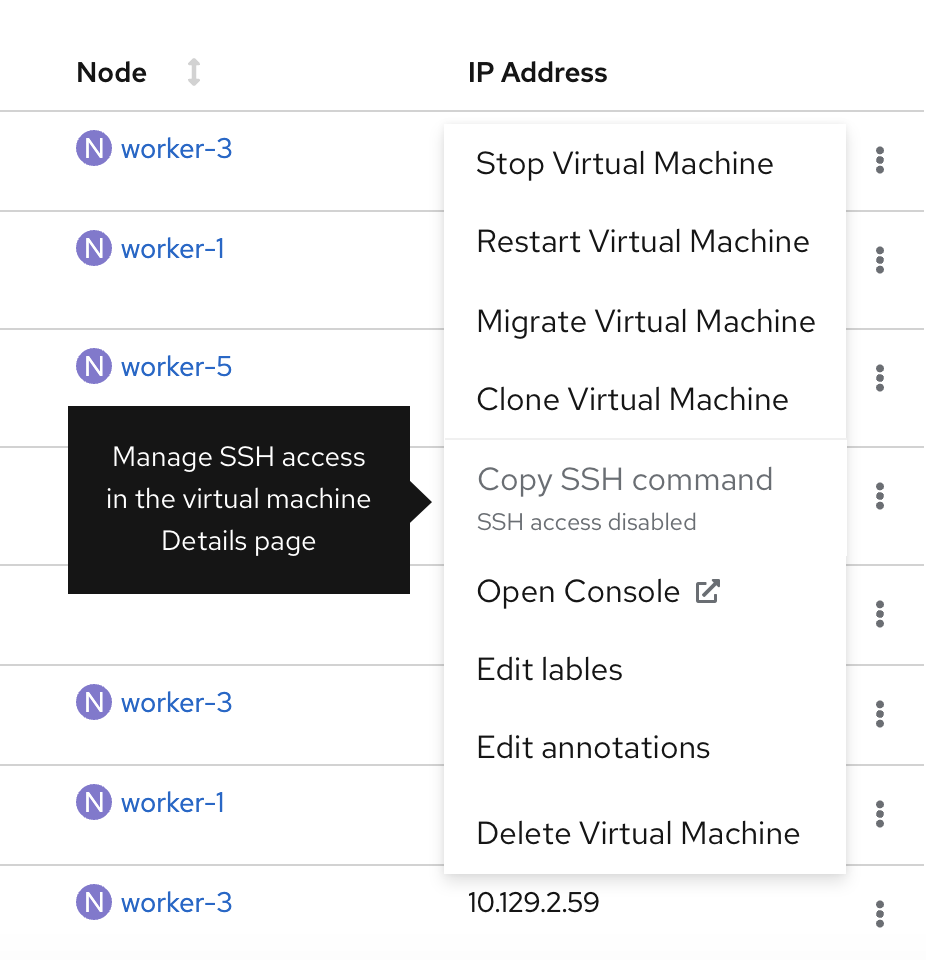
If you haven’t enabled SSH access yet, the Copy SSH command action will be disabled and a tooltip will surface to guide you to begin the setup process.
When SSH access is disabled, the authorized key can’t be shown, so you’ll be notified that SSH access is required.
What to expect in future releases
This is one step on our path toward creating stronger OpenShift Virtualization experiences. With the addition of SSH access in OpenShift 4.8, you can now bypass the CLI option, manage your user credentials via a form or custom script, and access a streamlined, passwordless, and secure way to access virtual machines in just a few clicks.
In future OpenShift versions, SSH access will evolve to enable you to:
- Dynamically inject authorized keys into virtual machines as you create them.
- Edit the YAML to add multiple SSH keys.
- Edit your SSH access and user credentials form the Virtual Machine Details page.
Help us shape the future of OpenShift Virtualization experiences
We challenge ourselves to continue to improveOpenShift Virtualization, and are actively looking for ways to further enhance your experiences in future releases.
But for that, we need you! If you’d like to participate in our user research or share your feedback with us, please reach out to uxdresearch@redhat.com
关于作者
Designing user experiences at Red Hat since 2018


