This post was originally written by Markus Eisele in his blog: http://blog.eisele.net/2015/10/quick-tip-running-wildfly-docker-image-on-openshift-origin.html
On to a new week. There's been plenty of travel for me recently, and it don't stop soon. But I have some time to try out OpenShift Origin and run it on my Windows environment. There is an entry level blog-post how to setup everything from a couple of days ago. Now it was about time to just run a vanilla Docker image on it.
Prerequisites
Get your Origin installation up and running. And make sure to also install the OpenShift binaries locally. The OpenShift team released the all in one vm on a separate, developer friendly and good looking website a couple of days after my post. So, all you need to remember is this address: http://www.openshift.org/vm/
Get your OpenShift Environment Up
This is a single vagrant up command. If that succeeded, you should be able to access the local admin-console via your browser at http://localhost:8443/ and also login with the client tools from the command line:
oc login http://localhost:8443
Use admin/admin as username/password.
Create A Project And Run WildFly
First thing to do is to create a new OpenShift project. We want to separate this a bit from the default. At the end, think of it as a namespace in which we can just play around a bit:
oc new-project wildfly-tests --description="WildFly and Docker on OpenShift v3" --display-name="WildFly Test Project"
OpenShift doesn't directly expose a Docker daemon. So, you need to use the oc command line tool to run an image. There are some (unsupported) JBoss community images available and listed on http://www.jboss.org/docker/. I am interested in running latest WildFly 9 for this test.
oc new-app --docker-image=jboss/wildfly
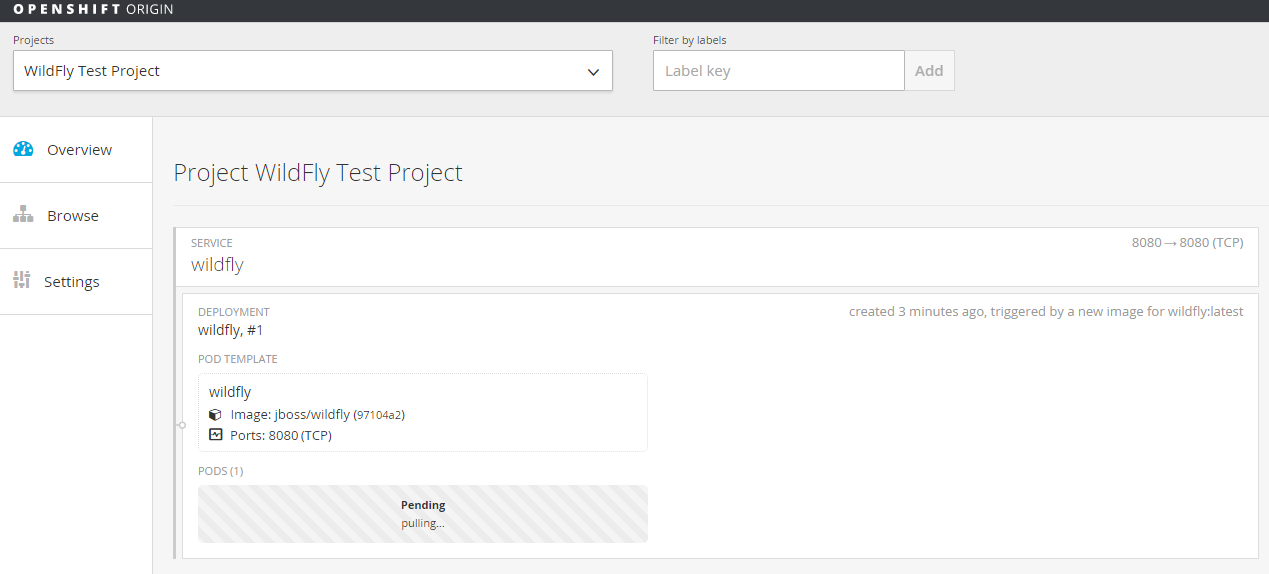
If you watch the web-console, you will see, that a deployment is running and the Docker image get's pulled.

Depending on your connection, this might take some time. But when it's finished, you will see a green bar that states "Running" and also shows an IP-address. Let's see, if everything went well and the WildFly instance is up and running. We do need to see the logs for our pod. Let's list them:
oc get pods

NAME READY STATUS RESTARTS AGE

wildfly-1-jzvsj 1/1 Running 0 11m
and see the logs:
oc logs wildfly-1-jzvsj
Note, that the pod name will most likely be different in your environment. The command should output the WildFly logs as you are used to them. For now, we have a pod running. Now we need to expose this pod's port via a service to the external world. But first of all we need to decide, via which domain-name we want to expose it. Add/change your hosts file with the following entry:
127.0.0.1 wildfly.openshiftdev.local
And execute the following command to add an external route to the service:
oc expose service wildfly --hostname=wildfly.openshiftdev.local
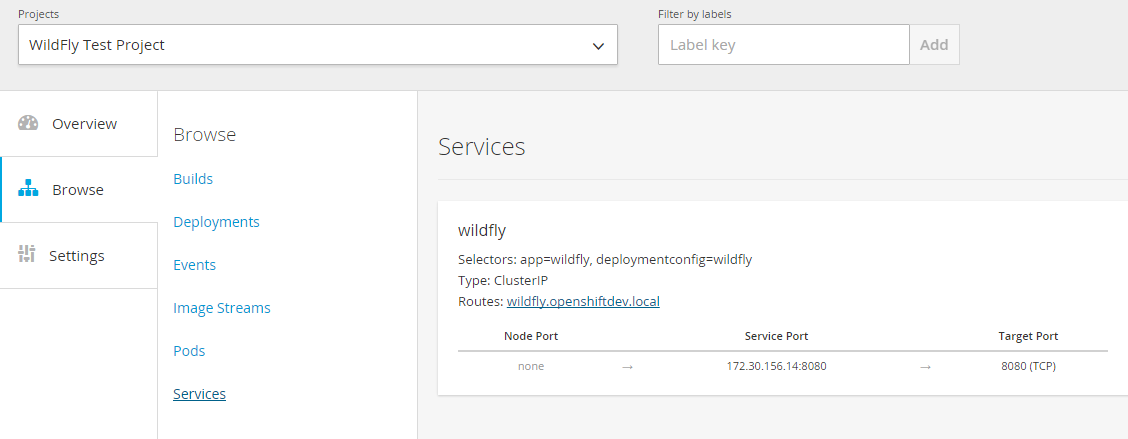
Browse to the services tab in the console and see, that the route was created for the service.
The only thing left to do now is to change the port-forwarding rules in the VirtualBox console. Add the port 80 from the host to the guest.
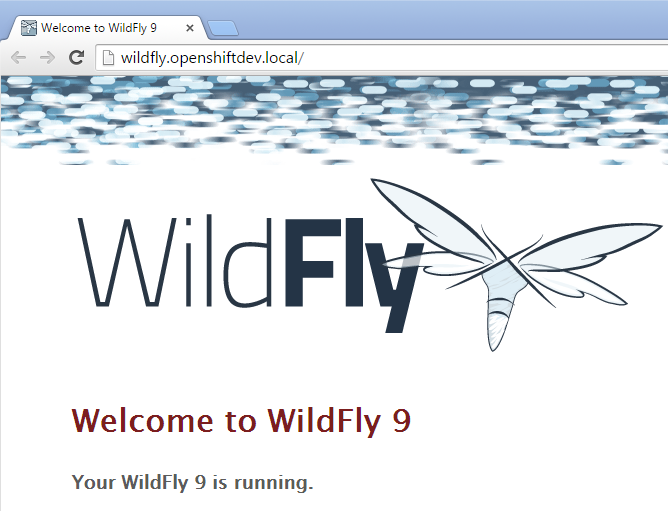
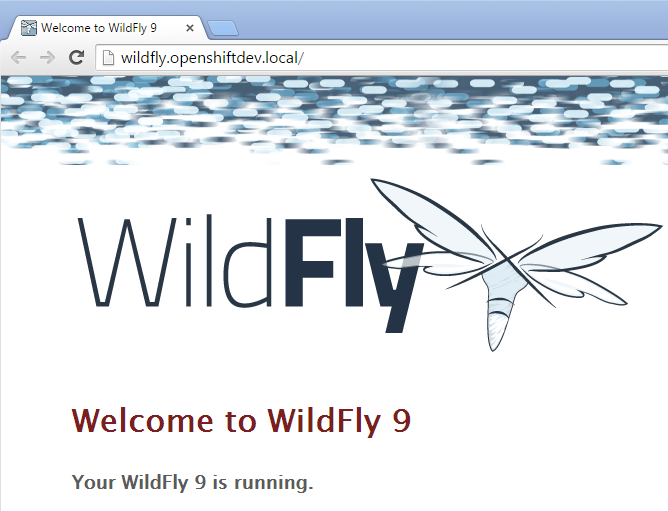
Now you can access the WildFly instance via http://wildfly.openshiftdev.local/. Congratulations!
Trouble Shooting
If you're running anything else than the all-in-on-vm, for example the fabric8 vagrant image, you will need to change the security settings in OpenShift. Ssh into the instance, login via the oc command line and edit the security settings:
oc edit scc restricted
Change the runAsUser.Type strategy to RunAsAny. This allows images to run as the root UID if no USER is specified in the Dockerfile.
Author
Markus Eisele
Developer Advocate
JBoss Middleware at Red Hat
@myfear
http://blog.eisele.net/
关于作者
Markus Eisele is a Red Hat Developer Tools Marketing Lead at Red Hat. He is also a JavaTM Champion, former Java EE Expert Group member, founder of German JavaLand and a speaker at Java conferences around the world.