In the 1980s, the popular DOS file manager Norton Commander demonstrated how to manage files graphically without a graphical toolkit. As a Linux user, you might be accustomed to managing files in a terminal, but there's a difference between the feeling of typing in commands to browse files and the act of navigating a filesystem.
[ Learn how to manage your Linux environment for success. ]
If you want the experience of "walking" through your filesystem but don't want to leave the comfort of your terminal, you may enjoy the open source file manager Midnight Commander (that's the mc command).
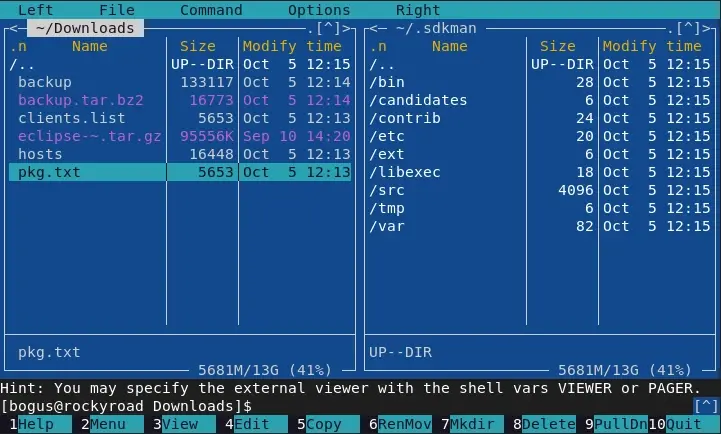
The mc file manager uses the ncurses libraries to create a graphical interface within a terminal window. That means it responds to both mouse clicks and keyboard control, making it ideal for use on your local computer and remote machines.
[ Get the guide to installing applications on Linux. ]
Install mc
To install mc, use your package manager:
$ sudo dnf install mc
Essential keyboard commands
The design of mc emphasizes efficiency. Most file management tasks involve a source location and a destination, so it makes sense that your file manager has a persistent view of one location where your files are now and another location where you want your files to be. If you try it for a while, you may wonder why this isn't the default configuration of every file manager (especially considering how much wasted horizontal space there often is in the typical file listing).
Here's all you need to know to get started:
- Tab: Switch between panels.
- Arrows: Use Up and Down to select, Left to go back, and Right to change to the selected directory.
- Function keys: Like GNU Nano, all the most important functions are listed at the bottom of your terminal window. Unlike GNU Nano, each function is assigned to a Function key (F1 to F10.)
- Ctrl+O: Toggle between
mcand a full terminal. Note that it's Ctrl and the letter "o" not the digit "zero."
Use mc
Launch mc from a terminal:
$ mc
Your terminal is now the Midnight Commander interface; by default, it lists the contents of your current directory.
Open a file
Your Linux desktop uses XDG settings to determine the default applications for specific MIME types. For most file types, mc inherits these preferences, so press Return to open a file in its default application.
Text files are a significant exception to this rule. Because mc features an internal text editor, it expects you to use it to view and edit text. It's easy to access with F4, but it might not be your preferred editor. To cause mc to defer to your EDITOR or VISUAL setting, press F9 to enter the menu bar. Navigate to the Options and select Configuration.

In the Configuration panel, disable the Use internal edit option. Press the OK button to save your changes.
Now when you press F4 to edit a text file, mc uses your EDITOR or VISUAL settings are used.
Run an arbitrary command
Should you need to open a file in something other than its default application or to run a specific command on your selection, press F2. From the menu that appears, select Do something on the current file (or just press @) and type in the command you want to run.
[ Keep your most commonly used commands handy with the Linux commands cheat sheet. ]
Copy or move a file
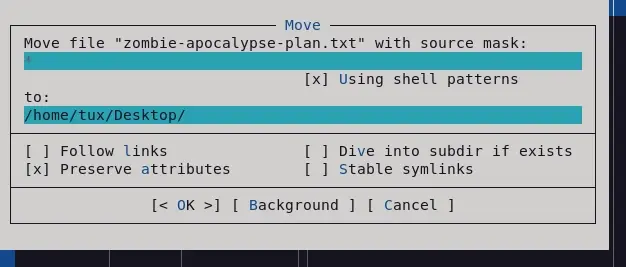
To copy or move a file, select it from the file list and press the F5 key. By default, mc prompts you to copy (or move) your active selection from its current location to the location shown in the non-active panel. The interface provides a dialog box, so you can manually enter either the source or the destination if you change your mind after starting the operation.
For instance, to move the file zombie-apocalypse-plan.txt from your Documents directory into your Desktop folder:
- Navigate to your Desktop folder.
- Press Tab to switch panels, and select the
zombie-apocalypse-plan.txtfile in the file list. - Press F6 to start the move action.
Alternatively, you could select the file, press F6, and then manually type in your desired destination.
Select files
Your current position in a file list is your current selection.
To select more than one file at a time, press the Shift key and move your selection up or down the files you want to include in your selection. Selected items are indicated in a different color from the other files listed. What color mc uses depends on your color scheme.
Deselect a file or files using the same technique.
Use the menu
There's a menu bar and a contextual menu in the mc interface. Press F9 to enter the top menu, use the Left and Right arrow keys to navigate between each menu, and use the Up and Down arrow keys to select a menu item. From the File menu, you can create symlinks, change file modes and permissions, create new directories, and more.
Press F2 to see a contextual menu for your current selection. This menu allows you to view or create compressed archives, concatenate files, view man and info pages, copy files to a remote host, and more.
Cancel an action
Use the Esc key when you find yourself backed into a corner and need a panic button.
[ Cheat sheet: Get a list of Linux utilities and commands for managing servers and networks. ]
Enjoy a graphical terminal
With mc, you don't need to VNC into a remote host for a graphical file manager interface. You can do everything from your terminal but still feel like you're getting the GUI experience.
关于作者

Seth Kenlon is a Linux geek, open source enthusiast, free culture advocate, and tabletop gamer. Between gigs in the film industry and the tech industry (not necessarily exclusive of one another), he likes to design games and hack on code (also not necessarily exclusive of one another).


