Welcome to another entry in the Getting Started Series! In our previous post, we covered how to get started with Ansible and Windows.
In this post we’re going to discuss how you can launch automatically generated playbooks to correct compliance, security and patching issues found in your inventory by Red Hat Insights. To start off, let’s do a brief overview of the magic sauce that is Insights.
What is Insights?
Red Hat Insights is a predictive IT risk analytics tool that helps enable users to proactively identify, prioritize, and resolve vulnerabilities in their environments before business operations are affected. It does this by evaluating select files on a system, getting smarter and better at predicting outcomes with each piece of information it takes in.
Insights conducts an in-depth analysis of customers’ IT infrastructure and compares this information against Red Hat’s constantly expanding knowledge base to identify key risks and vulnerabilities. If a susceptibility or risk is found, Insights has the ability to generate a playbook for most critical problems detected, which can then be used in Ansible Tower to resolve any issues.
Ansible and Insights?
So if Insights makes Ansible Playbooks...how do you use them in Ansible Tower? Simple. You just plug it in through a project and a template!
This integration feature between Insights and Ansible Tower works because Ansible Tower treats Insights like a Source Control Manager (SCM) where Ansible playbooks are stored. In order to use these playbooks with Ansible Tower, all you need to do is create a Project with your Insights instance.
So… How Do You Actually Do It?
Insights has built some playbooks for you to use, and now you want to use Ansible Tower to deploy those playbooks to make the necessary changes quickly. But how do you do that?
First, we need to configure the Insights credentials inside of Ansible Tower. These are the credentials you use to log into the Insights portal account. The screenshot shows the selection of the correct credential type:

Next, we need a project to log in to the Insights account using the credentials that were created in the previous step. Check out our documentation page for instructions on how do do this (in the example images below, you'll see that we called our project "SKO Demo Insights Project"). Once that's done, the project automatically syncs with the portal. You can also sync it manually at any time by clicking on the button.
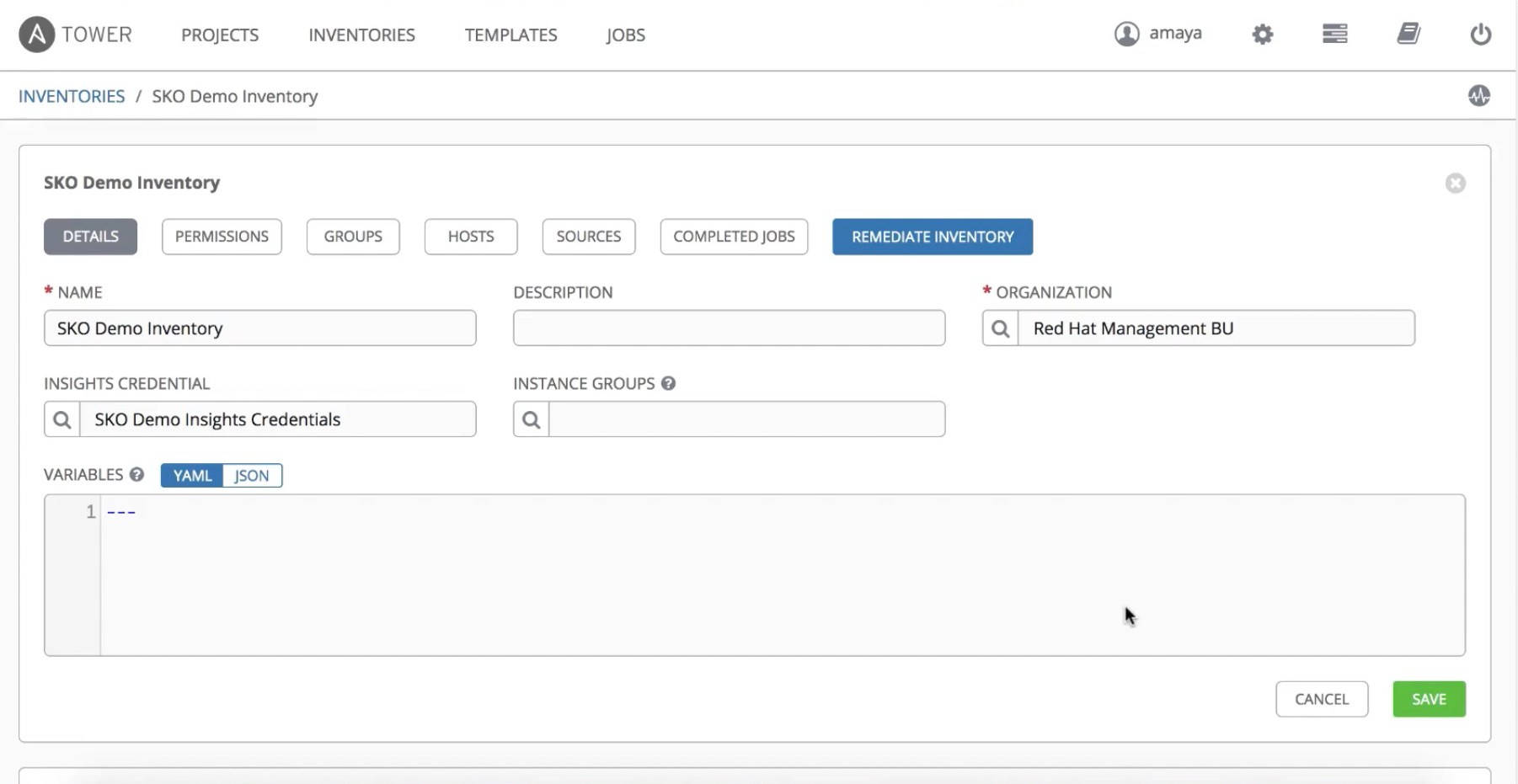
Now we need to put together an inventory created from all of the machines in our Insights portal. The screenshot below shows the Insights inventory “SKO Demo Inventory”:
Now we can generate a Scan Project, which we’ll do by using a playbook, since once we create a Template with that playbook, we’ll be able to execute it.
Create this new project (in this blog post tutorial we've named it "SKO Demo Scan Project") under the Projects section and make sure to put in the GitHub link as a source for the fact-scanning playbook.
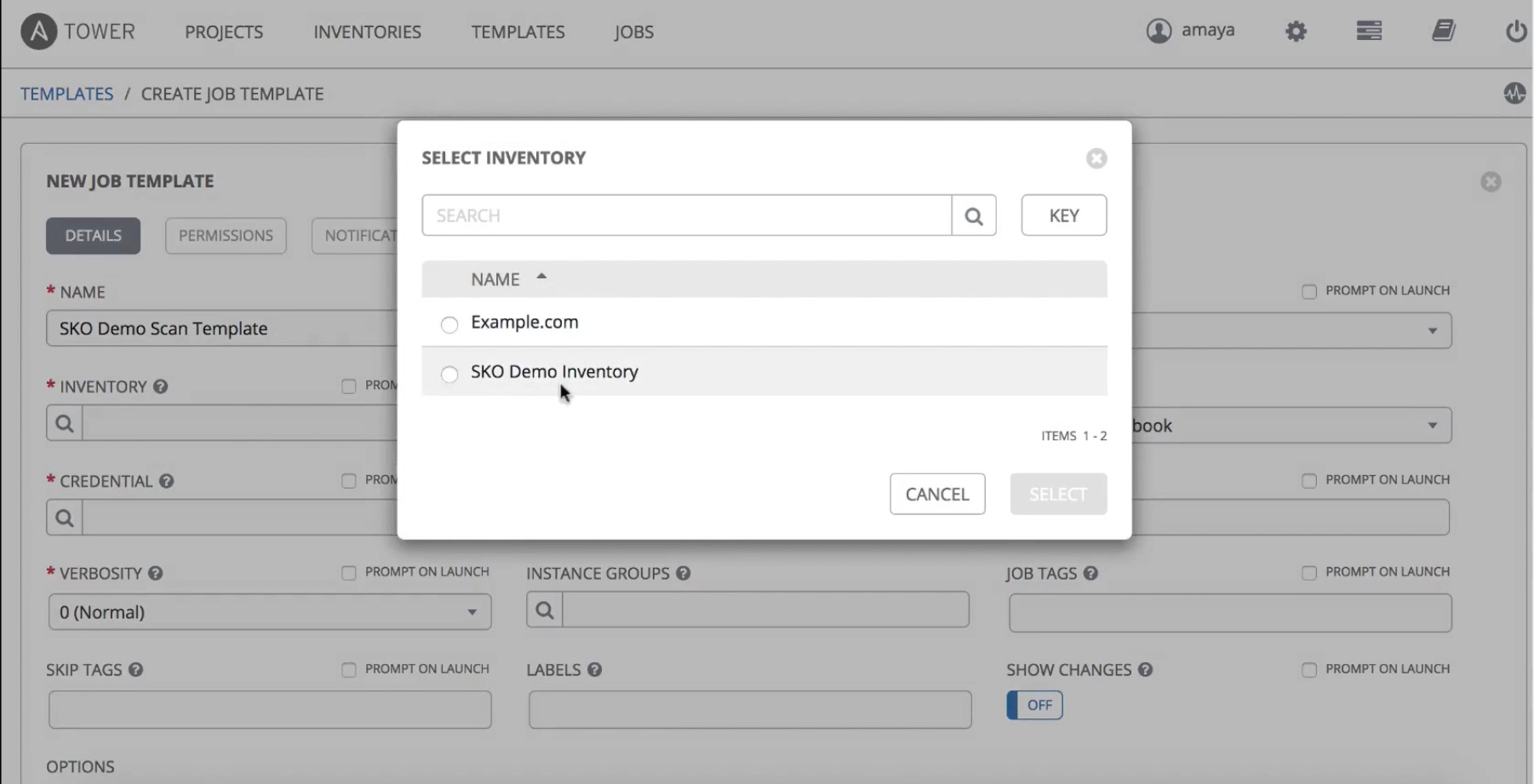
Next, we’ll go into the Templates section and input our previously created Inventory:
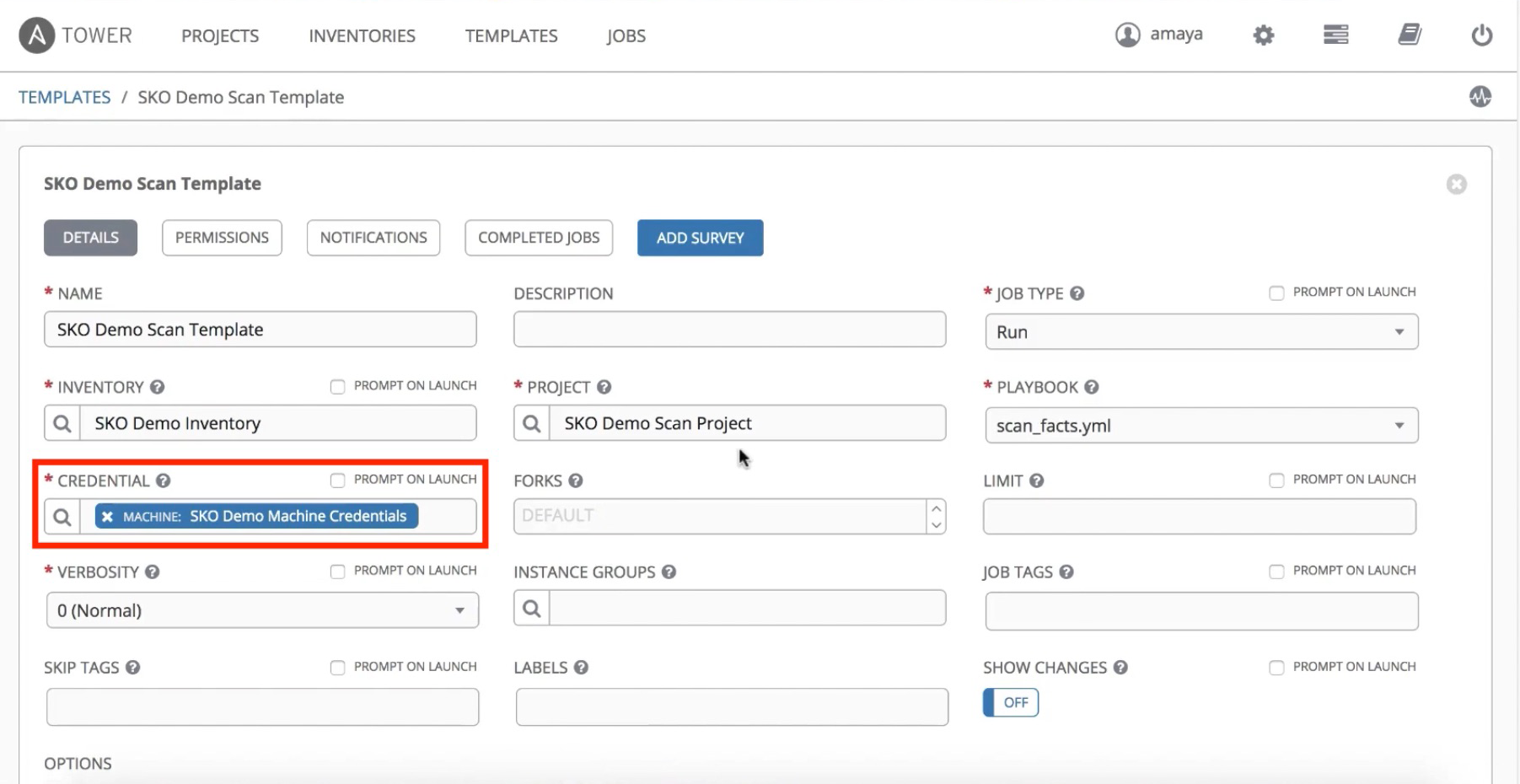
The screenshot below shows what it looks like when you input the previously-created project into the Add Template screen:

Now we can select the playbook:

We’ll also add the machine credentials (in this case SSH) for logging into the machines:
After all of that is filled out, you just need to execute the Job Template by clicking on the launch icon:
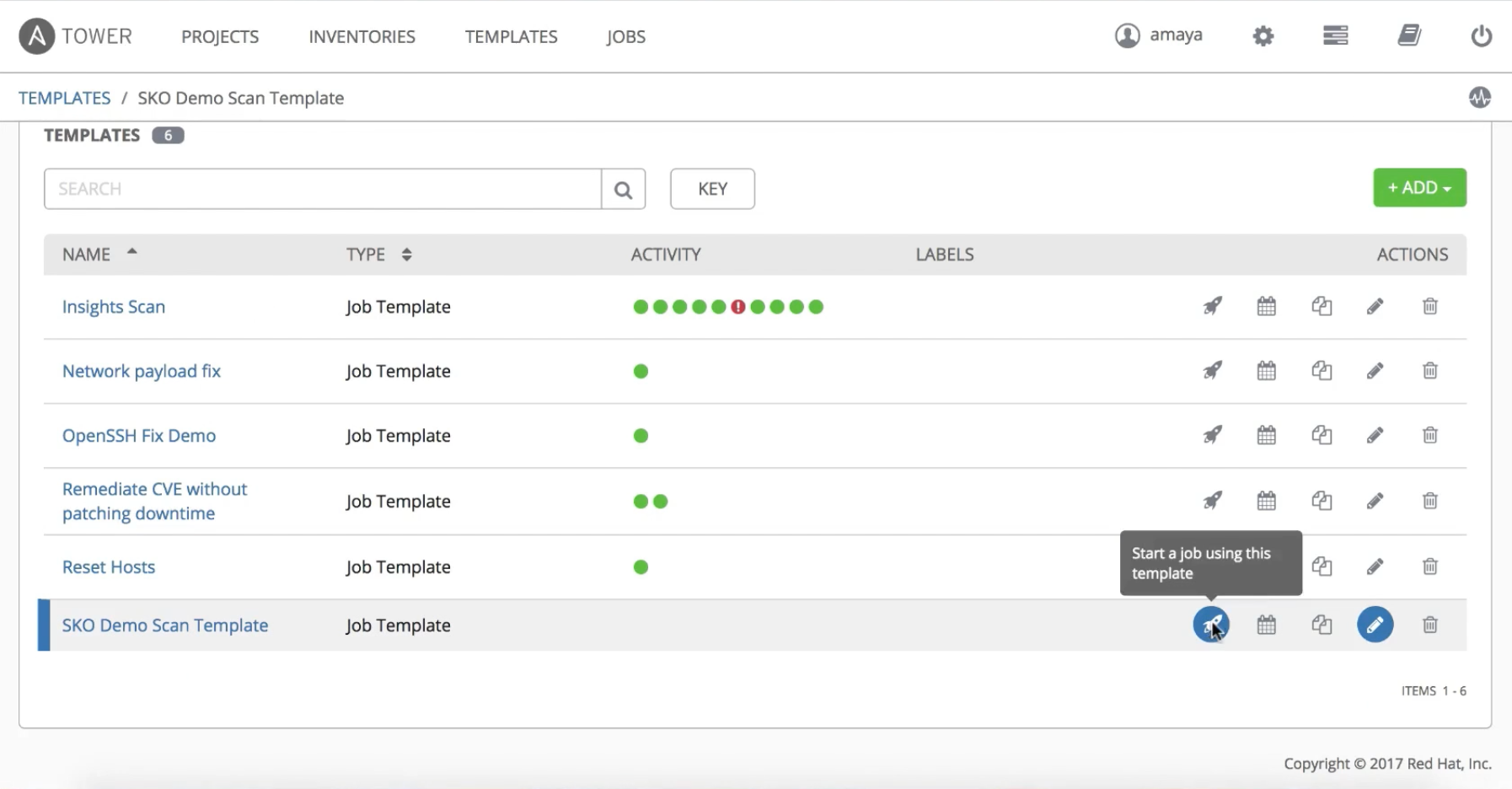
On a successful run, an output like this will show up:

Now if you go into the Inventory screen and look at the specific machines that you ran the playbooks against:

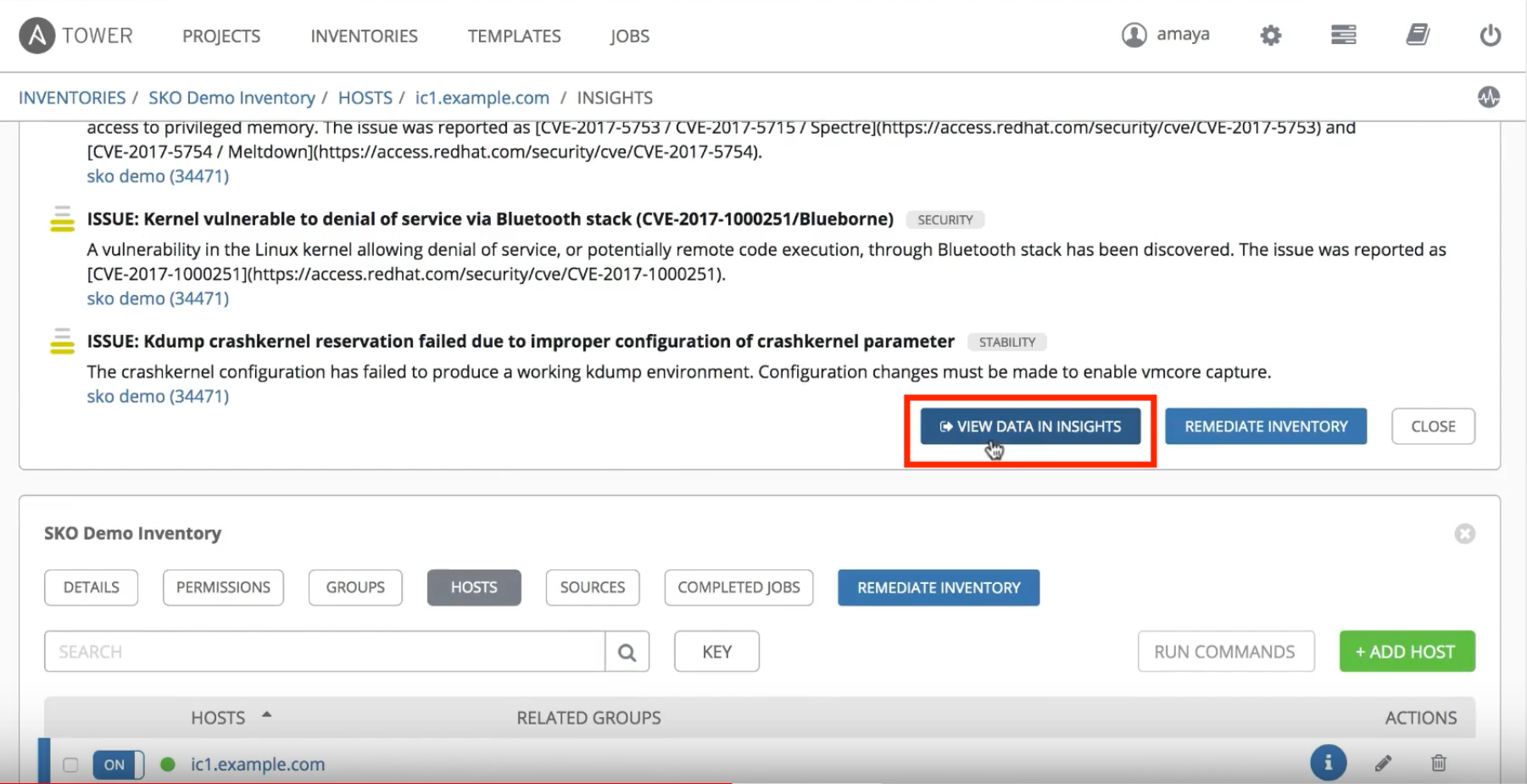
...you’ll be able to click on the Insights button to bring up risk/vulnerability information for that particular host:

From that screen you can even click on “View Data in Insights” to see the information in the Insights customer portal, so you can select whichever format you are most comfortable with.
How to Fix Issues
If problems were found, how do you resolve them? Easy! Just go into your Insights Customer Portal, navigate to the Planner tab and select the “Create a plan” option:
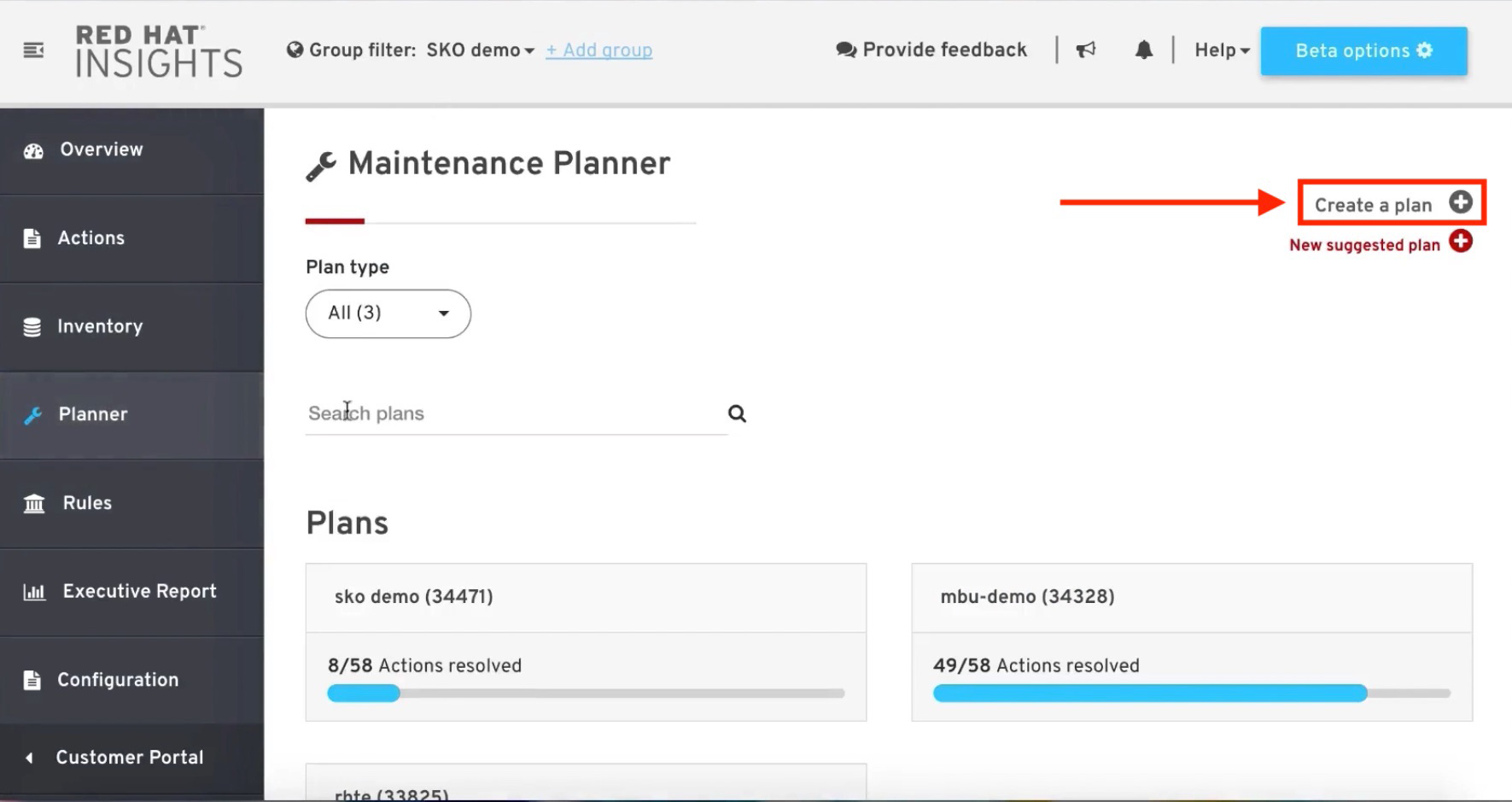
Make sure you name your new plan, then select the issues and systems to fix within it. You’ll be able to see the different problems and risk levels at-a-glance; Insights gives you a variety of solutions for a given issue, so you’ll need to choose the ones that suit your needs best:

Now go back into your Ansible Tower interface in order to create a remediation project and a template, either from scratch or with the “Remediate Inventory” button. You can find this option on the screen that you previously saw on Ansible Tower when checking out risk/vulnerability information for specific hosts:
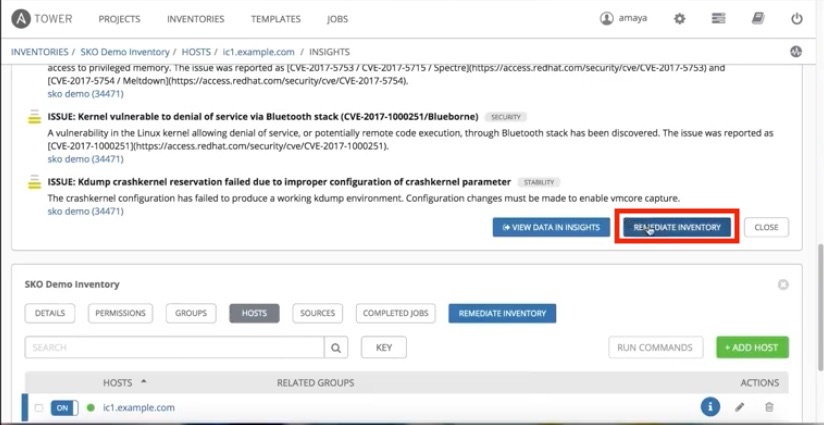
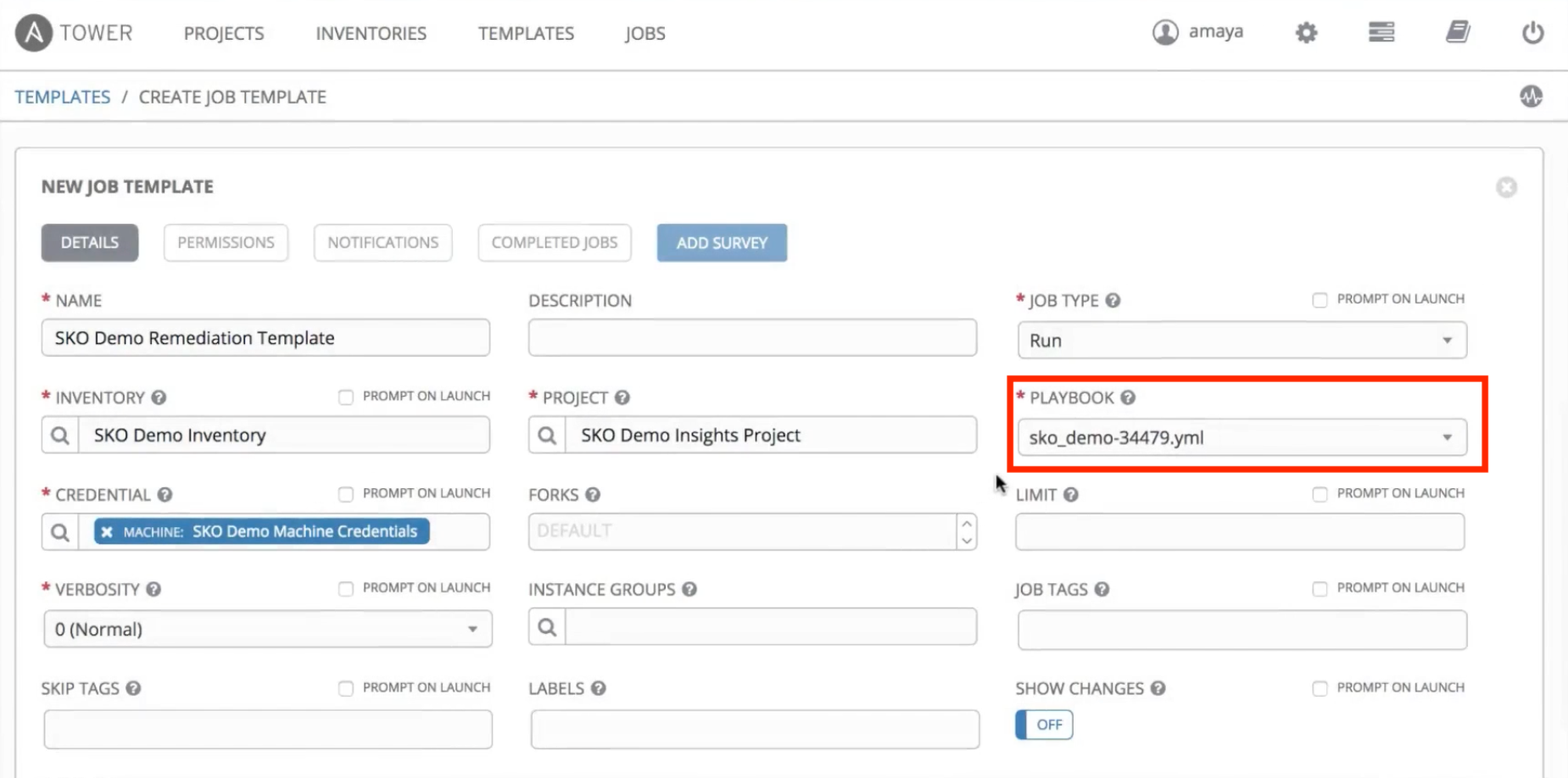
This option is recommended, since it fills part of the Ansible Tower Template for you. Make sure that you name this template differently from the one you previously created, and select the appropriate playbook and the correct credentials (the same one that was selected previously):
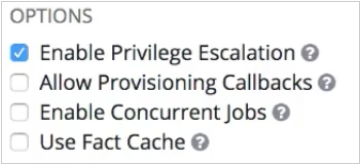
Make sure you select “Enable Escalation” at the bottom of your Template screen in order to perform some of the actions:
Once everything is completed, you can launch that Template by clicking on the icon as before. Please note, some machines will need to reboot depending on what issues were found.
After the successful output completes, you’ll see that Red Hat Insights shows no high-critical vulnerabilities in your machines. You’ll only see the issues that can’t be resolved using a playbook (they will able to be fixed manually):

To Conclude
Now you know how to utilize Red Hat Insights to correct any issues found within your Ansible Tower inventory by using Ansible Playbooks to automate remediation tasks!
We hope you found this information helpful. To dive deeper into what makes Red Hat Insights a great security and compliance tool, be sure to check out their blog.
We'd also like to mention another member of our Getting Started team, Jake Jackson, helped in crafting this blog post.
As always, happy automating!
关于作者