
Each release of Red Hat OpenShift’s web console UI comes with a variety of new capabilities to explore. In OpenShift 4.6, we’re introducing quick starts, a brand new and exciting way to discover and get started using some of these new key services and features. Read on to learn more about what quick starts are and how they can help you get up and running in OpenShift!
Quick start basics
A quick start is like a guided tutorial. Users can follow a series of tasks in order to achieve a particular goal. In 4.6, both administrators and developers can find quick starts by going to the help menu and clicking Quick Starts. Administrators can also access quick starts from the Overview page, while developers can find them from the +Add page.
Quick starts are shown to you based on your role. A quick start that helps you install and set up an Operator will surface for you if you have Operator installation privileges. This role-based access allows you to access the most relevant quick starts for your learning experience.
Let’s take a look at a quick start that walks you through installing an Operator. On the Quick Starts page, you will see a catalog view of all the quick starts you are able to take.
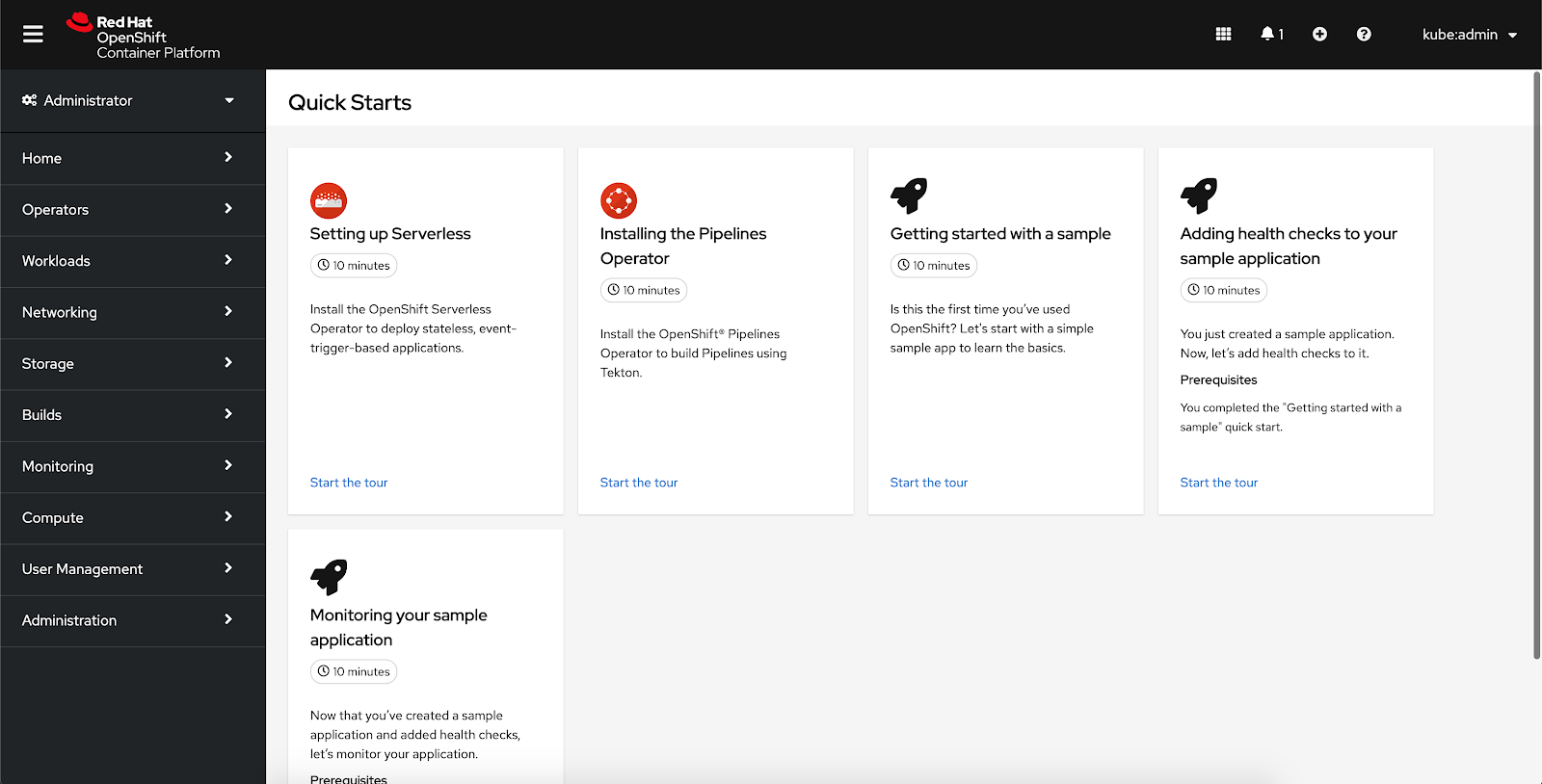
You can click anywhere on the card to open the quick start panel. Once you begin a quick start, instructions will appear on the side to guide you through the UI. Each main task has a series of substeps for you to follow in order to complete it.
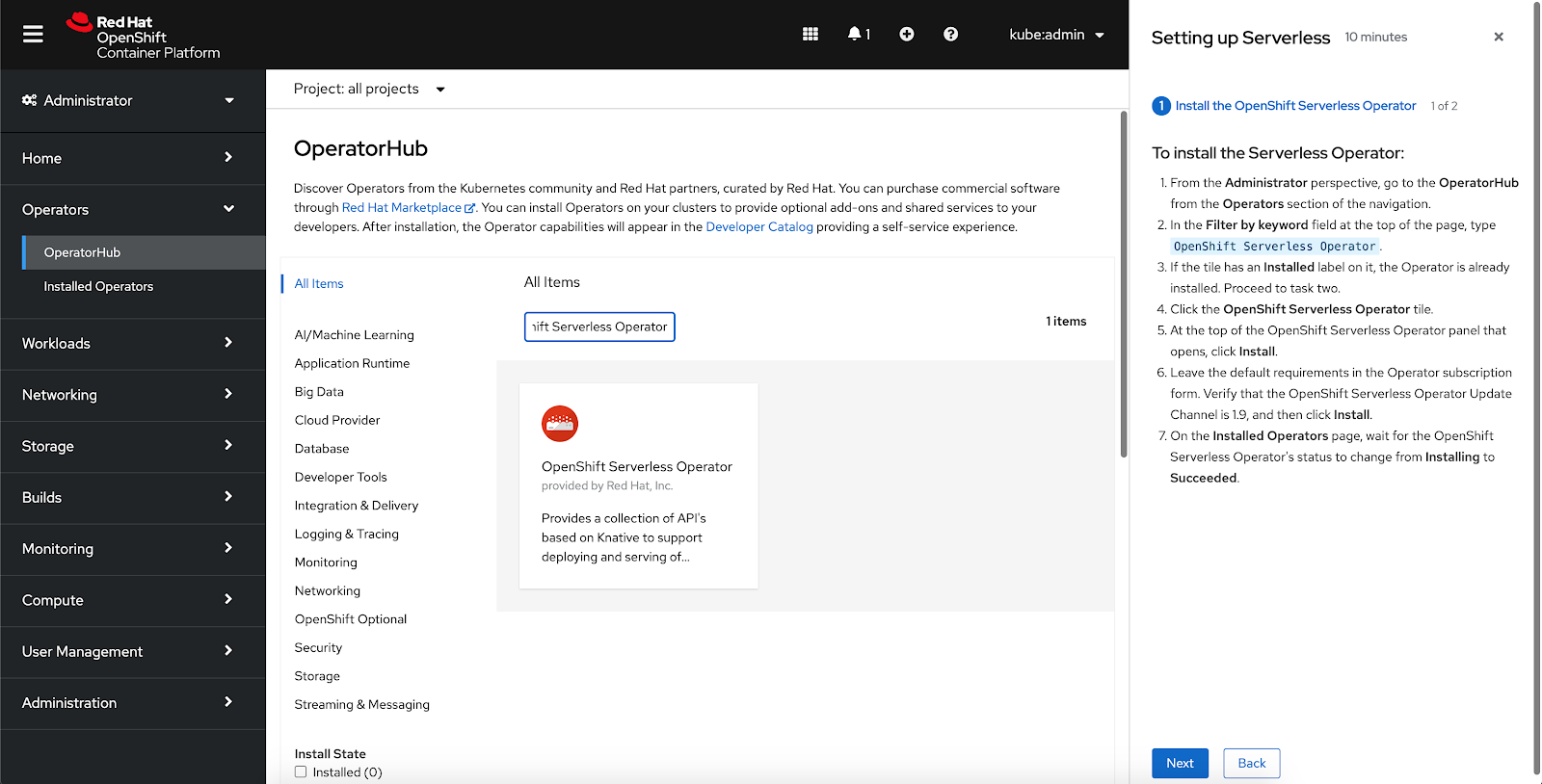
This quick start guides you through the installation of the OpenShift Serverless Operator.

As you progress through each substep, instructions for completed tasks will clear. All quick start instructions are always available in the quick start panel.
After completing a task, click Next to proceed. Before you move on, you’ll be asked a quick question to ensure you’ve fulfilled each instruction. For this quick start, the validation question for the first task asks you to verify a successful installation by confirming a specific status on screen. We recommend using the optional Check your work section to both verify task completion and mark off steps as you complete them.

The last screen of a quick start lists the tasks you’ve completed.
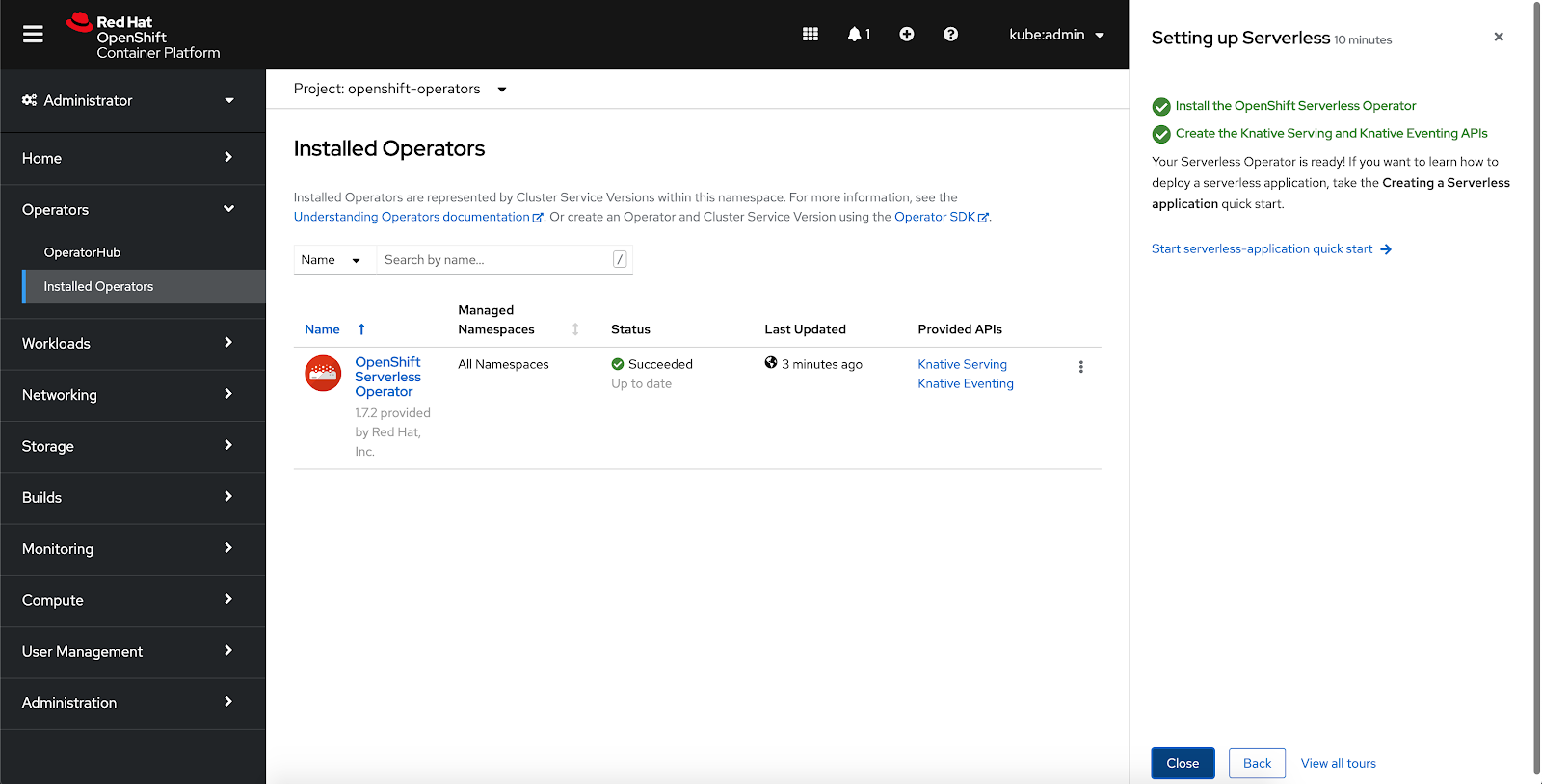
After you finish a quick start, you may be prompted to start another one. Depending on the quick start you’ve finished, this recommendation might surface the next installment in a quick start series or another quick start on a similar topic. You can choose to begin a quick start when it’s recommended or return to it at a later date.
No matter which perspective you use to access quick starts, you’ll see the same ones. We just walked through an administrator-focused sequence; a developer-focused sequence follows the same general flow.
In the developer perspective, you can find a quick start shortcut on the +Add page.
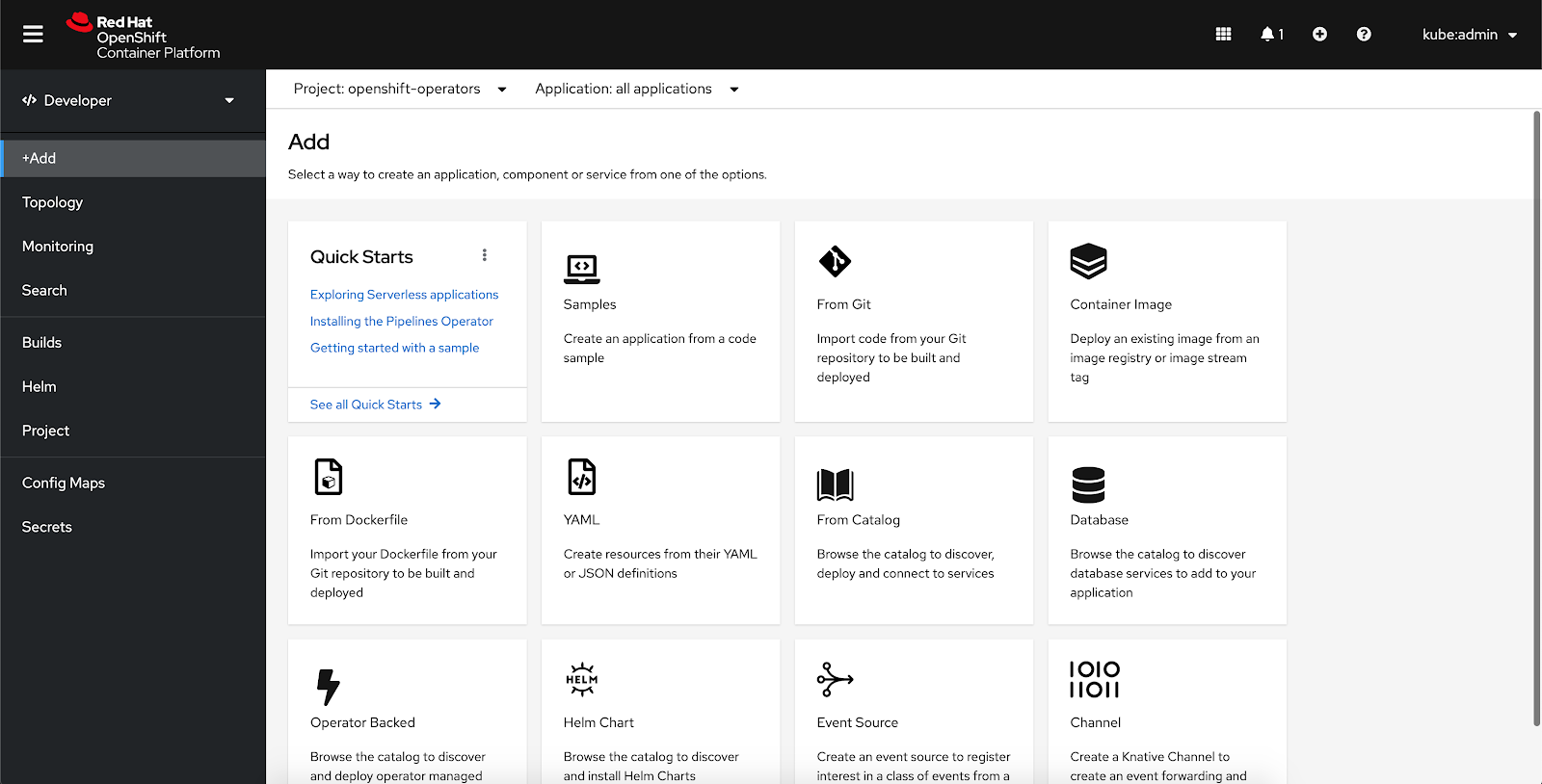
On the +Add page, you’ll find a Quick Starts card. Click any of the quick start titles listed in this card to launch that quick start.
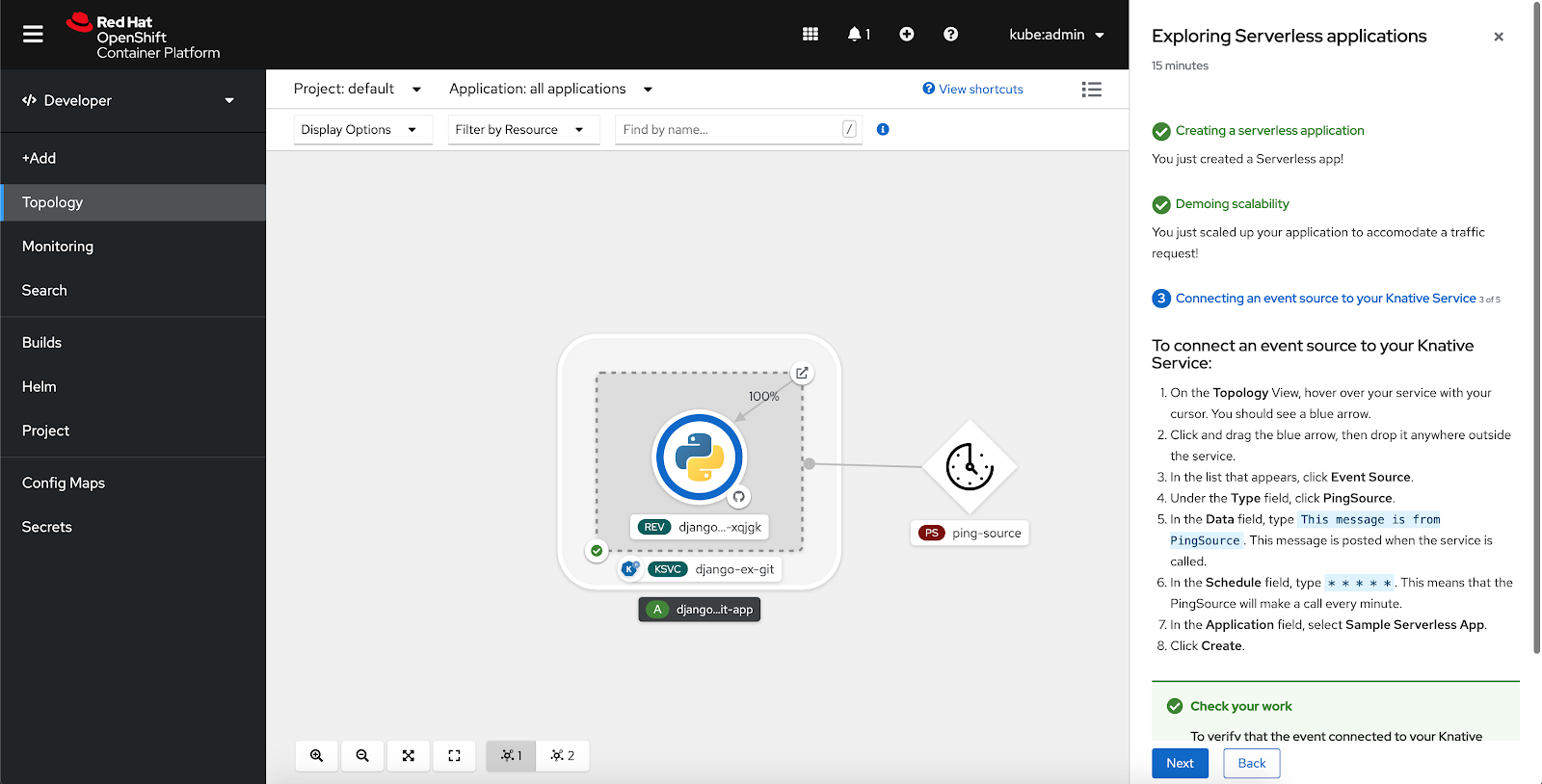
While this "Exploring Serverless applications" quick start is geared a little more towards developers, both administrators and developers can take it and walk through the same experience.
With quick starts, we hope it becomes even easier for you to learn about OpenShift’s coolest capabilities.
Quick starts in 4.6
We’ve added seven awesome quick starts for you to explore in 4.6:
- Setting up Serverless walks a user with Operator installation privileges through installing the Serverless Operator and setting up the custom resources (CRs) required to deploy Serverless applications.
- Exploring Serverless applications appears after the Serverless Operator has been installed. This quick start introduces how to deploy a Serverless application and demonstrates how it works in context.
- Installing the Pipelines Operator walks a user with Operator installation privileges through installing the Pipelines Operator.
- Deploying an application with a pipeline appears after the Pipelines Operator has been installed and shows you how to import an application from Git, add a pipeline to it, and run that pipeline.
- Getting started with a sample shows you how to deploy a sample application in OpenShift.
- Adding health checks to your sample application walks you through how to view the details of your application and add health checks to it.
- Monitoring your sample application walks you through how to view your monitoring details, project monitoring dashboard, and custom metrics.
Help shape the future of quick starts
OpenShift 4.6 is only the beginning. We’re excited to roll out more quick starts in future releases––and you can play a part in shaping what those quick starts might be! Soon, more teams will have the opportunity to contribute quick starts to the console. To learn more about how you can create and contribute one, check out our quick start guidelines.
If you are up for trying out this new feature, or if you are just getting started with OpenShift, visit Try OpenShift to get instant access to a cluster.
And, as always, we want to connect with users like you. Learn more about what the OpenShift design team is up to on our OpenShift Design site, and be sure to catch us on the OpenShift Twitch channel.


