
"Data replication and capacity management" perfectly describes my first years in the enterprise support environment. While I enjoyed becoming a replication SME, I always hated looking into capacity issues. This dislike was in part because capacity issues were almost always ignored until a customer was in full meltdown data loss mode. It was also due to the fact that working with compression algorithms and de-duplication can make storage capacity a bit tricky.
As a junior support engineer, I found myself using the df and du commands to figure out why I couldn't apply a system patch, or exactly where all of the data crowding was occurring. Today, we will look at these commands, break them down into their use cases, and explain the discrepancy between the two.
df
The "disk free" command is a fantastic command-line tool that gives you a quick 30,000-foot view of your filesystem and all mounted disks. It tells you the total disk size, space used, space available, usage percentage, and what partition the disk is mounted on. I recommend pairing it with the -h flag to make the data human-readable. The figures that you see here are calculated from the mount point or filesystem level:
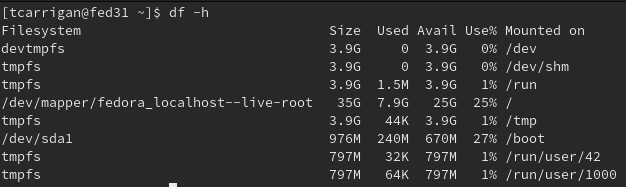
Also, note that using the -h flag rounds your data to make it easier to digest, so your 3G might be close to 2.9G or 3.1G. You can't be sure.
du
The "disk usage" command is excellent when applied in the correct context. This command is at its best when you need to see the size of a given directory or subdirectory. It runs at the object level and only reports on the specified stats at the time of execution. I like to pair this command with the -sh flags to give a human-readable summary of a specified object (the directory and all subdirectories), as you can see here:

df vs. du
So what are the use cases for each command and which command's output should you put your trust into? The (very complicated) answer can be best summarized like this: The df command provides a sweeping ballpark figure for how much space is being utilized on your filesystem as a whole. The du command is a much more accurate snapshot of a given directory or subdirectory.
If I had to put money on which command was telling the "truth," I would bet on du. For example, if I get an error trying to install a package in /var that says the directory is full, I can run the df command to confirm that this is true. Once I can see that /var is at capacity, I can run du /var to see what subdirectory is giving me the issue. I could then continue to use df to narrow down by subdirectory until I found the culprit.
Understanding the differences in these commands allows us to use these tools in tandem to quickly identify and solve the majority of capacity issues that we face as sysadmins.
Want to try out Red Hat Enterprise Linux? Download it now for free.
关于作者
Tyler is the Sr. Community Manager at Enable Sysadmin, a submarine veteran, and an all-round tech enthusiast! He was first introduced to Red Hat in 2012 by way of a Red Hat Enterprise Linux-based combat system inside the USS Georgia Missile Control Center. Now that he has surfaced, he lives with his wife and son near Raleigh, where he worked as a data storage engineer before finding his way to the Red Hat team. He has written numerous technical documents, from military procedures to knowledgebase articles and even some training curricula. In his free time, he blends a passion for hiking, climbing, and bushcraft with video games and computer building. He is loves to read and enjoy a scotch or bourbon. Find him on Twitter or on LinkedIn.


