We recently had the idea to create a VNC Desktop APB that would deploy a pod running VNC. The idea was that this might be useful for troubleshooting connectivity issues within the cluster by including a web browser along with the bind-utils and net-tools packages.
As with most APB's we've developed, there were several iterations before we ended up with something we were satisfied with sharing. The earliest version of the APB created a deployment config for a pod running a VNC server and an associated service. But this meant you had to manually configure a standard VNC viewer to connect to the pod. The service also wasn't accessible from outside of the cluster, which could make connecting to it difficult.
At this point, we decided it would be much easier to use if we had noVNC running so that we could connect to the VNC server by pointing a web browser at a route. Once we got noVNC working we realized we had something interesting. Whether troubleshooting, trying out different desktops, or maybe even setting up kiosks by launching multiple instances in different namespaces this APB shows some potential.
The Containers
With most APB's there are at least 2 containers to think about creating. The first is the application container that will run the service you want to deploy and the second is the APB container that will handle the logic for deploying the container. As mentioned this is how we started with the VNC APB. As we moved on we added a second VNC container using a different version of Fedora as the base and the noVNC container to make connecting easier, for a total of four containers.
The vnc-desktop Containers
Running VNC within a container actually proved to be very easy. By using the -fg flag vncserver remains in the foreground. The remainder of the logic in the entry point script deals with arbitrary UID support and configuring the environment based on choices made by the user.
By changing just the FROM statement in the Dockerfile we were able to create containers for both Fedora 27 and Fedora 28.
The vnc-client Container
This container was very easy to create thanks to a launch script that was recently added to noVNC. Aside from installing dependency packages all we needed to do is clone the git repository, link the vnc.html file, and set the entry point to start the script.
RUN git clone https://github.com/novnc/novnc

RUN ln -sf /novnc/vnc.html /novnc/index.html

ENTRYPOINT /novnc/utils/launch.sh --vnc vnc-desktop:5901
The APB Container
The VNC Desktop APB is pretty standard. Right now we have included two plans, with each plan being tied to a version of Fedora.

One of the first questions that came up when developing the APB was which desktop to use. But since APB's make choices easy we decided to make several available. Right now we have nine options available and would like to add Gnome and Cinnamon if we can figure out how to get them running in a container.
As you might imagine users will also probably prefer one shell and initial resolution combination over others so we made multiple options available for each. Each of these parameters are passed into the container as environment variables on the vnc-desktop pod where they are acted on by the entry point script.
- name: de

title: Desktop Environment

type: enum

enum: ['fvwm', 'i3', 'KDE', 'LXDE', 'LXQt', 'MATE', 'Sugar', 'twm', 'Xfce']

default: 'Xfce'

updatable: true

- name: deshell

title: Shell

type: enum

enum: ['bash', 'csh', 'ksh', 'sh']

default: 'bash'

updatable: true

- name: resolution

title: Desktop Resolution

type: enum

enum: ['800x600', '1024x768', '1280x1024', '1360x768', '1440x900', '1920x1080']

default: '1360x768'

updatable: true
These parameters are exposed in the UI as drop downs where users can make their selections.

Connecting
Once choices are made and the APB completes provisioning you will be left with two pods and a route.
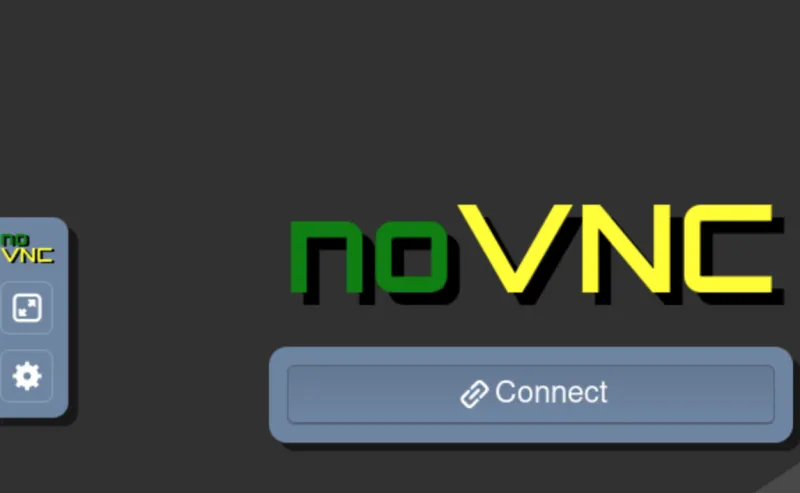
Clicking on the link will open a new window. When you press connect you'll be prompted for a password.
You should now have a VNC session running in your browser:

Updating Your Choices
You may have noticed in the snippet above that each of the parameters included a line, updatable: true. We have also included the updates_to option on each plan. By doing so users can now edit the provisioned service and switch between distributions and desktop environments, resolutions, and shell combinations at will until they find something that suits their needs. The YouTube demo linked below demonstrates this functionality.
YouTube
Code Links
VNC Desktop APB
https://github.com/fusor/dockerfiles/tree/master/vnc-desktop:f28
Fedora 27 Container
noVNC Container
Sobre el autor

Más como éste
Ford's keyless strategy for managing 200+ Red Hat OpenShift clusters
F5 BIG-IP Virtual Edition is now validated for Red Hat OpenShift Virtualization
Get into GitOps | Technically Speaking
Air-gapped Networks | Compiler
Navegar por canal

Automatización
Las últimas novedades en la automatización de la TI para los equipos, la tecnología y los entornos

Inteligencia artificial
Descubra las actualizaciones en las plataformas que permiten a los clientes ejecutar cargas de trabajo de inteligecia artificial en cualquier lugar

Nube híbrida abierta
Vea como construimos un futuro flexible con la nube híbrida

Seguridad
Vea las últimas novedades sobre cómo reducimos los riesgos en entornos y tecnologías

Edge computing
Conozca las actualizaciones en las plataformas que simplifican las operaciones en el edge

Infraestructura
Vea las últimas novedades sobre la plataforma Linux empresarial líder en el mundo

Aplicaciones
Conozca nuestras soluciones para abordar los desafíos más complejos de las aplicaciones

Virtualización
El futuro de la virtualización empresarial para tus cargas de trabajo locales o en la nube
