
Many sysadmins don’t consider themselves coders. They acknowledge that they regularly write complex scripts to help themselves automate their job, but they don’t consider themselves developers. I think it’s for that reason that most sysadmins also don’t think they have any use for an IDE. After all, an IDE is an Integrated Development Environment, and a sysadmin isn’t a developer, right? If that’s been your thought process, then it’s time to reconsider because a good IDE (or robust text editor) offers many benefits over a basic text editor.
A good IDE provides syntax validation and smart auto-completion, important for catching mistakes that are at best, bothersome, and, at worst, harmful. An IDE also offers integration with the rest of your system so you can test scripts as you write them. Should something fail, a good IDE has a debugger to help identify the problem and, in some cases, help you solve it. Additional features include Git integration, quick access to a shell, plugins, and much more.
There are lots of IDEs out there, and most are very flexible, but some arguably are best left to people who do nothing but develop software all day. Sysadmins have different needs and expectations than dedicated programmers, so here are five IDEs that stand out from the rest for sysadmins.
Spyder
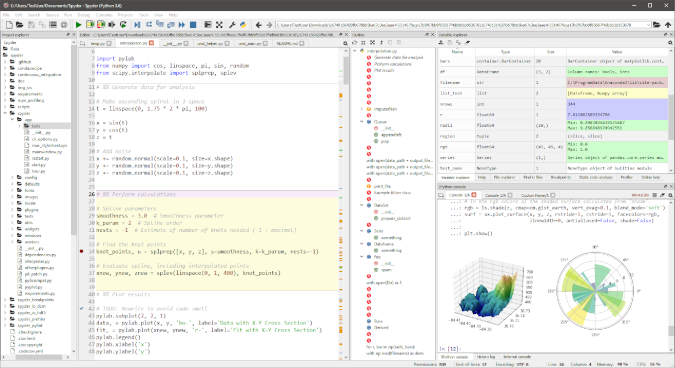
If you use Python for your scripting needs, then Spyder can be your control panel, dashboard, and a heads-up display. Spyder is designed for data scientists and features a great set of tools for dynamic visualization and easy testing. If you’ve ever sent out a Python script to gather stats on a collection of servers, then you know that getting a screenful of numbers can be difficult to parse at a glance. Charts and graphs, however, make it easy to take note of what’s happening on the machines you survey, and with Spyder, you can produce colorful (and even animated) output quickly and easily.
Spyder uses an interactive Python console so you can run your code line by line, or in a group of lines, or as a whole file. If you find yourself switching back and forth between an IDLE session and your text editor now, then Spyder can help, because that same test-and-write workflow is built-in. Spyder also has a debugger, variable explorer, and even a profiler to help you optimize your code once you have it working.
Atom
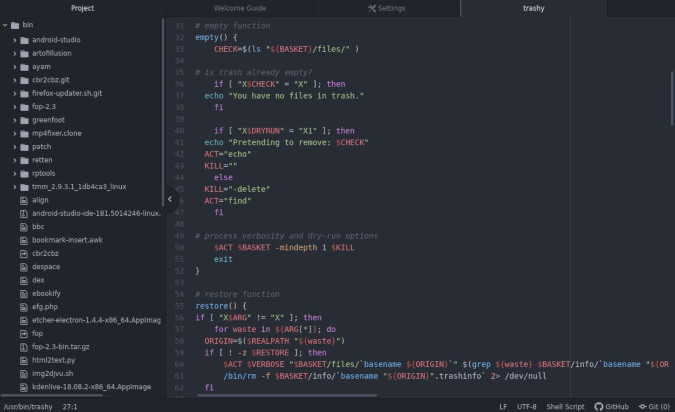
The Atom editor is a modern editor and IDE intended for any programming language. Many of its most powerful features are unlocked through its packaging system. For sysadmins, there are great packages for Bash autocompletion, common Bash snippets, Python, Perl, Awk (including autocompletion), Sed, and much more.
Atom is especially useful in training yourself to treat your scripts as components of a versioned project because Atom doesn’t insist upon a specific layout for a project directory but happily treats any folder as a project root. Open a project, work on your scripts, and then commit them to Git right from within the Atom interface. It’s smooth, fluid, and gets you thinking like a DevOps engineer instead of a sysadmin intern, juggling and adapting random scripts as needed. It’s a pleasant environment to work in, it has all the options you need, and it’s as tightly integrated with your environment as you need it to be (or not at all).
Eclipse PyDev
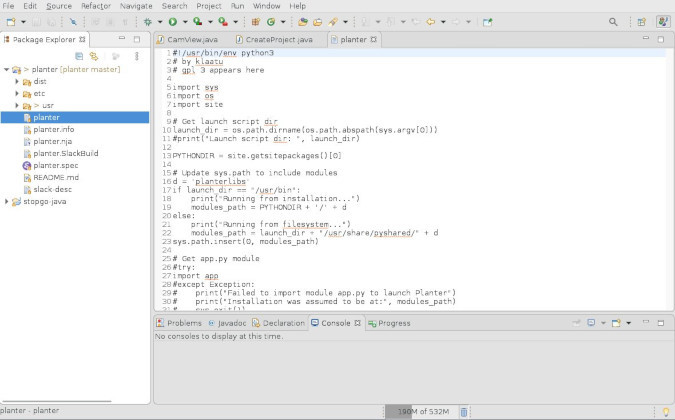
Eclipse is a well-known and robust Java IDE, but as a framework for development, it achieves nearly universal pragmatism. Its layout is intuitive, it has a tool to help with every task, and it leans heavily upon its plugin-based architecture for extensibility. As such, it’s a breeze to make Eclipse your Python editor. All you need do is install the PyDev package, set your Python interpreter (it’s probably python3), and start coding. Eclipse itself provides a reasonable structure for your work, and PyDev provides the Python support.
One advantage of using Eclipse as your Python IDE is that it may influence the way you think about your code. When hacking a quick script to solve a problem, some new coders default to a literal script: a step-by-step, sequential list of each step the computer must take. Eclipse can help you transform simple scripts into distinct modules because Eclipse views your code as a project of related files instead of just a collection of text files that happen to contain code. Of course, it doesn’t force you to write modular code, and it doesn’t magically transform your scripts into functional libraries that can be used across many tasks, but when you start exploring how to improve modularity, Eclipse makes it easy to fall gracefully into it.
Geany
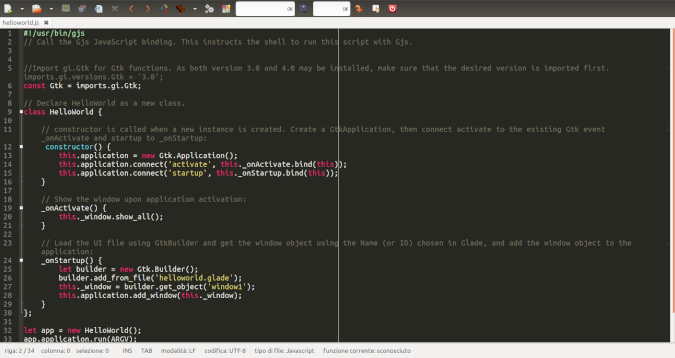
The Geany IDE is a powerful, stable, and lightweight editor with many useful features for Bash, Python, Perl, TCL, and more. Geany, by default, is a modest editor, but through plugins, you can add features like a panel for a project view, filesystem tree, debugging, a terminal, and so on until it looks and acts like a proper IDE. Additionally, there’s support for programming languages, scripting languages, markup languages, and miscellaneous filetypes (such as .diff and .po). At the very least, Geany almost certainly provides you with bracket matching and syntax highlighting, but usually, it offers quite a lot more.
Possibly the nicest thing about Geany is its size. It’s quick to launch, and its memory footprint is negligible. When you run Geany, you’re not running a complex and bloated "development environment;" you’re running an IDE disguised as a text editor. It’s fast, responsive, and nicely integrated with the rest of your Linux system.
Brackets
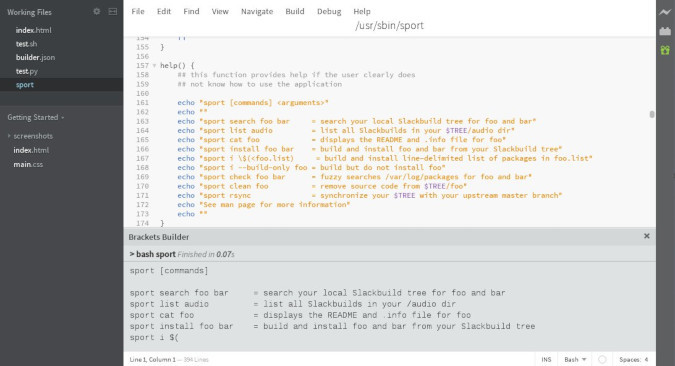
On the surface, Brackets is just a fancy text editor aimed at web developers working in HTML, CSS, Javascript, and PHP. However, Brackets has several extensions that expand an otherwise humble code editor into a friendly, efficient scripting IDE. Its support for Python is stronger than Bash, but both can benefit from Brackets’ features.
The Brackets Script Builder extension adds Run and Compile options to Brackets, so you can test your scripts with a quick press of the F9 key. Python Jedi Brackets adds a rich array of Python support, including autocompletion, so if you’re still learning a Python module (or Python itself), you get intelligent hints as you type. Other features, such as syntax highlighting and the Indent Guides extension, help you keep your scripts easy to read, regardless of what language you’re using.
Brackets has a traditional interface that anyone can understand, whether or not they’re familiar with an IDE or even a text editor. I adopted it as the text editor for the default OS image distributed to staff at a college I worked at because it helped people avoid silly mistakes (like saving a text file as an rtf file, which was still strangely common at the time). It helped web developers write better HTML and CSS and Javascript, it helped copywriters stay focused on their words rather than layout, and it helped sysadmins with their scripts. Better still, it’s sponsored by Adobe, so it’s a "trusted" brand name for people who judge technology by the logo.
Choose to use an IDE
The line between a good text editor and an IDE is blurry. A serious text editor has many of the features offered by an IDE, even if only optionally through plugins. But you’re probably very comfortable with your text editor of choice, so the chances are high that you haven’t gone to the trouble of installing the necessary extensions to transform it into an IDE. That’s understandable, because transforming a text editor, designed as a text editor, into an IDE takes effort and configuration, and probably a fair amount of testing. And that’s exactly why IDEs exist.
Take the time to audition a good IDE, even if you don’t intend to stick with it. When you’re ready to switch back to your text editor, take the time to build up your editor, so it has the same conveniences and safeguards as an IDE. Alternately, of course, you can just stick with an IDE when you’re coding. Either way, you’ll learn more about the language you use for your scripts, spend less time coding, encounter fewer bugs in production, and never claim that you’re "not a coder" ever again!
[ Want to test your sysadmin skills? Take a skills assessment today. ]
저자 소개
Seth Kenlon is a Linux geek, open source enthusiast, free culture advocate, and tabletop gamer. Between gigs in the film industry and the tech industry (not necessarily exclusive of one another), he likes to design games and hack on code (also not necessarily exclusive of one another).
유사한 검색 결과
Ansible Automation Platform 2.7: 시각적 실행 환경 빌더 및 콘텐츠 검색 가이드
안정적인 코드를 재작성하지 마세요: Lightwell로 귀사의 수익과 개발자의 속도를 보호하는 방법
Can agentic AI patch the internet?
Random Acts Of Automation | Compiler
채널별 검색

오토메이션
기술, 팀, 인프라를 위한 IT 자동화 최신 동향

인공지능
고객이 어디서나 AI 워크로드를 실행할 수 있도록 지원하는 플랫폼 업데이트

오픈 하이브리드 클라우드
하이브리드 클라우드로 더욱 유연한 미래를 구축하는 방법을 알아보세요

보안
환경과 기술 전반에 걸쳐 리스크를 감소하는 방법에 대한 최신 정보

엣지 컴퓨팅
엣지에서의 운영을 단순화하는 플랫폼 업데이트

인프라
세계적으로 인정받은 기업용 Linux 플랫폼에 대한 최신 정보

애플리케이션
복잡한 애플리케이션에 대한 솔루션 더 보기

가상화
온프레미스와 클라우드 환경에서 워크로드를 유연하게 운영하기 위한 엔터프라이즈 가상화의 미래
