
Can we automate Windows Installation using only OpenShift Virtualization tools? Yes, we can. In this blog I will show you how to use some basic features of OpenShift to install Windows with one click.
The entire installation process is created in a single pod. This pod runs this installation inside a VM and waits for it, once it is completed, the pod then clones the PVC into a boot source image that can be used to boot Windows VM’s.
As shown in my previous blog, Creating Windows base image for OpenShift, we will use the same scripts and functionality to perform the installation.
The Environment
The setup is performed and tested on Openshift Virtualization 2.6 and using the Windows Server 2019 Evaluation ISO from Microsoft download site. The installation requires two files which will be used during the installation, “autounattended.xml” and the “post-install.ps1”.
In this guide we are working on the “default” namespace, if you want to use a different namespace please make sure you are modifying all required steps.
The process
First step is to push the windows ISO to OpenShift as a new PVC.
You can download the virtctl utility from the here.
$ virtctl image-upload pvc windows-iso \
          --image-path=./WindowsServer2019_en-us.iso \
          --size=5Gi \
          --namespace default --insecure

openshift-virtualization-os-images --insecure
PersistentVolumeClaim openshift-virtualization-os-images/windows-iso created
Waiting for PVC windows-iso upload pod to be ready...

Pod now ready
Uploading data to https://cdi-uploadproxy-openshift-cnv.apps.eranlab.green.eranlab

 4.93 GiB / 4.93 GiB [========================================================================] 100.00% 48s

Uploading data completed successfully, waiting for processing to complete, you can hit ctrl-c without interrupting the progress
Processing completed successfully
Uploading ./WindowsServer2019_en-us.iso completed successfully
After the upload is completed we can view the image using OC cli tool.
$ oc get pvc --namespace default

NAME      STATUS   VOLUME                                 CAPACITY   ACCESS MODES   STORAGECLASS AGE
windows-iso   Bound pvc-2f64d822-70d7-4b3a-ac37-5ffc1fc9e89f   557Gi  RWO        storage-class   3m21s
Next, we will need to create an image to store the installation files. You can create a new PVC with the relevant files. But, if you do so, each time you want to update the configuration or change them you will need to recreate the PVC.
The process will use the Kubernetes feature known as “ConfigMap Volumes”. This way it's easy to set up and change.
To Create this you can use the UI at “Developer > Config Maps > Create Config Map”.
Make sure that you are creating the ConfigMap in the same project of the installation.
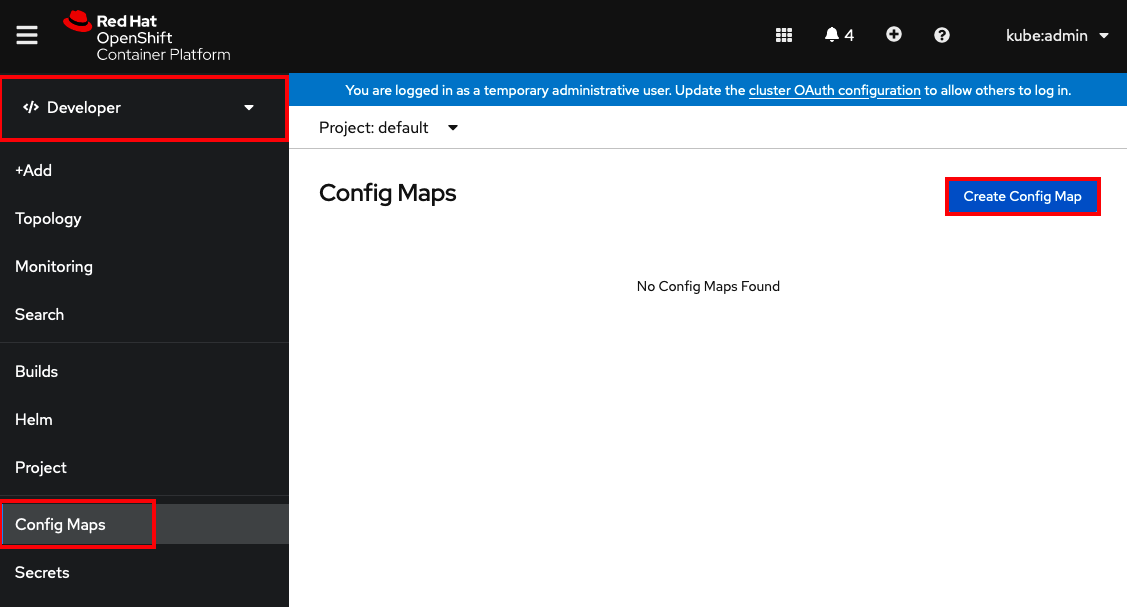
Here I will show how to Create it using the OC cli tool.
Create a Config Map in the file editor of your choice and/or using the UI.
Here is an example, you can download the full file here.
This YAML contains three files.
The first two are used in windows installation and post installation steps.
# win-installation-scripts.yaml

apiVersion: v1
kind: ConfigMap

metadata:
  name: win-installation-scripts

data:
  post-install.ps1: |

  ... omitted ...

data:
   autounattend.xml: |

  ... omitted ...
If you’re using the UI you can click create and skip this step.
To push the config map to OpenShift use the following command. Make sure the configmap is created in the same namespaces as the Virtual Machine in the next step.
$ oc create -f win-installation-scripts.yaml --namespace default

configmap/win-installation-scripts created
Now we will add a configmap for disk cloning and VM template to run the installations
You can view the full file here
The following configMap contains three files.
The first two are for cloning the PVC post installation.
The third file is a VM template for the installation to run in it
# install-windows-configmap.yaml
apiVersion: v1
kind: ConfigMap

metadata:
 name: install-windows-configmap

data:
   clone-pvc.yaml: |

      ... omitted ...

   clone-dv.yaml: |

      ... omitted ...

   windows-install.yaml: |

      ... omitted ...
Now we will apply this configmap you can do it via the UI or use the this CLI command.
$ oc create -f install-windows-configmap.yaml --namespace default

configmap/win-installation-scripts created
Verify that both configMap are correctly installed.
$ oc get configmap --namespace default

NAME                        DATA   AGE
install-windows-configmap   3      6s
win-installation-scripts    2      48s
Next we will add the openshift credential as a secret, this will allow our automation to login to the API and run the installation process. The user must have admin cluster privileges.
Here an example file also, it can be downloaded here.
# oc-creds.yaml
apiVersion: v1
.kind: Secret

metadata:
    name: oc-creds
data:
    OC_API: <base64 URL>
    OC_USER: <base64 user>
    OC_PASS: <base64 password>
Remember, kubernetes is using base64 encoding for all secrets. You can use this command to create encoded secrets. Copy and paste the output.
$ echo -n “my-user” | base64
4oCcbXktdXNlcuKAnQ==
Next, We create a pod that will start the VM and run the installation. After the installation completes, it will clone the newly created image to the openshift-virtualization-os-images namespace and clean up the rest of the configurations.
You can find the full YAML here.
# windows-install-pod.yaml
apiVersion: v1
kind: Pod
metadata:
    name: windows-install-pod
spec:
    restartPolicy: Never
    volumes:
      - name: install-windows-configmap
        configMap:
          name: install-windows-configmap
    containers:
    - name: ose-cli
      image: registry.redhat.io/openshift4/ose-cli
      envFrom:
         - secretRef:
              name: oc-creds
      volumeMounts:
        - name: install-windows-configmap
          mountPath: /mnt/install-windows-configmap


      command: ["/bin/sh"]
      args:
              - "-c"
              - |
                     oc login $OC_API -u $OC_USER -p $OC_PASS --insecure-skip-tls-verify=true;

  ... omitted ...
Run the pod.
$ oc create -f windows-install-pod.yaml
You can follow the logs with the UI or using this command.
$  oc logs windows-install-pod --follow
Login successful.

You have access to 63 projects, the list has been suppressed. You can list all projects with 'oc projects'

Using project "default".
Welcome! See 'oc help' to get started.
virtualmachine.kubevirt.io/windows2019-installation created
Waiting for Windows installation to be completed
Windows installation finished
persistentvolumeclaim/win2k19 created
waiting for pvc clone
PVC clone completed
datavolume.cdi.kubevirt.io "win2k19" deleted
datavolume.cdi.kubevirt.io/win2k19 created
Waiting for DataVolume clone
DataVolume clone completed
virtualmachine.kubevirt.io "windows2019-installation" deleted
persistentvolumeclaim "win2k19" deleted
And that’s it, you can now spin up new Windows VM’s.
To update the installation scripts or add some post installation option just modify the “install-windows-configmap.yaml” and re-run the pod.
저자 소개
유사한 검색 결과
Service Mesh를 활용한 Red Hat OpenShift 가상 머신 관리
Red Hat이 파트너의 비즈니스 가치 극대화를 지원하는 5가지 새로운 방법
Virtualization Is (Still) King | Compiler
Scaling with Orchestrators | Compiler
채널별 검색

오토메이션
기술, 팀, 인프라를 위한 IT 자동화 최신 동향

인공지능
고객이 어디서나 AI 워크로드를 실행할 수 있도록 지원하는 플랫폼 업데이트

오픈 하이브리드 클라우드
하이브리드 클라우드로 더욱 유연한 미래를 구축하는 방법을 알아보세요

보안
환경과 기술 전반에 걸쳐 리스크를 감소하는 방법에 대한 최신 정보

엣지 컴퓨팅
엣지에서의 운영을 단순화하는 플랫폼 업데이트

인프라
세계적으로 인정받은 기업용 Linux 플랫폼에 대한 최신 정보

애플리케이션
복잡한 애플리케이션에 대한 솔루션 더 보기

가상화
온프레미스와 클라우드 환경에서 워크로드를 유연하게 운영하기 위한 엔터프라이즈 가상화의 미래
