
Getting started with real-time streaming applications can be complicated, so it's important to choose a practical use case to foster a fun and effective learning experience. I hope the following example will help you grasp the fundamentals of building a real-time application.
[ Learn how IT modernization can help alleviate technical debt. ]
The scenario
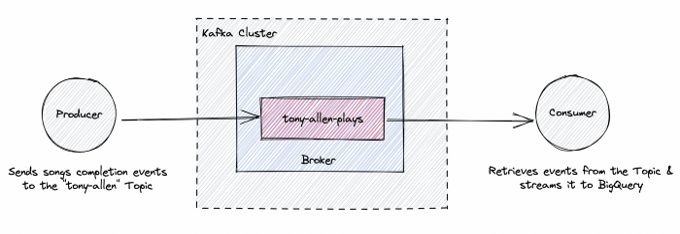
Imagine you work in the data engineering department of a music streaming service company, and you need to create a real-time dashboard that shows an artist's (say, Tony Allen) most popular songs over time. To build it, you can use the popular distributed streaming platform Kafka to produce, consume and stream the necessary song events into Google BigQuery to visualize the popular songs on a dashboard in Looker Studio.
This architecture looks like this:

Background information
Before getting into the tutorial, I'll define some terms covered in this article:
- Kafka: Apache Kafka is an open source distributed streaming platform that enables (among other things) the development of real-time, event-driven applications, which is perfect for this use case.
- Kafka cluster: A collection of servers (called brokers) working together to provide high availability, fault tolerance, and storage for real-time applications.
- Broker: A broker is a machine that does the actual work in a Kafka cluster. It hosts a set of partitions, handles incoming requests to write new events to those partitions, and allows consumers to fetch messages by topic, partition, and offset.
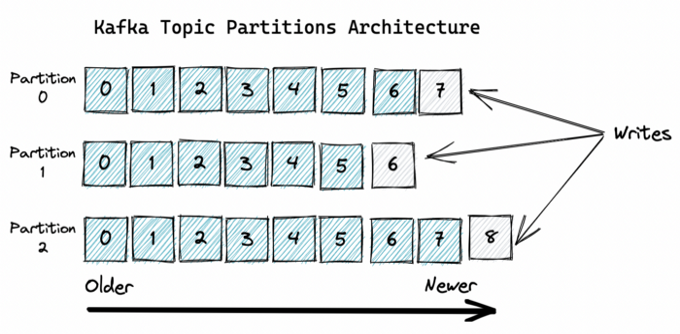
- Topic: A topic is simply a log of events. Every new event from a producer is appended to the end of a topic. And topics are divided into partitions.
- Producer: This is an application you write that publishes (produces) data to a topic in a Kafka cluster.
- Consumer: This is an application or end user that retrieves data from Kafka clusters in real time. For effectively fetching real-time messages, Kafka consumers have to subscribe to the respective topics present in the cluster.
- ZooKeeper: It keeps track of the status of the Kafka cluster nodes and Kafka topics, partitions, and more. (Note: An update called KIP-500 removed the need for ZooKeeper, but I will not use that version of Kafka in this article.)
- Poll: The poll() method is the function a Kafka consumer calls to retrieve records from a given topic.
[ Learn how to use distributed, modular, and portable components to gain technical and business advantages. Download Event-driven architecture for a hybrid cloud blueprint. ]
I will set up the architecture above in four steps.
- Deploy Kafka with Podman or Docker.
- Build the producer.
- Build the consumer.
- Visualize data.
Prerequisites
Before you begin, make sure you have these prerequisites:
- Install Podman or Docker.
- Install the confluent-kafka Python library on your machine.
- Enable the BigQuery API.
- Create a service account key in Google Cloud with the required permissions for Streaming API to work. Save this somewhere on your machine, as you will reference it later.
Build a real-time streaming application
Now that you have everything set up, you're ready to start the tutorial.
1. Deploy Kafka with Podman or Docker
You can deploy Kafka with Podman, Docker, or other methods.
Your Kafka cluster will have two primary entities:
- Broker instance
- ZooKeeper instance

Use a single Podman or Docker Compose file to configure and run these containers. The two services and required ports are exposed in this docker-compose.yaml file:
version: '3'
services:
  zookeeper:
    image: confluentinc/cp-zookeeper:7.0.1
    container_name: zookeeper
    ports:
        - "2181:2181"
    environment:
      ZOOKEEPER_CLIENT_PORT: 2181
      ZOOKEEPER_TICK_TIME: 2000

  broker:
    image: confluentinc/cp-kafka:7.0.1
    container_name: broker
    depends_on:
      - zookeeper
    ports:
      - "29092:29092"
      - "9092:9092"
      - "9101:9101"
    environment:
      KAFKA_BROKER_ID: 1
      KAFKA_ZOOKEEPER_CONNECT: 'zookeeper:2181'
      KAFKA_LISTENER_SECURITY_PROTOCOL_MAP: PLAINTEXT:PLAINTEXT,PLAINTEXT_HOST:PLAINTEXT
      KAFKA_ADVERTISED_LISTENERS: PLAINTEXT://broker:29092,PLAINTEXT_HOST://localhost:9092
      KAFKA_OFFSETS_TOPIC_REPLICATION_FACTOR: 1
      KAFKA_TRANSACTION_STATE_LOG_MIN_ISR: 1
      KAFKA_TRANSACTION_STATE_LOG_REPLICATION_FACTOR: 1
      KAFKA_GROUP_INITIAL_REBALANCE_DELAY_MS: 0
      KAFKA_JMX_PORT: 9101
      KAFKA_JMX_HOSTNAME: localhost
Ensure the Dockerfile is in the same directory as the Kafka producer and consumer files that you will write shortly.
To build the containers, run podman-compose or docker-compose; you should have the two containers up and running within a few minutes.
$ docker-compose up -d[ Get the ultimate CI/CD resource guide. ]
2. Build the producer
Next, write an application/producer that mimics user activity on the music streaming platform. This application will send an event called song-completed that is triggered when a user completes a song. This event will be sent to a Kafka topic (called tony-allen-plays for this exercise).
Use the Faker package to generate fake streaming data for your application. The fake event payload will look something like this:
{'user_id':001,
'artist': 'tony-allen',
'song_id': 03,
'song_name': 'lady',
'event_type':'song_completed',
'timestamp': '2022-11-03 07:22:13'}
Install the Faker package by running this in a terminal window:
$ pip install Fakera. Generate a fake songs list
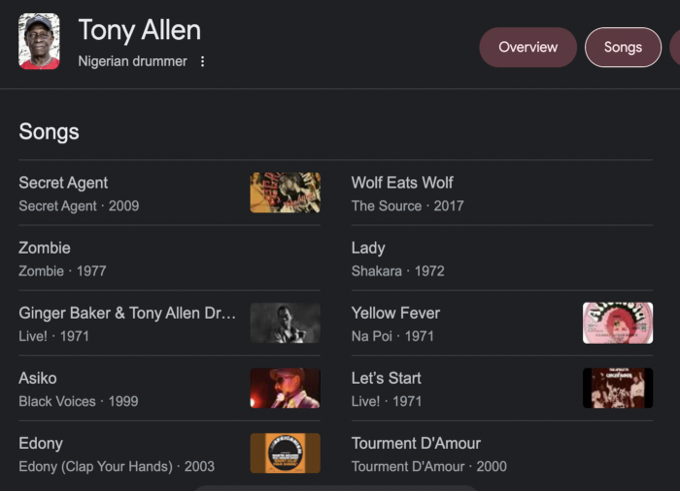
Initiate the Faker object in your code and create a hard-coded song list of 10 random Tony Allen songs. This will be part of the event payload.
from confluent_kafka import Producer
from faker import Faker
import json
import time
import logging

#Create Faker object to generate fake data for Producer
fake=Faker()

#Create Tony Allen song list
songs = ["zombie", "lady", "secret-agent","kindness","soldiers","asiko","the-same-blood","upside-down","african-man","vip"]
b. Configure log format
Every time a new event becomes available, logs will be appended in a producer.log file—defined below—in your main directory. Set the basic configurations for how you want this log file to be formatted:
#Configure logger
logging.basicConfig(format='%(asctime)s %(message)s',
datefmt='%Y-%m-%d %H:%M:%S',
filename='producer.log',
filemode='w')

logger = logging.getLogger()
logger.setLevel(logging.INFO)
c. Initiate the producer
Initiate the Kafka producer object by specifying the port of your Kafka cluster as defined in the Podman or Docker compose file above:
#Create Kafka Producer
p=Producer({'bootstrap.servers':'localhost:9092'})
d. Configure a callback
Define a callback function that takes care of acknowledging new messages or errors. When a valid message becomes available, it is decoded to UTF-8 and printed in the preferred format. The same message is also appended to the logs file.
#Callback function
def receipt(err,msg):
if err is not None:
print('Failed to deliver message: {}'.format(err))
else:
message = 'Produced message on topic {} with value of {}\n'.format(msg.topic(), msg.value().decode('utf-8'))
logger.info(message)
print(message)
e. Write a producer loop
This is the fun part! Create a loop with a three-second delay that mimics actual user activity on the streaming platform. Create a schema for your JSON event and utilize Faker to generate the actual data points.
#Write Producer loop
def main():
for i in range(20):
random_song_id = fake.random_int(min=0, max=9)
data={
'user_id': fake.random_int(min=20000, max=100000),
'artist': 'tony-allen',
'song_id': random_song_id,
'song_name': songs[random_song_id],
'event_type':'song_completed',
'timestamp': str(fake.date_time_this_month())
}
m=json.dumps(data)
p.produce('tony-allen-plays', m.encode('utf-8'),callback=receipt)
p.poll(1) # Polls/checks the producer for events and calls the corresponding callback functions.
p.flush() #Wait for all messages in the Producer queue to be delivered. Should be called prior to shutting down the producer to ensure all outstanding/queued/in-flight messages are delivered.
time.sleep(3)
When you call p.produce, specify the Kafka topic to which you want to publish the message. In this case, it is called tony-allen-plays. Since this topic doesn't exist in your Kafka cluster yet, it is created the first time this application runs.
p.poll is important, as that checks the producer for events and calls the corresponding callback function you defined earlier.
The complete producer.py script should look like this:
from confluent_kafka import Producer
from faker import Faker
import json
import time
import logging

#Create Faker object to generate fake data for Producer
fake=Faker()

#Create Tony Allen song list
songs = ["zombie", "lady", "secret-agent","kindness","soldiers","asiko","the-same-blood","upside-down","african-man","vip"]

#Configure logger
logging.basicConfig(format='%(asctime)s %(message)s',
                    datefmt='%Y-%m-%d %H:%M:%S',
                    filename='producer.log',
                    filemode='w')

logger = logging.getLogger()
logger.setLevel(logging.INFO)

#Create Kafka Producer
p=Producer({'bootstrap.servers':'localhost:9092'})

#Callback function
def receipt(err,msg):
    if err is not None:
        print('Failed to deliver message: {}'.format(err))
    else:
        message = 'Produced message on topic {} with value of {}\n'.format(msg.topic(), msg.value().decode('utf-8'))
        logger.info(message)
        print(message)

#Write Producer loop that acts like user activity
def main():
    for i in range(20):
        random_song_id = fake.random_int(min=0, max=9)
        data={
           'user_id': fake.random_int(min=20000, max=100000),
           'artist': 'tony-allen',
           'song_id': random_song_id,
           'song_name':  songs[random_song_id],
           'event_type':'song_completed',
           'timestamp': str(fake.date_time_this_month())
           }
        m=json.dumps(data)
        p.produce('tony-allen-plays', m.encode('utf-8'),callback=receipt)
        p.poll(1) # Polls/checks the producer for events and calls the corresponding callback functions.
        p.flush() #Wait for all messages in the Producer queue to be delivered. Should be called prior to shutting down the producer to ensure all outstanding/queued/in-flight messages are delivered.
        time.sleep(3)

if __name__ == '__main__':
    main()
To confirm that the producer is working as expected, run the following command in a terminal window:
$ python producer.pyYou should see the following output, which prints out the events being sent to the Kafka topic every three seconds.

3. Build the consumer
The consumer will do two major things:
- Poll and retrieve events from the tony-allen-plays topic.
- Send those events as a stream to BigQuery using the BigQuery Streaming API.
a. Install the BigQuery Python library
To begin, install the BigQuery Python library:
$ pip install google-cloud-bigqueryThen import it into the consumper.py script and set up the BigQuery configurations:
from confluent_kafka import Consumer
from google.cloud import bigquery
import ast
from google.oauth2 import service_account

#Create BQ credentials object
credentials = service_account.Credentials.from_service_account_file('PATH-TO-BQ-SERVICE-ACCOUNT')

# Construct a BigQuery client object.
bq_client = bigquery.Client(credentials=credentials)

#Speficy BigQuery table to stream to
table_id = 'PROJECT-ID.DATASET.TABLE-NAME'
b. Initiate the consumer
Next, initiate the Kafka consumer by specifying the port and then subscribe to the topic tony-allen-plays. When initiating the consumer, specify the consumer groupid because all Kafka consumers must belong to a consumer group.
c=Consumer({'bootstrap.servers':'localhost:9092','group.id':'tony-allen-consumer','auto.offset.reset':'earliest'})
print('Kafka Consumer has been initiated...')

#Subscribe to topic
c.subscribe(['tony-allen-plays'])
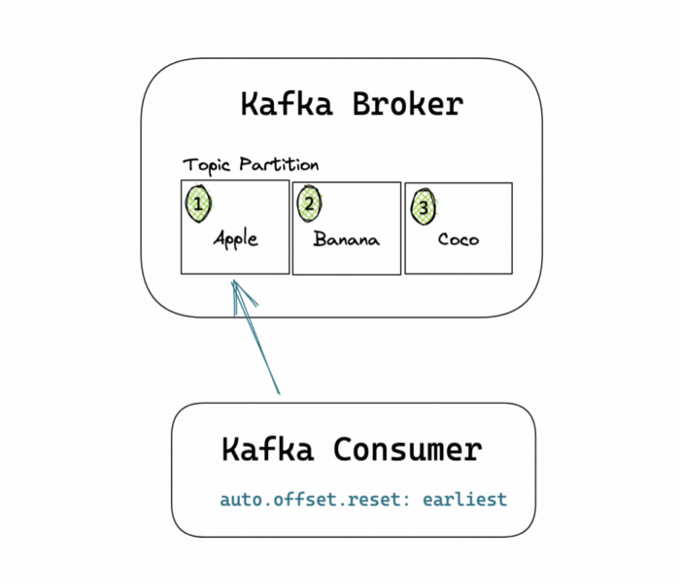
Notice that the auto.offset.reset attribute is set to earliest. It is basically telling the consumer to consume from the beginning of the topic partition.
A typical Kafka consumer application is centered around a consumer loop. So the last step is to write a loop that consistently polls the topic for new messages and, if it finds any, sends those messages to BigQuery.
The complete script should look like this (Kafka consumer.py):
from confluent_kafka import Consumer
from google.cloud import bigquery
import ast

from google.oauth2 import service_account

#Create BQ credentials object
credentials = service_account.Credentials.from_service_account_file('credentials/bq-service-account.json')

# Construct a BigQuery client object.
bq_client = bigquery.Client(credentials=credentials)

#Speficy BigQuery table to stream to
table_id = 'PROJECT-ID.DATASET.TABLE-NAME'

################ Kafka Consumer #################
c=Consumer({'bootstrap.servers':'localhost:9092','group.id':'tony-allen-consumer','auto.offset.reset':'earliest'})
print('Kafka Consumer has been initiated...')

#Subscribe to topic
c.subscribe(['tony-allen-plays'])

def main():
    try:
        while True:
            msg=c.poll(timeout=1.0)  #Retrieve records one-by-one that have been efficiently pre-fetched by the consumer behind the scenes
            if msg is None:
                continue
            if msg.error():
                print('Error: {}'.format(msg.error()))
                continue
            else:
                data=msg.value().decode('utf-8')

                res = ast.literal_eval(data) #Convert string response to dictionary
                print(res)

                ##### Stream data into BigQuery table #######
                rows_to_insert = [res]
                print((rows_to_insert))
                errors = bq_client.insert_rows_json(table_id,rows_to_insert) #Make API request

                if errors==[]:
                    print("New rows added.")
                else:
                    print("Encountered erros while inserting rows: {}".format(errors))
    finally:
        c.close() # Close down consumer to commit final offsets.

if __name__ == "__main__":
    main()
c. Run the Kafka pipeline
Now that the consumer and producer have been set up, open up two separate terminal windows and run the producer again:
$ python producer.pyThen run the consumer so that it reads data from the topic in real time:
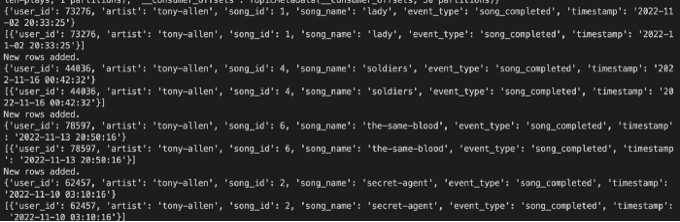
$ python consumer.pyIf you see the messages generated by the producer start showing up in the consumer terminal window, then your consumer is working as it should, and the data should also be streaming into BigQuery:

4. Visualize the data
The last step will be to connect the BigQuery table to Looker Studio and create a simple bar chart to visualize the popular songs in near real time.
Go to Looker Studio, sign in, and:
- Select a new Blank Report.
- Under connect to data, select BigQuery as a data source.
- Then select your BigQuery project, dataset, and table.
You should now be presented with a view similar to the following. Ensure the dimensions and metrics fields match the screenshot below, and you should have a simple bar chart as shown.
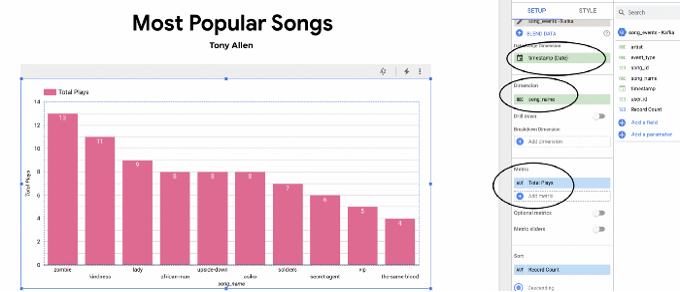
Looker Studio has a data freshness feature, which specifies how frequently the dashboard should be refreshed. You can set this to one minute, the most frequent refresh cycle currently available, and your dashboard should refresh every one minute.
[ Check out Red Hat's Portfolio Architecture Center for a wide variety of reference architectures you can use. ]
Wrap up
This article covered the basics of how to set up a minimal Kafka cluster, load data into a topic, and then consume and stream that data to BigQuery. Finally, it created a near real-time dashboard to present the final results in Looker Studio.
I hope you found this useful, and I wish you the best of luck in building your next real-time app!
This originally appeared on Towards Data Science and is republished with permission.
저자 소개
Tobi is a Data Engineer with an interest in innovation, technology and architecture.
유사한 검색 결과
Red Hat Ansible 올스타: 네트워크 및 인프라 자동화의 미래를 주도합니다
AI 시대 인프라 자동화의 진화: Red Hat Summit 2026의 4가지 핵심 내용
Random Acts Of Automation | Compiler
Container Roundup | Compiler
채널별 검색

오토메이션
기술, 팀, 인프라를 위한 IT 자동화 최신 동향

인공지능
고객이 어디서나 AI 워크로드를 실행할 수 있도록 지원하는 플랫폼 업데이트

오픈 하이브리드 클라우드
하이브리드 클라우드로 더욱 유연한 미래를 구축하는 방법을 알아보세요

보안
환경과 기술 전반에 걸쳐 리스크를 감소하는 방법에 대한 최신 정보

엣지 컴퓨팅
엣지에서의 운영을 단순화하는 플랫폼 업데이트

인프라
세계적으로 인정받은 기업용 Linux 플랫폼에 대한 최신 정보

애플리케이션
복잡한 애플리케이션에 대한 솔루션 더 보기

가상화
온프레미스와 클라우드 환경에서 워크로드를 유연하게 운영하기 위한 엔터프라이즈 가상화의 미래
