
In this final installment of my four-part cgroups article series, I cover cgroup integration with systemd. Be sure you also check out parts one, two, and three in the series.
Cgroups with systemd
By default, systemd creates a new cgroup under the system.slice for each service it monitors. Going back to our OpenShift Control Plane host, running systemd-cgls shows the following services under the system.slice (output is truncated for brevity):
└─system.slice
  ├─sssd.service
  ├─lvm2-lvmetad.service
  ├─rsyslog.service
  ├─systemd-udevd.service
  ├─systemd-logind.service
  ├─systemd-journald.service
  ├─crond.service
  ├─origin-node.service
  ├─docker.service
  ├─dnsmasq.service
  ├─tuned.service
  ├─sshd.service
  ├─NetworkManager.service
  ├─dbus.service
  ├─polkit.service
  ├─chronyd.service
  ├─auditd.service
    └─getty@tty1.service
You can change this behavior by editing the systemd service file. There are three options with regard to cgroup management with systemd:
- Editing the service file itself.
- Using drop-in files.
- Using
systemctl set-propertycommands, which are the same as manually editing the files, butsystemctlcreates the required entries for you.
I cover these in more detail below.
Editing service files
Let's edit the unit file itself. To do this, I created a very simple unit file which runs a script:
[Service]
Type=oneshot
ExecStart=/root/generate_load.sh
TimeoutSec=0
StandardOutput=tty
RemainAfterExit=yes

[Install]
WantedBy=multi-user.target
The bash script has only two lines:
#!/bin/bash
/usr/bin/cat /dev/urandom > /dev/null &
When you examine the output of systemd-cgls, you see that our new service is nested under the system.slice (output truncated):
└─system.slice
  ├─cat.service
  ├─tuned.service
  ├─sshd.service
  ├─NetworkManager.service
  ├─sssd.service
  ├─dbus.service
  │ └─getty@tty1.service
  └─systemd-logind.service
What happens if I add the following line to the systemd service file?
Slice=my-beautiful-slice.slice
The output of systemd-cgls shows something curious. The cat.service file is now deeply nested:
Control group /:
├─my.slice
│ └─my-beautiful.slice
│   └─my-beautiful-slice.slice
│     └─cat.service
│       └─4010 /usr/bin/cat /dev/urandom
Why is this? The answer has to do with the way that systemd interprets nested cgroups. Children are declared in the following fashion: _ instead of dashes - the result would have been what you would have expected:
Control group /:
├─my_beautiful_slice.slice
│ └─cat.service
│   └─4123 /usr/bin/cat /dev/urandom
Using drop-in files
Drop-in files for systemd are fairly trivial to set up. Start by making an appropriate directory based on your service's name in /etc/systemd/system. In the cat example, run the following command:
# mkdir -p /etc/systemd/system/cat.service.d/
These files can be organized any way you like them. They are actioned based on numerical order, so you should name your configuration files something like 10-CPUSettings.conf. All files in this directory should have the file extension .conf and require you to run systemctl daemon-reload every time you adjust one of these files.
I have created two drop-in files to show how you can split out different configurations. The first is 00-slice.conf. As seen below, it sets up the default options for a separate slice for the cat service:
[Service]
Slice=AWESOME.slice
MemoryAccounting=yes
CPUAccounting=yes
The other file sets the number of CPUShares, and it's called 10-CPUSettings.conf.
[Service]
CPUShares=256
To show that this method works, I create a second service in the same slice. To make it easier to tell the processes apart, the second script is slightly different:
#!/bin/bash
/usr/bin/sha256sum /dev/urandom > /dev/null &
I then simply created copies of the cat files, replacing the script and changing the CPUShares value:
# sed 's/load\.sh/load2\.sh/g' cat.service > sha256sum.service
# cp -r cat.service.d sha256sum.service.d
# sed -i 's/256/2048/g' sha256sum.service.d/10-CPUSettings.conf
Finally, reload the daemon and start the services:
# systemctl daemon-reload
# systemctl start cat.service
# systemctl start sha256sum.service
[ Readers also liked: What happens behind the scenes of a rootless Podman container? ]
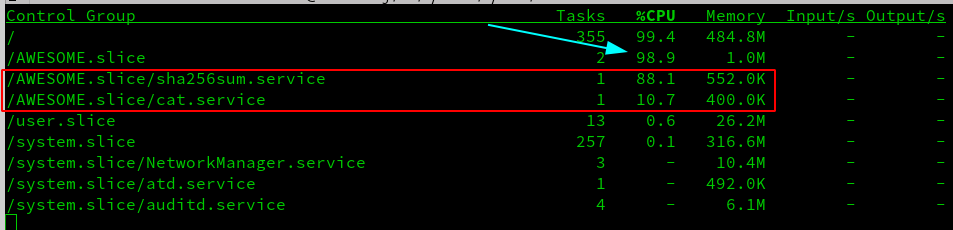
Instead of showing you the output from top, now is a good time to introduce you to systemd-cgtop. It works in a similar fashion to regular top except it gives you a breakdown per slice, and then again by services in each slice. This is very helpful in determining whether you are making good use of cgroups in general on your system. As seen below, systemd-cgtop shows both the aggregation for all services in a particular slice as part of the overall system and the resource utilization of each service in a slice:
Using systemctl set-property
The last method that can be used to configure cgroups is the systemctl set-property command. I'll start with a basic service file md5sum.service:
[Service]
Type=oneshot
ExecStart=/root/generate_load3.sh
TimeoutSec=0
StandardOutput=tty
RemainAfterExit=yes
Slice=AWESOME.slice

[Install]
WantedBy=multi-user.target
Using the systemctl set-property command places the files in /etc/systemd/system.control. These files are not to be edited by hand. Not every property is recognized by the set-property command, so the Slice definition was put in the service file itself.
After I have set up the unit file and reloaded the daemon, I use the systemctl command similar to the following:
# systemctl set-property md5sum.service CPUShares=1024
This creates a drop-in file for you located at /etc/systemd/system.control/md5sum.service.d/50-CPUShares.conf. Feel free to look at the files if you are curious as to their contents. As these files are not meant to be edited by hand, I won't spend any time on them.
You can test to see if the changes have taken effect by running:
systemctl start md5sum.service cat.service sha256sum.service
As you see in the screenshot below, the changes appear to be successful. sha256sum.service is configured for 2048 CPUShares, while md5sum.service has 1024. Finally, cat.service has 256.

[ Thinking about security? Check out this free guide to boosting hybrid cloud security and protecting your business. ]
Wrap up
Hopefully, you learned something new throughout our journey together. There was a lot to tackle, and we barely even scratched the surface on what is possible with cgroups. Aside from the role that cgroups play in keeping your system healthy, they also play a part in a "defense-in-depth" strategy. Additionally, cgroups are a critical component for modern Kubernetes workloads, where they aid in the proper running of containerized processes. Cgroups are responsible for so many things, including:
- Limiting resources of processes.
- Deciding priorities when contentions do arise.
- Controlling access to read/write and mknod devices.
- Providing a high level of accounting for processes that are running on a system.
One could argue that containerization, Kubernetes, and a host of other business-critical implementations would not be possible without leveraging cgroups.
If you have any questions or comments or perhaps other article ideas, feel free to reach out to me on Twitter. I look forward to hearing all your feedback.
Sources
https://0xax.gitbooks.io/linux-insides/content/Cgroups/linux-cgroups-1.html
https://sysadmincasts.com/episodes/14-introduction-to-linux-control-groups-cgroups
https://itnext.io/chroot-cgroups-and-namespaces-an-overview-37124d995e3d
https://www.certdepot.net/rhel7-get-started-cgroups/
https://access.redhat.com/documentation/en-us/red_hat_enterprise_linux/7/html/resource_management_guide/chap-introduction_to_control_groups
https://oakbytes.wordpress.com/2012/09/02/cgroup-cpu-allocation-cpu-shares-examples/
https://www.redhat.com/en/blog/world-domination-cgroups-part-1-cgroup-basics
https://www.redhat.com/en/blog/world-domination-cgroups-rhel-8-welcome-cgroups-v2
https://youtu.be/z7mgaWqiV90
https://youtu.be/el7768BNUPw
https://youtu.be/sK5i-N34im8
https://youtu.be/_AODvcO5Q_8
https://youtu.be/x1npPrzyKfs
https://youtu.be/yZpNsDe4Qzg
https://access.redhat.com/solutions/4489171
저자 소개
Steve is a dedicated IT professional and Linux advocate. Prior to joining Red Hat, he spent several years in financial, automotive, and movie industries. Steve currently works for Red Hat as an OpenShift consultant and has certifications ranging from the RHCA (in DevOps), to Ansible, to Containerized Applications and more. He spends a lot of time discussing technology and writing tutorials on various technical subjects with friends, family, and anyone who is interested in listening.
유사한 검색 결과
기업 속도의 새로운 가치 기준
오픈소스 방어 계층 강화: Red Hat, NVIDIA와 함께 Open Secure AI Alliance 합류
Can Compliance Be A Piece Of Cake? | Compiler
Infrastructure At The Edge | Compiler
채널별 검색

오토메이션
기술, 팀, 인프라를 위한 IT 자동화 최신 동향

인공지능
고객이 어디서나 AI 워크로드를 실행할 수 있도록 지원하는 플랫폼 업데이트

오픈 하이브리드 클라우드
하이브리드 클라우드로 더욱 유연한 미래를 구축하는 방법을 알아보세요

보안
환경과 기술 전반에 걸쳐 리스크를 감소하는 방법에 대한 최신 정보

엣지 컴퓨팅
엣지에서의 운영을 단순화하는 플랫폼 업데이트

인프라
세계적으로 인정받은 기업용 Linux 플랫폼에 대한 최신 정보

애플리케이션
복잡한 애플리케이션에 대한 솔루션 더 보기

가상화
온프레미스와 클라우드 환경에서 워크로드를 유연하게 운영하기 위한 엔터프라이즈 가상화의 미래
