
If you’re new to Linux, chances are good that the very first thing you’ll notice is the term, "command prompt." You're probably wondering what is a command prompt and what are these different symbols and what do they mean. Don't worry, you're not alone. In this article, I'll clarify the terminology and the symbols for you.
What is the command prompt?
You now know what a terminal emulator is and what a shell is, from my previous article, How to open a Linux Terminal Window. You might need a quick refresher on the two terms. Simply put, a command prompt is an input field in the terminal emulator (CLI) which lets you input/issue commands. The command prompt provides some useful information to the user.
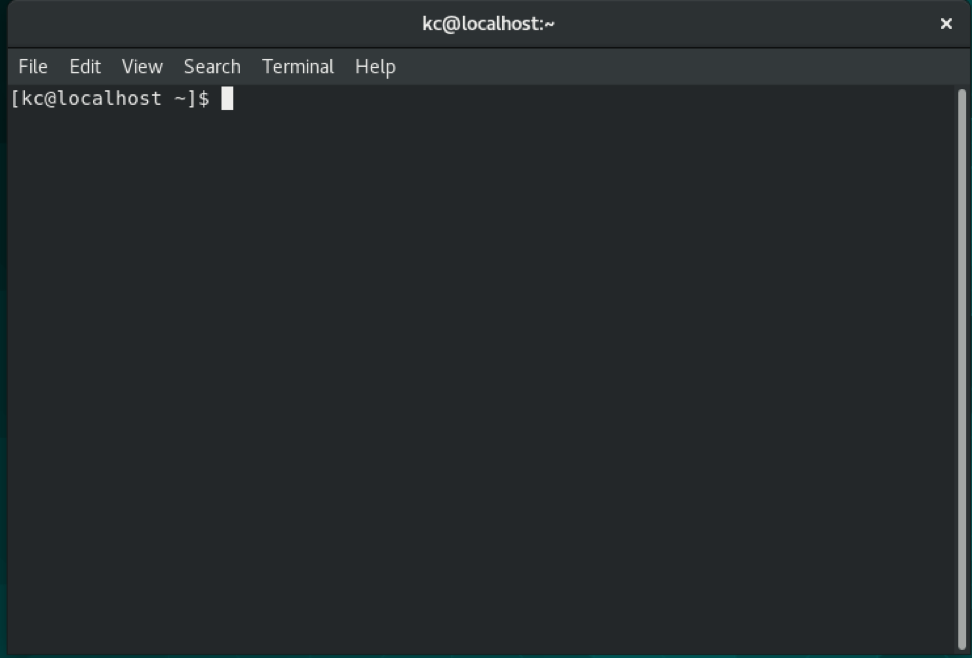
Your command prompt will differ from mine. Look at my command prompt in the screenshot above. My prompt, "[kc@localhost ~] $ " is the text field that provides some information about the Linux system. You’ll see "blinking cursor" followed by the prompt waiting for your commands. I'll further break down this prompt into smaller parts so you can see what they mean.
The text between “[]”
The text 'kc' (My initials) is the currently logged in username.
The '@' symbol is a separator between the username and the hostname. The 'localhost' designation is my Linux system’s name (hostname) and the default for any newly installed system if you don't specify a hostname during installation. You can change your hostname using the 'hostnamectl' command.
[ Check out: 7 ways to set your hostname in Fedora, CentOS, or Red Hat Enterprise Linux ]
The '~' represents home directory of currently logged in user. This part of the command prompt simply displays your current working directory. My prompt in the image above shows `~` meaning I’m currently working inside my home directory which is '/home/kc'. If you navigate to a different directory this is where you will find where you’re currently working, this is very useful information, so you don’t get lost in the filesystem.
If I cd to the /etc directory, the prompt becomes: [kc@localhost etc] $. However, if I cd to the /etc/sysconfig directory, my prompt is displayed as: [kc@localhost sysconfig] $. The full path is not displayed in the prompt but only the current working directory.
The $ means that I'm logged into this system as a regular user. The $ symbol is the default for regular users.
If you’re logged in as the 'root' user, the full prompt changes to [root@localhost ~]#. The # symbol is the prompt designation for the root account.
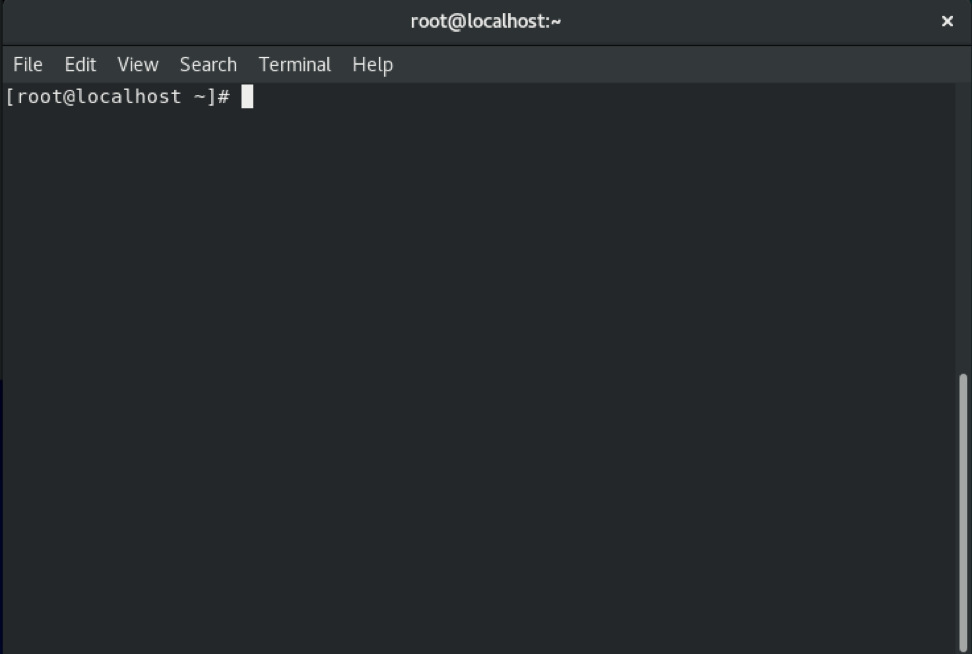
The general format of the default command prompt is: [username@hostname cwd]$ or #.
Now, since I've covered the basics of command prompt and the meanings of the different parts, I'll show you how you can customize your prompt.
The command prompt is set by the 'PS1' environmental variable, you can see what your current 'PS1' variable is set to by issuing this command:
[kc@localhost ~]$ echo $PS1
The '$' symbol preceding the PS1 variable name is different from the '$' symbol at the end of the prompt. Shell variables are designated by $VARNAME. The $ symbol in front of the variable name is interpreted by the system as a variable. For example, you can set your own variables and recall them from the shell:
[kc@localhost ~]$ a=1
[kc@localhost ~]$ echo $a
1
[kc@localhost ~]$
To view the definition of your command prompt, use the command:
[kc@localhost ~]$ echo $PS1

[\u@\h \W]\$

[kc@localhost ~]$
The [\u \h \W]\$] parts all have special meanings. The \u returns the username of the current user, \h returns hostname, \W returns working directory, and \$ is the user prompt $, which is #, for the root user.
[ Learn more: Linux environment variable tips and tricks ]
Altering the Prompt
You can change your prompt to something else by altering the '$PS1' variable value.

To make this change to your prompt permanent, add the modification to the .bashrc file in your home directory.
Wrapping Up
In this brief overview, I've shown you how to interpret your command prompt and how to change it. The command prompt provides very important information about your environment by default but it isn't perfect. Customize it to fit your personal workflow and needs for a more enjoyable command-line experience.
Want to try out Red Hat Enterprise Linux? Download it now for free.
저자 소개
Keerthi is aspiring Cloud, DevOps engineer, he has been working with Windows and Linux systems. He believes in continuous learning (CL) and continuous sharing (CS), on his way building his very own CL CS pipeline. When he is not playing in the CLI, you will find him playing Cricket.
유사한 검색 결과
Red Hat Enterprise Linux Long-Life Add-On: 지원 종료 걱정 없는 RHEL 소개
인프라를 Red Hat Lightspeed에 어떻게 연결해야 할까요?
Infrastructure At The Edge | Compiler
Operating System Management | Compiler
채널별 검색

오토메이션
기술, 팀, 인프라를 위한 IT 자동화 최신 동향

인공지능
고객이 어디서나 AI 워크로드를 실행할 수 있도록 지원하는 플랫폼 업데이트

오픈 하이브리드 클라우드
하이브리드 클라우드로 더욱 유연한 미래를 구축하는 방법을 알아보세요

보안
환경과 기술 전반에 걸쳐 리스크를 감소하는 방법에 대한 최신 정보

엣지 컴퓨팅
엣지에서의 운영을 단순화하는 플랫폼 업데이트

인프라
세계적으로 인정받은 기업용 Linux 플랫폼에 대한 최신 정보

애플리케이션
복잡한 애플리케이션에 대한 솔루션 더 보기

가상화
온프레미스와 클라우드 환경에서 워크로드를 유연하게 운영하기 위한 엔터프라이즈 가상화의 미래
