
Overview
AWS Controllers for Kubernetes ("ACK") is an open source project that enables a user to define and use AWS resources directly from Kubernetes and OpenShift. Each supported AWS service has a controller that allows a user to manage the technology relevant to that service. For example, the S3 controller manages Buckets. This is very powerful tool to be able to manage AWS resources, directly from an OpenShift cluster, reducing time/effort to create AWS resources.
ACK controllers are built with the flexibility to configure the controller to fit many IAM configurations. The controllers support Single-tenancy (one AWS account), Multi-tenancy (multiple AWS accounts), and even IAM roles for service accounts (IRSA) configuration out of the box. The most straightforward configuration is a Single-tenancy configuration, this would mean that any ACK resource created, an S3 bucket for example, would all be billed under the same AWS account, no matter the namespace that said bucket was created in. However, this configuration lacks the flexibility that is needed in most IT departments and organizations. In most IT departments and Enterprise organizations, each department or team has its own budget to keep track of, and ultimately its own AWS account where its resources are billed. In this article, we will configure the ACK S3 Operator with multiple AWS accounts in an example Multi-tenant scenario. One account for the controller to run under, and one account to create Buckets against, which the 'Marketing' department will get billed.
Prerequisite
- An OpenShift Cluster with Cluster Admin Access.
- Two AWS Accounts.
- Two unique IAM IDs.
- One for the controller to run under.
- One account that will be billed for the buckets created.
- Two unique IAM IDs.
- AWS CLI (
$ aws) installed. - OpenShift CLI (
$ oc) installed. - The
$ teeutility installed; used to save AWS CLI responses to disk.
Creating IAM Users with Proper Permissions
Step 1: Create a user in account 111111111111 and enable programmatic access
This is the account we provided to the ACK S3 controller, and will have no resources created in it.
Create the IAM User:
aws --profile 111111111111 iam create-user \
    --user-name ack-s3-service-controller \
    | tee created-user.json

# response, which is written to the file "create-user.json"
{
    "User": {
        "Path": "/",
        "UserName": "ack-s3-service-controller",
        "UserId": "AAAAAAAAAAAAAAAAAAAAA",
        "Arn": "arn:aws:iam::111111111111:user/ack-s3-service-controller",
        "CreateDate": "2022-11-08T20:24:56+00:00"
    }
}
More information about programmatic access can he found in AWS Documentation. Note: These credentials should be kept private.
Enable programmatic access:
aws --profile 111111111111 iam create-access-key \
    --user-name ack-s3-service-controller \
    | tee access-key.json

# response, which is written to the file "access-key.json"

{
    "AccessKey": {
        "UserName": "ack-s3-service-controller",
        "AccessKeyId": "00000000000000000000",
        "Status": "Active",
        "SecretAccessKey": "abcdefghIJKLMNOPQRSTUVWXYZabcefghijklMNO",
        "CreateDate": "2022-11-08T20:40:33+00:00"
    }
}
Step 2: Create an 'assume role policy document' and create a role using this policy document.
This “assume role policy document” contains instructions as to what AWS principles can “assume” this role. To “assume” a role in AWS terms effectively means to have privileges enabled by that role.
Create user policy file on disk:
cat > user-policy.json <<EOF
{
    "Version": "2012-10-17",
    "Statement": [
        {
            "Effect": "Allow",
            "Action": [
                "iam:ListRoles",
                "sts:AssumeRole"
            ],
            "Resource": "*"
        }
    ]
}
EOF
Create the policy in AWS:
aws --profile 111111111111 iam create-policy \
    --policy-name ack-can-assume \
    --policy-document file://user-policy.json \
    | tee created-user-policy.json
Attach the policy to the user:
aws --profile 111111111111 iam attach-user-policy \
--user-name ack-s3-service-controller \
--policy-arn "arn:aws:iam::111111111111:policy/ack-can-assume"

#no output from this command, lets manually validate
aws --profile 111111111111 iam list-attached-user-policies \
    --user-name ack-s3-service-controller

{
    "AttachedPolicies": [
        {
            "PolicyName": "ack-can-assume",
            "PolicyArn": "arn:aws:iam::111111111111:policy/ack-can-assume"
        }
    ]
}
(END)
Step 3: Create a trust policy document and a role in account 222222222222
Create trust policy file on disk:
cat > trust-policy.json <<EOF
{
    "Version": "2012-10-17",
    "Statement": {
        "Effect": "Allow",
        "Principal": {
            "AWS": "arn:aws:iam::111111111111:user/ack-s3-service-controller"
        },
        "Action": "sts:AssumeRole"
    }
}
EOF
Create the IAM Role:
aws --profile 222222222222 iam create-role \
    --role-name ack-marketing-s3 \
    --assume-role-policy-document file://trust-policy.json \
    | tee created-role.json

# response
{
    "Role": {
        "Path": "/",
        "RoleName": "ack-marketing-s3",
        "RoleId": "ABCDEFGHIJKLMNOPQRSTU",
        "Arn": "arn:aws:iam::222222222222:role/ack-marketing-s3",
        "CreateDate": "2022-11-08T21:35:59+00:00",
        "AssumeRolePolicyDocument": {
            "Version": "2012-10-17",
            "Statement": {
                "Effect": "Allow",
                "Principal": {
                    "AWS": "arn:aws:iam::111111111111:user/ack-s3-service-controller"
                },
                "Action": "sts:AssumeRole"
            }
        }
    }
}
Attach the policy to the role:
aws --profile 222222222222 iam attach-role-policy \
    --role-name ack-marketing-s3 \
    --policy-arn 'arn:aws:iam::aws:policy/AmazonS3FullAccess'

#no output from this command lets manually validate
aws --profile 222222222222 iam list-attached-role-policies \
    --role-name ack-marketing-s3

{
    "AttachedPolicies": [
        {
            "PolicyName": "AmazonS3FullAccess",
            "PolicyArn": "arn:aws:iam::aws:policy/AmazonS3FullAccess"
        }
    ]
}
(END)
At this point we have configured a user ack-s3-service-controller in account 111111111111 that will be provided to the controller so that it can properly startup. This user has also been granted AssumeRole privileges for role ack-marketing-s3 in account 222222222222. We can now begin setting up the controller in the cluster.
Configure the AWS S3 Controller so that it changes accounts based on namespaces
Step 1: Create a new namespace that will be used to create buckets
This namespace will be used to create buckets, and will be tied to account 222222222222, to make this a real world example, lets call this namespace marketing.
Create the namespace and annotate it:
oc new-project marketing

# annotate the namespace
oc annotate namespace/marketing services.k8s.aws/owner-account-id=222222222222

# validate the annotation
oc annotate namespace/marketing --list
...ommited
services.k8s.aws/owner-account-id=222222222222
...ommited
Step 2: Create the installation namespace
If the default ack-system namespace does not exist already, create it:
oc new-project ack-system
Step 3: Create a ConfigMap
This config map is a key value pair in the below format:
"awsaccountid": "role-arn-that-the-controller-can-assume"
oc create configmap \
  --namespace ack-system \
  --from-literal=222222222222=arn:aws:iam::222222222222:role/ack-marketing-s3 \
  ack-role-account-map
Step 4: Configure the controllers credentials
These are the credentials that we created earlier in account 111111111111.
Create a config.txt (NAMESPACE is intentionally blank so the controller will watch all namespaces):
cat <<EOF >>config.txt
ACK_ENABLE_DEVELOPMENT_LOGGING=true
ACK_LOG_LEVEL=debug
ACK_WATCH_NAMESPACE=
AWS_REGION=us-west-2
AWS_ENDPOINT_URL=
ACK_RESOURCE_TAGS=hellofromocp
EOF
Create the ConfigMap in the cluster:
export SERVICE=s3

oc create configmap \
--namespace ack-system \
--from-env-file=config.txt ack-$SERVICE-user-config
Create a secrets.txt file from the access-keys.json from earlier:
cat <<EOF >>secrets.txt
AWS_ACCESS_KEY_ID=00000000000000000000
AWS_SECRET_ACCESS_KEY=abcdefghIJKLMNOPQRSTUVWXYZabcefghijklMNO
EOF
Create the Secret in the cluster:
oc create secret generic \
--namespace ack-system \
--from-env-file=secrets.txt ack-$SERVICE-user-secrets
Note
If you change the name of either the ConfigMap or the Secret from the values given above, i.e. ack-$SERVICE-user-config and ack-$SERVICE-user-secrets, then installations from OperatorHub will not function properly. The Deployment for the controller is preconfigured for these key values.
Install the Operator via OperatorHub
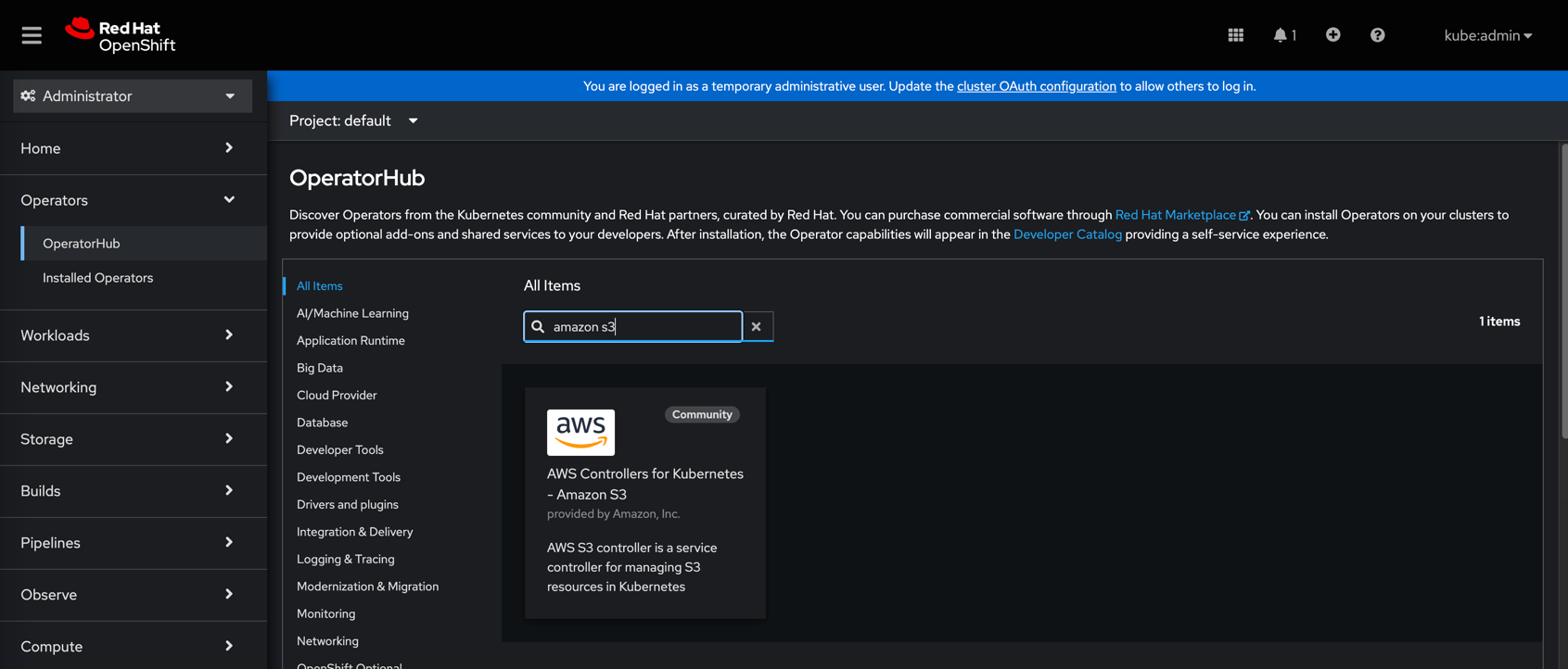
Navigate to OperatorHub and search for Amazon S3:
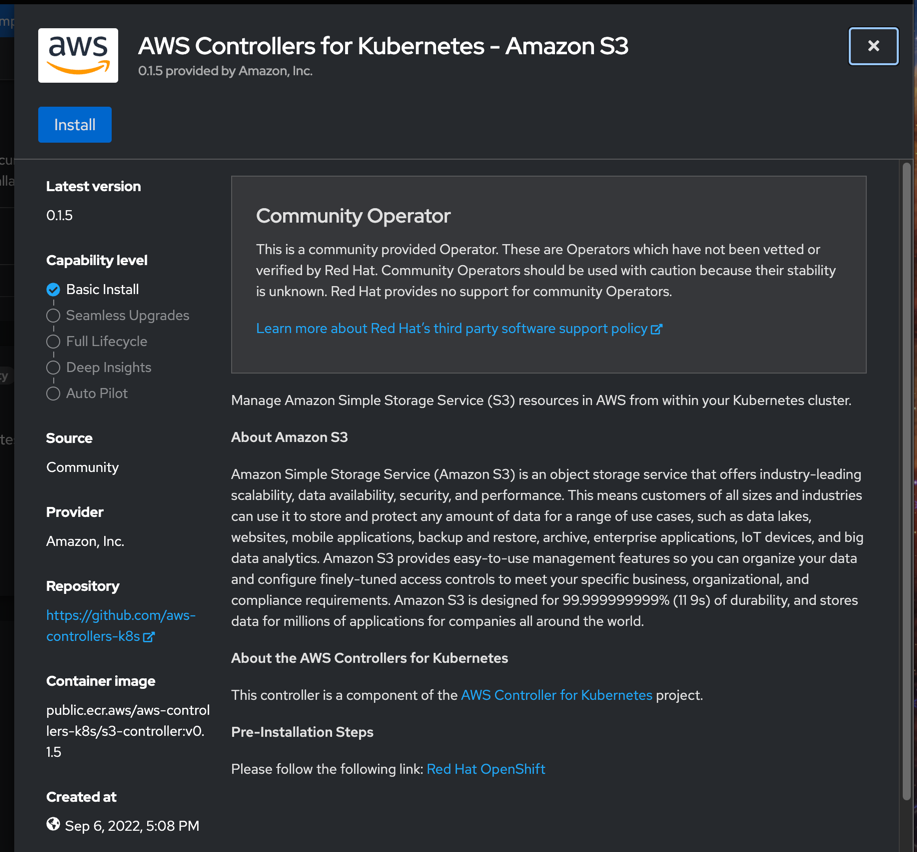
Click Install:
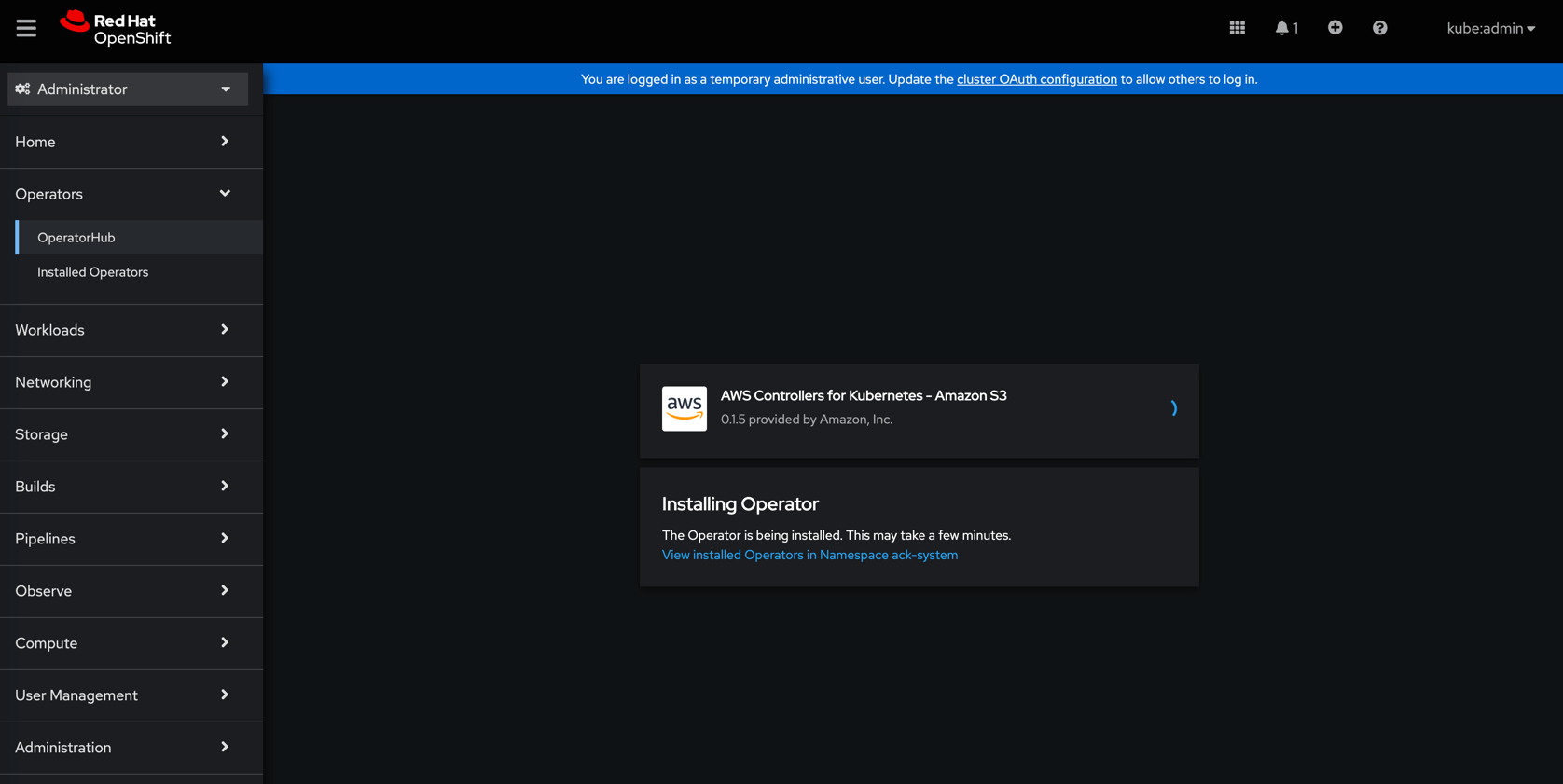
Install the Operator with default settings:

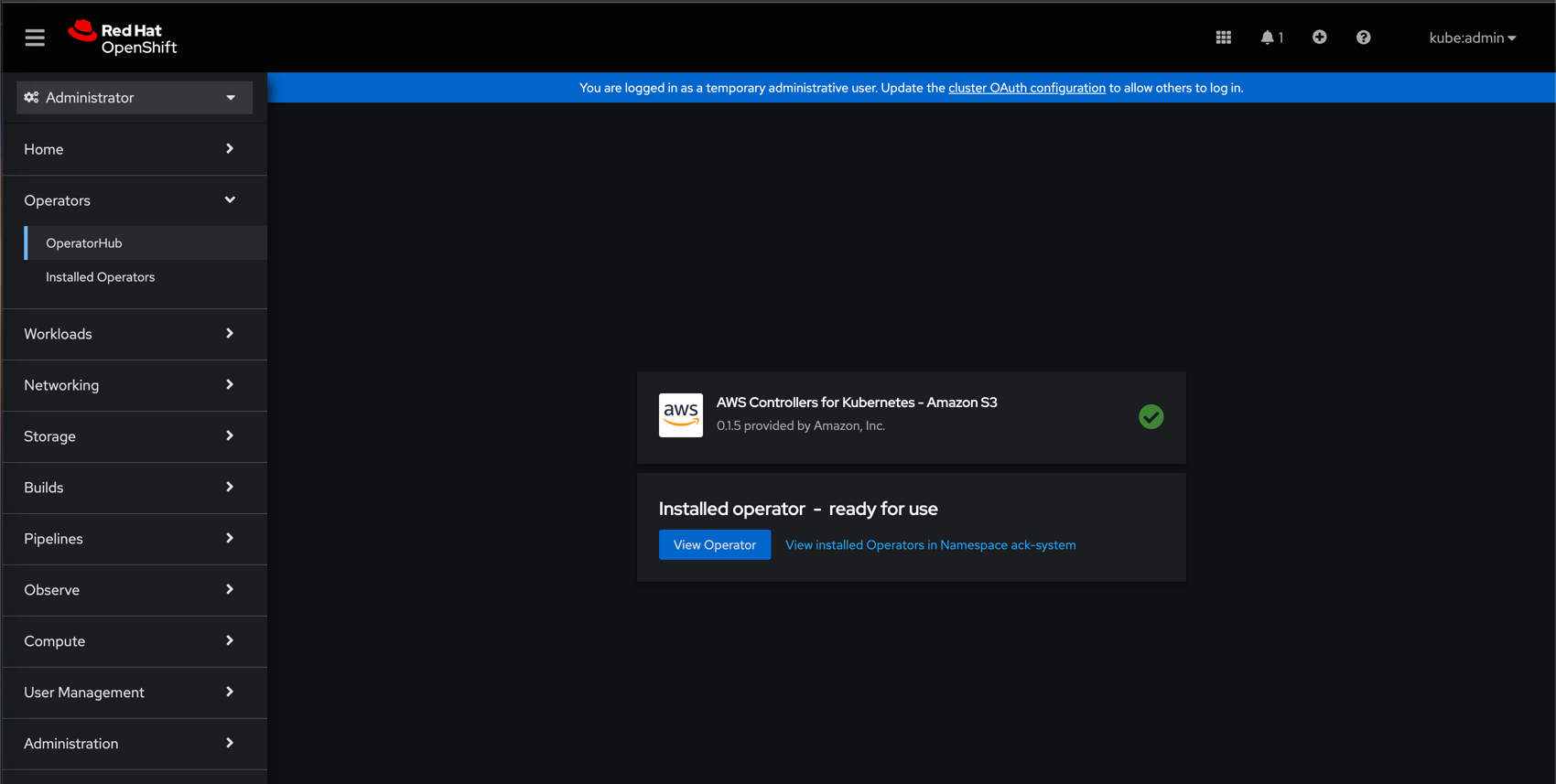
Wait for the operator to install:
If all the previous steps were completed successfully, the View Operator icon will appear:
Create a Bucket in the marketing namespace
If the marketing namespace isn't already selected, click the dropdown by the project name:
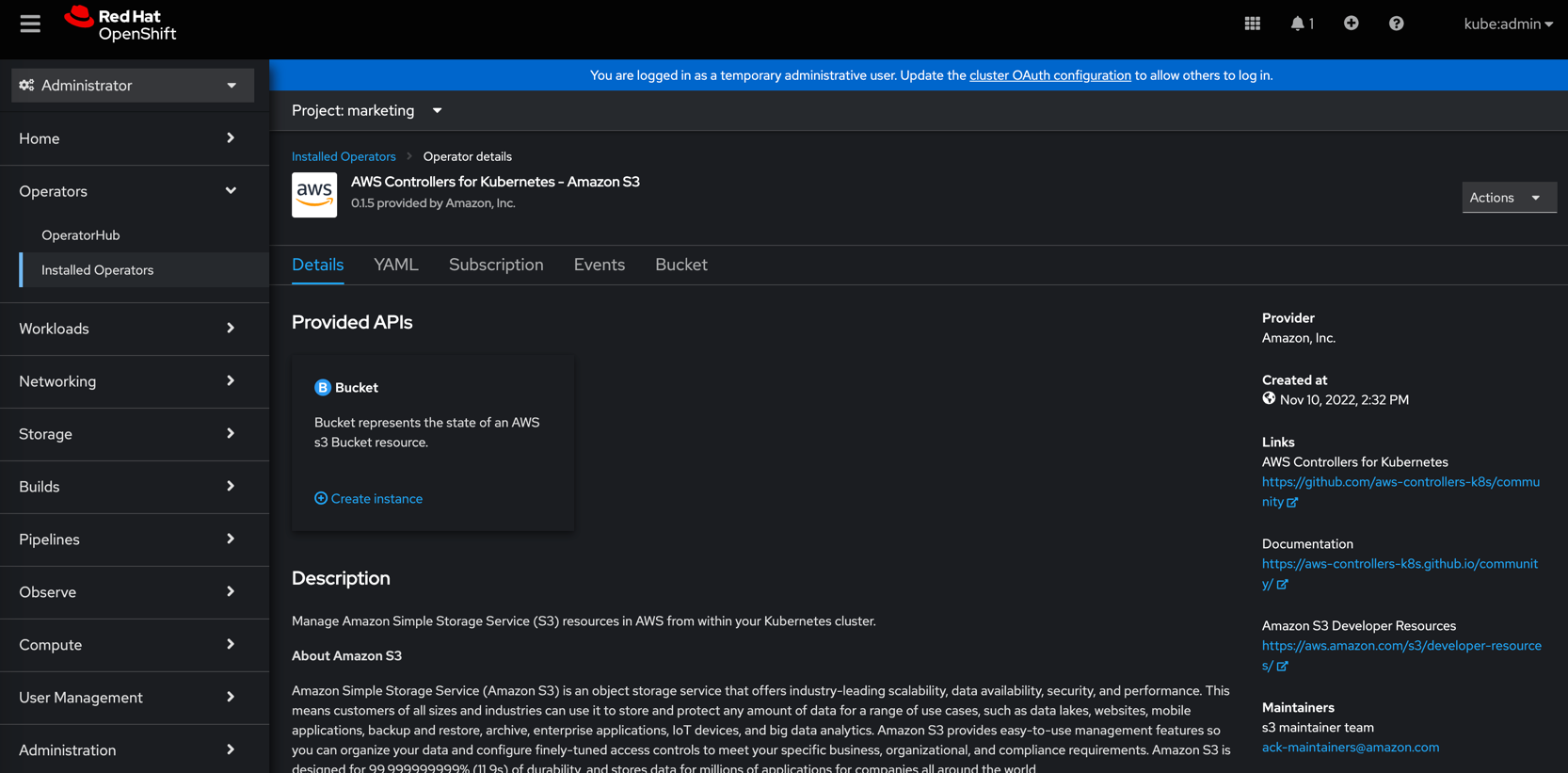
Create a unique bucket name:
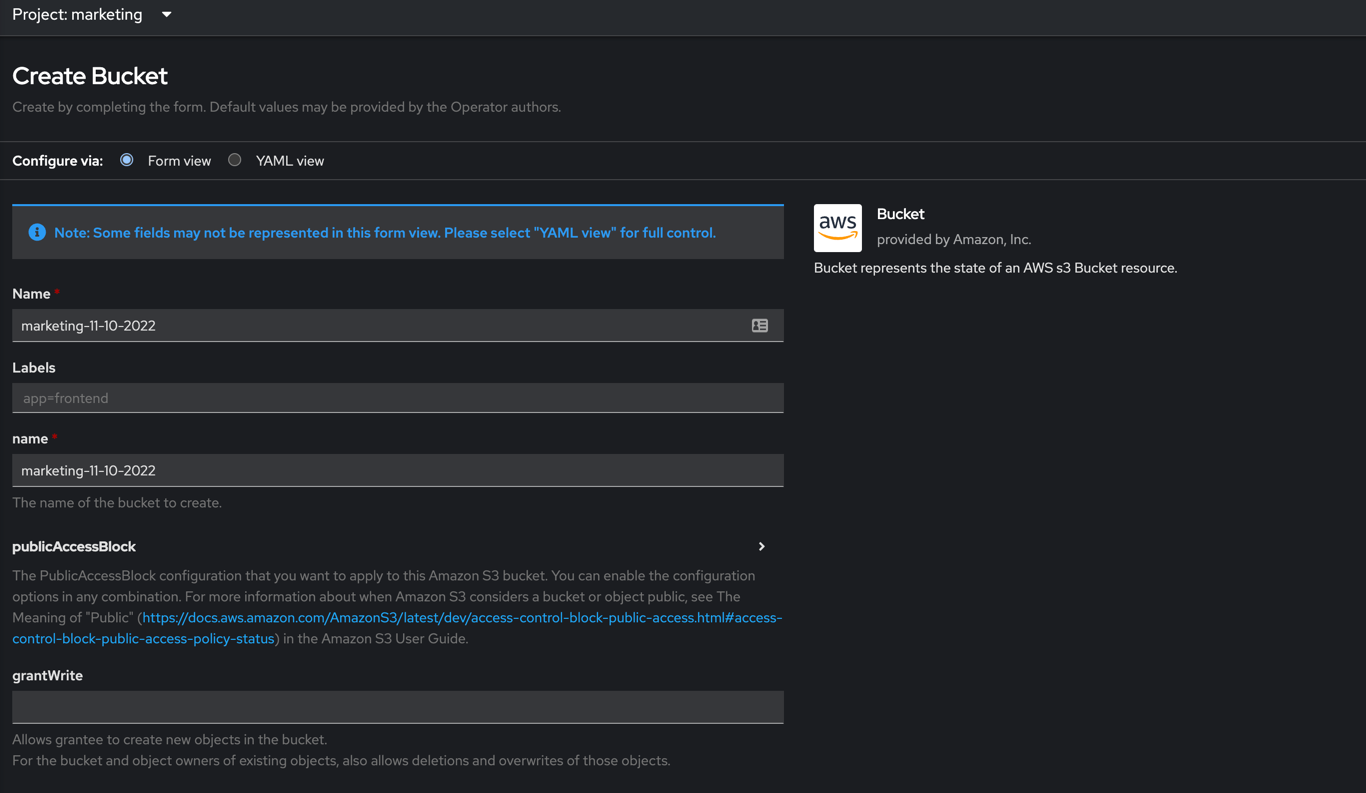
If we setup the accounts in AWS properly we should see Condition: ACK.ResourceSynced for the Buckets Status:

Validate that the bucket exists in the proper account:
Bucket should not exist in account 111111111111:
aws --profile 111111111111 --region us-west-1 s3 ls | grep marketing
#no output
Bucket should exist in account 222222222222:
aws --profile 222222222222 --region us-west-1 s3 ls | grep marketing
2022-11-14 08:44:24 marketing-11-10-2022
Conclusion
If we followed all the instructions in this example, we have a controller running under one AWS IAM account, and then we were able to create a Bucket under another AWS IAM account. This simple example can be expanded to any number of namespaces, to accommodate any number of AWS IAM accounts that might exist in a real world IT organization.
Further Reading
There have already been a few articles written about ACK. If you want to learn more about ACK within the OpenShift ecosystem, recommend reading the follow articles.
- Attention Developers: You can now easily integrate AWS services with your applications on OpenShift: High level overview of the project.
- How to use Operators with AWS Controllers for Kubernetes: Pre-install steps for S3 Operator.
- Create AWS resources with Kubernetes and Operators: Installing S3 Operator and creating a Bucket.
저자 소개
유사한 검색 결과
Red Hat 파트너가 최고의 통신 비즈니스 자산인 이유
에이전틱 패러독스와 하이브리드 AI의 필요성
Diving for Perl | Command Line Heroes
Frameworks And Fundamentals | Compiler: Stack/Unstuck
채널별 검색

오토메이션
기술, 팀, 인프라를 위한 IT 자동화 최신 동향

인공지능
고객이 어디서나 AI 워크로드를 실행할 수 있도록 지원하는 플랫폼 업데이트

오픈 하이브리드 클라우드
하이브리드 클라우드로 더욱 유연한 미래를 구축하는 방법을 알아보세요

보안
환경과 기술 전반에 걸쳐 리스크를 감소하는 방법에 대한 최신 정보

엣지 컴퓨팅
엣지에서의 운영을 단순화하는 플랫폼 업데이트

인프라
세계적으로 인정받은 기업용 Linux 플랫폼에 대한 최신 정보

애플리케이션
복잡한 애플리케이션에 대한 솔루션 더 보기

가상화
온프레미스와 클라우드 환경에서 워크로드를 유연하게 운영하기 위한 엔터프라이즈 가상화의 미래
