
Think about some situations when you need to change strings in text files in your Linux hosts.
Depending on the case, you will simply change the file directly in your favorite text editor.
[ Check out this article comparing various text editors. ]
But what if there are too many files? Too many changes? And on top of that, you want a more automated method to perform this task precisely, in a way that is also repeatable and somehow self-documented.
Got your attention? OK, I'll elaborate.
Things to consider before making any changes
If you are using an integrated development environment (IDE), you probably already have a function for global search and replace in multiple files. In this case, you would have the option to confirm, case by case, which occurrence to replace (unless you are pretty sure that you really want to replace all).
Think of the following examples as methods to perform these types of changes using only the command line instead of an IDE.
But you may also want to inspect the changes before applying them because—different from the IDE option—the command-line method is more immediate (no confirmation is asked, by default).
In my example scenario, I have three files that contain references to variables user_name and user_home, which for some good reason I must change to admin_name and admin_home.
Before making any changes, I inspect the occurrences in the current directory:

Hmm. I can see the string user_ in the files playbook.yml and vars.yml, but there is also a directory. I can use the following command to include that in the search:
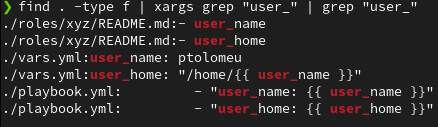
Note: As the combination of find and xargs grep does not highlight the string user_ like in the first example, I added an extra grep command to highlight the string.
In other scenarios, you may have to use regular expressions more elaborate than the example above to catch strings preceded by a comment (#) followed by zero or more spaces or a mix of upper and lower case. Yes, regular expressions can get complex.
Following are two ways you can change strings in multiple files simultaneously.
1. Change strings in files in the same directory
If I only wanted to change the strings in the files in the present directory, I could use:
sed -i 's/user_/admin_/g' *.yml
Here, I used the sed command with the -i argument to make the changes in place. The /g at the end of the parameter means replace all occurrences in each file.
2. Change strings in files in the current and subdirectories
In my example scenario, there are files in subdirectories that also need to be changed. For that, I use the find command again:
find ./ -type f | xargs sed -i 's/user_/admin_/g'
In this case, I use the find command with the parameter -type f to return only files and not directory names. The xargs command will receive each file name returned by the find command and apply the sed command.
[ Download now: A system administrator's guide to IT automation. ]
Wrap up
If you know exactly what you need to change, and you are dealing with a string that is safe to be replaced by another, you can speed up the process by using the commands shown here.
Be extra careful with strings that may be common in your files: If you apply a global change that affects more than what you intended, you may have to revert to your backup copies (which you certainly have, right?).
저자 소개
Roberto Nozaki (RHCSA/RHCE/RHCA) is an Automation Principal Consultant at Red Hat Canada where he specializes in IT automation with Ansible. He has experience in the financial, retail, and telecommunications sectors, having performed different roles in his career, from programming in mainframe environments to delivering IBM/Tivoli and Netcool products as a pre-sales and post-sales consultant.
Roberto has been a computer and software programming enthusiast for over 35 years. He is currently interested in hacking what he considers to be the ultimate hardware and software: our bodies and our minds.
Roberto lives in Toronto, and when he is not studying and working with Linux and Ansible, he likes to meditate, play the electric guitar, and research neuroscience, altered states of consciousness, biohacking, and spirituality.
유사한 검색 결과
Red Hat Ansible 올스타: 네트워크 및 인프라 자동화의 미래를 주도합니다
Ansible Automation Platform을 위한 새로운 오토메이션 오케스트레이터로 IT 워크플로우를 규모에 맞게 통합
Random Acts Of Automation | Compiler
Untangling Networks | Compiler
채널별 검색

오토메이션
기술, 팀, 인프라를 위한 IT 자동화 최신 동향

인공지능
고객이 어디서나 AI 워크로드를 실행할 수 있도록 지원하는 플랫폼 업데이트

오픈 하이브리드 클라우드
하이브리드 클라우드로 더욱 유연한 미래를 구축하는 방법을 알아보세요

보안
환경과 기술 전반에 걸쳐 리스크를 감소하는 방법에 대한 최신 정보

엣지 컴퓨팅
엣지에서의 운영을 단순화하는 플랫폼 업데이트

인프라
세계적으로 인정받은 기업용 Linux 플랫폼에 대한 최신 정보

애플리케이션
복잡한 애플리케이션에 대한 솔루션 더 보기

가상화
온프레미스와 클라우드 환경에서 워크로드를 유연하게 운영하기 위한 엔터프라이즈 가상화의 미래
