
In the previous blog post, I provided a brief history on Ansible Content Collections and demonstrated how to upload a Collection to a private Automation Hub. We ended the blog by synchronizing content from Ansible Galaxy and Automation Hub. Today, we will configure Ansible Tower to communicate with private Automation Hub.
"Great things are done by a series of small things brought together." - Vincent Van Gogh on Ansible Collections
A particular type of credential: "Ansible Galaxy/Automation Hub API Token" is what allows Red Hat Ansible Tower to authenticate and connect to private Automation Hub. Logging into Ansible Tower's GUI, in the left frame under ‘Resources’, let's click on 'Credentials,' then 'Create a new credential'
 . In the spirit of simplicity, we'll use the same names, URLs and so on as they appear in private Automation Hub under 'Repo Management / Local.' The credentials below would be used to connect to the 'published' (our proprietary) Collections. Remember that loading a new token in private Automation Hub will delete your old token.
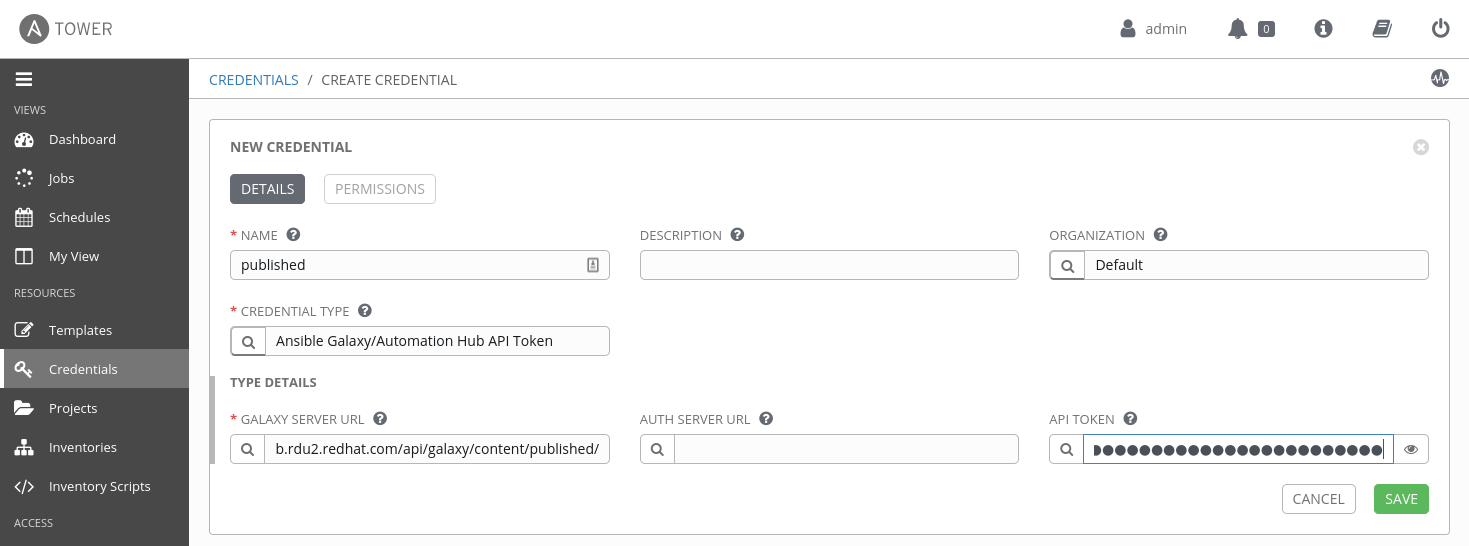
Creating credentials to connect Ansible Tower directly to 'Automation Hub' or 'Ansible Galaxy' will not be described here, as the scope of this blog is limited to private Automation Hub. However, for those interested, this is described in the Ansible Tower User Guide.
For the purpose of our demo today, I have created two credentials: 'red-hat-certified' and 'published' to connect to their corresponding repositories in private Automation Hub. The 'Ansible Galaxy' credential comes pre-configured in Ansible Tower and ready to connect directly with Ansible Galaxy.
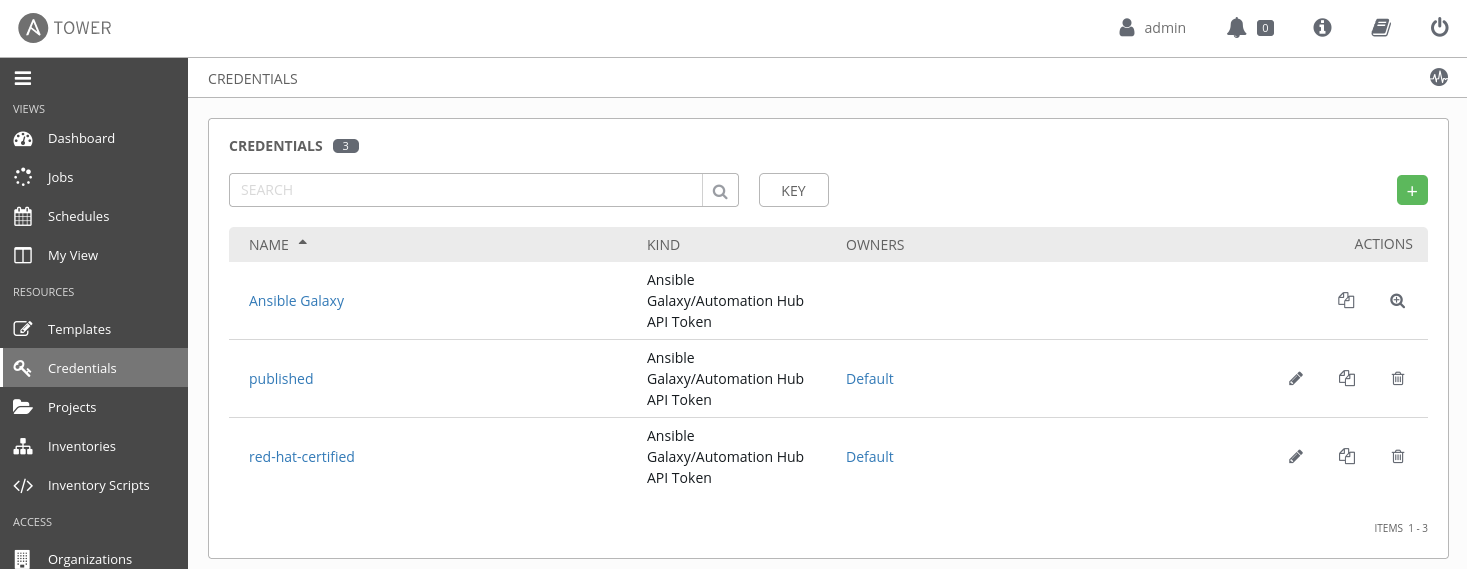
The next step will be to specify the search order of the repositories/hubs in our organization. In the left frame under ‘Access’, let's click on 'Organizations.' This action will bring a new frame on the right-hand side where we can click and select the organization we want to work with. We will work with the default organization for today's demo, so here we click 'Default.'
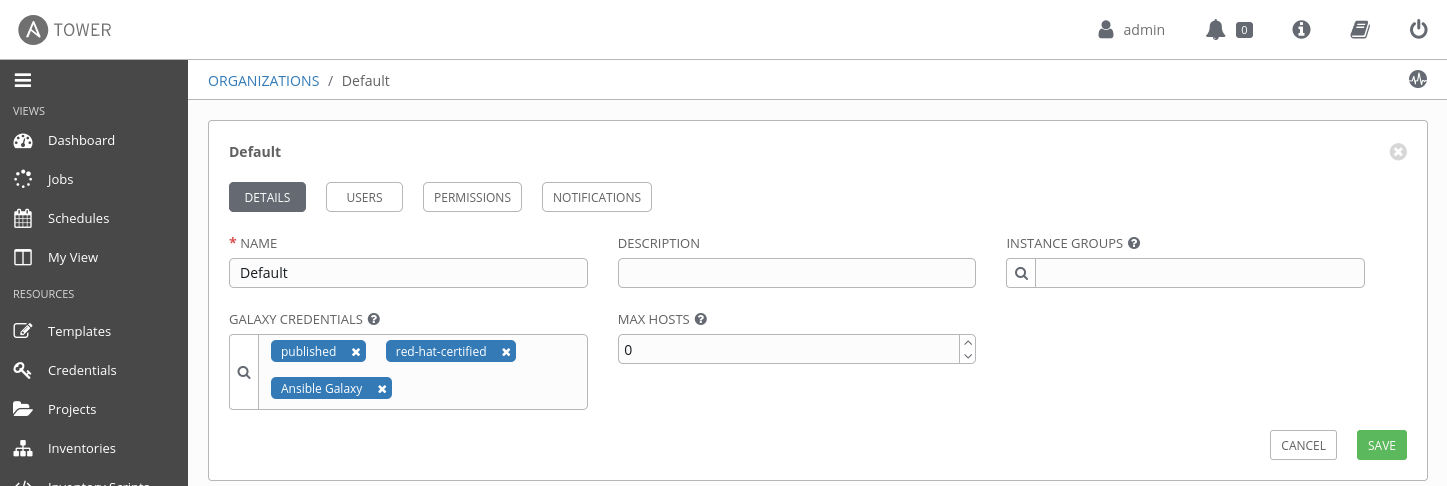
In the next window, we will click and remove 'Ansible Galaxy' from 'Galaxy Credentials' and add the following credentials/repositories in this order: published, red-had-certified, and Ansible Galaxy. The order in which we make the selection is essential, as it provides Ansible Tower the sequence in which hubs should be looked in to find Collections. Here, we're telling Ansible Tower to first look in private Automation Hub, our 'published' repository where we uploaded our Collections. Then, Ansible Tower will search among the Collections we synchronized from Automation Hub with private Automation Hub, and finally, search in Ansible Galaxy.
"Give me a museum, and I'll fill it." - Pablo Picasso on Ansible Galaxy
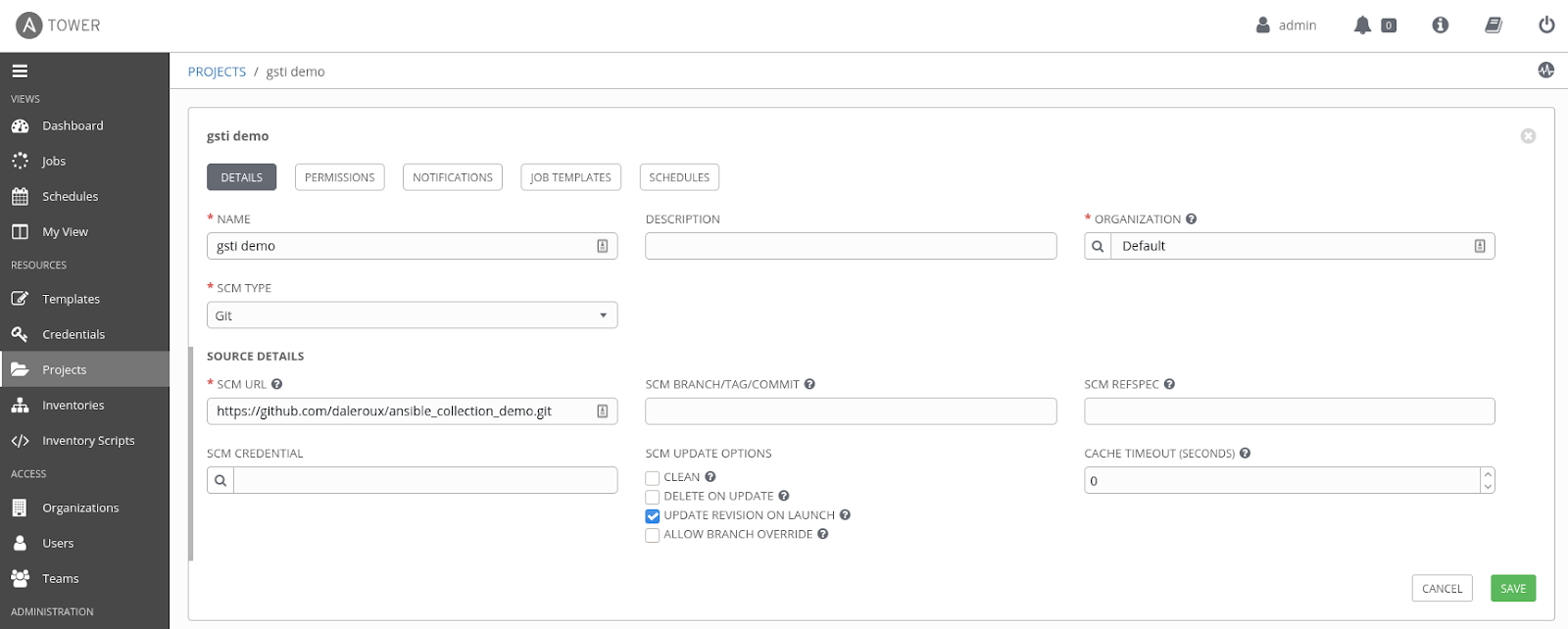
Now it's time to test things out and see if there's any failure from which we can learn. The following repository in my GitHub account contains an Ansible Playbook with a dependency on the previously uploaded Collection from Part 1. First, let's create a project in Ansible Tower, whose source will be this GitHub repository. Next, in the left frame under ‘Resources’, click 'Projects.' Since the GitHub repository is public, it doesn't require any credentials; we can simply fill in the different fields as below, then click 'Save.'
In the present case, it's important to note the Collection 'daleroux.hello_tam_blog' on which the playbook depends, exists in two places: in the private Automation Hub where I uploaded it previously, and in Ansible Galaxy. Therefore to validate that Ansible Tower will search for Collections in private Automation Hub, we will remove Ansible Galaxy from the 'Galaxy Credentials' in our default organization, leaving only :
 and
and
 . This will allow the Collection to be found in private Automation Hub and will validate our setup.
If you didn't install a valid SSL certificate on your private Automation Hub, make sure to navigate the Ansible Tower GUI and click ‘Settings’ in the left frame under ‘Administration’. Then, click ‘Jobs’ and enable 'Ignore Ansible Galaxy SSL certificate verification,' then click 'Save.' Once you install a valid SSL certificate or accept the default certificate that came with private Automation Hub, turn this flag back to its original state for security reasons.
The final step will be to create a job template from the project and to run it. To do so, click on 'Templates' in the left frame under ‘Resources’. Then, click on the plus sign and select 'Job Template.' In the present case, we will fill the information as can be seen here:
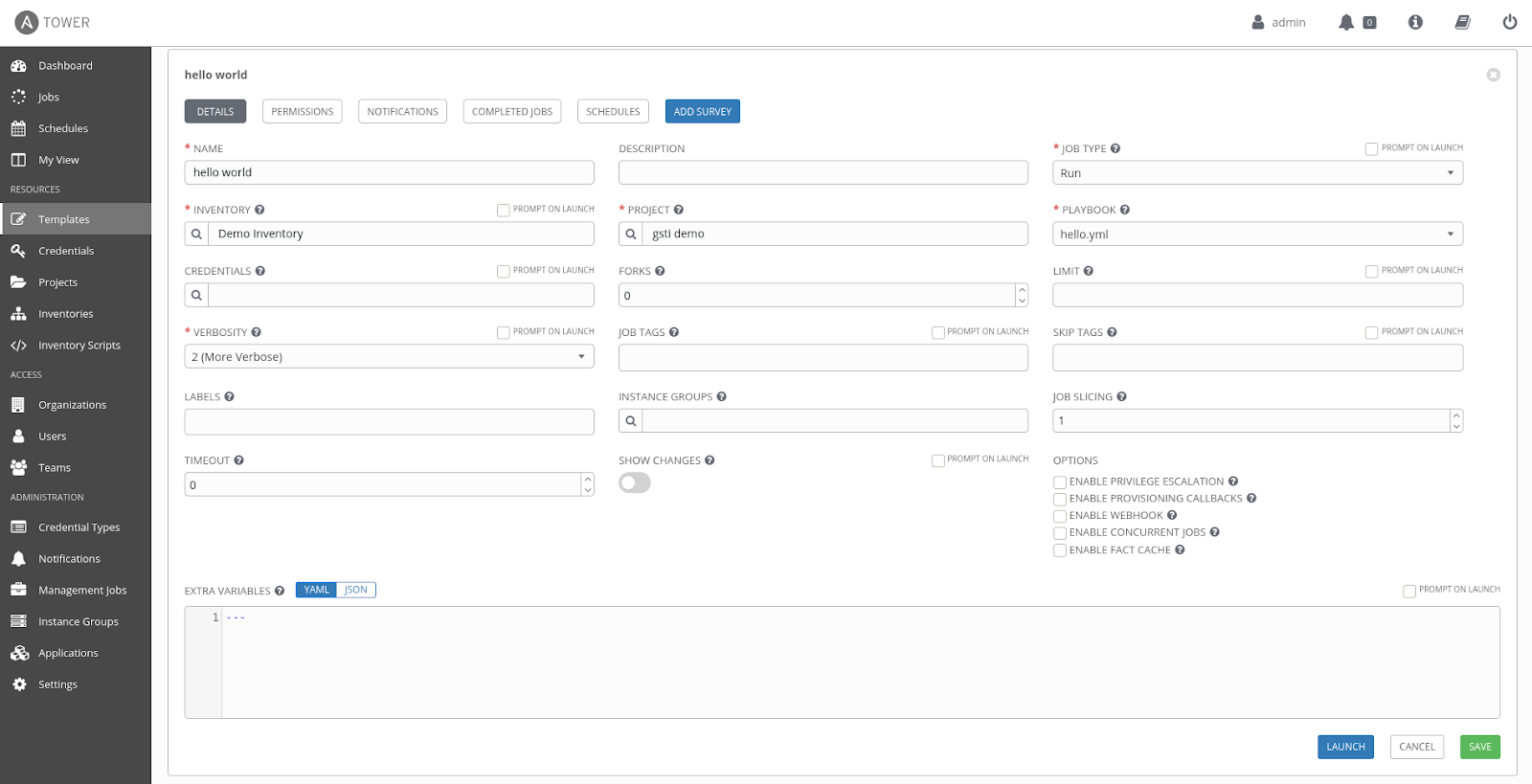
Click 'Save' and then 'Launch.'
If everything went according to plan, the Collection can be found in private Automation Hub, and the output should look as follows:

Once we have confirmed that our private Automation Hub is correctly configured with Ansible Tower, we can add Ansible Galaxy back in from the Ansible Galaxy credentials in our default organization as the final place to search for Collections.
This concludes our blog post; we covered the main features of private Automation Hub, and how it integrates with Ansible Tower. Additional details can be found in the product documentation.
Do you want a free trial of Red Hat Ansible Automation Platform? red.ht/try_ansible
저자 소개
유사한 검색 결과
AI 에이전트 프레임워크만으로는 충분하지 않은 이유: 프로덕션 환경에서 누락된 7가지 플랫폼 기능
Red Hat Ansible 올스타: 네트워크 및 인프라 자동화의 미래를 주도합니다
Random Acts Of Automation | Compiler
How Red Hat cleared IT debt for scalable AI
채널별 검색

오토메이션
기술, 팀, 인프라를 위한 IT 자동화 최신 동향

인공지능
고객이 어디서나 AI 워크로드를 실행할 수 있도록 지원하는 플랫폼 업데이트

오픈 하이브리드 클라우드
하이브리드 클라우드로 더욱 유연한 미래를 구축하는 방법을 알아보세요

보안
환경과 기술 전반에 걸쳐 리스크를 감소하는 방법에 대한 최신 정보

엣지 컴퓨팅
엣지에서의 운영을 단순화하는 플랫폼 업데이트

인프라
세계적으로 인정받은 기업용 Linux 플랫폼에 대한 최신 정보

애플리케이션
복잡한 애플리케이션에 대한 솔루션 더 보기

가상화
온프레미스와 클라우드 환경에서 워크로드를 유연하게 운영하기 위한 엔터프라이즈 가상화의 미래
