
Managing services is a key responsibility for sysadmins. There is no doubt that the transition between the older SysV method (using the service and chkconfig commands) and the newer systemd-based commands (such as systemctl) was controversial. In fact, many sysadmins still have very strong feelings one way or the other.
The reality is that many distributions, Red Hat Enterprise Linux (RHEL) included, have begun managing services with systemd. Hence, you and I need to know how to work with the systemctl management command.
I'm not the kind of author/trainer/admin that assumes everyone is advanced. With that in mind, I'm going to aim this article at the folks who need a fundamental and straightforward explanation of how and when to use the more common systemctl subcommands. At the end, I also provide a great trick for quickly displaying all the systemctl subcommands.
Note: The systemctl man page refers to the second word in the string as a "command," which seems somewhat confusing. I will refer to systemctl itself as a command, then the string following it as a subcommand. The argument is the name of the service and occupies the third position in the syntax.
Here is a syntax example:
systemctl subcommand argument
# systemctl status sshd
I'll demonstrate how and when to use systemctl. Most of my examples use the common sshd service.
[ Readers also enjoyed: How I learned to stop worrying and love systemd ]
Service status
The best place to start is to understand the current functionality of the service. I'll begin with the most simple approach, the use of the status subcommand:
# systemctl status sshd
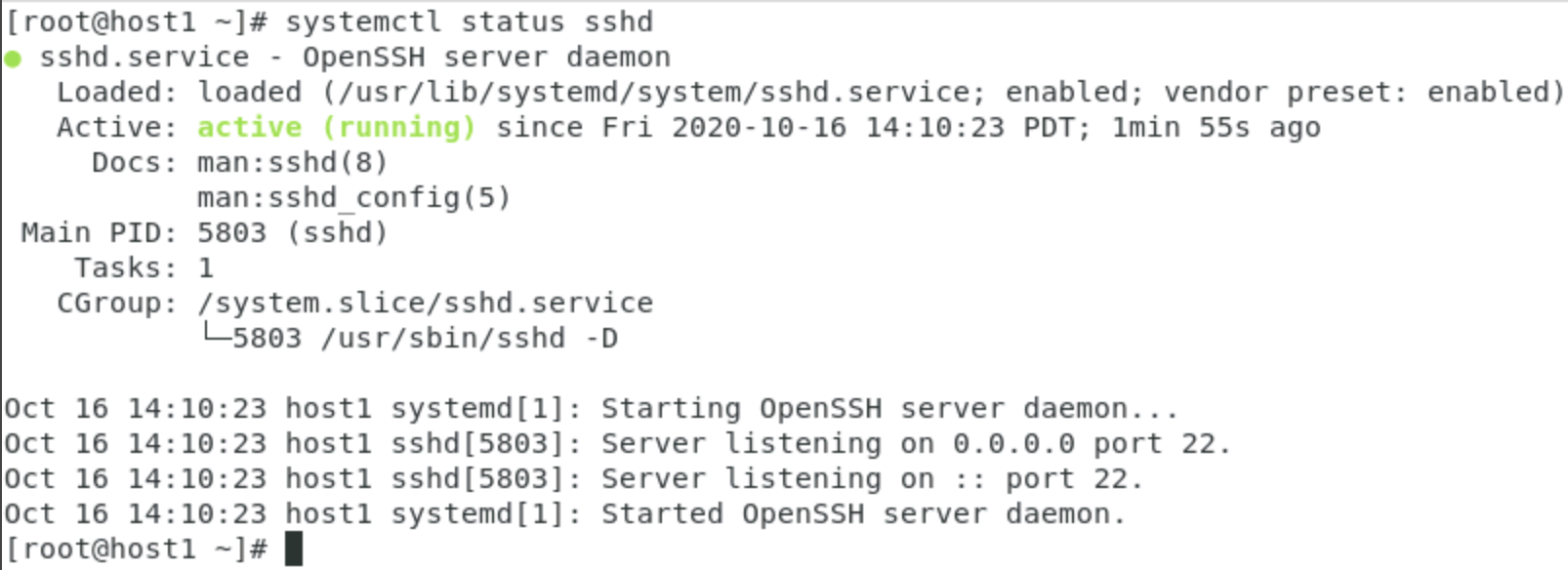
Of course, the idea is that you've just sat down at an unfamiliar Linux server, and you need to know the current status of the sshd service. Notice that many other pieces of information are provided, including a synopsis of the service, where it was loaded from, state, process ID (PID), and recent changes.
The systemctl status command is also useful during troubleshooting. When I'm troubleshooting a configuration, I almost immediately check its status by using systemctl. Why bother with firewalls, SELinux, and configuration files if the service isn't even running?
So, now you know how to check the status of services such as SSH. How do you manipulate that status?
Starting and stopping services
When you change a configuration file for a running service, you must either restart or reload the service. Doing so causes the service to re-read the file, and therefore implement the changes. In the old days, you used the service command, as in the examples below:
# service sshd restart
Services under systemd are managed via the systemctl command. To restart the SSH service with systemctl, enter:
# systemctl restart sshd
Personally, I find this syntax a little easier. It reads almost like a sentence: "Systemctl, please restart sshd."
The syntax is similar if you want to either stop or start a service:
# systemctl stop sshd

# systemctl start sshd
Services that refuse to stop gracefully can be killed by using systemctl, too. For example, to kill the sshd service, enter:
# systemctl kill sshd
Reloading services is a little different. The reload subcommand only causes the service to re-read the configuration file, while the restart subcommand terminates all current connections and re-reads the configuration file.
For example, if you type systemctl restart sshd, any current SSH connections are dropped. If you reload it, however, existing connections are maintained. In both cases, the configuration file is re-read and any changes are implemented.
Reload causes less downtime, but not all services support it.
The start, stop, restart, and reload subcommands affect only the current runtime.
Enable and disable services
Many admins who are new to Linux are confused about the difference between start/stop and enable/disable. I already discussed start, stop, and restart in the previous section. Start and stop are used to alter the current state of the service. However, if the server reboots, the service's state will revert to whatever the default startup setting is. In other words, if I stop the sshd service and then reboot my server, the boot process will examine the configuration file and either start or not start sshd, depending on what's specified. If I stop the service and then reboot, and the configuration file says to start the service upon bootup, it will be running again.
Previously, you used the chkconfig command to define the service's startup setting for each runlevel. Here is an example:
# chkconfig --level 35 sshd on
This command enables sshd to start up in runlevels 3 and 5.
With systemctl, configuring the default startup setting is the work of the enable and disable subcommands. The syntax is the same as with the start, stop, and restart subcommands. For example, to set SSH to start when the server boots, enter:
# systemctl enable sshd
Likewise, to configure SSH not to start during bootup, type:
# systemctl disable sshd
Configuring the default startup configuration for services is straightforward, as is starting and stopping services. There seems to be some confusion about using the two together, however.
Use start and enable together
Some find it odd that enabling a service does not start it. For example, if you've just downloaded a new program, and you want to launch it so that you can test its functionality and you want to configure it to start when the server boots, you need to enter two commands:
# systemctl start sshd

# systemctl enable sshd

Disabling a service occurs the same way. Type systemctl disable sshd to prevent SSH from launching when the server boots. However, if SSH is running in the current runtime, it remains active, even if disabled. You need to stop SSH to turn it off in the current runtime.
For example, to both stop SSH and prevent it from starting when the system boots, enter:
# systemctl stop sshd

# systemctl disable sshd

Remember to check the service status any time you're not sure by entering:
# systemctl status sshd
You can check whether a service is configured to start automatically by using another systemctl subcommand: is-enabled. For example, to display whether SSH is enabled, enter:
# systemctl is-enabled sshd

Lots of subcommands - the trick
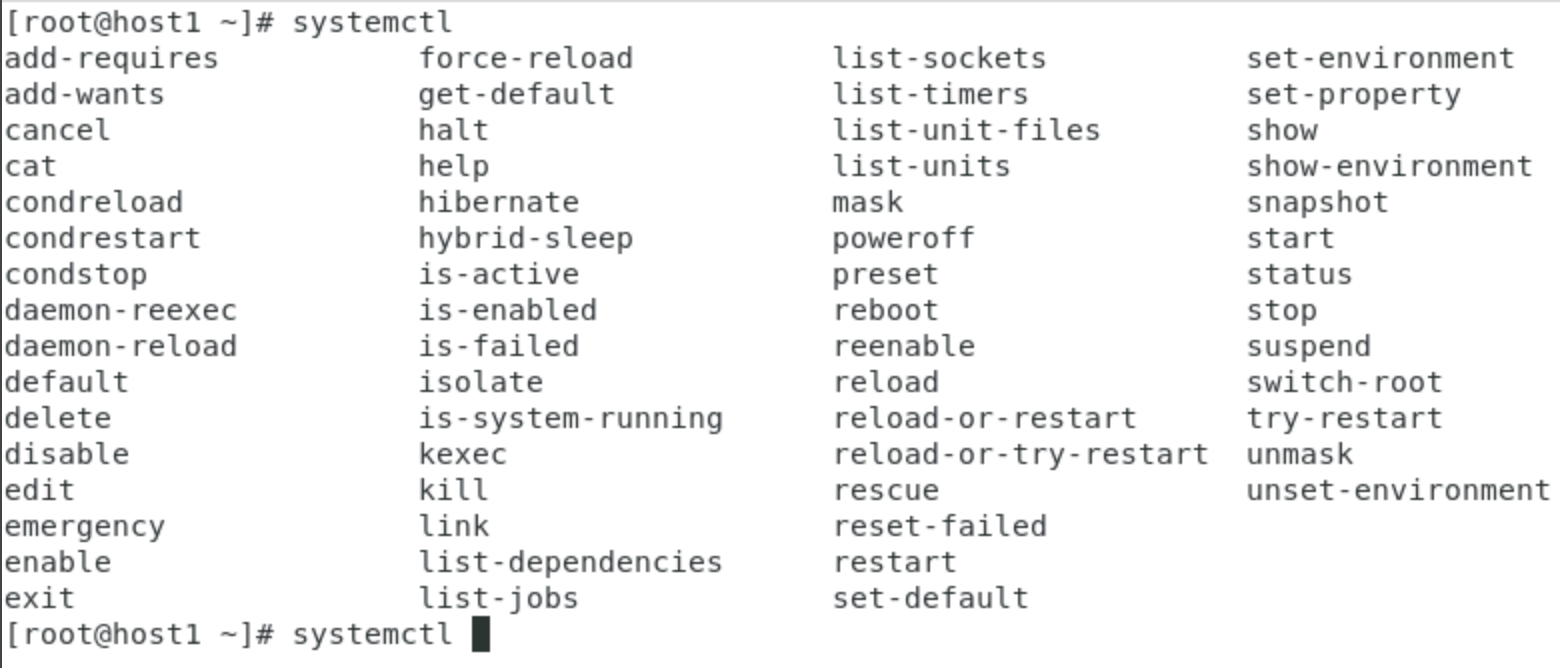
I've covered quite a few systemctl subcommands, including start, stop, restart, enable, disable, status, and others. That's a lot to remember! This is where your old friend tab-completion comes into play. Try the following technique on your system: Type systemctl and then add a single space. Hit the Tab key twice, and bash displays all of the available systemctl subcommands! This tab-completion trick is one that I think few sysadmins take enough advantage of.
[ Want to test your sysadmin skills? Take a skills assessment today. ]
Wrap up
As you can see, managing services via the systemctl command really isn't that difficult. I find it simpler and more logical than the older service and chkconfig commands, personally. It is also handy to have only one command to manage the services instead of two.
Here are the key points to remember:
- Use start/stop/restart to manage the current runtime.
- Use start/stop/restart/reload after editing configuration files.
- Use enable/disable to manage the default startup action.
- Use status very early in the troubleshooting process.
Finally, you don't have to memorize all of the available systemctl subcommands. Simply enter the systemctl command and follow it with one space, and then press Tab twice. Bash's built-in tab-completion feature does the rest!
Sysadmins regularly find themselves manipulating services, and hopefully, you are a little more comfortable with when to use the more common systemctl subcommands.
저자 소개
Damon Garn owns Cogspinner Coaction, LLC, a technical writing, editing, and IT project company based in Colorado Springs, CO. Damon authored many CompTIA Official Instructor and Student Guides (Linux+, Cloud+, Cloud Essentials+, Server+) and developed a broad library of interactive, scored labs. He regularly contributes to Enable Sysadmin, SearchNetworking, and CompTIA article repositories. Damon has 20 years of experience as a technical trainer covering Linux, Windows Server, and security content. He is a former sysadmin for US Figure Skating. He lives in Colorado Springs with his family and is a writer, musician, and amateur genealogist.
유사한 검색 결과
지금 바로 시작해야 하는 이유: 금융 서비스를 위한 포스트 양자 보안을 지금 시작해야 하는 이유
Red Hat Enterprise Linux Long-Life Add-On: 지원 종료 걱정 없는 RHEL 소개
Infrastructure At The Edge | Compiler
Operating System Management | Compiler
채널별 검색

오토메이션
기술, 팀, 인프라를 위한 IT 자동화 최신 동향

인공지능
고객이 어디서나 AI 워크로드를 실행할 수 있도록 지원하는 플랫폼 업데이트

오픈 하이브리드 클라우드
하이브리드 클라우드로 더욱 유연한 미래를 구축하는 방법을 알아보세요

보안
환경과 기술 전반에 걸쳐 리스크를 감소하는 방법에 대한 최신 정보

엣지 컴퓨팅
엣지에서의 운영을 단순화하는 플랫폼 업데이트

인프라
세계적으로 인정받은 기업용 Linux 플랫폼에 대한 최신 정보

애플리케이션
복잡한 애플리케이션에 대한 솔루션 더 보기

가상화
온프레미스와 클라우드 환경에서 워크로드를 유연하게 운영하기 위한 엔터프라이즈 가상화의 미래
