This is for Cloud Providers, because every second your clusters are running, there is charge against your IT organization. Red Hat Advanced Cluster Management can help you mitigate that cost. In this blog, we walk you through how to define hibernation windows for groups of clusters that were provisioned by Red Hat Advanced Cluster Management.
OpenShift 4.5 introduced the ability to suspend and resume clusters by just changing the power state of the cluster's virtual machines in the provider. Advanced Cluster Management extends this through its Hive components, where cluster virtual machines can be powered off and on by changing the powerState field. The code that performs this work also takes care of rolling over expired certificates, so that your Openshift clusters always come back online in a healthy state.
In under 5 minutes, you can shutdown to reach hibernation. The virtual machines are powered off, although we refer to this action as the cluster hibernating. You can power-on to resume the cluster in under 10 minutes.
Building a time window
Advanced Cluster Management subscriptions provide a time window for activity. Within this time window, a subscription can affect a Kubernetes resource with a merge. This is a targeted activity where only specific keys in the spec, labels, or annotations can be modified.
All you need to do is change the powerState to toggle between states. With two subscriptions, we can choose a time to hibernate and a time to resume. This is done using a Git, Gitlab or Bitbucket repository that is public or private.
To initiate a hibernate and resume, we create a simple merge resource that targets the spec.powerState field. See the following sample with a powerState: Hibernating status:
---
apiVersion: hive.openshift.io/v1
kind: ClusterDeployment
metadata:
  name: cluster01
  namespace: cluster01
spec:
  powerState: Hibernating
Organizing your Git repository
The following public repository is provided as a template for utilizing this work:
https://github.com/open-cluster-management/cluster-hibernate
You can fork this repository if you want to use a public repository, otherwise follow these steps to duplicate to a private repository:
-
Once you have either forked or duplicated a working repository, create a branch if you want to have different time windows for different clusters.
-
Start adding clusters. To add clusters, run the
./add.shscript with the cluster name (as it appears in the Advanced Cluster Management console). This will put a merge file in the./Hibernatingand./Runningdirectories. These directories are watched by the two subscriptions, and their contents merged into the hub cluster to facilitate the hibernate and resume actions. -
Repeat the
./add.shstep for each of your clusters.
Activating subscriptions on the Advanced Cluster Management hub cluster:
Next are a number of steps to run against the hub cluster:
-
Log into your hub cluster with the CLI.
-
If you have not bound your user to
subscription-admin, follow these steps.
- Run the following command:
oc edit clusterrolebinding open-cluster-management:subscription-admin
- Add the following if it is not already present in the open-cluster-management:subscription-admin cluster role binding:
subjects:
- apiGroup: rbac.authorization.k8s.io
  kind: User
  name: kube:admin
- Bring the default subscriptions online:
./configure.sh
The system is now active. The default time windows is to resume at 7AM on weekdays and hibernate at 7pm on weekdays and all day for weekends.
- Run
makeif you would like to edit the time windows. This will provide you with some helpful commands for managing the repository.
Summary
The status of the subscriptions can be viewed through the Advanced Cluster Management application console. You can see if the subscription is active or blocking, as well as the clusters that were affected by the hibernation and resume actiona.
If you have a large number of clusters, or the instance types you use are large, this can produce a significant cost savings. This is especially important for development teams that tend to adhere to a usage pattern that concentrates on core business hours.
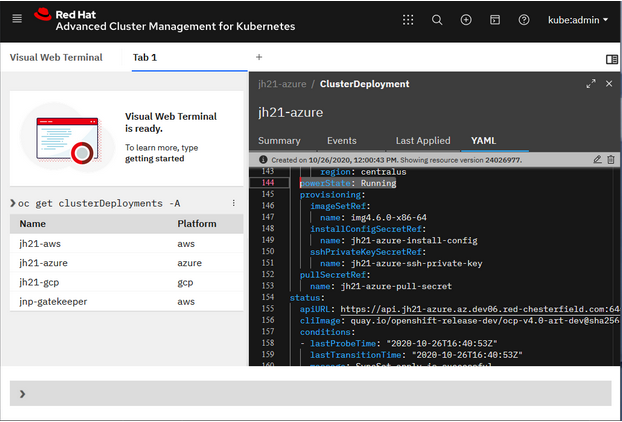
Keep in mind that if you need to bring a cluster out of hibernation, a quick flip of the spec.powerState value is just a click away through the Visual Web Terminal (interactive command line) or Advanced Cluster Management search, as seen in the following images:
Visual web terminal:
Search result YAML editor:
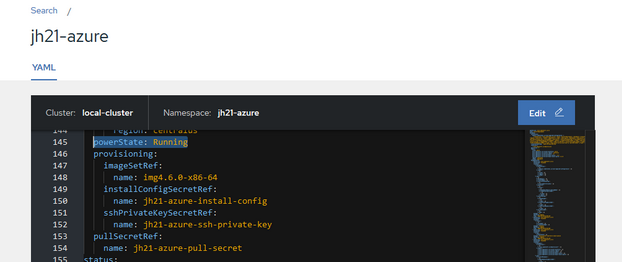
This allows for a curated opt-in approach to hibernating clusters. In AWS, this gets you an approximately cost savings of 70% for a 6-node cluster. This capability is available in all three supported cloud providers using Openshift 4.5 clusters.
If your interested in an opt-out approach to cluster hibernation, take a look at this repository: open-cluster-management/hibernate-cronjob.
저자 소개

채널별 검색

오토메이션
기술, 팀, 인프라를 위한 IT 자동화 최신 동향

인공지능
고객이 어디서나 AI 워크로드를 실행할 수 있도록 지원하는 플랫폼 업데이트

오픈 하이브리드 클라우드
하이브리드 클라우드로 더욱 유연한 미래를 구축하는 방법을 알아보세요

보안
환경과 기술 전반에 걸쳐 리스크를 감소하는 방법에 대한 최신 정보

엣지 컴퓨팅
엣지에서의 운영을 단순화하는 플랫폼 업데이트

인프라
세계적으로 인정받은 기업용 Linux 플랫폼에 대한 최신 정보

애플리케이션
복잡한 애플리케이션에 대한 솔루션 더 보기

가상화
온프레미스와 클라우드 환경에서 워크로드를 유연하게 운영하기 위한 엔터프라이즈 가상화의 미래
