
With the increase in online documentation, being a sysadmin has changed from the man command being your only friend to having access to instructions for what you are trying to do (or at least close enough to adapt).
These instructions are courtesy of someone who decided to document what they were doing, an open source contributor documenting part of their project, or the professional work of a tech writer.
Most "how-to" articles will include information about the scenario behind the article or the end goal, which will help the reader put the instructions into context. In addition, most how-tos will include not just the commands and configuration changes you will need to do to perform the task but also screenshots of the output of commands so you can compare your results at various stages.
And at the end of performing the tasks in the how-to, you should have the basic skills that lead to the successful completion of a task (or close enough). In this case, the end goal is for you to be able to put together a basic how-to.
The introduction
Even this blog post had some introductory information as to why a person would create a how-to article, and it even gave some additional information as to who might have written it. The introduction gave you enough information to determine whether or not the article contained what you were looking for.
It's important to note that you may find a how-to that doesn't align 100 percent with your scenario, but it's close. You should, at this point, have an idea of what differences you might encounter and need to solve on your own.
Clear instructions
Most people learn from front to back, through a linear progression from beginning to end, without hopping around the order of things.
One way to achieve this is either by using headers, which, in many markdown-related formats, begin with a number of #. So, in the case of this section, the header is actually ## Clear Instructions, if you were to look at the code. If you were to use something like a word processor, you might simply use a bigger text (markdown doesn't have this function) and/or bold text.
Another method to achieve this is by using numbered or bulleted lists. For example:
-
The Introduction
Content
-
Clear Instructions
Content
-
The rest of this article
Content
or
-
The Introduction
Content
-
Clear Instructions
Content
-
The rest of this article
Content
Use a combination of headers and lists to make your information clear and easy to follow!
Code
When talking about commands for use on the Command Line Interface (CLI) or code in scripts, it's important to distinguish these pieces of information from any text. Now the goal, of course, is for the reader to read your text and actually learn why they're about to type the command and what will happen, but, as we all know, sometimes we just cut and paste what we're told to.
So, to achieve both distinction and the ability to cut and paste, you can use code blocks in a markdown language.
Example
In order to create a new directory, you will need to use the mkdir command, which stands for "make directory." So let's go ahead and make a new directory called "test."
mkdir test
As you can see, you've been given an introduction explaining the goal, the command you'll be using along with some additional information about it, and then, lastly, the command you can type in or cut and paste. Note how markdown can place it in a code block by having starting and ending lines containing ``` and the command in the middle line, or, if needed, multiple lines.
Visuals
Visuals can be used in many different ways. They could be a code block showing what the end results would look like, or they can be a picture or chart to help relay information. Utilizing screenshots of an interface can be especially important when you need to explicitly show where you might need to click to perform a task or the end result of a task.
In the case of demonstrating the output of a command, let's go back to our earlier example and build on it.
Example
In order to create a new directory, you will need to use the mkdir command, which stands for "make directory." So let's go ahead and make a new directory called "test."
# mkdir test
To see the results of our command, we would type ls for a list of contents with the -l option to see the long listing.
# ls -l
# total 0
drwxrwxr-x. 2 amy amy 6 Aug  9 18:24 test
In the case of an interface, a screenshot often comes in handy to explain where you would need to interact with it or to give a visual for an explanation.
Example
In order to create a new virtual network using the web interface, you will need to click on the Create Virtual Network in the upper right-hand corner, as shown here outlined in red.

This will open a pop-up, which you will need to configure with the following information to create our test virtual network on the 192.168.100.0/24 network:
- Name—Name of your network (which will be "test")
- Forward Mode—Defaults to the desired NAT
- Device—We will allow it to be configured automatically.
- IP Configuration—In this case, you want to select IPv4 Only.
- IPv4 Network—In this case, we will be using 192.168.100.0.
- Mask or Prefix—As we're using the whole /24, we will put 24.
- Set DHCP Range—We will not be setting a DHCP Range, so leave this unchecked.
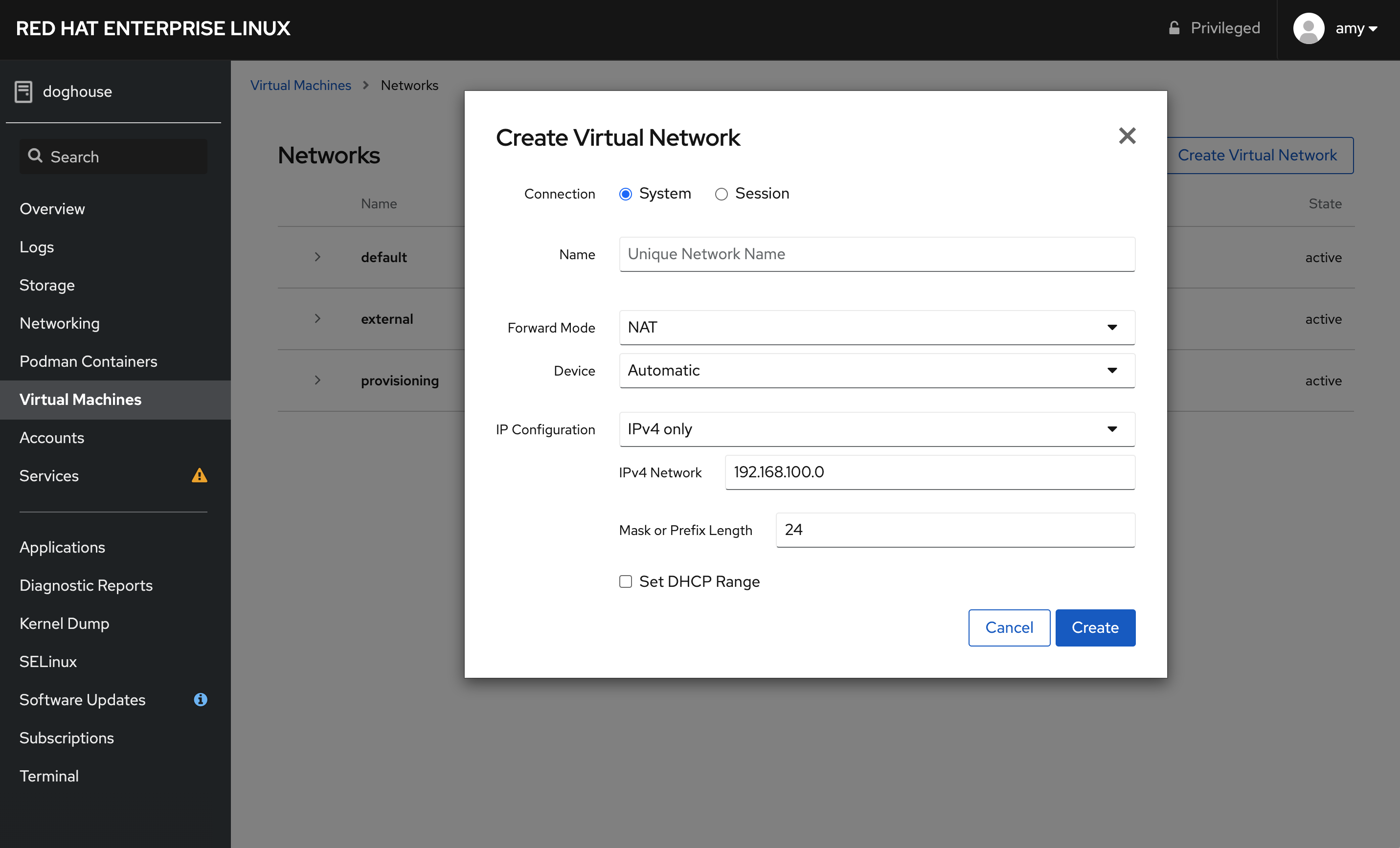
So, in this case, we had a visual to show the screen, with a box to highlight the portion of the screen we said we would need to click on. And we followed this up with the result, as well as what was there and what options we will be using to complete the task.
Conclusion
With any how-to, you should conclude with what the reader should walk away with. So, in this case, the reader should walk away with the basic understanding of how to create a how-to and the types of information to place in it.
[ Want to test your sysadmin skills? Take a skills assessment today. ]
저자 소개
Amy Marrich is a Principal Technical Marketing Manager at Red Hat. She previously worked at a small open source e-assessment company in Luxembourg, where she was the Open Source Community and Global Training Manager. Previously, she was the OpenStack Instructor at Linux Academy and a Linux System Engineer on the Platform Engineering Cloud Operations team at Rackspace. She currently serves on the OpenStack Board, is an active member of the Openstack Ansible project, and was previously the chair of the OpenStack User Committee. Amy spends her free time competing in performance events (agility, FASt Cat, and dock diving) with her Dalmatians and competing in dressage with her Connemara pony.
유사한 검색 결과
Red Hat Ansible 올스타: 네트워크 및 인프라 자동화의 미래를 주도합니다
asago 소개: 오픈소스 AI 안전 및 거버넌스 오케스트레이션
Random Acts Of Automation | Compiler
How Red Hat cleared IT debt for scalable AI
채널별 검색

오토메이션
기술, 팀, 인프라를 위한 IT 자동화 최신 동향

인공지능
고객이 어디서나 AI 워크로드를 실행할 수 있도록 지원하는 플랫폼 업데이트

오픈 하이브리드 클라우드
하이브리드 클라우드로 더욱 유연한 미래를 구축하는 방법을 알아보세요

보안
환경과 기술 전반에 걸쳐 리스크를 감소하는 방법에 대한 최신 정보

엣지 컴퓨팅
엣지에서의 운영을 단순화하는 플랫폼 업데이트

인프라
세계적으로 인정받은 기업용 Linux 플랫폼에 대한 최신 정보

애플리케이션
복잡한 애플리케이션에 대한 솔루션 더 보기

가상화
온프레미스와 클라우드 환경에서 워크로드를 유연하게 운영하기 위한 엔터프라이즈 가상화의 미래
