
Say you are new to Linux world and just installed Linux desktop and now you would like to fire up terminal window and start issuing commands, but wait you don’t know how to access a terminal window in Linux, in this article I will walk you through how to open a Linux terminal window and set up a keyboard shortcut for easier access.
Before I begin, allow me to explain the basic differences between a shell and a terminal emulator.
The shell
The shell is a command-line interface program that takes commands from the user as an input, processes the command, and prints out the output to the display. In most Linux systems, you will find bash (Bourne Again SHell) installed and is the default, Bash is an enhanced version of Unix shell program sh (shell). Apart from bash, there are other shell programs that can be installed on Linux machines such as ksh, zsh, and csh.
The terminal emulator
Simply put, a Terminal Emulator is a program that allows users to interact with shell in the graphical user interface (GUI) environment.
Some familiar terminal emulators you might find in Linux distros are:
- Gnome-terminal
- Konsole
- xterm
Opening the Linux terminal window
I am using a Centos 8 Machine with the Gnome Desktop Environment. I’m going to show you two different ways to open a Linux terminal window.
Option 1
Gnome desktop environment makes easy access of application, in order to access the terminal window, press the super key (aka Windows key) and you should see Terminal application listed on the left-hand side application pane if you don’t see it listed on here simple start searching for “Terminal” in the search area.
You should see a Terminal Emulator application
Option 2
The other way (my favorite) is to open the terminal window is with a keyboard shortcut. Who doesn’t like to have a keyboard shortcut? Keyboard shortcuts make it easier to launch apps.
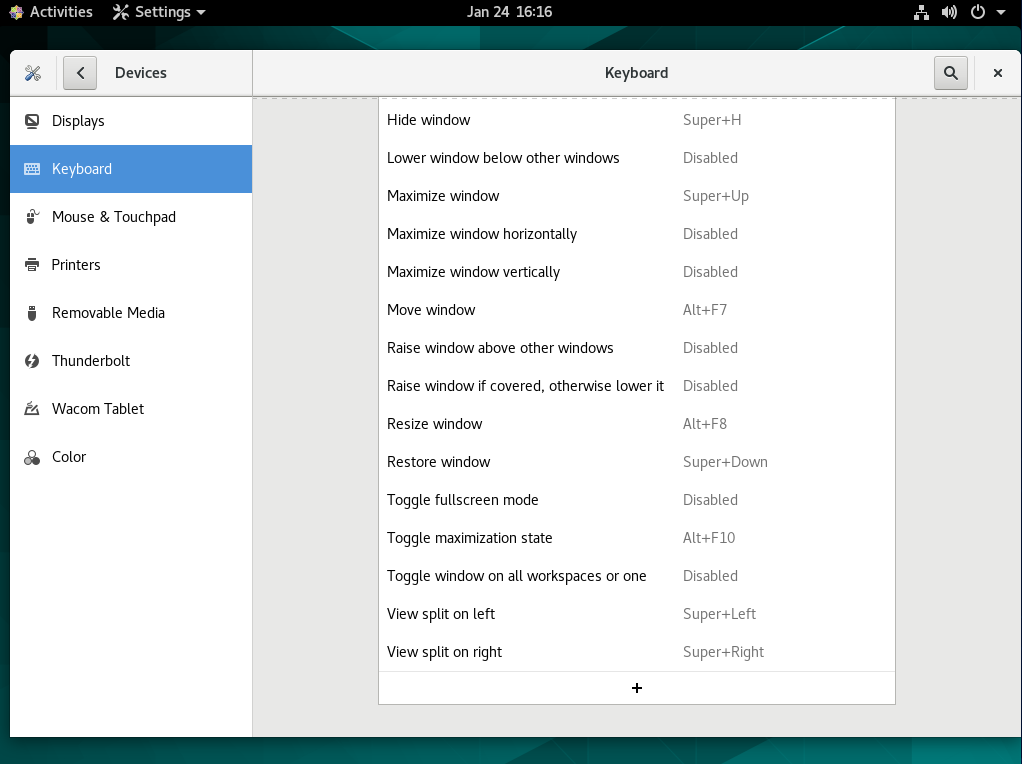
You can create a keyboard shortcut to open a terminal window, create a new shortcut, press the super key and search for “keyboard” or “shortcut” and launch it.

Click on “+” option at the end of the list to create a new keyboard shortcut.
Provide the required information, Like Name of the shortcut, command. You can name this anything you would like to, I named it “Open Terminal Window”, the command, in this case, is “gnome-terminal” since gnome-terminal is installed on centos and RHEL machines. If you have other terminal emulators such as “konsole” provide that command in this field. In the next article, I will show you how to install other Linux terminal emulators.
Click on set shortcut button to set a new keyboard short cut, this is where you register key combination to launch the terminal window.
I used CTRL + ALT + T, you can use any combination, but remember this key combination should be unique and not being used by other keyboard shortcuts.
Finally, click on Add to register this keyboard shortcut and you’re all set to use the new terminal window shortcut you created.
Wrapping up
Whether you choose to create a keyboard shortcut to launch a terminal window or to simply launch it from Applications, it's simple to open the Linux terminal window in Linux. The process is similar to other desktop environments. For myself, I like the luxury of using keyboard shortcuts. In a future article, I will show you how to install additional terminal emulators onto your Linux system. Until then, enjoy practicing at your new-found graphical command line.
Want to try out Red Hat Enterprise Linux? Download it now for free.
저자 소개
Keerthi is aspiring Cloud, DevOps engineer, he has been working with Windows and Linux systems. He believes in continuous learning (CL) and continuous sharing (CS), on his way building his very own CL CS pipeline. When he is not playing in the CLI, you will find him playing Cricket.
유사한 검색 결과
Red Hat Enterprise Linux Long-Life Add-On: 지원 종료 걱정 없는 RHEL 소개
인프라를 Red Hat Lightspeed에 어떻게 연결해야 할까요?
Infrastructure At The Edge | Compiler
Operating System Management | Compiler
채널별 검색

오토메이션
기술, 팀, 인프라를 위한 IT 자동화 최신 동향

인공지능
고객이 어디서나 AI 워크로드를 실행할 수 있도록 지원하는 플랫폼 업데이트

오픈 하이브리드 클라우드
하이브리드 클라우드로 더욱 유연한 미래를 구축하는 방법을 알아보세요

보안
환경과 기술 전반에 걸쳐 리스크를 감소하는 방법에 대한 최신 정보

엣지 컴퓨팅
엣지에서의 운영을 단순화하는 플랫폼 업데이트

인프라
세계적으로 인정받은 기업용 Linux 플랫폼에 대한 최신 정보

애플리케이션
복잡한 애플리케이션에 대한 솔루션 더 보기

가상화
온프레미스와 클라우드 환경에서 워크로드를 유연하게 운영하기 위한 엔터프라이즈 가상화의 미래
