
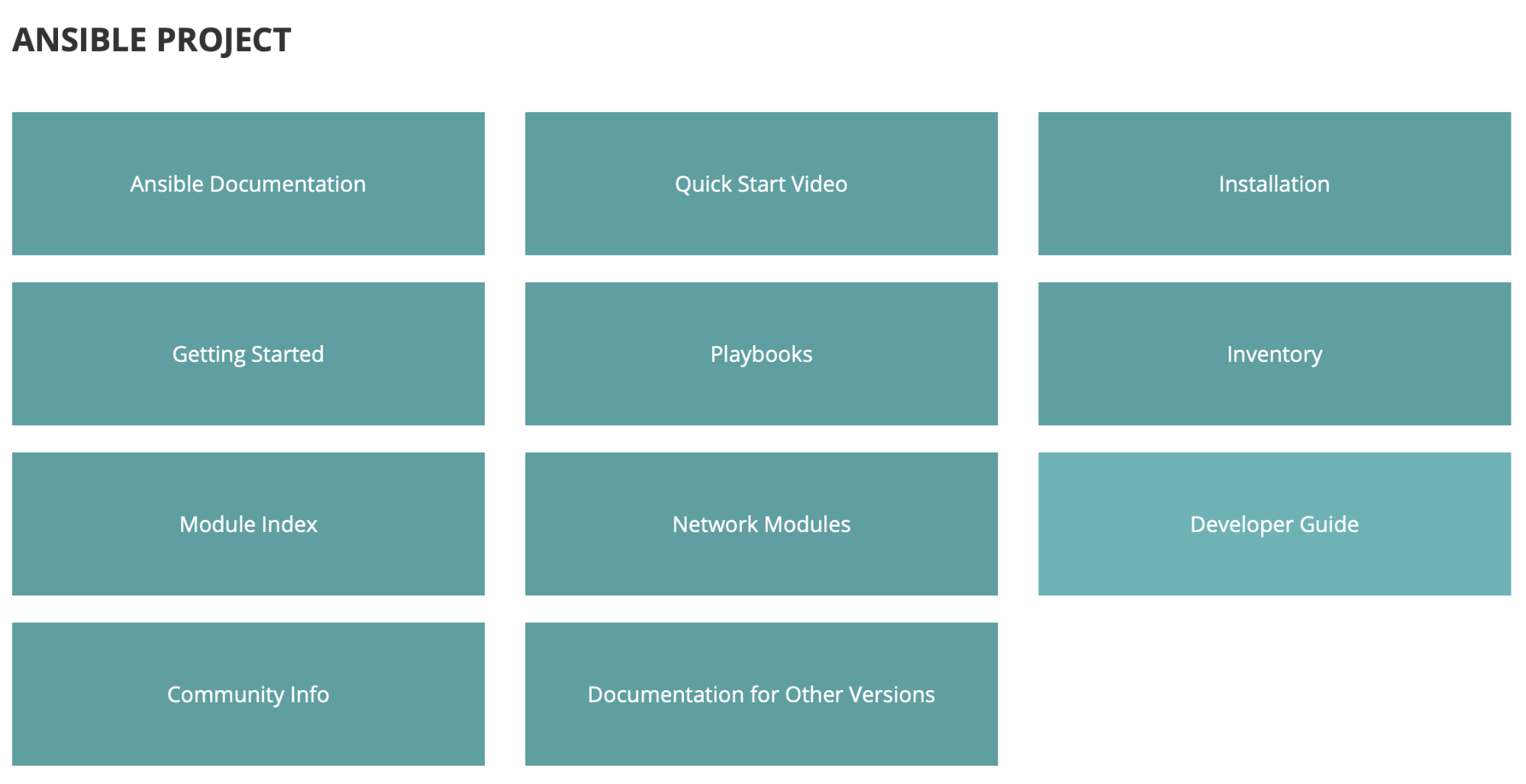
We take our first glimpse at the Ansible documentation on the official website. While Ansible can be overwhelming with so many immediate options, let’s break down what is presented to us here. Putting our attention on the page’s main pane, we are given five offerings from Ansible. This pane is a central location, or one-stop-shop, to maneuver through the documentation for products like Ansible Tower, Ansible Galaxy, and Ansible Lint:

We can even dive into Ansible Network for specific module documentation that extends the power and ease of Ansible automation to network administrators. The focal point of the rest of this article will be around Ansible Project, to give us a great starting point into our automation journey:
Once we click the Ansible Documentation tile under the Ansible Project section, the first action we should take is to ensure we are viewing the documentation’s correct version. We can get our current version of Ansible from our control node’s command line by running ansible --version. Armed with the version information provided by the output, we can select the matching version in the site’s upper-left-hand corner using the drop-down menu, that by default says latest:
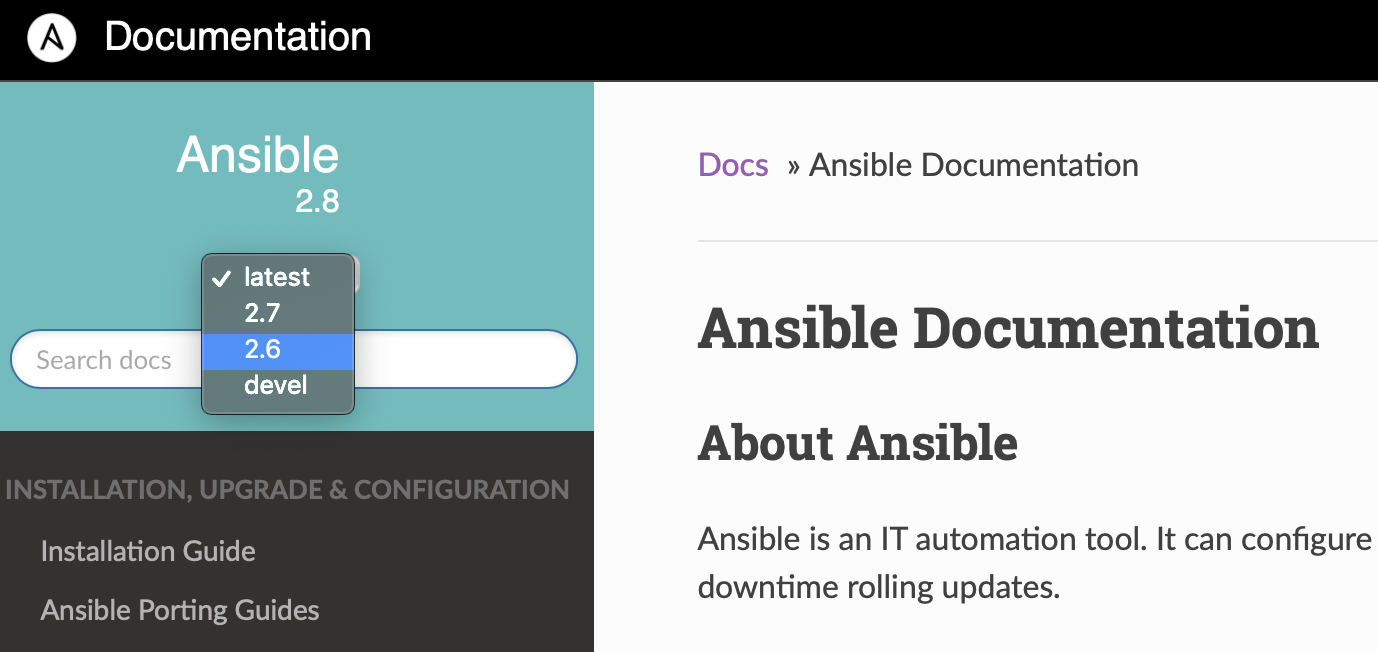
It is also possible to modify the URL, https://docs.ansible.com/ansible/latest/index.html to find documentation all the way back to version 2.3 by replacing latest with the version that we need. For example, to find the documentation for version 2.4, we can modify the URL to be https://docs.ansible.com/ansible/2.4/index.html:

Moving forward with our website exploration, we discover the left pane lined with points of interest. Upon clicking any of the links presented, we then notice bread crumbs lining the top of the main pane to help us find our way back to our starting point. Another item to note on the main pane is that most headings are linkable. So, if we hover our mouse pointer just to the right of a heading, a link element appears that we can copy to send to ourselves or a teammate, so we can find our way back to the exact topic we wanted to share:
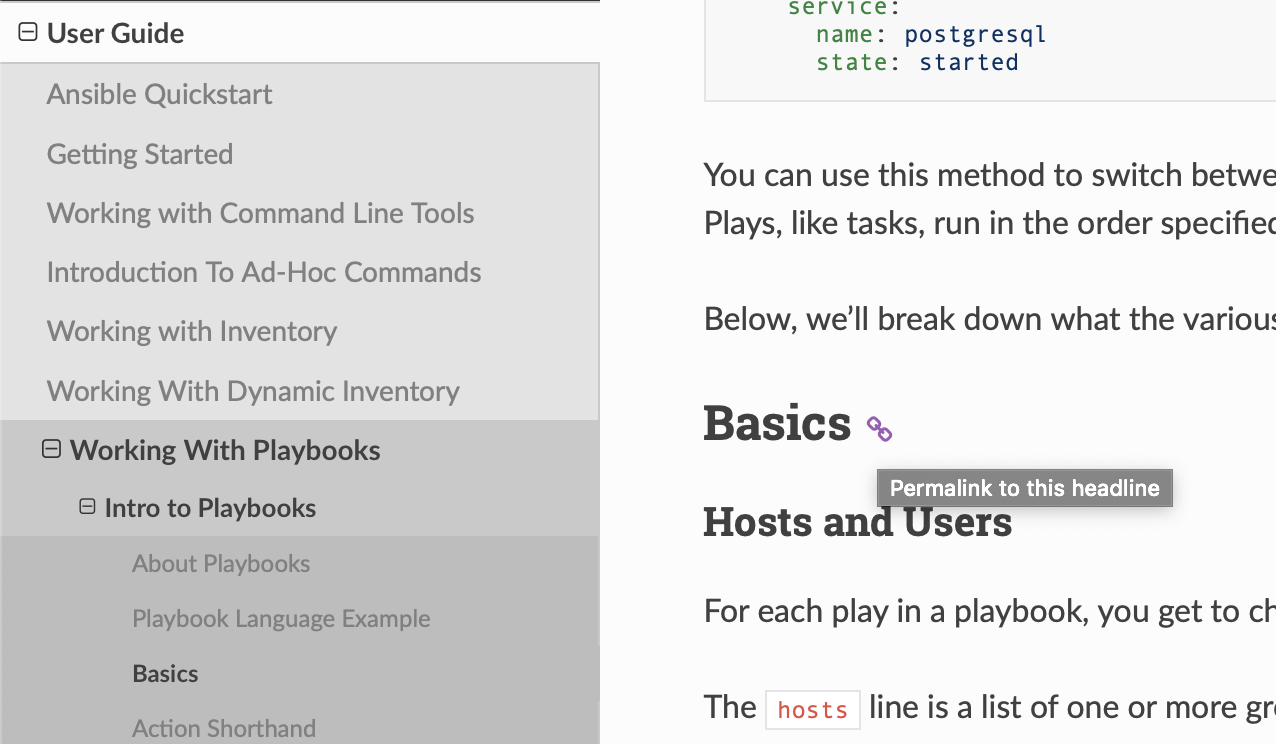
Investigating the left pane a little closer, we identify popular entries like Installation Guide, User Guide, and Developer Guide. Most of the time, no matter how deep we dive into one of these guides, we can always jump back to the left pane for help with another topic. Before shifting away from the GUI documentation, let’s acknowledge a few other important areas worth delving into. Again, located in the left pane is the Glossary. If at any time during our playing with Ansible we need a refresher on what a term means, this should be the go-to resource. There is another section in the left pane with the title Common Ansible Scenarios that contains guides for Public Cloud, Network Technology, and Virtualization and Containerization. These guides cover specific use cases and explain the features in much greater depth:

For every Yin there is a Yang, and that is exactly what the documentation available via the command line interface (CLI) is to the plethora of documentation discovered on the webpage. The first place many sysadmins default to for help is the coveted man pages. Ansible comes with some great in-depth man pages, starting with man ansible. This man page is set up just like all the other man pages for Linux commands. We can find usage info, along with all the options and arguments, followed by the available environment variables and important related files. The SEE ALSO section of this man page includes other Ansible commands that we can view manuals for:

Invariably, while working with Ansible, we need to find a module that helps perform a task, or find specific information for a module. The ansible-doc command included with Ansible is an extremely helpful tool for presenting a module’s description, as well as the options and responses. We can leverage ansible-doc to list all available modules, or find a module to use by piping grep and including a keyword:

This command also gives examples of common use cases for a module, but it goes a step farther and will output a snippet if used with the -s flag. The output not only includes all the available options that can be used but even outputs in the correct format. All that is left for us to do is copy and paste, and then replace the comments with our values. This command and its features are essential to navigating Ansible documentation:

The Ansible community is strong and constantly growing. There is even documentation on how contributions can be made, whether contributing a new module or improvements to the documentation itself. Hopefully, we can all recognize not only how robust Ansible documentation is, but also how it can directly enhance our ability to create both simple and comprehensive Ansible Projects.
저자 소개
Brady is a Sr. Consultant for Red Hat and works with companies to implement Red Hat technologies and solutions. Coming from a traditional SysAdmin background, he now works with other SysAdmins to modernize their Red Hat Stack, specializing in Satellite, OpenShift, and Ansible Automation Platform. Brady also enjoys attending technology meetups and conferences.
유사한 검색 결과
Ansible Automation Platform 2.7: 시각적 실행 환경 빌더 및 콘텐츠 검색 가이드
Red Hat Ansible 올스타: 네트워크 및 인프라 자동화의 미래를 주도합니다
Random Acts Of Automation | Compiler
Untangling Networks | Compiler
채널별 검색

오토메이션
기술, 팀, 인프라를 위한 IT 자동화 최신 동향

인공지능
고객이 어디서나 AI 워크로드를 실행할 수 있도록 지원하는 플랫폼 업데이트

오픈 하이브리드 클라우드
하이브리드 클라우드로 더욱 유연한 미래를 구축하는 방법을 알아보세요

보안
환경과 기술 전반에 걸쳐 리스크를 감소하는 방법에 대한 최신 정보

엣지 컴퓨팅
엣지에서의 운영을 단순화하는 플랫폼 업데이트

인프라
세계적으로 인정받은 기업용 Linux 플랫폼에 대한 최신 정보

애플리케이션
복잡한 애플리케이션에 대한 솔루션 더 보기

가상화
온프레미스와 클라우드 환경에서 워크로드를 유연하게 운영하기 위한 엔터프라이즈 가상화의 미래
