
Greetings fellow Microsoft Windows users and developers! If you are not aware, I recently made the switch from OS X to Microsoft Windows and promised to blog about my journey along the way, especially if I found new and exciting tools that I feel will help the OpenShift developer population as a whole. In case you missed my first post that specifies what tools I am using, you can check it out here:
https://blog.openshift.com/getting-productive-with-openshift-on-windows/
One of the readers (Boris Kurktchiev) was kind enough to post a comment suggesting that I try out the Babun shell. I am happy to report that I not only tried it out, but I integrated it with ConEmu to create what I think is a top-notch shell for working with OpenShift and git based projects. In this post, I will explain how I got everything working.
Okay, let’s get started. First of all, what is Babun shell? Well, the creators of the project state that Babun is a Windows shell that you will love. I can't say that I disagree with them as I do indeed love it so far.
Step 1: Download Babun
The first thing you will want to do is download the shell at http://babun.github.io/ This will download a zip file of the shell on your local file system. Once you extract the zip archive using file install, I suggest you install it using the install.bat file. In my case, I wanted to install it to my C:\babun directory so I executed the following command:
C:\downloads\Babun\install.bat /t “C:\babun”
Step 2: Integrate it with ConEmu
The default shell application window that ships as part of Babun is a little lacking when it comes to features. I much prefer a terminal that supports tabs, font resizing on the fly, etc etc. If you recall from my first Windows blog post, I truly enjoy using ConEmu. Luckily, it is a pretty easy task to use Babun as the default shell for ConEmu based sessions. To do this, open up the settings window of ConEmu and select Tasks located under the Startup section. This is shown in the following image:
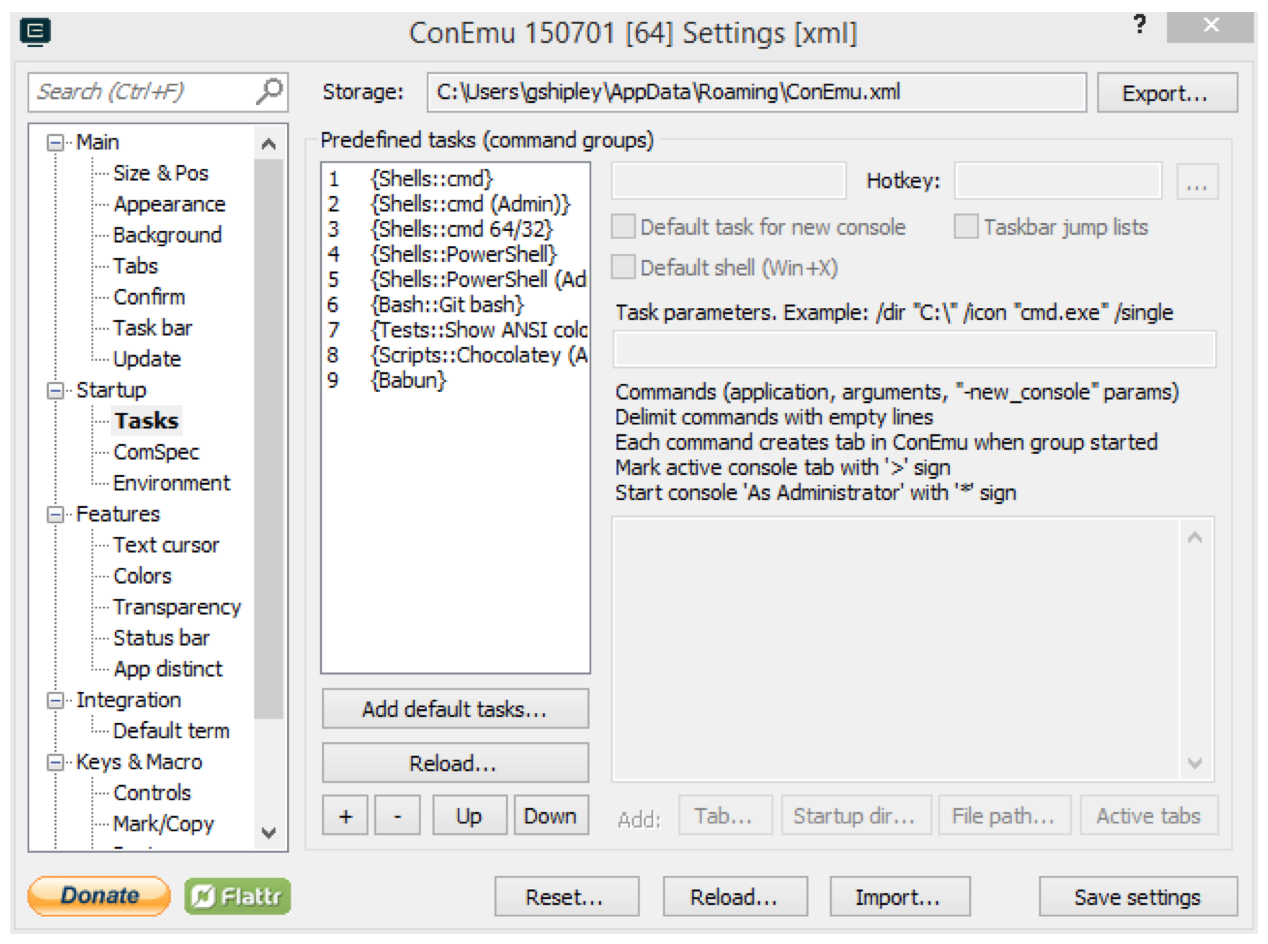
Click the + sign under the tasks to create a new one. A few things you will want to enter here:
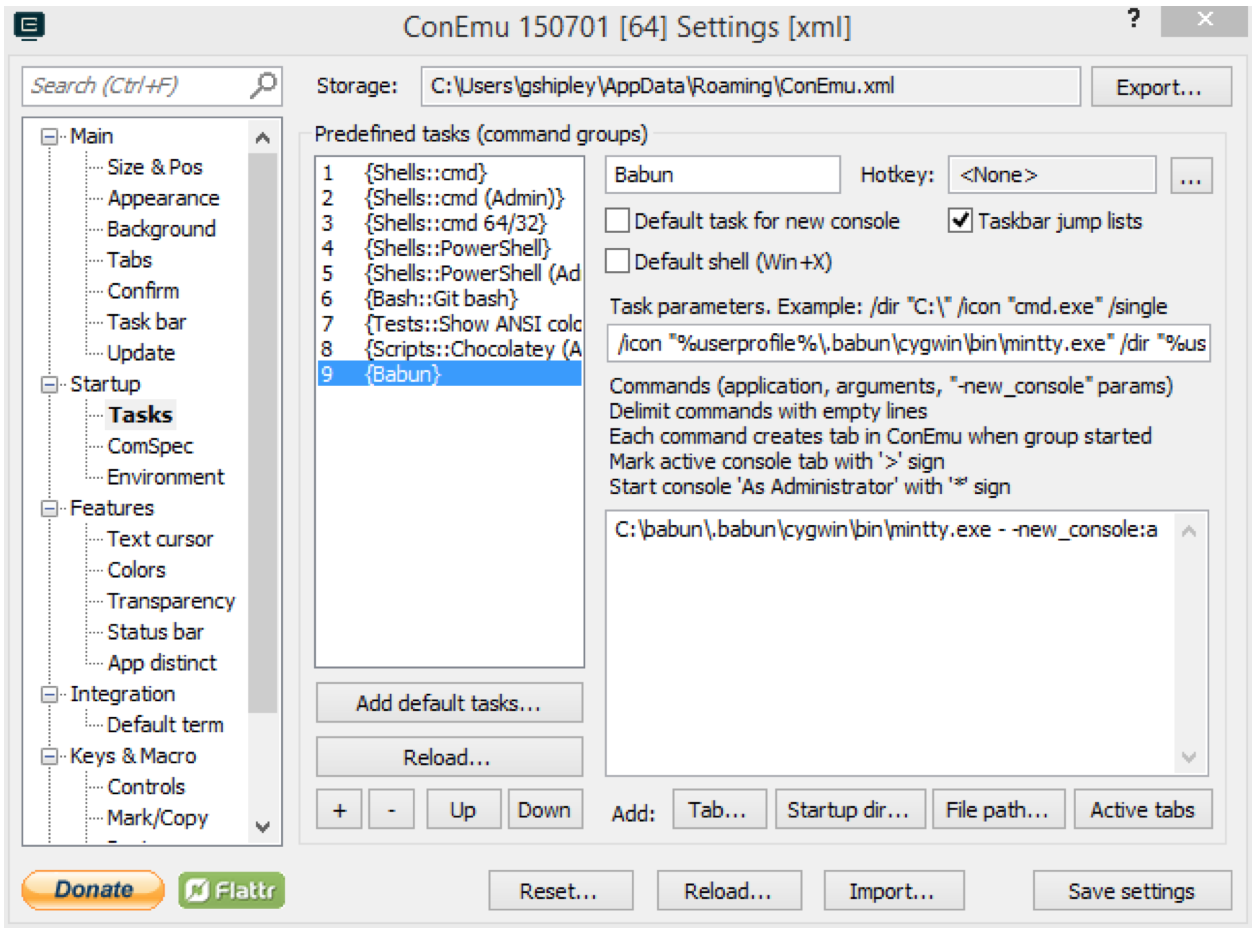
- Give the task a name of “Babun”
- Enter the following for the task parameters:
/icon "%userprofile%.babun\cygwin\bin\mintty.exe" /dir "%userprofile%" - Enter the following for the Start section:
C:\babun.babun\cygwin\bin\mintty.exe - -new_console:a
The last part in section 3 above will start each new console as "Administrator". If you don’t want to do this, leave the -new_console:a off.
Once complete, it should look like this:
Perfect! You now have Banbu up and running and integrated with ConEmu.
Step 3: Installing ZSH completions for OpenShift 3
Now that we have ConEmu up and running and configure with Banbu, the next thing we want to do is set our theme and enable OpenShift 3 tab completion. Open up a new ConEmu session and it will drop you in your cygwin home directory.
Pro Tip: If the font size it too small for your liking, a quick way to change it is hold down the control key and use your mouse scroll wheel to enlarge the font.
Edit your .zshrc file with the following command:
[~]$ vi ~/.zshrc
Look for the following line:
ZSH_THEME=”babun”
and change it to the following:
ZSH_THEME=”eastwood”
Okay, you got me there. Why do you have to change it? Well, you don’t. I just personally like the eastwood theme better but you can use whatever theme strikes your fancy.
Exit out of the VI session and enter in the following command to clone the git repository that contains the ZSH tab completion information:
git clone https://github.com/chmouel/oh-my-zsh-openshift ~/.oh-my-zsh/custom/plugins/oc
After the repository has been cloned, you will need to edit your .zshrc file once more to load the plugin.
vi ~/.zshrc
Look for the following line:
plugins=(git)
and change it to:
plugins=(oc git)
save your changes and create a new shell session to ensure that your .zshrc file is sources properly.
Step 4: Bask in your oc tab completion glory
You now have tab completion working inside of your bright and shiny new shell. Try it out by typing oc lo (and then hit the tab key).
Pretty fancy huh?
Wrapping up
Okay, a few other things you will need to show when using Babun:
To see what shell you are currently using, enter in:
babun shell
To change your default shell to zsh (bash is also supported)
babun shell /bin/zsh
To install new packages
pact
To install cygwin ports (example bash-completion 2.1)
pact install bash-completion -m ftp://ftp.cygwinports.org/pub/cygwinports
I have found that installing things when not running as administrator breaks things horribly.
저자 소개
유사한 검색 결과
Red Hat 파트너가 최고의 통신 비즈니스 자산인 이유
에이전틱 패러독스와 하이브리드 AI의 필요성
Crack the Cloud_Open | Command Line Heroes
Edge computing covered and diced | Technically Speaking
채널별 검색

오토메이션
기술, 팀, 인프라를 위한 IT 자동화 최신 동향

인공지능
고객이 어디서나 AI 워크로드를 실행할 수 있도록 지원하는 플랫폼 업데이트

오픈 하이브리드 클라우드
하이브리드 클라우드로 더욱 유연한 미래를 구축하는 방법을 알아보세요

보안
환경과 기술 전반에 걸쳐 리스크를 감소하는 방법에 대한 최신 정보

엣지 컴퓨팅
엣지에서의 운영을 단순화하는 플랫폼 업데이트

인프라
세계적으로 인정받은 기업용 Linux 플랫폼에 대한 최신 정보

애플리케이션
복잡한 애플리케이션에 대한 솔루션 더 보기

가상화
온프레미스와 클라우드 환경에서 워크로드를 유연하게 운영하기 위한 엔터프라이즈 가상화의 미래
