
In Red Hat OpenShift 4.4, we’re bringing you a new and improved Search page experience. We’ve heard from customers that the ability to view multiple resources at a time would be invaluable to their workflow. So, in this release of the console UI, we’ve introduced just that: multi-resource search. With multi-resource search you can view multiple resources at time and filter across them by name and label, giving you the ability to view the most important resources to you. For command line users, think similar to ‘oc get all’, except you can pick which resources to display!
How it works
Consider a case where you want to see all of your ConfigMaps, Deployments, and PersistentVolumeClaims that have a specific label. Let’s run through how to do this.
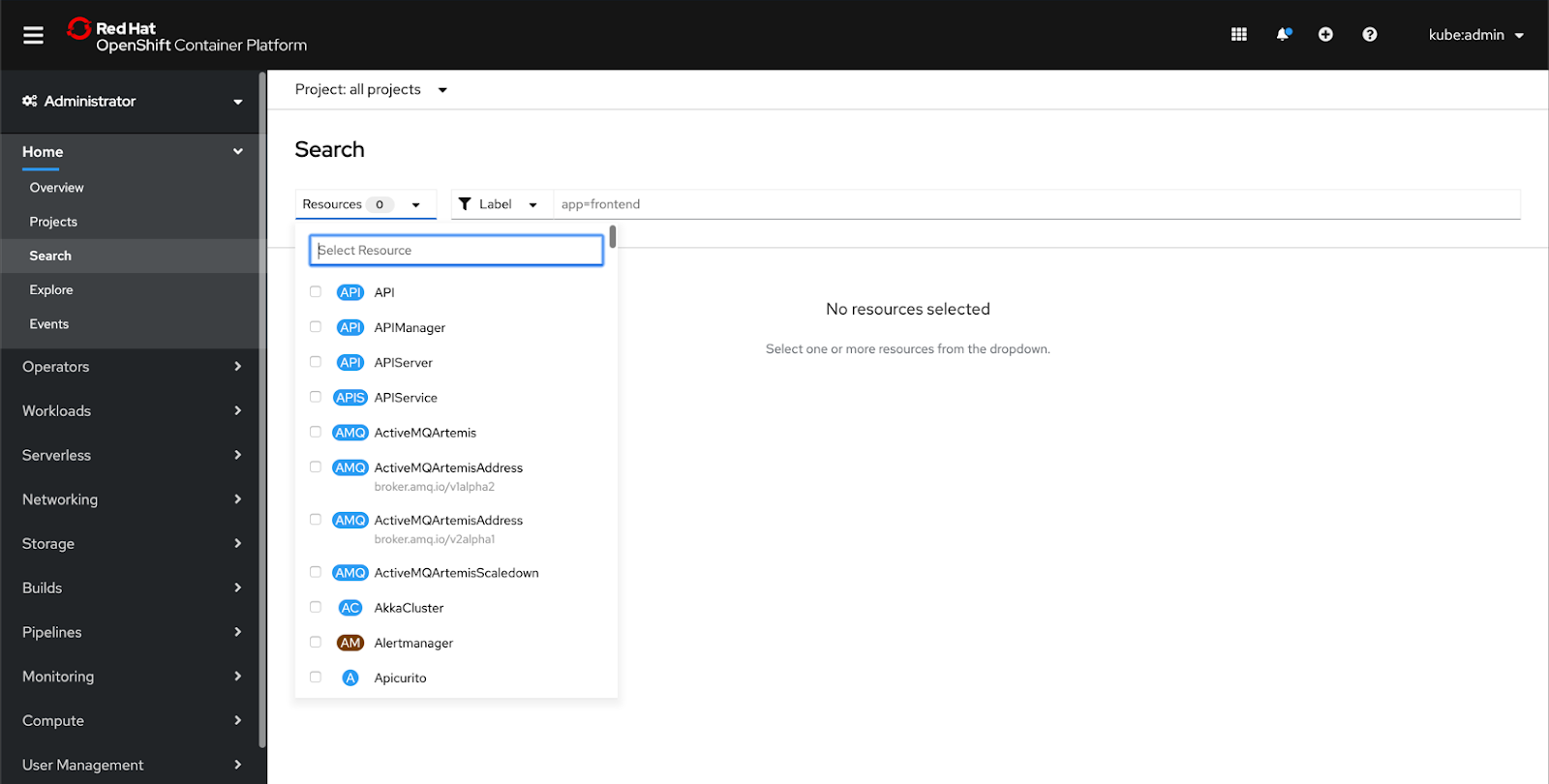
First, navigate to the Search page under the Home section of the navigation. An empty state asks you to select resources. Open the dropdown and select ConfigMap, Deployment, and PersistentVolumeClaim.
Now you can see that the page has loaded all of your resources that you selected. Notice that each resource shows their own columns, based on what information is most important to see for that specific resource. For example, for ConfigMaps, you can see the following columns: Name, Namespace, Size, and Created. For Deployments you can see Name, Namespace, Status, Labels, and Pod Selector. The PersistentVolumeClaims list also shows a different set of columns.
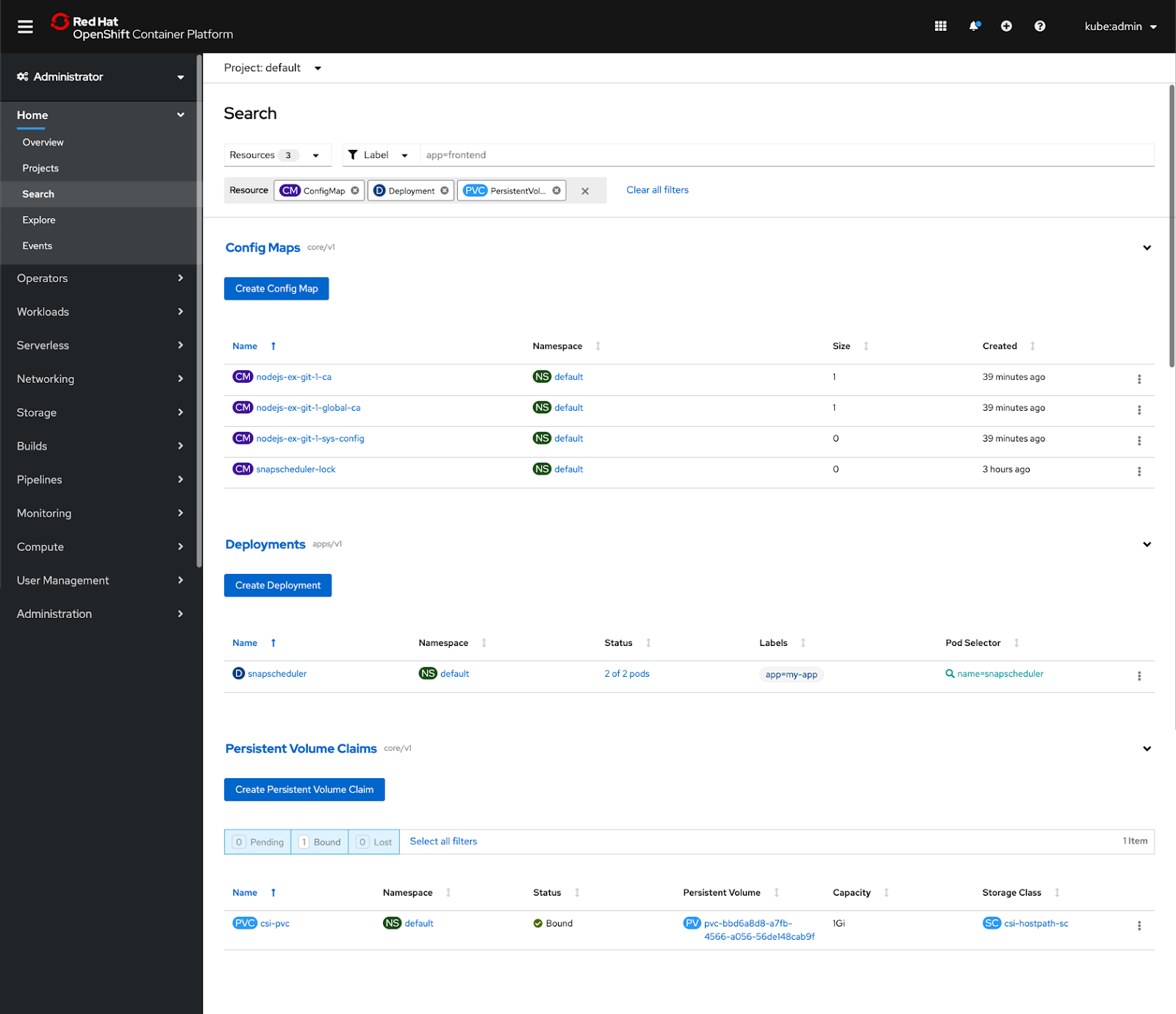
What’s noteworthy here is that the lists also maintain their toolbar if they have one. The differences in each list make sure you can always see the most relevant information for each resource, and can act on them the same way you would if you went to that resource’s page.
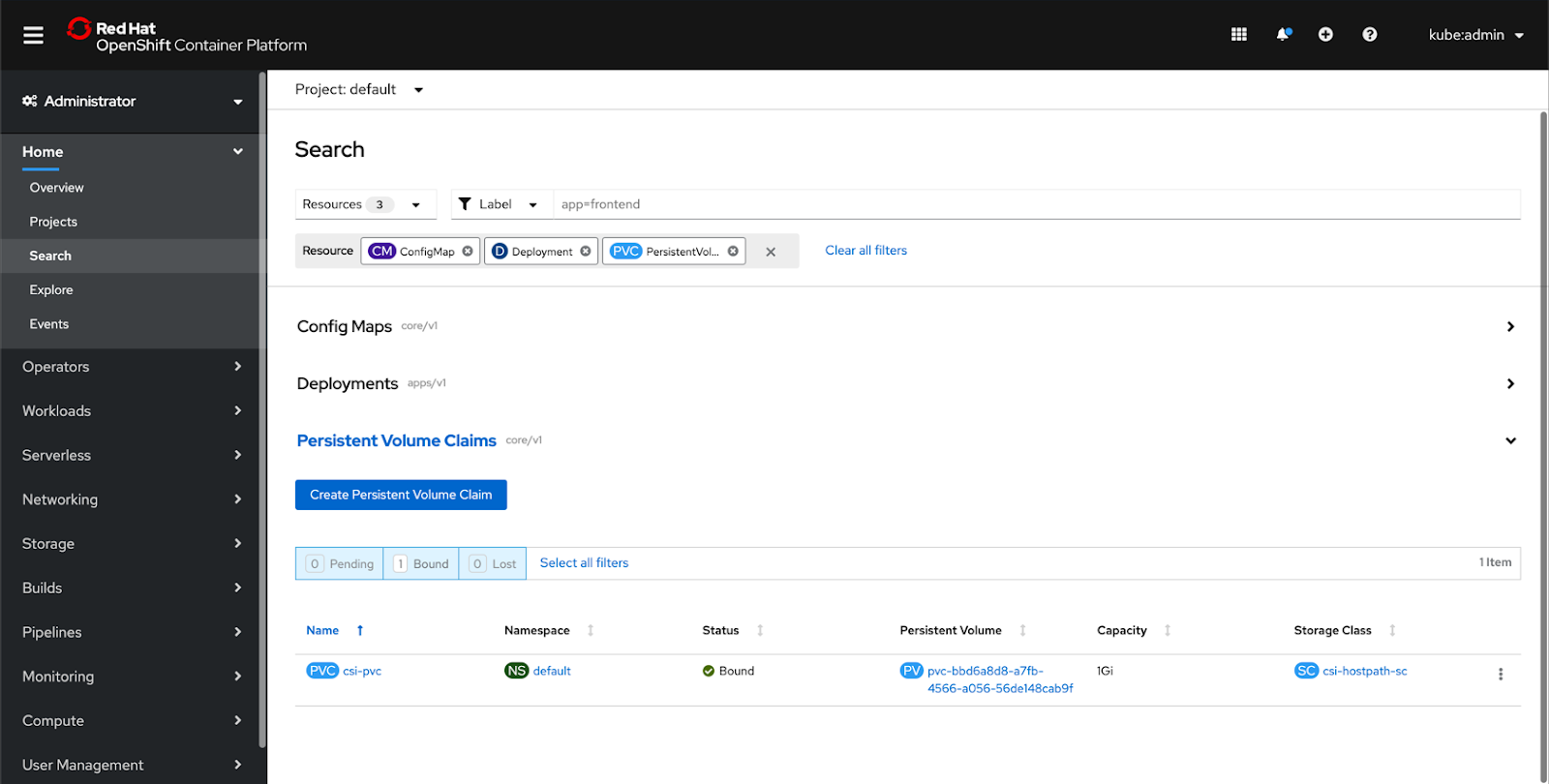
If your lists are long, or you only want to focus on a specific resource for a moment, you can collapse the different resource sections by using the accordion. Open and close a section by clicking anywhere in the resource header area.
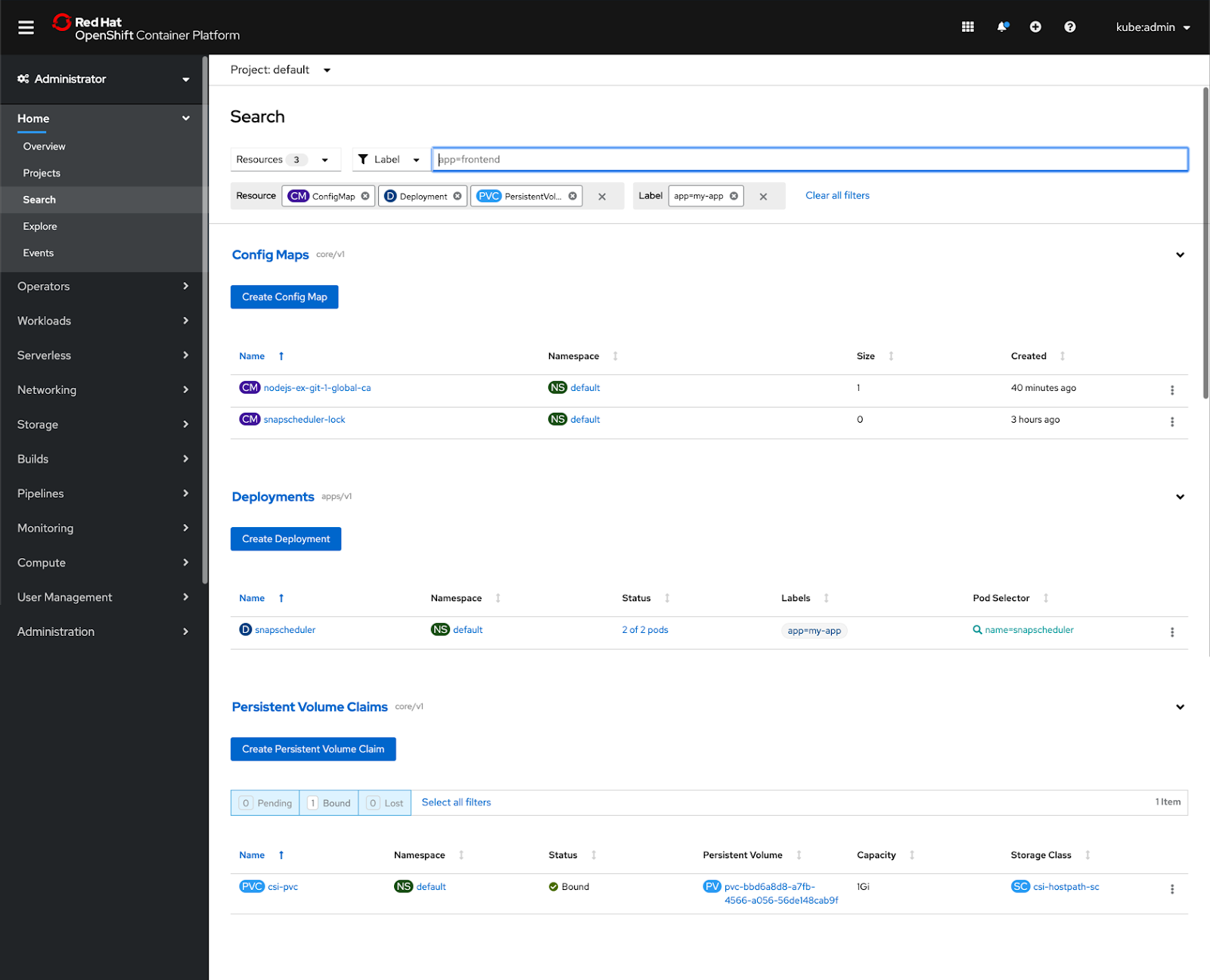
Now let’s try filtering by a label. In the toolbar, make sure that **Label** is selected in the filter dropdown and type in your label. When you hit Enter, a filter chip with your label will appear in the filter chip bar. Each list will only show you instances that match the filter applied. Now you can easily filter across different resource types by label!
You can easily clear the filter by clicking the x in the filter chip. Next, let’s filter by name. The process is the same, but make sure that Name is selected in the filter dropdown. You’ll notice that the name filter will actually filter on your lists as you type, updating the associated filter chip as well.
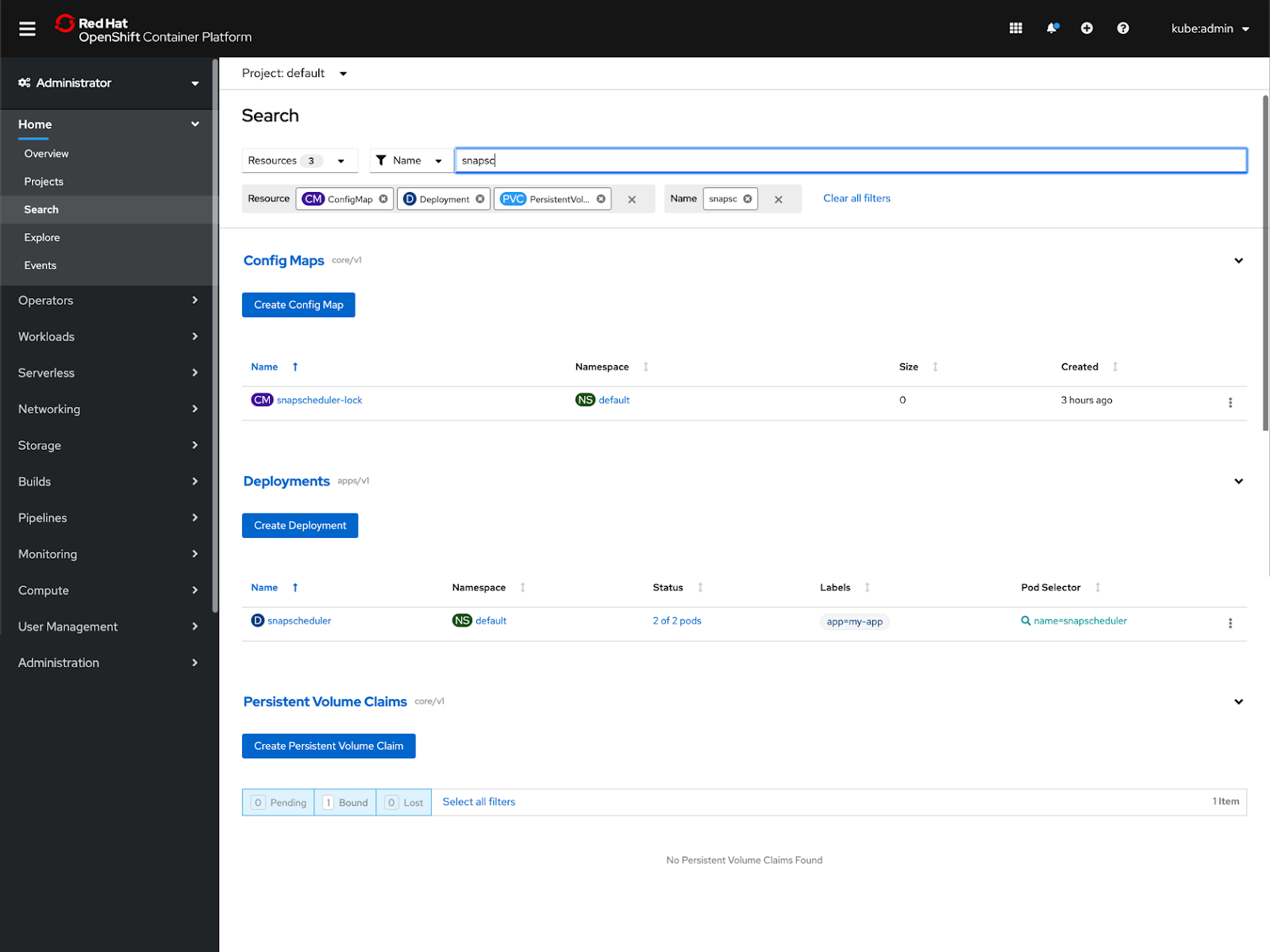
In this example, you can see that there are no PersistentVolumeClaims that match the name filter.
You can also filter by name and label at the same time. You can always search by multiple labels as well, but note that you can only filter by one name at a time.
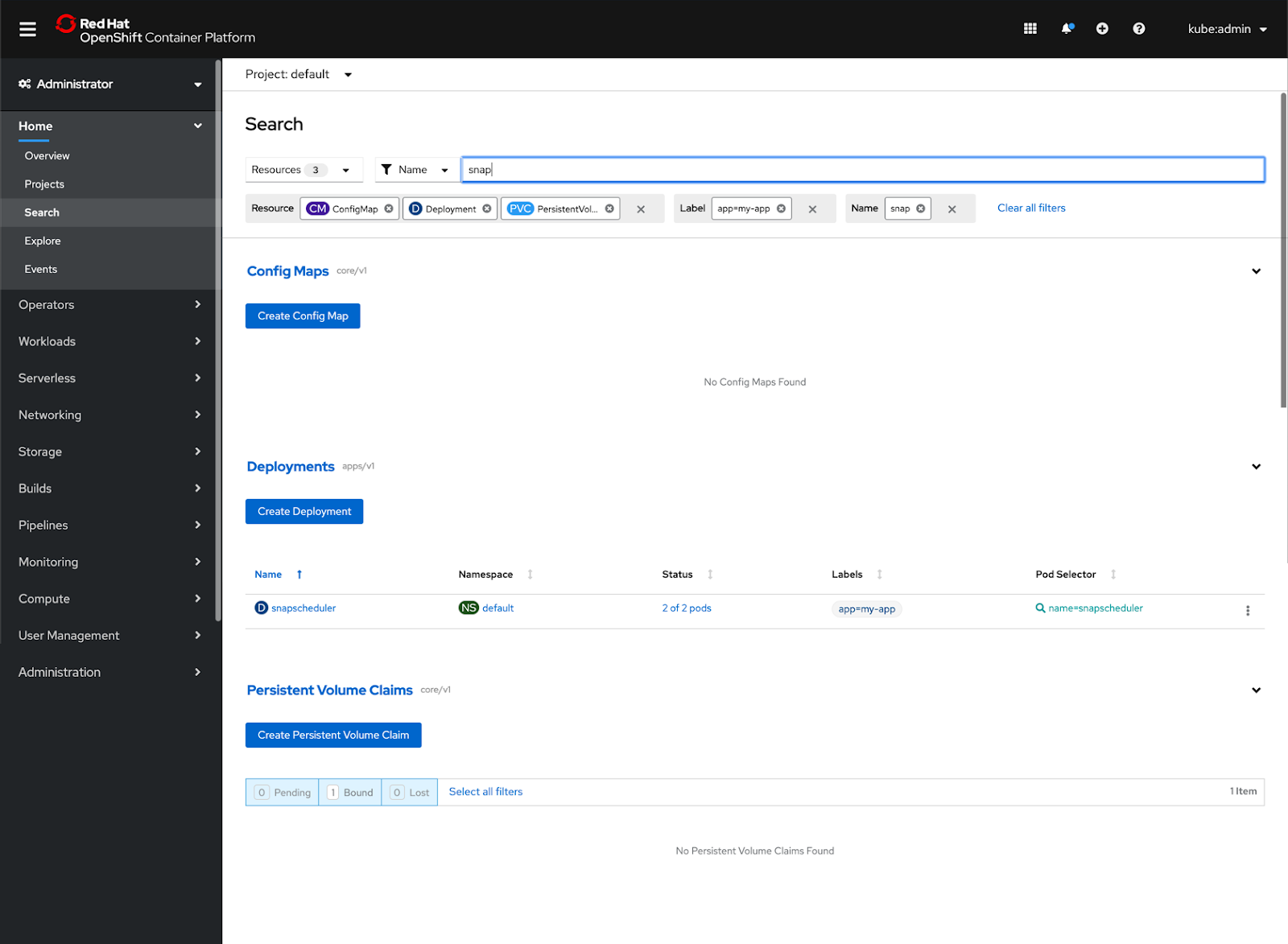
You can easily start a whole new search at any time by clicking **Clear all filters**. And there you have it! That’s how multi-resource search works.
Stay tuned for more
We hope this new functionality improves the way you use OpenShift. In future releases, we plan to take the Search page experience to the next level. Keep an eye out for bulk selection and bulk actions – these coming features will enable you to select multiple resources across resource types and take action on them at once, including adding labels or deleting resources.
In the meantime, be sure to check out OpenShift 4.4 to experience the new Search page in all its multi-resource selection glory! Let us know what you think about the new Search experience by taking this brief 3-minute survey.
저자 소개
유사한 검색 결과
에이전틱 패러독스와 하이브리드 AI의 필요성
과거의 운영 방식에서 벗어나 IT의 미래 구축
Crack the Cloud_Open | Command Line Heroes
Edge computing covered and diced | Technically Speaking
채널별 검색

오토메이션
기술, 팀, 인프라를 위한 IT 자동화 최신 동향

인공지능
고객이 어디서나 AI 워크로드를 실행할 수 있도록 지원하는 플랫폼 업데이트

오픈 하이브리드 클라우드
하이브리드 클라우드로 더욱 유연한 미래를 구축하는 방법을 알아보세요

보안
환경과 기술 전반에 걸쳐 리스크를 감소하는 방법에 대한 최신 정보

엣지 컴퓨팅
엣지에서의 운영을 단순화하는 플랫폼 업데이트

인프라
세계적으로 인정받은 기업용 Linux 플랫폼에 대한 최신 정보

애플리케이션
복잡한 애플리케이션에 대한 솔루션 더 보기

가상화
온프레미스와 클라우드 환경에서 워크로드를 유연하게 운영하기 위한 엔터프라이즈 가상화의 미래
