
Introduction
Here at Red Hat, our goal is to make the user experience fast and intuitive. Red Hat OpenShift Virtualization 4.7 now delivers a much improved and easier experience when creating virtual machines from templates.
OpenShift Virtualization has always shipped with a set of OpenShift templates that have been carefully created, tested, and maintained to provide the best configuration for a virtual machine running on our platform. These templates are based on the operating system and runtime requirements of the workload running on it. We refer to these templates as common-templates.
In the latest release, the common templates are now surfaced in the UI so they can easily be created from. This allows us to simplify the virtual machine creation flow by having readily available templates for our users to choose from. Today, this improvement lowers the barrier for new users who want to quickly create their first virtual machine.
Creating Virtual Machines in the Administrator Console
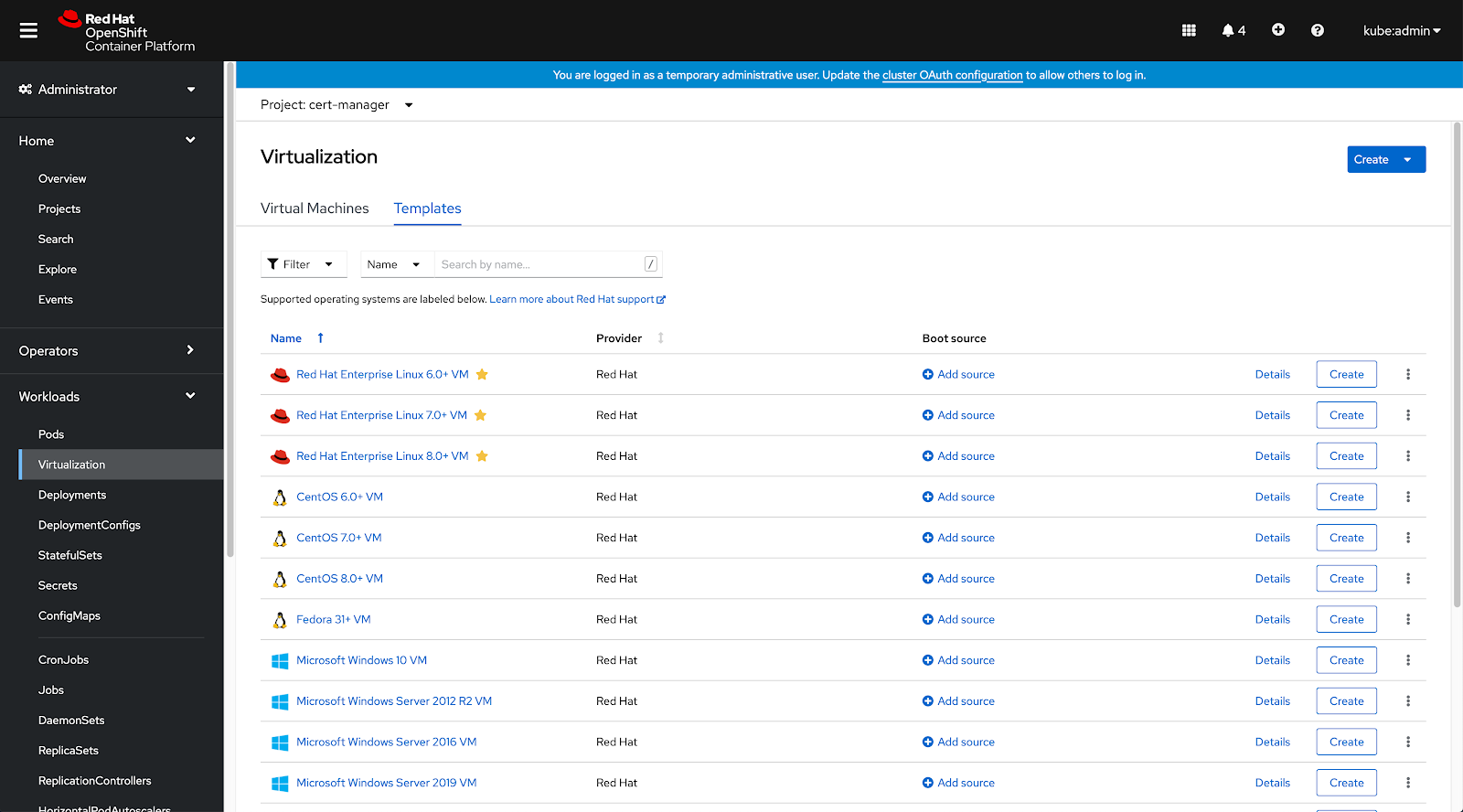
Screen capture of the new Virtualization page
In the administrator perspective, virtual machines can be created in the Virtualization page inside the Templates tab by both administrators and developers with privileges. One thing to note is that before creating a virtual machine from a template, a boot source must be added because they are not yet provided with templates. Users can add a boot source via the UI directly from the Boot Source column by clicking on the Add source link, or in Step 2 of the Create Virtual Machine from template wizard. Our users can provision for a boot source by any one of these methods shown in the diagram below.
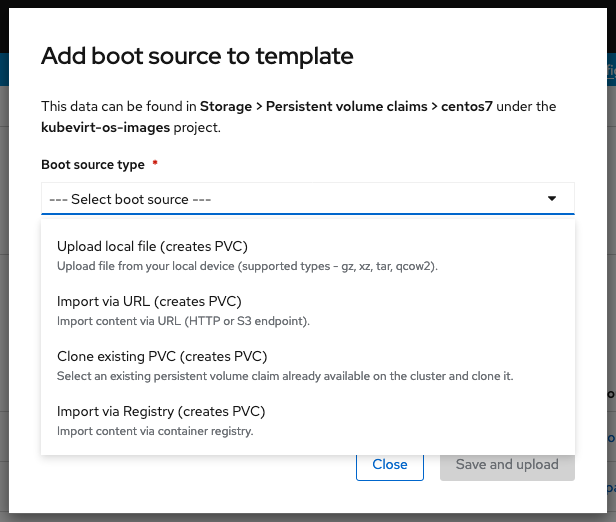
Four options available to add a boot source
- Upload local file (creates a PVC)
- Import via URL (creates a PVC)
- Clone existing PVC (creates a PVC)
- Import via Registry (creates a PVC)
Virtual machines with boot sources will show as available in the boot source column. These templates are ready to have virtual machines deployed from them.
Operating System Support
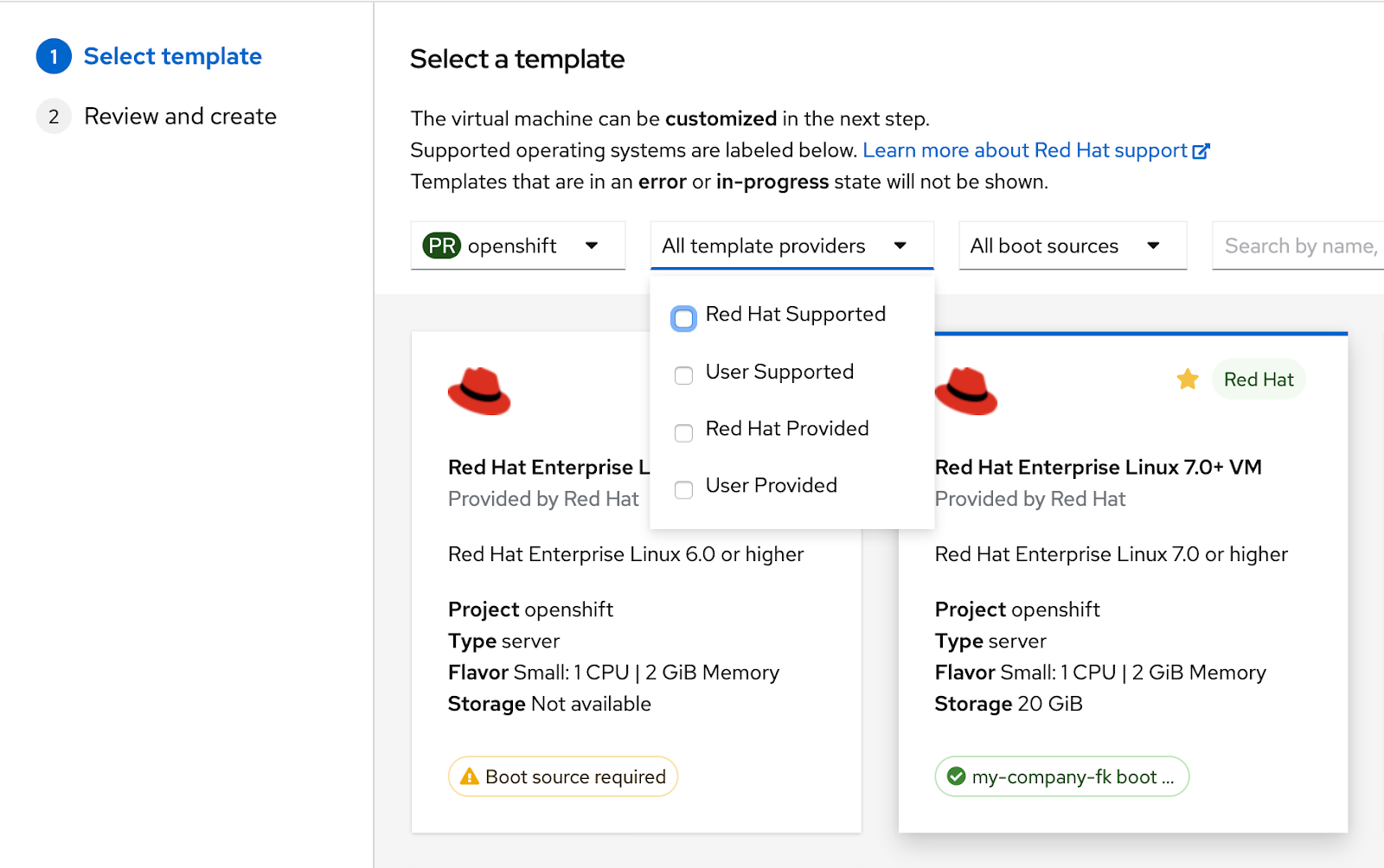
New Create Virtual Machine from template wizard
When creating a virtual machine from a template, users could have up to four template options to consider. These options are Red Hat Supported, Red Hat Provided, User Provided, and User Supported. Red Hat Provided means that the template comes pre-installed with OpenShift Virtualization. Red Hat Supported means that the operating system this template represents is fully supported by Red Hat. Log in and learn more about Red Hat support here.
User Provided and User Supported would generally be customized templates. In other words, these are third-party templates that were provided and maintained by someone other than Red Hat. Here is a list of guest operating systems that are currently covered by Red Hat OpenShift Virtualization 4.7 virtual machine templates:
|
Guest OS |
|
CentOS 6 |
|
CentOS 7 |
|
CentOS 8 |
|
Fedora 33 |
|
Microsoft Windows Server 2012 R2 |
|
Microsoft Windows Server 2016 |
|
Microsoft Windows Server 2019 |
|
Microsoft Windows 10 |
|
OpenSUSE Leap 15.0 |
|
Red Hat Enterprise Linux 6 |
|
Red Hat Enterprise Linux 7 |
|
Red Hat Enterprise Linux 8 |
|
Ubuntu 18.04 LTS |
Customizing a Template
Administrators can also create a customized virtual machine from a template in this latest release of OpenShift Virtualization. In Step 2 of the Create a Virtual Machine with a template wizard, the user will be presented with an editable pre-filled form and the ability to create a virtual machine. Additionally, a Customize virtual machine button is presented. Upon clicking this button, a new wizard will open, guiding the user through stepped instructions. This allows them to customize pertinent details ranging from virtual machine name, flavor, and workload type to network interfaces and disks with regards to networking and storage capabilities. Once the user has reviewed his virtual machine settings and is satisfied, he can create his customized virtual machine.
Creating Virtual Machines in the Developer Console
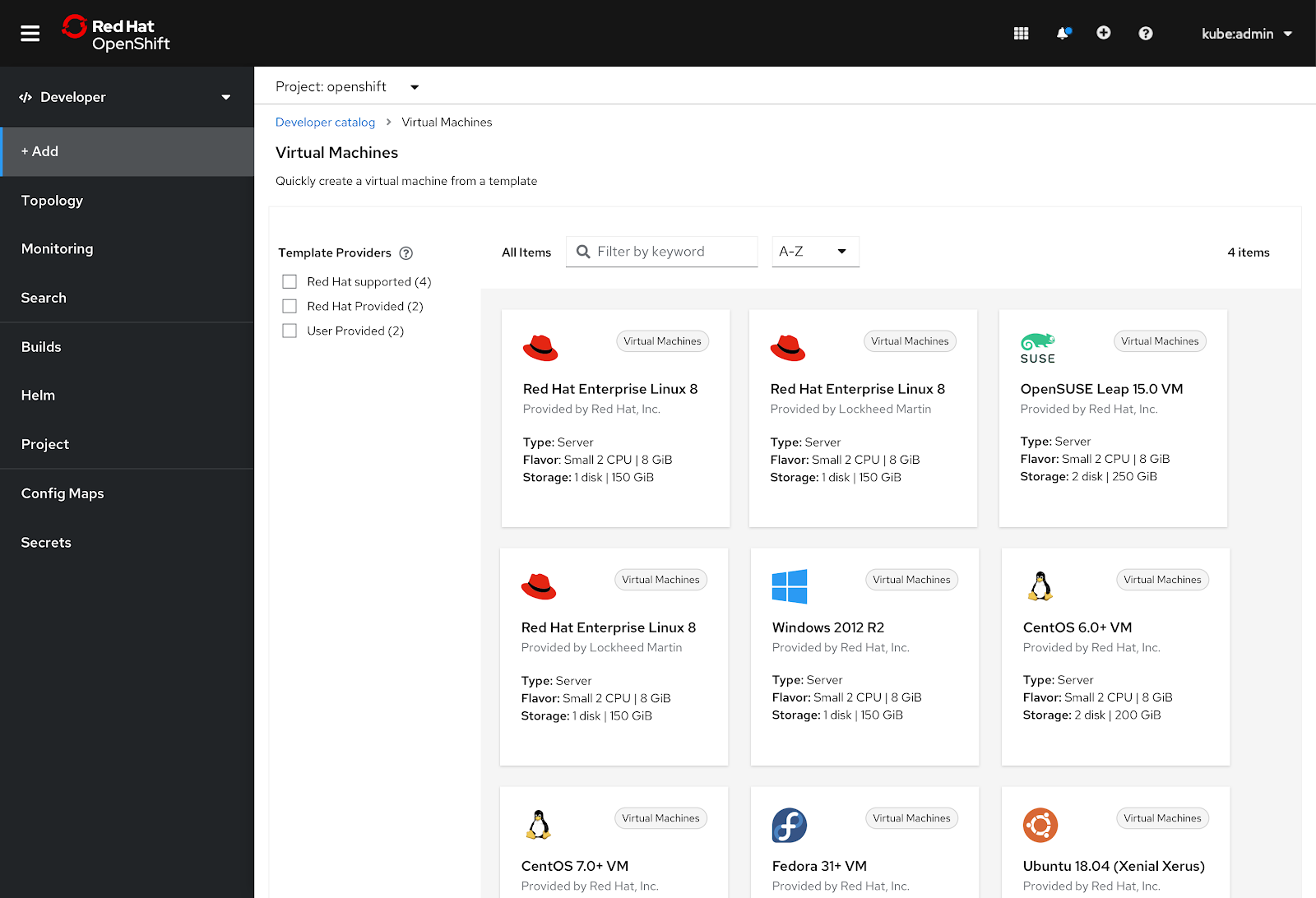
Virtual machine templates in the developer console
As aforementioned, it is now possible for developers to quickly create virtual machines in the developer’s perspective of the console without switching to the administrative side. This is a big user experience improvement for developers on the console. The advantage to this is that developers do not have to tinker with configurations to create a virtual machine. Instead, they have readily available out-of-the-box templates to quickly deploy virtual machines for their projects.
In the Add page we have introduced a new Virtual Machines card which takes users to the virtual machines templates page. Here, developers can now easily scan virtual machine templates in the form of cards and glean some basic information with regards to the template provider, the virtual machine type, flavor, and storage. Once a template is selected, a short form is presented with prefilled editable data for the virtual machine’s name and flavor. These templates always come with a boot source attached to them so that the developer can skip the boot source attachment step and focus on creating his virtual machine. This enables developers to create virtual machines in only two clicks.
Summary
The latest version of OpenShift Virtualization 4.7 has improved the overall user experience for administrators to create virtual machines from templates with as little as two clicks via the UI. Developers will also be pleased with the newly added frictionless virtual machine creation flow in the developer console. Advanced users can also now bypass the CLI option and use the UI not only to create virtual machines, but also to customize templates to create custom virtual machines. These new enhancements bring simplicity and speed to the virtual machine creation flow and greatly improve the overall user experience for our users.
Our work isn’t done yet as we strive to continue bringing new and better user experiences to OpenShift Virtualization. Some new improvements to expect in the upcoming releases will be around Automation, SSH, and Custom Boot Sources.
You too can join this ongoing process to improve our user experience with your feedback by signing up to participate in our UX research here.
저자 소개
유사한 검색 결과
고등 교육 분야의 가상화 혁신: 자동화된 노드 복구를 통한 데이터 무결성 보호 방법
가상화 결정이 계속 연기되는 이유
Virtualization Is (Still) King | Compiler
Crack the Cloud_Open | Command Line Heroes
채널별 검색

오토메이션
기술, 팀, 인프라를 위한 IT 자동화 최신 동향

인공지능
고객이 어디서나 AI 워크로드를 실행할 수 있도록 지원하는 플랫폼 업데이트

오픈 하이브리드 클라우드
하이브리드 클라우드로 더욱 유연한 미래를 구축하는 방법을 알아보세요

보안
환경과 기술 전반에 걸쳐 리스크를 감소하는 방법에 대한 최신 정보

엣지 컴퓨팅
엣지에서의 운영을 단순화하는 플랫폼 업데이트

인프라
세계적으로 인정받은 기업용 Linux 플랫폼에 대한 최신 정보

애플리케이션
복잡한 애플리케이션에 대한 솔루션 더 보기

가상화
온프레미스와 클라우드 환경에서 워크로드를 유연하게 운영하기 위한 엔터프라이즈 가상화의 미래
