
Imagine you are working on an engine and need to tighten several bolts within a small space. Now, imagine you had the choice between a ratchet and a wrench. Would you rather make 100 quarter-turns? Or 25 full-turns? This is the level of improvement that htop brings to the table. A well-thought-out, modern interpretation of the top command, htop is my tool of choice for system analytics and process management.
The htop command makes many improvements over the original, the most prominent being in user experience. You can now scroll through the processes, and use point and click functionality. If you want to kill a specific process, scroll down to it and F9 it into oblivion. There is no need to search for the PID or have to use the kill command. Just point and click.
This command runs on Unix, Linux, and macOS. I used the newly released Fedora 31 distro for this demonstration. To install, just run:
$ sudo dnf install htop
You can see the command output in full in this article's title image, but we will break it down section by section as we go along.
Colors and graphs, oh my!
The first thing to notice is the color inclusion. Color is helpful in identifying specific information and is generally pleasing to the eye. After the chromatic shock, we come to the first graphical representation, which shows us CPU load and memory usage:
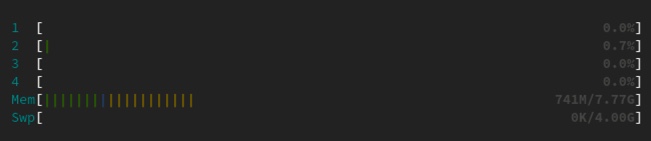
Notice the lines of various colors here in rows marked one through four. These rows represent CPU cores. These colors represent the following in the case of CPUs:
- Green: CPU utilization owned by normal users (percentage)
- Blue: CPU utilization by low priority processes
- Orange: CPU utilization by IRQ time
- Red: CPU utilization used by system processes
You will also find Mem(ory) and Sw(a)p. The colors for these sections are Green (Ram utilization by pages in memory) and Blue (RAM utilization by buffer pages).
You may see other colors here as well, but for the purpose of this breakdown we will focus on these. You can find more information online if needed.
Just to the right of the bar graph, you will find the following:
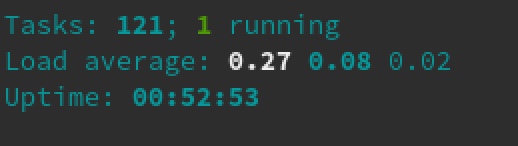
Let's break this down:
- 121 tasks (processes), 1 running
- Load Average: 0.27 0.08 0.02
- Uptime: 00:52:53
Only tasks that are consuming CPU will show as running, otherwise they can be listed as:
| Symbol | Description |
|---|---|
S |
Sleeping |
T/S |
Traced/Stopped |
Z |
Zombies |
Note: You can use Shift+k to see the kernel threads and Shift+h to cycle the thread count on/off, as seen here:
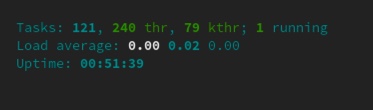
As for the Load average, this is the same as top. Load average is calculated in three intervals: one minute, five minutes, and 15 minutes. These values refer to the amount of time the system has been active since the last reboot.
You can see the same information by running the uptime command.
Individual process breakdown

The headers above your process list are as follows, in order of when they appear from left to right:
| Symbol | Description |
|---|---|
PID |
Process ID number |
USER |
Process owner |
PRI |
Priority level by kernel |
N |
Priority set by user |
VIR |
Virtual memory being used |
RES |
Physical memory being used |
SHR |
Shared memory being used |
S |
Process state |
CPU% |
CPU usage |
MEM% |
Memory usage |
TIME+ |
Time since process started |
Command |
Full command being executed |
For more information on htop be sure to check the command's help section by pressing F1:

Try it out
The htop command is, in my opinion, an actual replacement for top. I actually have htop aliased on my systems in place of the standard tool. While I have had a great experience with htop, I recommend that you not take my word for whether it will work for you. Install it and try it out for yourself.
저자 소개
Tyler is the Sr. Community Manager at Enable Sysadmin, a submarine veteran, and an all-round tech enthusiast! He was first introduced to Red Hat in 2012 by way of a Red Hat Enterprise Linux-based combat system inside the USS Georgia Missile Control Center. Now that he has surfaced, he lives with his wife and son near Raleigh, where he worked as a data storage engineer before finding his way to the Red Hat team. He has written numerous technical documents, from military procedures to knowledgebase articles and even some training curricula. In his free time, he blends a passion for hiking, climbing, and bushcraft with video games and computer building. He is loves to read and enjoy a scotch or bourbon. Find him on Twitter or on LinkedIn.
유사한 검색 결과
Red Hat Enterprise Linux Long-Life Add-On: 지원 종료 걱정 없는 RHEL 소개
인프라를 Red Hat Lightspeed에 어떻게 연결해야 할까요?
Infrastructure At The Edge | Compiler
Operating System Management | Compiler
채널별 검색

오토메이션
기술, 팀, 인프라를 위한 IT 자동화 최신 동향

인공지능
고객이 어디서나 AI 워크로드를 실행할 수 있도록 지원하는 플랫폼 업데이트

오픈 하이브리드 클라우드
하이브리드 클라우드로 더욱 유연한 미래를 구축하는 방법을 알아보세요

보안
환경과 기술 전반에 걸쳐 리스크를 감소하는 방법에 대한 최신 정보

엣지 컴퓨팅
엣지에서의 운영을 단순화하는 플랫폼 업데이트

인프라
세계적으로 인정받은 기업용 Linux 플랫폼에 대한 최신 정보

애플리케이션
복잡한 애플리케이션에 대한 솔루션 더 보기

가상화
온프레미스와 클라우드 환경에서 워크로드를 유연하게 운영하기 위한 엔터프라이즈 가상화의 미래
