
In part one of our series, we established the process around creating an Android application using Red Hat’s Mobile Application Platform and adding unit tests. Now, we’ll walk through how to use Jenkins for continuous integration on this app.
Pre-requisites for this tutorial
- RHMAP Instances
- Jenkins installed on Fedora
- Android Studio setup on a development machine.
The following are the topics covered in today’s post:
- Setup Jenkins to run Android Unit Test
- Install Jenkins plugins
- Install Android SDK and Tools
- Setup SSH on RHMAP and Jenkins
- Create an Android Emulator from command line
- Create a Jenkins project to run Android Unit Tests
Setup Jenkins to run Android Unit Test
This tutorial assumes Jenkins and git tools are installed on a Fedora machine.
Install Jenkins plugins
We need to install all the plugins needed to run Android build. From the Jenkins portal go to Manage Jenkins → Manage plugins→ Available and select the following
- Android Emulator Plugin
- Git plugin
- Gradle Plugin
Click Install without restart.
Install Android SDK and Tools
The first step is to download and install the android sdk and tools. Follow these steps:
cd /optwget http://dl.google.com/android/android-sdk_r24.4.1-linux.tgztar zxvf android-sdk_r24.4.1-linux.tgzrm android-sdk_r24.4.1-linux.tgz
Now that the android sdk installed, we need to setup the environment variables to point to the sdk. In a terminal either enter
export ANDROID_HOME="/opt/android-sdk-linux"export PATH="$ANDROID_HOME/tools:$ANDROID_HOME/platform-tools:$PATH"
Or depending on your terminal shell type you can edit /etc/profile.d/android.sh and add in the above commands.
Next we need to run commands to install different android tools:
- Update the android sdk and accept agreements
android update sdk --no-ui
- Install the Android SDK build-tools
- Find the item number
android list sdk --all- Look for a matching version xx.xx.xx to your build.gradle file
- Install the right version build tools
android update sdk -u --all --filter <#item number >
- Find the item number
- Repeat the same process to install the correct Android SDK, by matching the SDK number in gradle.build in compileSdkVersion
- Give Jenkins access to the sdk
sudo chmod -R 755 /opt/android-sdk-linux
- We also need to setup Jenkins to point to the sdk. From the jenkins web portal Manage Jenkins→ Configure system→ Android sdk root→ type in
/opt/android-sdk-linuxand select “Automatically install Android components when required” - Add a specific gradle version to Jenkins configuration
- Gradle plugin in Jenkins is not enough, you must also go to:
- Jenkins→ Manage Jenkins→ Configure Jenkins→ Configure system.
- Under "Gradle Installations" type in name (it appears as version in project configuration), check "Install automatically" and select version. Then you can select that "Gradle version" in project configuration.

- If your fedora machine is running on a 64 bit machine you need to install 32bit libraries
yum install libstdc++.i686yum install zlib.i686
- Install JDK and set JAVA_HOME
yum install java-1.8.0-openjdk-develexport JAVA_HOME=/usr/lib/jvm/jre-1.8.0-openjdk-1.8.0.91-0.b14.el7_2.x86_64/
Setup SSH on RHMAP and Jenkins
For Jenkins to be able to perform a git clone of our RHMAP application we need to create and upload the SSH public key to RHMAP. In a terminal on your Fedora machine generate a new key using ssh-keygen and when asked enter /var/lib/jenkins/.ssh/<anyname> as the location of the keys. Now that the keys are generated we need to make sure they are owned by Jenkins and not the user we are logged into Fedora. Run chown Jenkins /var/lib/jenkins/.ssh/<anyname>.*
Now that we have keys generated, log into RHMAP instance and go to admin→ users →Create and create a new user ID = jenkins with a valid password an email address. Give user Jenkins the right access to read any projects needed
Then logout and login as “Jenkins” user and upload the public key in Settings→ SSH Key Management→ Add New Key. At this point we have SSH git access setup on RHMAP portal but we still need to create an SSH profile in Jenkins. From the Jenkins portal go to Jenkins→ Credentials→ Global Credentials→ Add Credential→ Fill in the form as seen below

Create an Android Emulator from command line
On your fedora machine we need to create an android emulator that can be used by Jenkins. In a terminal run
- List the available targets
android list target
- Create an avd for one of the targets, this command choses id=17 for abi armeabi-v7a
android create avd -n android-23-emulator -t 17 --abi default/armeabi-v7a
Create a Jenkins project to run Android Unit Tests
Time to create a new Jenkins project that can build and run Android tests. From the Jenkins portal click New Item→ Freestyle project and fill in the fields as shown below
- Set Git to use jenkins credentials
- Use Gradle Wrapper with Tasks clean, assemble, test, connectedAndroidTest
- Install APK file
- Archive artifacts
- Publish JUnit test result reports for both Android unit test and Instrumented unit tests

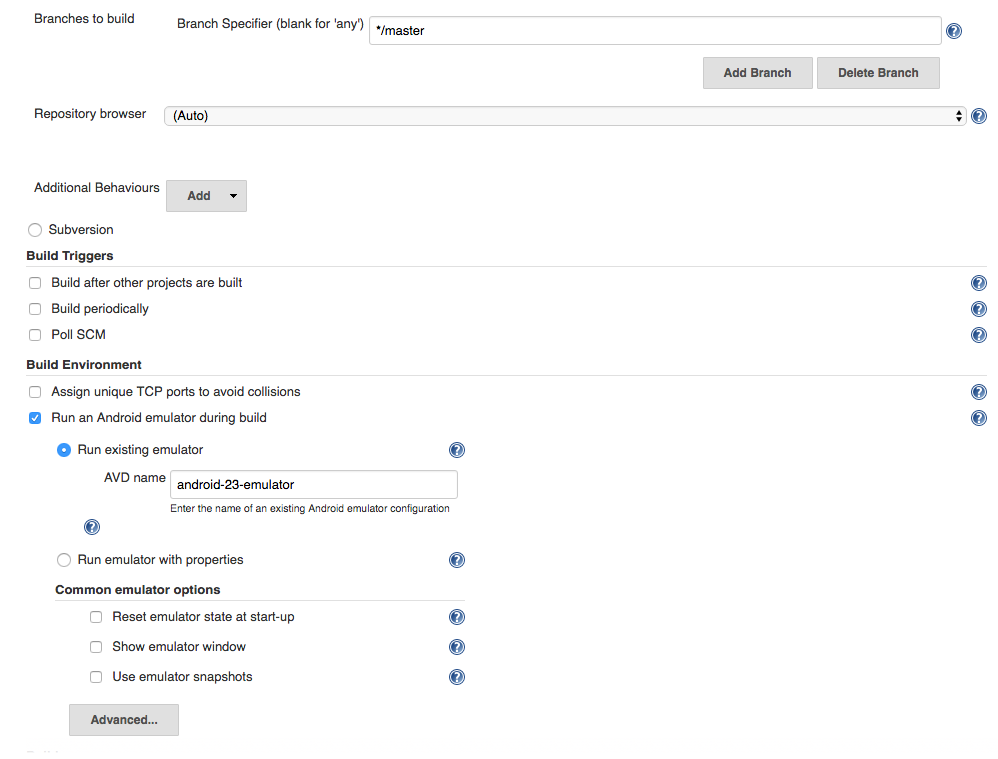


Save configuration and Build Now. If the build succeeds from the Status page you should be able to see your artifacts and test results.
https://www.youtube.com/watch?v=dF8AWVOFlhE
Connect with Red Hat Consulting, Training, Certification
Learn more about Red Hat Consulting
Learn more about Red Hat Training
Learn more about Red Hat Certification
Subscribe to the Training Newsletter
Follow Red Hat Training on Twitter
Like Red Hat Training on Facebook
Watch Red Hat Training videos on YouTube
Follow Red Hat Certified Professionals on LinkedIn

저자 소개
유사한 검색 결과
귀사의 애플리케이션 플랫폼은 미래에 대비되어 있나요?
전문성을 검증하는 새로운 기준: Red Hat 자격증 주요 업데이트
Press Start | Command Line Heroes
Who’s Afraid Of Compilers? | Compiler
채널별 검색

오토메이션
기술, 팀, 인프라를 위한 IT 자동화 최신 동향

인공지능
고객이 어디서나 AI 워크로드를 실행할 수 있도록 지원하는 플랫폼 업데이트

오픈 하이브리드 클라우드
하이브리드 클라우드로 더욱 유연한 미래를 구축하는 방법을 알아보세요

보안
환경과 기술 전반에 걸쳐 리스크를 감소하는 방법에 대한 최신 정보

엣지 컴퓨팅
엣지에서의 운영을 단순화하는 플랫폼 업데이트

인프라
세계적으로 인정받은 기업용 Linux 플랫폼에 대한 최신 정보

애플리케이션
복잡한 애플리케이션에 대한 솔루션 더 보기

가상화
온프레미스와 클라우드 환경에서 워크로드를 유연하게 운영하기 위한 엔터프라이즈 가상화의 미래
