
OpenShift lets you develop, deploy, and manage your cloud-native applications efficiently. But many of us have stable and trusted applications running on Red Hat Enterprise Linux machines that we just want to keep running and up-to-date on the same cluster. In this article, I would like to present how to define RHEL VMs, hosted in OpenShift using OpenShift Virtualization, that subscribe for regular updates.
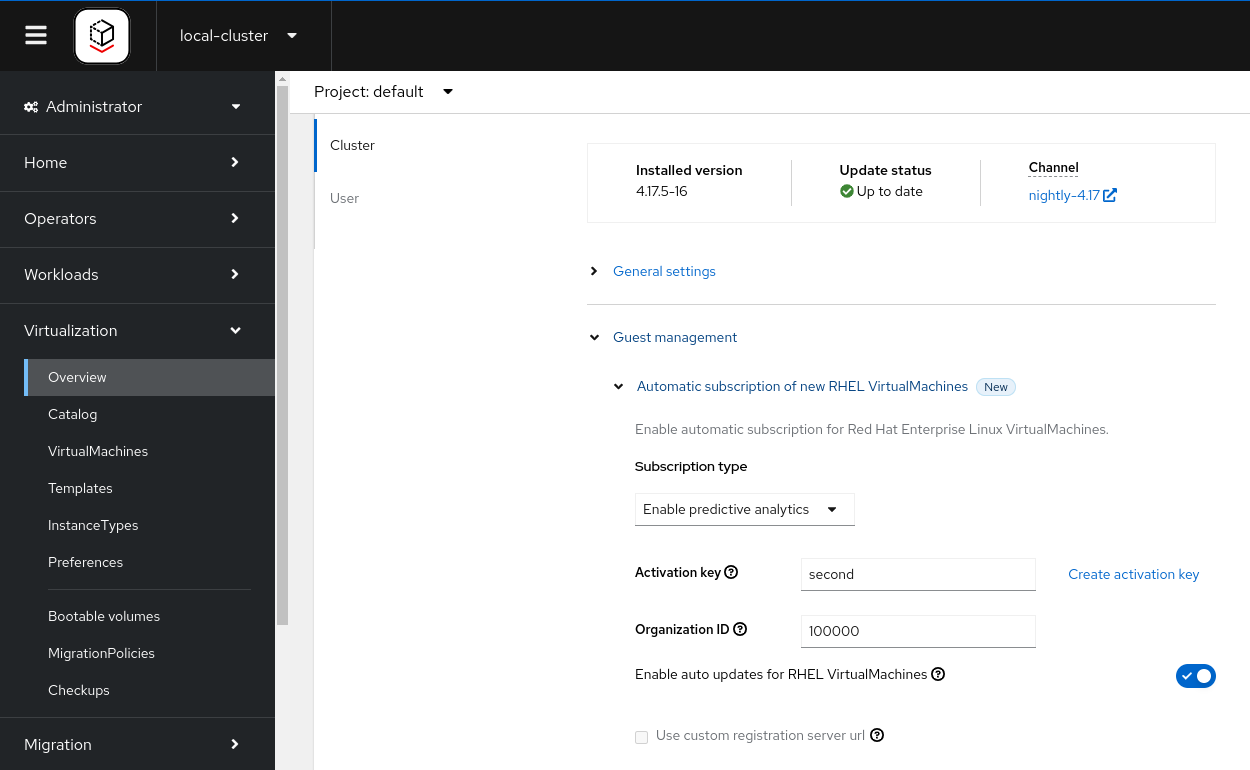
Starting OpenShift Virtualization 4.14 you don’t have to edit your VM yaml. As a cluster-admin, go to Virtualization -> Overview -> Settings -> Guest management. Choose the type of your subscription and fill your activation key and organization id to be used by the VMs that the cluster users are going to create.
Some history
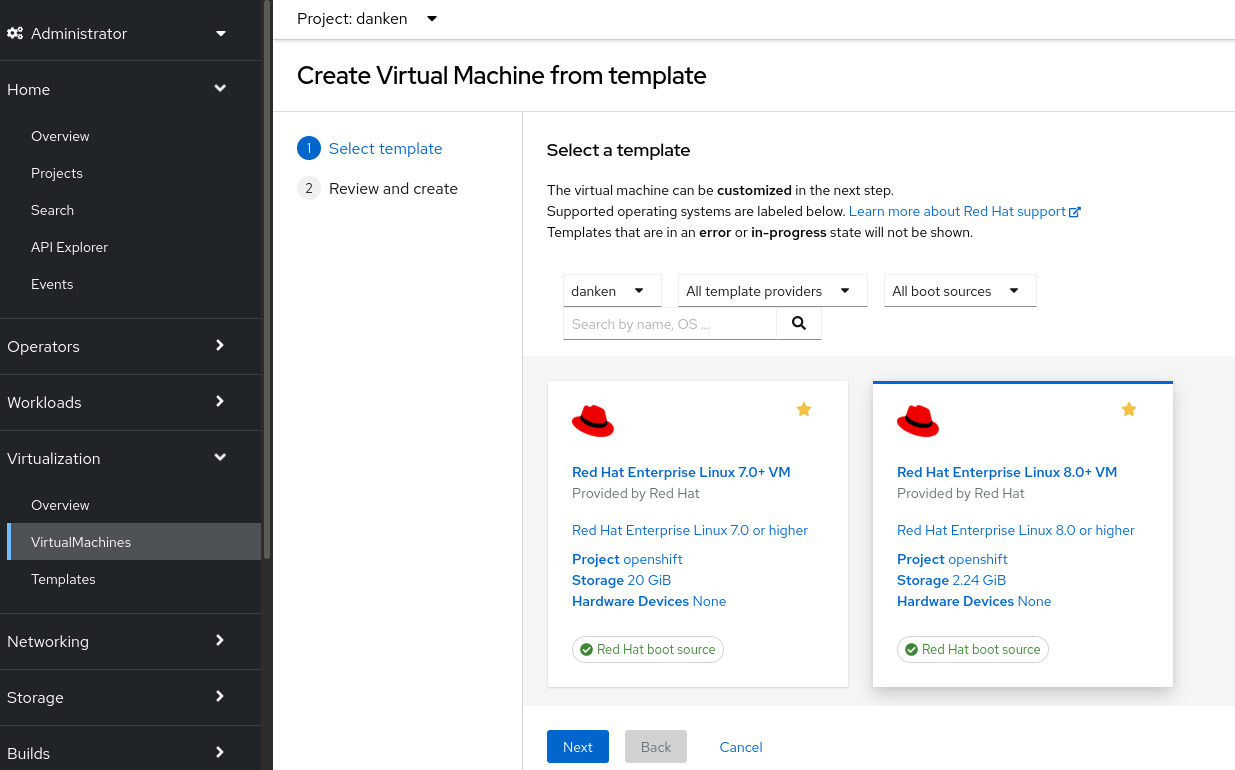
With OpenShift Virtualization 4.10 installed, your default storage class is automatically populated with the boot sources of multiple operating systems. This makes it super simple for you, a project owner, to define a new VM. In the administrator perspective, click Virtualization, click the Create button, choose “with Wizard”:

Select RHEL 8 (or if you enjoy some adventure, RHEL 9 Beta), click Next, click “Create virtual machine” and finally click “See virtual machine details.” That is all. You have the latest release of RHEL 8.
One of the greatest values of RHEL is its regular updates. As a Red Hat customer, you are used to seeing security faults and bugs fixed with dnf update. However, to enjoy this, you first have to subscribe the virtual machine you create.
If you are an OpenShift bare-metal customer, your OpenShift entitlement includes RHEL entitlements for any hosted RHEL virtual machines. This means you may subscribe as many RHEL VMs as you can fit in your cluster. In this blog, I would like to show a simple way to do so, which I tried with the MW01502 SKU - Red Hat OpenShift Container Platform (Bare Metal Node), Standard (1-2 sockets up to 64 cores.
Start by logging into https://access.redhat.com/management/activation_keys where you can create a new activation key and attach it to your OpenShift subscription. You would have to ask your Organization Administrator to do this if you do not have this permission yourself.
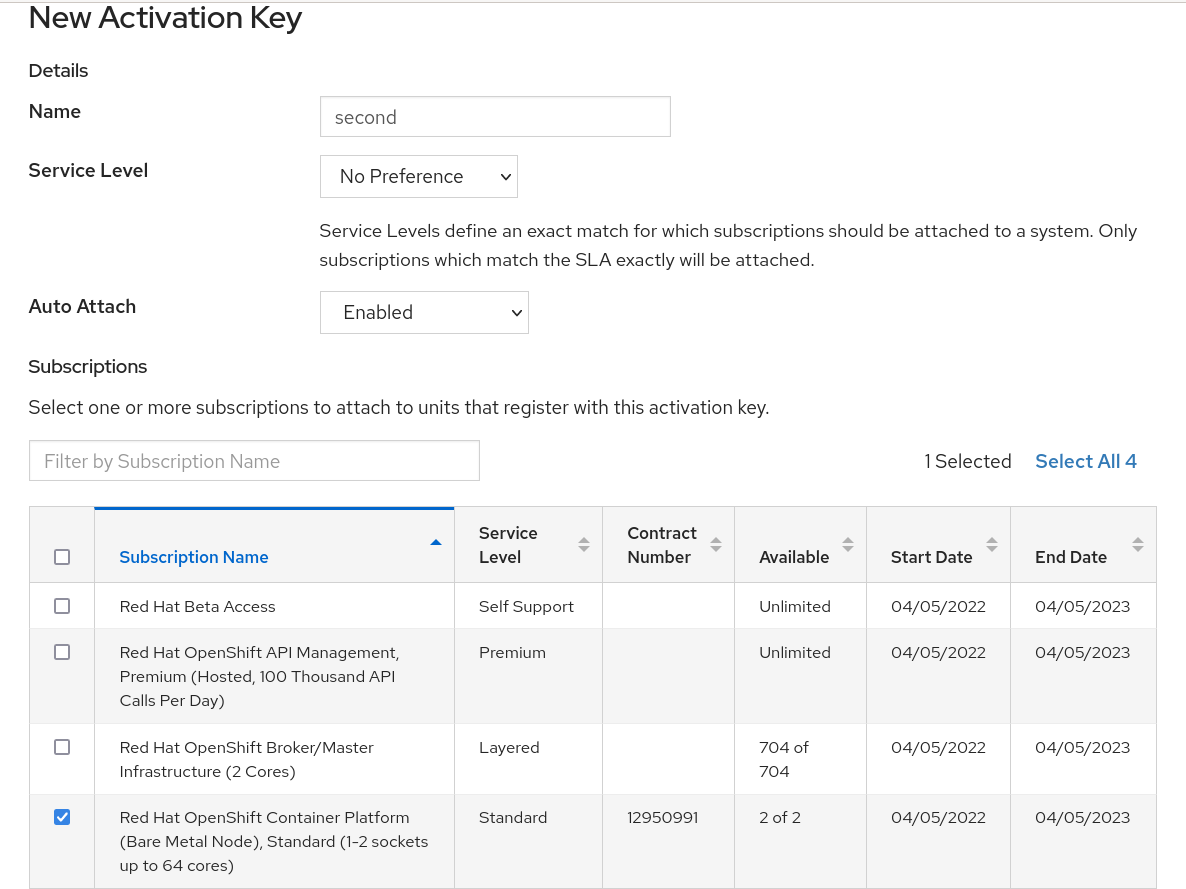
Take a note of the name you gave your activation key (mine has the uninspiring name “second”) and of your organization ID. I ticked my OpenShift subscription, but you can just enable Simple Content Access for your organization and stop worrying about this.
Now define a new VM, but this time click “Customize virtual machine” instead of “Create virtual machine.” Jump to the Advanced step in provisioning the VM and select the cloud-init yaml view, where we need to add a few lines with the activation key and org:
user: cloud-user
password: '${CLOUD_USER_PASSWORD}'
chpasswd:
  expire: false
rh_subscription:
  activation-key: second
  org: 100000
ssh_pwauth: true
packages:
- dnf-automatic
runcmd:
- systemctl enable --now dnf-automatic-install.timer
Then click “Review and confirm,” create the VM, and see it start.
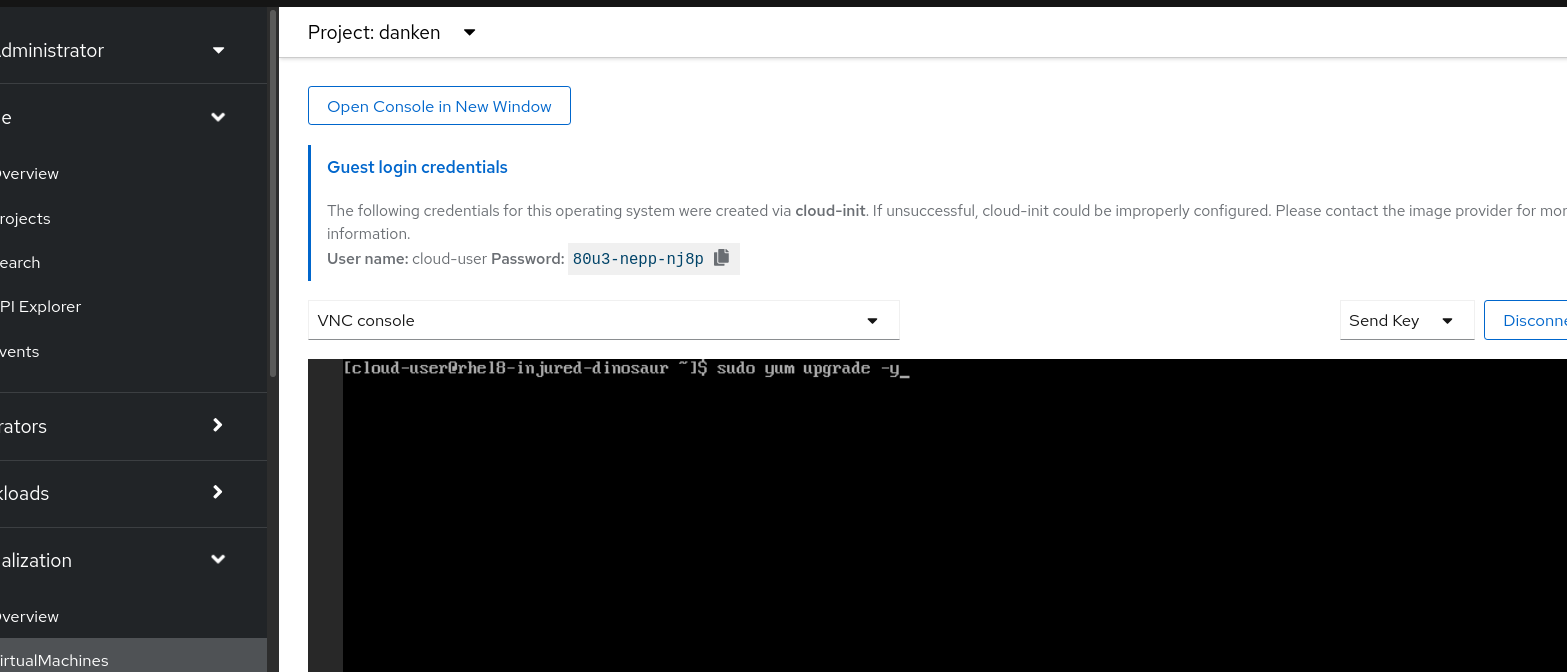
I am not very proud of my adding of “ssh_pwauth: true” there as using SSH keys is more secure. Still, enabling password authentication makes it more convenient to log into the VM over ssh using the cloud-user credentials. Once we do this, we can dnf update -y and get the latest and greatest of RHEL. Note that I have included dnf-automatic and enabled it, to ensure that the VM stays up to date.
Finally, we can rejoice in tracking our newly-subscribed system in https://access.redhat.com/management/systems.
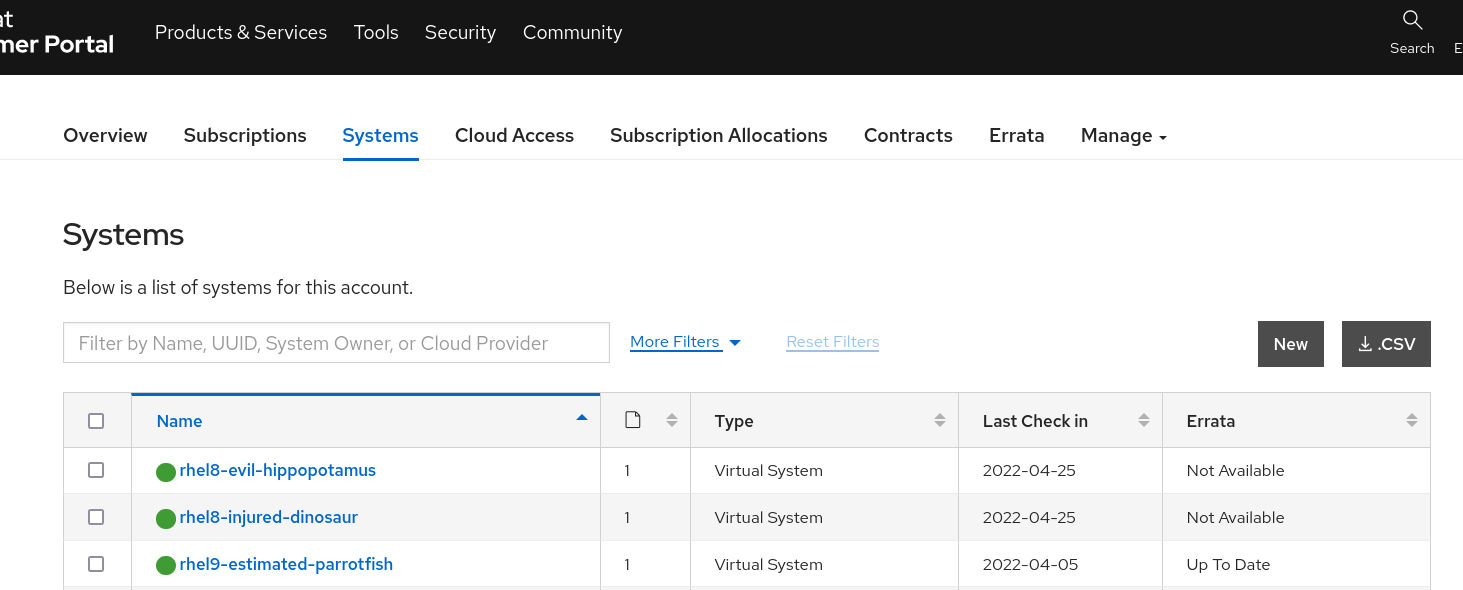
There are many methods to enable subscription for VMs. I hope you liked this simple and automatable method as much as I do. To learn more about OpenShift Virtualization, go to https://cloud.redhat.com/learn/topics/virtualization/.
Postscript
Actually, as a cluster admin you can make things even easier for your VM owners. Obtain a template from your cluster with oc get template -n openshift rhel8-server-tiny -o yaml > rhel8-server-tiny.yaml and edit it. You should modify a few lines (provider, display-name, name and VM label) but more importantly, modify the cloud-init data
apiVersion: template.openshift.io/v1
kind: Template
metadata:
 annotations:
...
    openshift.io/display-name: Subscribed Red Hat Enterprise Linux 8.0+ VM
    template.kubevirt.io/provider: my friendly cluster-admin
    template.kubevirt.io/provider-support-level: Full
    template.kubevirt.io/provider-url: https://www.my.corp
...
  name: rhel8-server-tiny-subscribed
  namespace: openshift
...
objects:
- apiVersion: kubevirt.io/v1
  kind: VirtualMachine
  metadata:
...
    labels:
      app: ${NAME}
      vm.kubevirt.io/template: rhel8-server-tiny-subscribed
...
       - cloudInitNoCloud:
            userData: |-
             #cloud-config
              user: cloud-user
              password: ${CLOUD_USER_PASSWORD}
              chpasswd: { expire: False }
              rh_subscription:
                activation-key: second
                org: 10000000
              ssh_pwauth: true
              packages:
              - dnf-automatic
              runcmd:
              - systemctl enable --now dnf-automatic-install.timer
...
After you apply this back to the cluster with oc apply -f rhel8-server-tiny.yaml, your VM owners would see a new tile in their VM catalog. All they need to do to run a subscribed VM is to click it, no cloud-init editing is required of them.

This simplicity to your users comes with two drawbacks: anyone with access to your cluster could see your activation key in this Subscribed template, and you should repeat this template-modification process if/when Red Hat releases fixes to the vanilla template.
저자 소개
유사한 검색 결과
고등 교육 분야의 가상화 혁신: 자동화된 노드 복구를 통한 데이터 무결성 보호 방법
가상화 결정이 계속 연기되는 이유
Virtualization Is (Still) King | Compiler
Crack the Cloud_Open | Command Line Heroes
채널별 검색

오토메이션
기술, 팀, 인프라를 위한 IT 자동화 최신 동향

인공지능
고객이 어디서나 AI 워크로드를 실행할 수 있도록 지원하는 플랫폼 업데이트

오픈 하이브리드 클라우드
하이브리드 클라우드로 더욱 유연한 미래를 구축하는 방법을 알아보세요

보안
환경과 기술 전반에 걸쳐 리스크를 감소하는 방법에 대한 최신 정보

엣지 컴퓨팅
엣지에서의 운영을 단순화하는 플랫폼 업데이트

인프라
세계적으로 인정받은 기업용 Linux 플랫폼에 대한 최신 정보

애플리케이션
복잡한 애플리케이션에 대한 솔루션 더 보기

가상화
온프레미스와 클라우드 환경에서 워크로드를 유연하게 운영하기 위한 엔터프라이즈 가상화의 미래
