
What happens when you’re connected to a remote system, using a long-running program, and then the connection drops? The odds are, at a minimum, you’re going to have to restart the program, and in a worst-case scenario, you’ll have data corruption. To help get around this, some programs run in a window shell on the system. A very basic example of this is the screen program:
[pgervase@pgervase ~]$ ssh root@rhel7dev.usersys.redhat.com
X11 forwarding request failed on channel 0
Last login: Wed Jan 27 12:10:06 2021 from xxxxxxxx.redhat.com

[root@rhel7dev ~]# screen
This opens my new shell on the rhel7dev system. I’ll run the ping command below from inside of that session:
[root@rhel7dev ~]# ping www.google.com
PING www.google.com (74.125.24.147) 56(84) bytes of data.
64 bytes from 74.125.24.147 (74.125.24.147): icmp_seq=1 ttl=100 time=242 ms
64 bytes from 74.125.24.147 (74.125.24.147): icmp_seq=2 ttl=100 time=242 ms
64 bytes from 74.125.24.147 (74.125.24.147): icmp_seq=3 ttl=100 time=242 ms
I’ll now demonstrate how to detach from the session to simulate a network outage or to simply leave something running overnight. To do this, I hit Ctrl, hold that key down, then hit A, then hit D. That brings me back to the default SSH prompt and I am then able to run screen -ls to see my detached session:
[root@rhel7dev ~]# screen -x
[detached from 25665.pts-0.rhel7dev]
[root@rhel7dev ~]# screen -ls
There is a screen on:
    25665.pts-0.rhel7dev    (Detached)
1 Socket in /var/run/screen/S-root.

[root@rhel7dev ~]#
[ You might also enjoy: Working with pipes on the Linux command line ]
To resume my screen session, I type screen -x because there was only one session as an option. That brought me back to the screen session where the ping command is still running:
[root@rhel7dev ~]# ping www.google.com
PING www.google.com (74.125.24.147) 56(84) bytes of data.
64 bytes from 74.125.24.147 (74.125.24.147): icmp_seq=1 ttl=100 time=242 ms
64 bytes from 74.125.24.147 (74.125.24.147): icmp_seq=2 ttl=100 time=242 ms
<snipped>
64 bytes from 74.125.24.147 (74.125.24.147): icmp_seq=19 ttl=100 time=242 ms
64 bytes from 74.125.24.147 (74.125.24.147): icmp_seq=20 ttl=100 time=242 ms
^C
--- www.google.com ping statistics ---
20 packets transmitted, 20 received, 0% packet loss, time 20278ms
rtt min/avg/max/mdev = 242.105/242.197/242.727/0.576 ms
[root@rhel7dev ~]#
I can have multiple screen sessions at once:
[root@rhel7dev ~]# screen -ls
There is a screen on:
    25665.pts-0.rhel7dev    (Detached)
1 Socket in /var/run/screen/S-root.

[root@rhel7dev ~]# screen
[detached from 25693.pts-0.rhel7dev]
[root@rhel7dev ~]# screen -ls
There are screens on:
    25693.pts-0.rhel7dev    (Detached)
    25665.pts-0.rhel7dev    (Detached)
2 Sockets in /var/run/screen/S-root.

[root@rhel7dev ~]# screen
[detached from 25706.pts-0.rhel7dev]
[root@rhel7dev ~]# screen -ls
There are screens on:
    25706.pts-0.rhel7dev    (Detached)
    25693.pts-0.rhel7dev    (Detached)
    25665.pts-0.rhel7dev    (Detached)
3 Sockets in /var/run/screen/S-root.

[root@rhel7dev ~]#
In each of those three screen sessions, I can have commands running or simply leave a session sitting at the prompt.
A default screen -x will not work to resume a session now because of the multiple screens running:
[root@rhel7dev ~]# screen -x
There are several suitable screens on:
    25706.pts-0.rhel7dev    (Detached)
    25693.pts-0.rhel7dev    (Detached)
    25665.pts-0.rhel7dev    (Detached)
Type "screen [-d] -r [pid.]tty.host" to resume one of them.

[root@rhel7dev ~]#
To attach to one of my sessions, I need to run screen -x and add enough of the screen name to be unique:
[root@rhel7dev ~]# screen -x 257
[detached from 25706.pts-0.rhel7dev]

[root@rhel7dev ~]#
Rather than trying to limit yourself to just one session or remembering what is running on which screen, you can set a name for the session by using the -S argument:
[root@rhel7dev ~]# screen -S "db upgrade"
[detached from 25778.db upgrade]

[root@rhel7dev ~]# screen -ls
There are screens on:
    25778.db upgrade    (Detached)
    25706.pts-0.rhel7dev    (Detached)
    25693.pts-0.rhel7dev    (Detached)
    25665.pts-0.rhel7dev    (Detached)
4 Sockets in /var/run/screen/S-root.

[root@rhel7dev ~]# screen -x "db upgrade"
[detached from 25778.db upgrade]

[root@rhel7dev ~]#
To exit a screen session, you can type exit or hit Ctrl+A and then D.
Now that you know how to start, stop, and label screen sessions let's get a little more in-depth. To split your screen session in half vertically hit Ctrl+A and then the | key (Shift+Backslash). At this point, you’ll have your screen session with the prompt on the left:
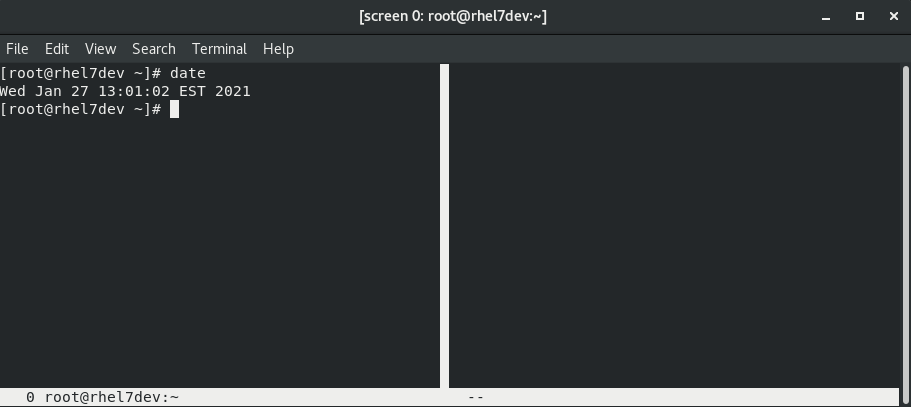
To switch to your screen on the right, hit Ctrl+A and then the Tab key. Your cursor is now in the right session, but there’s no prompt. To get a prompt hit Ctrl+A and then C. I can do this multiple times to get multiple vertical splits to the screen:

You can now toggle back and forth between the two screen panes by using Ctrl+A+Tab.
What happens when you cat out a file that’s larger than your console can display and so some content scrolls past? To scroll back in the buffer, hit Ctrl+A and then Esc. You’ll now be able to use the cursor keys to move around the screen and go back in the buffer.
There are other options for screen, so to see them, hit Ctrl, then A, then the question mark:

[ Free online course: Red Hat Enterprise Linux technical overview. ]
Further reading can be found in the man page for screen. This article is a quick introduction to using the screen command so that a disconnected remote session does not end up killing a process accidentally. Another program that is similar to screen is tmux and you can read about tmux in this article.
저자 소개
I am a Senior Principal Security Architect at Verizon. Before that, I worked at Red Hat in various roles such as consulting and in the Solutions Architect where I specialized in Smart Management, Ansible, and OpenShift. In my free time, I enjoy spending time with my family, exercising, and woodworking.
유사한 검색 결과
Red Hat Enterprise Linux Long-Life Add-On: 지원 종료 걱정 없는 RHEL 소개
인프라를 Red Hat Lightspeed에 어떻게 연결해야 할까요?
Infrastructure At The Edge | Compiler
Operating System Management | Compiler
채널별 검색

오토메이션
기술, 팀, 인프라를 위한 IT 자동화 최신 동향

인공지능
고객이 어디서나 AI 워크로드를 실행할 수 있도록 지원하는 플랫폼 업데이트

오픈 하이브리드 클라우드
하이브리드 클라우드로 더욱 유연한 미래를 구축하는 방법을 알아보세요

보안
환경과 기술 전반에 걸쳐 리스크를 감소하는 방법에 대한 최신 정보

엣지 컴퓨팅
엣지에서의 운영을 단순화하는 플랫폼 업데이트

인프라
세계적으로 인정받은 기업용 Linux 플랫폼에 대한 최신 정보

애플리케이션
복잡한 애플리케이션에 대한 솔루션 더 보기

가상화
온프레미스와 클라우드 환경에서 워크로드를 유연하게 운영하기 위한 엔터프라이즈 가상화의 미래
