Understanding Service Accounts and SCCs
We launched OpenShift 3.0 back in June 2015 and I have had the pleasure of speaking with users all over Europe and the EMEA region to help them get up and running with deploying applications on the platform.
One of the features that developers and administrator often ask questions about are Service Accounts and Security Context Constraints. In this blog post, I will provide a simple introduction into both concepts, how they work and their usage.
Security Context Constraints (SCC)
OpenShift provides security context constraints (SCC) that control the actions that a pod can perform and what it has the ability to access.
In short, when we execute a container, we want to guarantee that the capabilities required by that container to run are satisfied, while at the same time we also want OpenShift to be a secure Container Application platform.
For this reason we can not allow any container to get access to unnecessary capabilities or to run in an insecure way (e.g. privileged or as root).
OpenShift guarantees that the capabilities required by a container are granted to the user that executes the container at admission time. Admission is done based on the identity of the user executing the pod and the pod's service account (introduced later in this blog).
The OpenShift Container Application Platform provides a set of predefined Security Context Constraints that can be used, modified or extended by any administrator. The SCCs that can be used are as follows:
$ oc get scc

NAME              PRIV   CAPS  HOSTDIR  SELINUX    RUNASUSER         FSGROUP   SUPGROUP  PRIORITY

anyuid            false  []    false    MustRunAs  RunAsAny          RunAsAny  RunAsAny  10

hostaccess        false  []    true     MustRunAs  MustRunAsRange    RunAsAny  RunAsAny  <none>

hostmount-anyuid  false  []    true     MustRunAs  RunAsAny          RunAsAny  RunAsAny  <none>

nonroot           false  []    false    MustRunAs  MustRunAsNonRoot  RunAsAny  RunAsAny  <none>

privileged        true   []    true     RunAsAny   RunAsAny          RunAsAny  RunAsAny  <none>

restricted        false  []    false    MustRunAs  MustRunAsRange    RunAsAny  RunAsAny  <none>
By default, the execution of any container will be granted the restricted SCC and only the capabilities defined by that SCC.
$ oc describe scc restricted

Name:                restricted

Priority:               <none>

Access:

  Users:             <none>

  Groups:               system:authenticated

Settings:

  Allow Privileged:        false

  Default Add Capabilities:      <none>

  Required Drop Capabilities:    KILL,MKNOD,SYS_CHROOT,SETUID,SETGID

  Allowed Capabilities:       <none>

  Allowed Volume Types:       configMap,downwardAPI,emptyDir,persistentVolumeClaim,secret

  Allow Host Network:         false

  Allow Host Ports:        false

  Allow Host PID:          false

  Allow Host IPC:          false

  Read Only Root Filesystem:     false

  Run As User Strategy:             MustRunAsRange

    UID:             <none>

    UID Range Min:            <none>

    UID Range Max:            <none>

  SELinux Context Strategy:         MustRunAs

    User:               <none>

    Role:               <none>

    Type:               <none>

    Level:              <none>

  FSGroup Strategy:                 MustRunAs

    Ranges:             <none>

  Supplemental Groups Strategy:     RunAsAny

    Ranges:             <none>
As can be seen in the previous description of the restricted SCC, a list of users and groups can be specified. In order to grant a user or group a specific SCC, a cluster administrator can execute the following command:
$ oadm policy add-user-to-scc <scc_name> <user_name>

$ oadm policy add-group-to-scc <scc_name> <group_name>
Service Accounts
When a person uses the command line or web console, their API token authenticates them to the OpenShift API. However, when a regular user’s credentials are not available, it is common for components to make API calls independently. For example:
- Replication controllers make API calls to create or delete pods
- Applications inside containers could make API calls for discovery purposes
- External applications could make API calls for monitoring or integration purposes
Service accounts provide a flexible way to control API access without sharing a regular user’s credentials.
As you can see, there are many use cases for Service Accounts, and if we dive into the first use case aforementioned, we need to understand that OpenShift (and Kubernetes) are not synchronous in the execution of their commands.
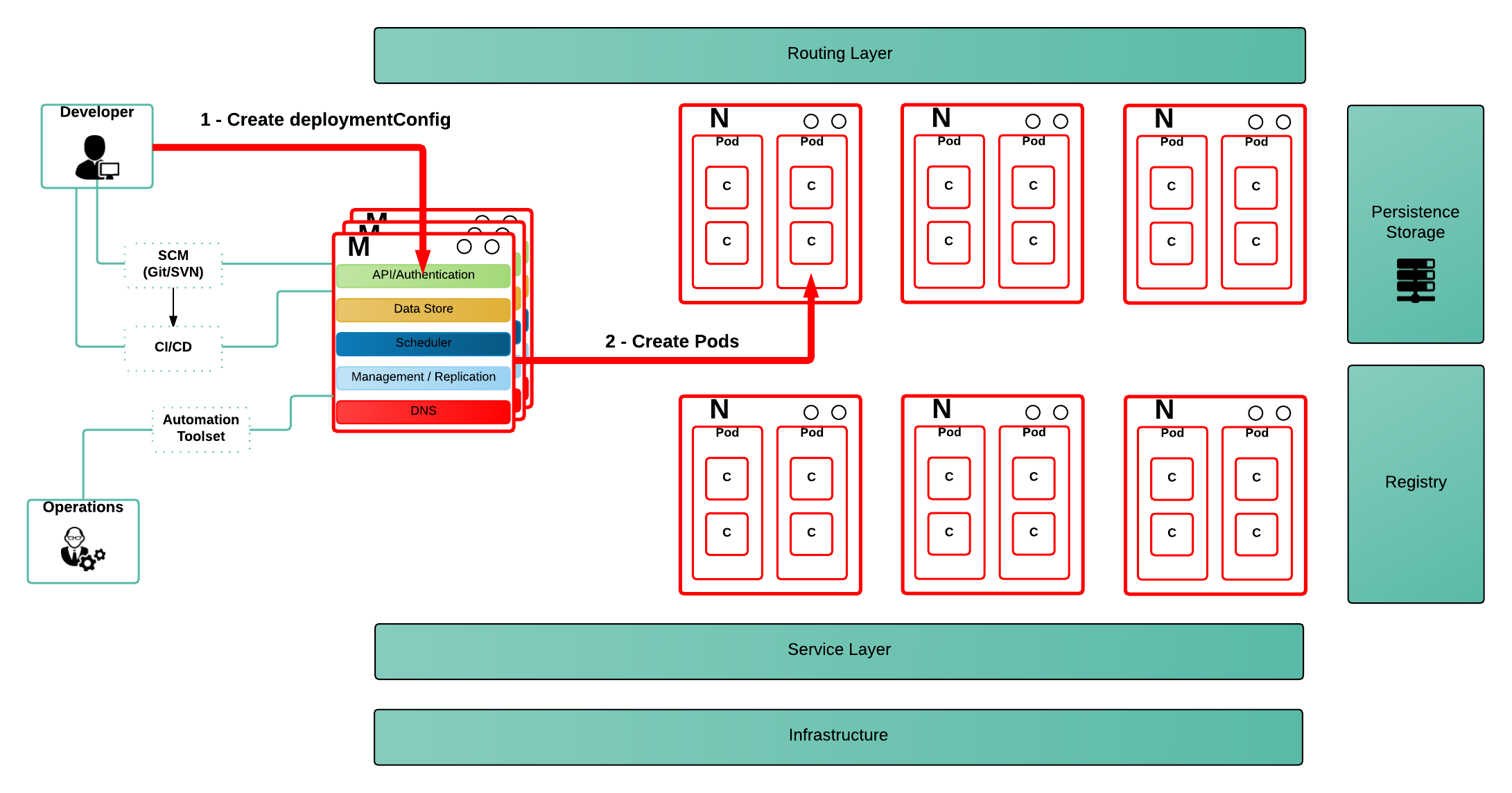
When a user wants to deploy an application, he creates a DeploymentConfig resource, which describes a desired state (as can be seen in the picture above - step 1). From this point, a set of controllers (admission, replication controller, scheduler,...), running on the master server, will be monitoring those definitions and will execute necessary actions on the OpenShift platform in order to provide consistency between the desired and actual state (as can be seen in the picture above - step 2). This will happen as soon as the controllers try to consolidate the cluster state.
What this really means is, the actions are executed by the OpenShift controllers and not by the actual user, that expressed the desired state. This leads to the situation where we need to identify who's executing the actions the controllers are invoking.
By default, OpenShift creates three service accounts per project for building, deploying and running an application (see the official documentation for more details).
When a user creates anyobject in OpenShift it will use these default Service Accounts, but a different one can be specified within the object configuration.
{

   "kind": "DeploymentConfig",

   "apiVersion": "v1",

   "metadata": {...},

   "spec": {

      ...

      "template": {

         ...

         "spec":{

            "containers": [

            ],

            ...

            "serviceAccountName": "myserviceaccount"

         }

      }

   }

}
One reason to use a dedicated service account in a deployment configuration is to allow an application running within a pod to use a set of privileges or capabilities other than those granted by the default service account. This default service account will only have access to all the capabilities defined by the restricted SCC, as out of the box OpenShift will add every authenticated user to the restricted SCC (as can bee seen in the output of the execution of “oc describe scc restricted” shown above). This includes the default service account which is not explicitly included in any other SCC.
Since every service account has an associated username, it can be added to any specific SCC in a similar way as we have done previously with users and groups.
As a service account is a regular user, it can be added to any specific SCC in a similar way as we have described previously.
As an example, we might want to run an application that needs access to mount hostPath volumes, or we might want to run an application with a specified user and not a random user OpenShift will use as default (as detailed in this blog), or we might want to restrict the container's filesystem to be readonly, and forcing every write to be on external storage. There are many other situations that might require us to change the capabilities provided by default.
This leads to the conclusion of this blog with my advice:
“Every time you have an application/process that requires a capability not granted by the restricted SCC, create a new, specific service account and add it to the appropriate SCC. But, if there is no SCC that perfectly suits your needs, instead of using the best fit one, create a new SCC tailored for your requirements, and finally set it for the deployment configuration (as described above).”
$ oc create serviceaccount useroot$ oc adm policy add-scc-to-user anyuid -z useroot
$ oc patch dc/myAppNeedsRoot --patch '{"spec":{"template":{"spec":{"serviceAccountName": "useroot"}}}}'
Above you can see my advice in action, creating a new service account named useroot, modifying the deployment configuration for myAppNeedsRoot and then adding the serviceaccount to the anyuid SCC as the application defined needs to run as user root in the container. Note that I haven't created a specific SCC since anyuid meets my needs.
|
Note:
|
The previous example is using notation available in OpenShift Origin 1.1.4+ and OpenShift Enterprise 3.2+. |
I’ve seen many users granting access to a user/serviceaccount to the privileged SCC to avoid going through this exercise, and this is can be a big security problem, so take my word of caution.
저자 소개

채널별 검색

오토메이션
기술, 팀, 인프라를 위한 IT 자동화 최신 동향

인공지능
고객이 어디서나 AI 워크로드를 실행할 수 있도록 지원하는 플랫폼 업데이트

오픈 하이브리드 클라우드
하이브리드 클라우드로 더욱 유연한 미래를 구축하는 방법을 알아보세요

보안
환경과 기술 전반에 걸쳐 리스크를 감소하는 방법에 대한 최신 정보

엣지 컴퓨팅
엣지에서의 운영을 단순화하는 플랫폼 업데이트

인프라
세계적으로 인정받은 기업용 Linux 플랫폼에 대한 최신 정보

애플리케이션
복잡한 애플리케이션에 대한 솔루션 더 보기

가상화
온프레미스와 클라우드 환경에서 워크로드를 유연하게 운영하기 위한 엔터프라이즈 가상화의 미래
