With the introduction of Red Hat Ansible Automation Platform 2, several new key components are being introduced as a part of the overall developer experience. This includes automation execution environments, introduced to provide predictable environments during automation runtime. All collection dependencies are contained within the execution environment to make sure that automation created in development environments runs the same as in production environments.
Building execution environments is now easier with the introduction of the execution environment builder (ansible-builder) tool included with Ansible Automation Platform, while the updates to automation controller help IT teams leverage execution environments.
Considering the shift towards containerized execution of automation, the automation development workflow and pre-existing tooling must be reimagined. In short, ansible-navigator replaces ansible-playbook and other ansible-*` command line utilities.
However, ansible-navigator serves a much greater purpose than just a drop in replacement or alias to ansible-playbook. With this release, ansible-navigator is introduced as an application exclusively for developing and executing automation. Ansible-playbook has long been one of the first utilities that is leveraged in an Ansible automated environment. Building on the ease of use, the automation content navigator exposes automation runs in greater detail. Apart from debugging automation, ansible-navigator also allows inspection of multiple aspects of the environment, including automation execution environments, inventories, collections, modules and more through the use of subcommands.
Who will use automation content navigator?
The automation content navigator is mainly geared towards developers of automation. This can mean people creating automated tasks with available modules, those migrating roles into Collections or those who are developing modules from the ground up. Content navigator runs as a textual user interface and looks great within a terminal session, even while running inside popular code editors with included terminal panes.
Initial view of text user interface (TUI)
Launching navigator without any additional options brings up a welcome screen that displays the different subcommands that are available.

Moving around the interface is quite simple and reminders for the navigation keys are listed at the bottom of the interface. Subcommands can be entered in a vim-like fashion using the format :<command>.
Exploring the local environment
Each project can have its own navigator configuration (ansible-navigator.yml). Common configuration parameters can be names of execution environment images required for the project, Ansible configuration parameters such as forks, log levels, artifact creation, etc. By configuring the content navigator on a project basis, other contributors are more easily able to branch, fork and otherwise extend automation projects.
ansible-navigator:
  ansible:
    inventories:
    - hosts

  execution-environment:
    enabled: true
    container-engine: podman
    image: ansible-automation-platform-20-ee-supported-rhel8
    pull-policy: missing
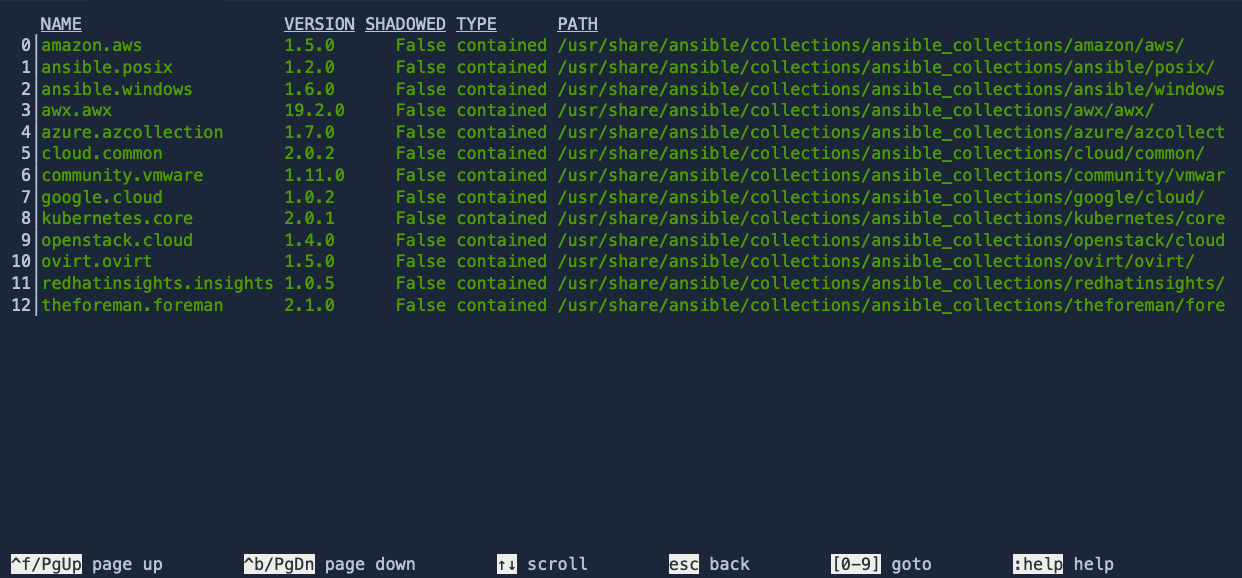
The automation content navigator also has built in subcommands to allow developers easy access to explore the environment. Two very useful subcommands in this context are :inventory which allows for traversing of the project's inventory, and :collections which allows developers to quickly see which Collections are available within the specified execution environment. Expanding one of the Collections returned, shows a list of all modules contained along with documentation and usage examples.
Executing automation
ansible-navigator run <playbook> will execute playbooks after downloading a default execution environment. To run without an execution environment, pass --ee false to the command.

Notice how the interface changes from the overview screen to a screen that now lists out the plays that are being executed.
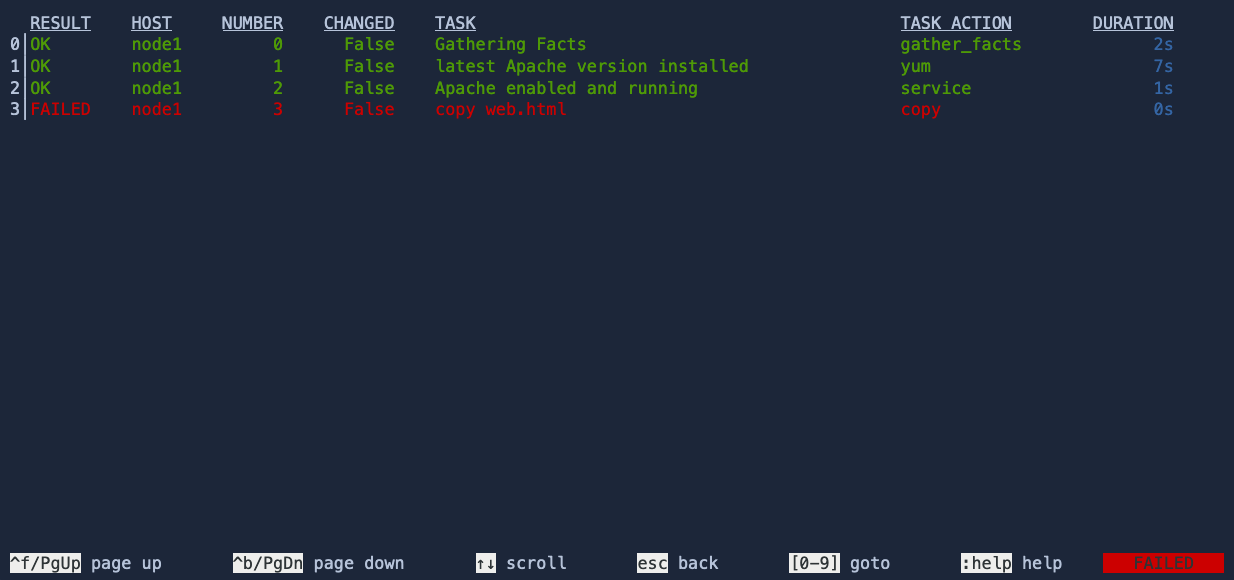
Pressing the number that corresponds to the line number of the play you'd like to inspect brings you to a screen that shows the tasks running along with the current running task.

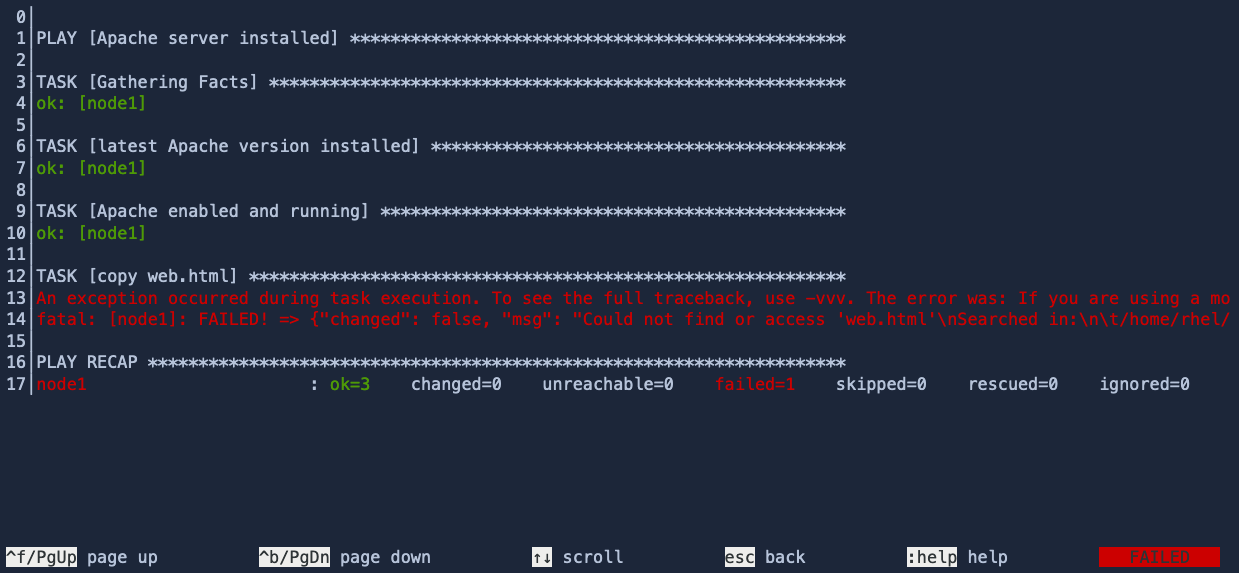
From here, any tasks can be inspected for additional information including any additional information regarding task failure.
If a more traditional real time view of execution is preferred, issue the :st command to watch execution.
What's next?
- The automation content navigator can be installed by RPM using the official Ansible Automation Platform documentation. If you are a Red Hat customer, you can visit the Ansible Automation Platform 2 landing page in the Red Hat Customer Portal that consolidates all of the documentation and guidance available to you.
- If you’re ready to get hands on, we have self-paced interactive labs available to explore Ansible Automation Platform 2.
- To learn more about new Ansible Automation Platform features and components, check out the updated product overview page on ansible.com. You can also consult our new interactive features guide.
- Make sure to catch up on announcements, demos, keynotes and more great content from AnsibleFest 2021, which is now available on-demand.
- Please reach out to your local Red Hat representative to assist your organization in getting started with Ansible Automation Platform 2.
저자 소개

Colin McNaughton is a Principal Technical Marketing Manager for Ansible Automation. Colin has been with Red Hat for 7 years and, prior to this position, served as a Solution Architect in the southeast helping organizations grow their automation strategy. He has lived in NC for the past decade with his wife and two kids.
유사한 검색 결과
과거의 운영 방식에서 벗어나 IT의 미래 구축
MCP 카탈로그: Red Hat OpenShift AI에서의 탐색, 배포 및 연결하기
Collaboration In Product Security | Compiler
Keeping Track Of Vulnerabilities With CVEs | Compiler
채널별 검색

오토메이션
기술, 팀, 인프라를 위한 IT 자동화 최신 동향

인공지능
고객이 어디서나 AI 워크로드를 실행할 수 있도록 지원하는 플랫폼 업데이트

오픈 하이브리드 클라우드
하이브리드 클라우드로 더욱 유연한 미래를 구축하는 방법을 알아보세요

보안
환경과 기술 전반에 걸쳐 리스크를 감소하는 방법에 대한 최신 정보

엣지 컴퓨팅
엣지에서의 운영을 단순화하는 플랫폼 업데이트

인프라
세계적으로 인정받은 기업용 Linux 플랫폼에 대한 최신 정보

애플리케이션
복잡한 애플리케이션에 대한 솔루션 더 보기

가상화
온프레미스와 클라우드 환경에서 워크로드를 유연하게 운영하기 위한 엔터프라이즈 가상화의 미래
