

Whether you want to separate your testing and production environments, improve the availability of your applications or bring your OpenShift clusters to the edge, working with a multi-cluster environment is the key in achieving those goals. Red Hat Advanced Cluster Management or short ACM allows you to easily work with multiple clusters and comes with a number of advantages.
However, managing your clusters and applications at scale can be a challenging task. Ideally there is a single source of truth, which determines the configuration and workloads of each cluster. OpenShift GitOps enables you to do that by storing your configuration in Git repositories and keeping all of your clusters in sync automatically.
Do you want to manage your OpenShift Virtualization virtual machine workloads across multiple clusters while using a single source of truth in the GitOps way? This blog post will show how you can do that with Red Hat Advanced Cluster Management and OpenShift GitOps.
What is Red Hat Advanced Cluster Management?
Red Hat Advanced Cluster Management simplifies the management of multiple clusters by offering end-to-end management, visibility and control of the whole cluster and application life cycle. It acts as a central point for keeping an inventory of all your clusters and applications and enables multi-cluster and multi-cloud scenarios, such as deploying the same application across clusters in different regions, possibly on several cloud providers. It uses a hub and spoke architecture and allows the targeted distribution of Kubernetes manifests across clusters.
What are hub and managed clusters?
The hub cluster is the cluster on which ACM is running on. It acts as an inventory and carries out all management actions. It is usually not running any actual workloads (though still possible), these run on managed clusters. Managed clusters are kept in the inventory of the hub cluster. They can be created and added to the inventory directly through ACM. Alternatively, existing clusters can be added to the inventory as well. For more information have a look at the ACM documentation.
What is the GitOps way and what is OpenShift GitOps?
The GitOps way uses Git repositories as a single source of truth to deliver infrastructure as code. Automation is employed to keep the desired and the live state of clusters in sync at all times. This means any change to a repository is automatically applied to one or more clusters while changes to a cluster will be automatically reverted to the state described in the single source of truth.
Red Hat OpenShift GitOps enables declarative GitOps workflows and allows to deploy applications on-demand. It monitors the live state of clusters against the desired state in a Git repository and keeps them in sync. It builds on the ArgoCD project, therefore the terms OpenShift GitOps and ArgoCD might be used interchangeably in the following sections. For more information have a look at the GitOps documentation.
A quick primer about Applications and ApplicationSets
The ArgoCD Application is a CustomResourceDefinition (CRD), which essentially describes a source of manifests and a target cluster to apply the manifests to. Besides that, options like automatic creation of namespaces or the automatic revert of changes can be configured.
The ArgoCD ApplicationSet is a CRD building on ArgoCD Applications, targeted to deploy and manage Applications across multiple clusters while using the same manifest or declaration. It is possible to deploy multiple ApplicationSets which are contained in one monorepo. By using generators it is possible to dynamically select a subset of clusters available to ArgoCD to deploy resources to.
In this blog post we are going to use ApplicationSets to deploy OpenShift Virtualization and VirtualMachines to multiple clusters while using the same declaration of resources for all clusters.
For more information on ApplicationSets see the documentation.
Requirements for the setup
The following requirements need to be satisfied to build the setup described in this blog post yourself:
- A Git repository accessible by the hub cluster
- One OpenShift cluster acting as hub cluster
- Needs to be publicly accessible or at least accessible by the managed clusters
- One or more OpenShift clusters acting as managed clusters
- Can be in private networks
- Virtualization has to be available
- Nested virtualization is fine for demonstration purposes
Repository preparation
A repository with the files used in this blog post can be found at https://github.com/0xFelix/gitops-demo. You need to clone this repository to somewhere where you are able to make changes to it (i.e. forking it on GitHub). Then open a terminal on your machine, check out the repository locally and change your working directory into the cloned repository.
The ApplicationSets in the demo repository use the above repository URL as repoURL. To be able to make changes to your ApplicationSets, you need to adjust the repoURL to the URL of your own repository. If you do this later do not forget to update any existing ApplicationSets on your hub cluster.
Installing and configuring Advanced Cluster Management
The following steps will guide you through installing and configuring ACM on your hub cluster. We will use the OpenShift console where possible.
Installing ACM on the hub cluster

- Login as cluster administrator on the UI of the hub cluster
- Open the
Administratorview if it is not already selected - In the menu click on
Operatorsand openOperatorHub - In the search type
Advanced Cluster Management for Kubernetesand click on it in the results - Click on
Install, keep defaults and click onInstallagain - Wait until
MultiClusterHubcan be created and create it - Wait until the created
MultiClusterHubis ready (Operators-->Installed Operators--> see status of ACM)
Adding managed clusters to ACM on the hub cluster
Managed clusters can be added to ACM in two ways:
- Create a new cluster with ACM
- Add an existing cluster to ACM
Note: For the sake of simplicity we will let ACM create the managed clusters in this blog post on a public cloud provider. Please note that nested virtualization is not supported in production deployments.
To create one or more managed clusters follow these steps:
- Login as cluster administrator on the UI of the hub cluster
- At the top of the menu select
All Clusters(local-clustershould be selected initially) - Add credentials for you cloud provider by clicking on
Credentialsin the menu and then clicking onAdd credentials - Click on
Infrastructureand then onClustersin the menu - Click
Create cluster, select your cloud provider and complete the wizard (use the default cluster set for now)
Note: When using Azure as cloud provider select instance type
Standard_D8s_v3for the control plane andStandard_D4s_v3for the worker nodes, resources might become to tight to run virtual machines on the cluster otherwise.
Organizing managed clusters in a set
Managed clusters can be grouped into ManagedClusterSets. These sets can be bound to namespaces with a ManagedClusterSetBinding to make managed clusters available in the bound namespaces.
To add managed clusters to a new set follow these steps:
- Login as cluster administrator on the UI of the hub cluster
- At the top of the menu select
All Clusters(local-clustershould be selected initially) - Click on
Infrastructureand then onClustersin the menu - Click on
Cluster setsand then onCreate cluster set - Enter
managedas name for the new set and click onCreate - Click on
Managed resource assignments - Select all clusters you want to add, click on
Reviewand then onSave
Now we have a ManagedClusterSet that can be used to make the managed clusters available to ArgoCD.

If done correctly, the cluster list of the created ManagedClusterSet in ACM should look like in the screenshot above.
Installing and configuring OpenShift GitOps
The following steps will guide you through installing and configuring OpenShift GitOps or ArgoCD on your hub cluster. We will use the OpenShift console where possible again.
Installing OpenShift GitOps on the hub cluster

- Login as cluster administrator on the UI of the hub cluster
- Open the
Administratorview if it is not already selected - In the menu click on
Operatorsand openOperatorHub - In the search type
Red Hat OpenShift GitOpsand click on it in the results - Click on
Install, keep defaults and click onInstallagain - Wait until OpenShift GitOps is ready (
Operators-->Installed Operators--> see status of OpenShift GitOps)
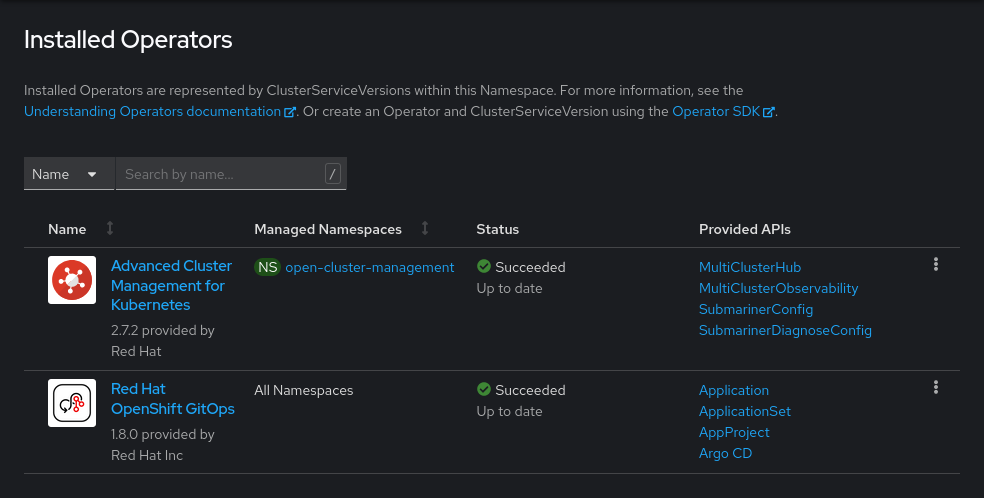
If installed correctly, the list of installed operators on your cluster should look like in the following screenshot:
Accessing the OpenShift GitOps web UI
The OpenShift GitOps web UI is exposed with a Route. To get the exact URL of the Route follow these steps:
- Login as cluster administrator on the UI of the hub cluster
- Open the
Administratorview if it is not already selected - In the menu click on
Networkingand openRoutes - In the
Projectsdrop down selectopenshift-gitops(enableShow default projectsif not visible) - There will be a
Routecalledopenshift-gitops-server, the location of thisRouteis the URL to the GitOps UI - You can log in to the GitOps UI with your OpenShift credentials
Alternatively you can use the command line to get the URL to the GitOps UI with the following command:
oc get route -n openshift-gitops openshift-gitops-server -o jsonpath='{.spec.host}'Making a set of managed clusters available to OpenShift GitOps
To make a set of managed clusters available to OpenShift GitOps, a tight integration between ACM and GitOps exists. The integration is controlled with the GitOpsCluster CRD.
Follow these steps to make the managed clusters available to GitOps:
- Copy the login command for the command line by clicking on your username on the top right and then click on
Copy login command - Run the copied command in your terminal
- Create a
ManagedClusterSetBindingin theopenshift-gitopsnamespace to make theManagedClusterSetavailable in this namespace- See file managedclustersetbinding.yaml
- Run
oc create -f acm-gitops-integration/managedclustersetbinding.yaml
- Create a
Placementto let ACM decide which clusters should be made available to GitOps- See file placement.yaml
- Run
oc create -f acm-gitops-integration/placement.yaml - For the sake of simplicity this will select the whole
ManagedClusterSet, but advanced use cases are possible
- Create a
GitOpsClusterto finally make the selected clusters available to GitOps on the hub cluster- See file gitopscluster.yaml
- Run
oc create -f acm-gitops-integration/gitopscluster.yaml
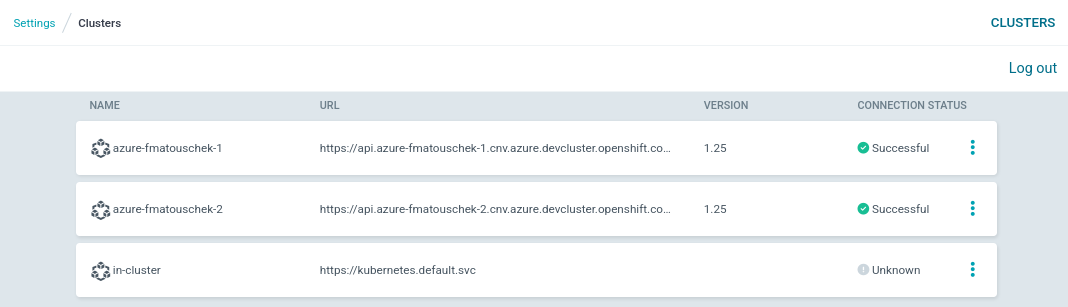
In this screenshot you can see that the managed clusters were made available to ArgoCD successfully. This view can be opened by going to ArgoCD's settings and opening the Clusters menu. Until an Application is deployed to the cluster its connection status may still be Unknown.
Assigning clusters to environments
In our setup we assign managed clusters to specific environments by setting a label on them. Ideally it would be possible to assign them from ACM, but for the time being this still has to be done in ArgoCD. In an upcoming ACM release it will be possible to carry over labels set in ACM to ArgoCD.
In this post we will work with the dev and the prod environments. Add your managed clusters to the environments by following these steps:
Open ArgoCD's settings and open the Clusters menu. Then click on the three dots on the right side of a cluster to edit it. After editing the cluster do not forget to save your changes.
Assigning clusters to the dev environment

One or more of the clusters should belong to the dev environment. This is achieved by setting the env label to the value dev on the managed cluster.
Assigning clusters to the prod environment
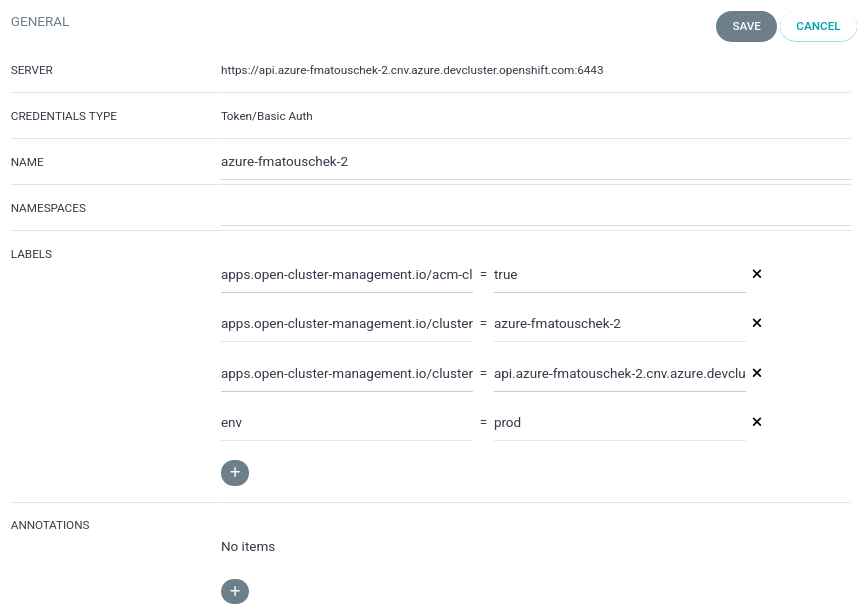
One or more of the clusters should belong to the prod environment. This is achieved by setting the env label to the value prod on the managed cluster.
Deploying OpenShift Virtualization to the managed clusters

To deploy OpenShift Virtualization to the managed clusters with the help of an ApplicationSet run the following command from your cloned repository (See Repository preparation):
oc create -f applicationsets/virtualization/applicationset-virtualization.yaml
This will create an Application for each managed cluster that deploys OpenShift Virtualization with its default settings. The Application will ensure that the namespace openshift-cnv exists, and it will automatically apply any changes to this repository or undo changes which are not in this repository. Sync waves are used to ensure that resources are created in the right order.
Order of resource creation
OperatorGroupSubscriptionHyperConverged
Because the HyperConverged CRD is unknown to ArgoCD, the sync option SkipDryRunOnMissingResource=true is set to allow ArgoCD to create a CR without knowing its CRD.
Health state of an Application
In ArgoCD's UI you can follow the synchronization status of the newly created Application for each cluster. Eventually every Application will reach the healthy and synced status like in the following screenshot.

To see what is actually deployed have a look into the following directory: applicationsets/virtualization/manifests.
Deploying a VirtualMachine to the managed clusters
To deploy a Fedora VirtualMachine on all managed clusters with the help of an ApplicationSet run the following command from your cloned repository (See Repository preparation):
oc create -f applicationsets/demo-vm/applicationset-demo-vm.yaml
This will create an Application for each managed cluster that deploys a simple VirtualMachine on each cluster. It uses the Fedora DataSource available on the cluster by default to boot a Fedora cloud image.
Health state of the Application
Notice how the health state of the created Application is Suspended. This is because the created VirtualMachine is still in stopped state.

Applying customizations to environments
Instead of using plain manifests this ApplicationSet is using Kustomize. This allows to apply customizations to an Application depending on the environment a managed cluster belongs to. In this post it is achieved by using the metadata.labels.env value to choose the right Kustomize overlay.
The dev overlay prefixes names of created resources with dev-, while the prod overlay prefixes names with prod-. Furthermore, the created VirtualMachines get more or less memory assigned depending on the environment. These are only simple customizations, but the possibilities are endless!
To see what is actually deployed have a look into the following directory: applicationsets/demo-vm/kustomize.
Quick summary
Here is a quick summary of the required steps:
- Choose to modify all environments (
base) or a single environment (eg.devorprod) - To start the
VirtualMachinein all environments editapplicationsets/demo-vm/kustomize/base/virtualmachine.yaml - Set
spec.runningtotrue - Commit and push the change to your repository
- Refresh ArgoCD to pick up the change
The following sections will explain the steps in more detail.
How to start or stop a VirtualMachine
First let us have a closer look at the Application of the stopped VirtualMachine. Notice the Suspended health state. Also notice the dev- prefix of the created VirtualMachine. It was created on a cluster belonging to the dev environment.
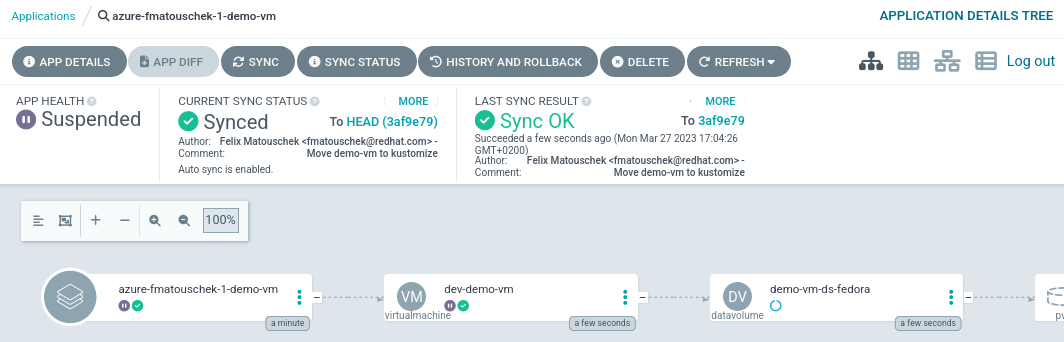
To start or stop a VirtualMachine you need to edit the spec.running field of a VirtualMachine and set it to the corresponding value (false or true). You can do this in the applicationsets/demo-vm/kustomize directory.
Graceful shutdown of VirtualMachines
If the VirtualMachine has an appropriate termination grace period (spec.template.spec.terminationGracePeriodSeconds), by setting this value to false the VirtualMachine will be gracefully shut down. When setting the timeout grace period to 0 seconds, the VirtualMachine is stopped immediately however.
Applying changes to specific environments
When modifying the VirtualMachine you can choose to either modify the base or a specific overlay of Kustomize. This allows to start or stop the VirtualMachine in every environment or just in a specific one. In this example the VirtualMachine was started in every environment by modifying the Kustomize base.
Applying the change with ArgoCD
To apply new changes with ArgoCD you need to commit and push changes to the Git repository containing your Application. To start or stop a VirtualMachine you have to update the manifest and commit and push to your repository. In the ArgoCD UI select the Application of the VirtualMachine and click Refresh to apply the change immediately. Otherwise, it will take some time until ArgoCD scans the repository and picks up the change.
Observing the change
After ArgoCD picked up the change it will sync it to the VirtualMachine as visible by the Progressing health state in the following screenshot:

Eventually the VirtualMachine will be running and healthy:

Advanced usage of ACM Placements with OpenShift GitOps
For the sake of simplicity the Placement created in this blog post selects the whole ManagedClusterSet, but more advanced use cases are possible.
ACM can dynamically select a subset of clusters from the ManagedClusterSet, while following a defined set of criteria. This for example allows to schedule VirtualMachines on clusters with the most resources available at the time of the placement decision.
For more on this topic see Using the Open Cluster Management Placement for Multicluster Scheduling.
Summary and outlook

In this blog post we set up a hub cluster and two clusters managed by ACM to deploy applications to from a centralized management point. As example applications we deployed OpenShift Virtualization with simple manifests and a virtual machine with manifests customized by Kustomize. We learned how to apply customizations to specific environments and how we can start and stop virtual machines in a declarative way. All of this was accomplished in the GitOps way by using a Git repository as a single source of truth.
This is of course only the tip of the iceberg, building on this setup allows you to customize your ApplicationSets for different environments like development, staging and production or to schedule your applications based on custom criteria (e.g. available resources) with advanced placements rules.
Sobre o autor
Mais como este
Por que os parceiros da Red Hat são o principal ativo comercial de telecomunicações
O paradoxo agêntico e o argumento a favor da IA híbrida
Virtualization Is (Still) King | Compiler
Edge computing covered and diced | Technically Speaking
Navegue por canal

Automação
Últimas novidades em automação de TI para empresas de tecnologia, equipes e ambientes

Inteligência artificial
Descubra as atualizações nas plataformas que proporcionam aos clientes executar suas cargas de trabalho de IA em qualquer ambiente

Nuvem híbrida aberta
Veja como construímos um futuro mais flexível com a nuvem híbrida

Segurança
Veja as últimas novidades sobre como reduzimos riscos em ambientes e tecnologias

Edge computing
Saiba quais são as atualizações nas plataformas que simplificam as operações na borda

Infraestrutura
Saiba o que há de mais recente na plataforma Linux empresarial líder mundial

Aplicações
Conheça nossas soluções desenvolvidas para ajudar você a superar os desafios mais complexos de aplicações

Virtualização
O futuro da virtualização empresarial para suas cargas de trabalho on-premise ou na nuvem
