Ugo Palatucci
We are happy to announce the official Kubernetes NMState UI for OpenShift Console!
As you may know, the Kubernetes NMState Operator was promoted to GA last year bringing new OpenShift networking capabilities.
Like everything else in Kubernetes, Kubernetes NMState defines policies and interfaces declaratively which is a game-changing approach in the network space.
In 4.14, the Kubernetes NMState Operator gets its UI that allows for the fast and easy creation, editing, and monitoring of NMState resources.
Upon upgrading the operator, two new navigation items will be added to the console menu under the Network section: NodeNetworkConfigurationPolicy and NodeNetworkState.
Configure your Network
To configure the network in NMState we have to define policies. This can now be done through the UI, using either the traditional YAML editor or a dedicated form.
To create a NodeNetworkConfigurationPolicy using the dedicated form, follow these simple steps:
- Determine whether the policy should apply to all nodes in the cluster or only a subset of them. A set of nodes can be specified by creating a node selector. The nodes matching the node selector can be reviewed before proceeding to the next step.
- Enter basic information like name and description
- Create the interfaces defining their types, IPv4, DNS configurations, and other key parameters. NOTE: Currently, only Bridge, Bond, and Ethernet interface types can be created via the UI. Support for additional interface types will be added in future versions
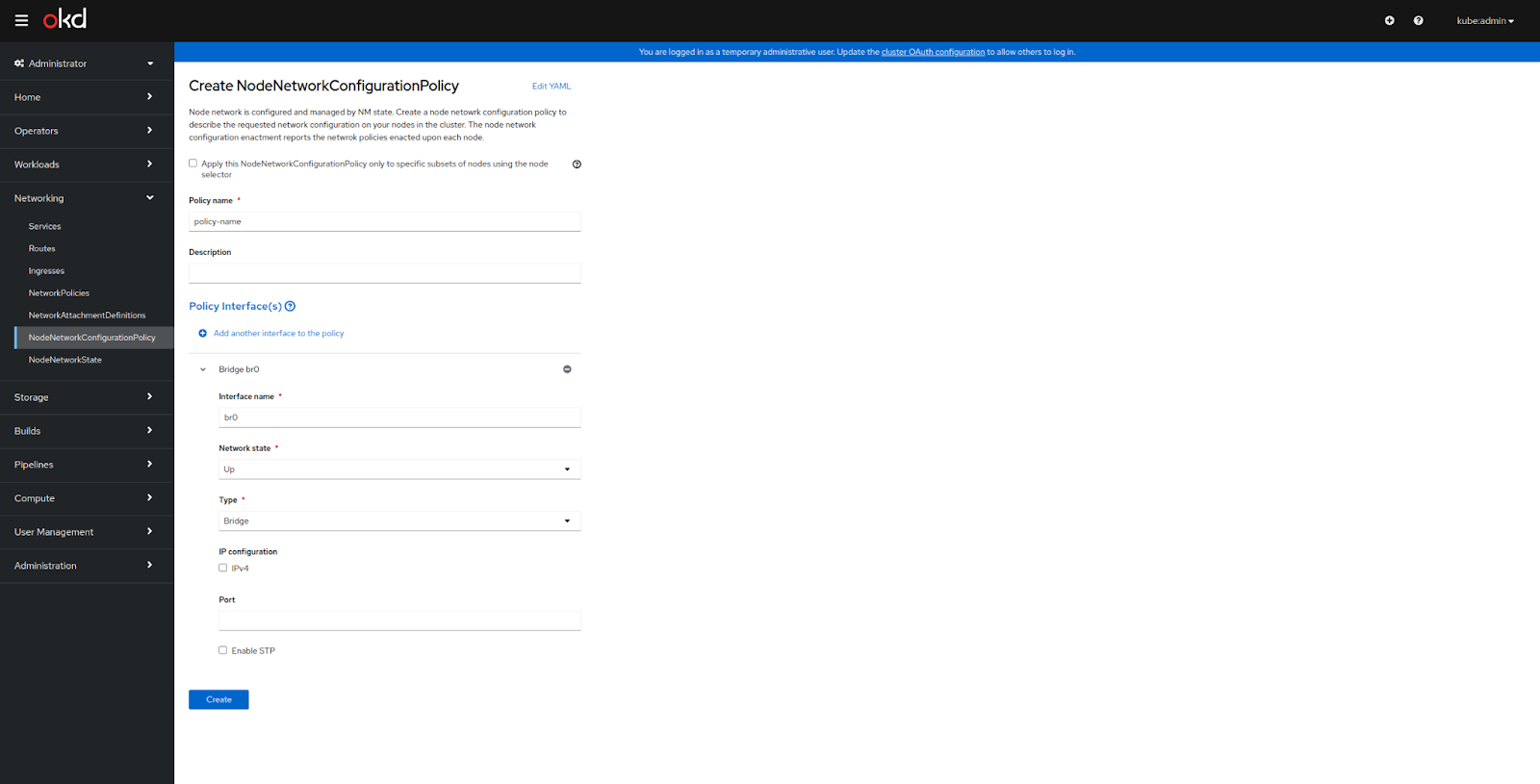
The form cannot support every use case. In situations where the use case is too complex for the form to be of use, the YAML editor provides the required flexibility.
Once the policy interfaces have been entered, click the 'Create' button to apply the policy to all nodes selected in step 1.
Make sure everything goes right
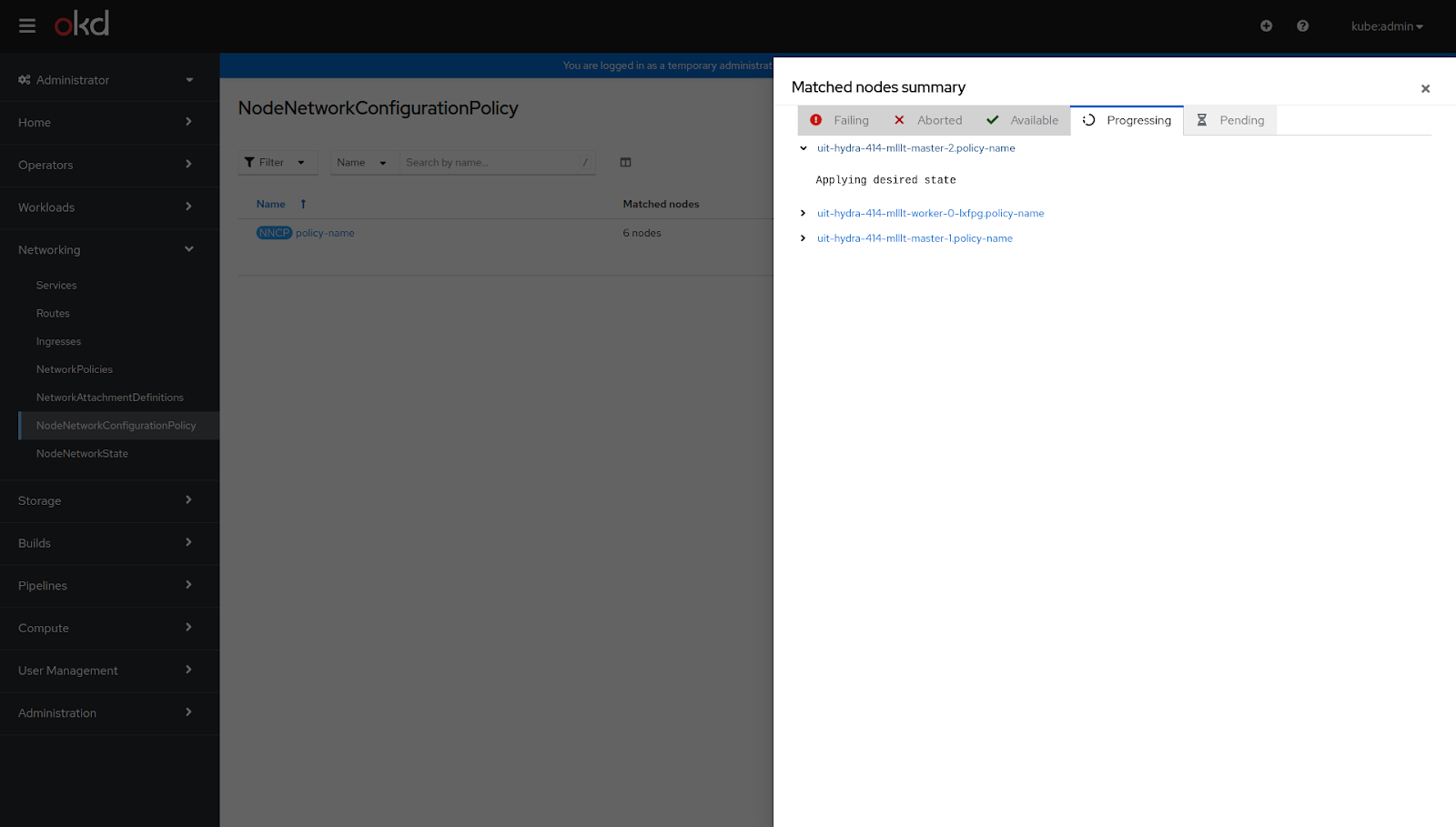
All policies and their enactments can be easily reviewed in the Policies list. Each policy enactment is a read-only object that carries the execution state of a Policy per each Node. This information can be quickly inspected from the Enactments Drawer.
Observe the Network state
Once all desired policies have been configured the resulting network status can be examined in the NodeNetworkState list where each node is represented in a NodeNetworkState resource that displays its physical and virtual interfaces.

For additional information click on the interface name to open a drawer that displays LLDP information, MAC addresses, enabled features, etc.
Conclusion
There are many more enhancements in store for this feature, but in the meantime, we look forward to receiving feedback from networking enthusiasts from all over!
Please give it a whirl and let us know the parts you love and those that need more love.
Sobre el autor

Más como éste
Strengthening the enterprise foundation: Red Hat and Oracle’s expanding collaboration
Confidential guest reset on QEMU hypervisor: Design choices and approach
The Containers_Derby | Command Line Heroes
Crack the Cloud_Open | Command Line Heroes
Navegar por canal

Automatización
Las últimas novedades en la automatización de la TI para los equipos, la tecnología y los entornos

Inteligencia artificial
Descubra las actualizaciones en las plataformas que permiten a los clientes ejecutar cargas de trabajo de inteligecia artificial en cualquier lugar

Nube híbrida abierta
Vea como construimos un futuro flexible con la nube híbrida

Seguridad
Vea las últimas novedades sobre cómo reducimos los riesgos en entornos y tecnologías

Edge computing
Conozca las actualizaciones en las plataformas que simplifican las operaciones en el edge

Infraestructura
Vea las últimas novedades sobre la plataforma Linux empresarial líder en el mundo

Aplicaciones
Conozca nuestras soluciones para abordar los desafíos más complejos de las aplicaciones

Virtualización
El futuro de la virtualización empresarial para tus cargas de trabajo locales o en la nube
