Running Windows workloads on Red Hat OpenShift has been a regular request from numerous customers over the years. Given Windows Server enjoys a significant presence in the server operating system market and C# is in the top 6 programming languages, we see there is an enormous opportunity to accelerate customer adoption of Windows Server applications to public cloud via containers. To make this happen, Red Hat partnered with Microsoft to announce a Developer Preview for running Windows Server Containers in OpenShift 4.4. The architecture involves letting Windows run Windows Server containers and Red Hat Enterprise Linux run Red Hat Enterprise Linux containers, with OpenShift orchestrating them both as building blocks to compose your next generation applications.
Today, we are pleased to announce the first community release of Windows Machine Config Operator (WMCO) that allows you to enable Windows Server workloads on OpenShift 4.6+ clusters on AWS and Azure. The Windows Machine Config Operator is the entry point for OpenShift customers who want to run Windows workloads on their clusters. The intent of this feature is to allow a cluster administrator to add a Windows worker node as a day 2 operation with a prescribed configuration to an installer provisioned OpenShift 4.6 cluster and enable scheduling of Windows workloads. The Prerequisite is an OpenShift 4.6+ cluster configured with hybrid OVN Kubernetes networking. The Windows community operator is now available on AWS and Azure, with support for other platforms such as vSphere and bare metal coming soon.
The Windows Machine Config Operator configures Windows Machines into nodes, enabling Windows container workloads to be run on OKD/OCP clusters. The operator is configured to watch for Machines with a machine.openshift.io/os-id: Windows label. The way a user will initiate the process is by creating a MachineSet which uses a Windows image with the Docker container runtime installed. The operator will do all the necessary steps to configure the underlying VM so that it can join the cluster as a worker node.

Using the Community Windows Machine Config Operator
Navigate to the in-cluster OperatorHub and search for the Windows Operator and Click Install
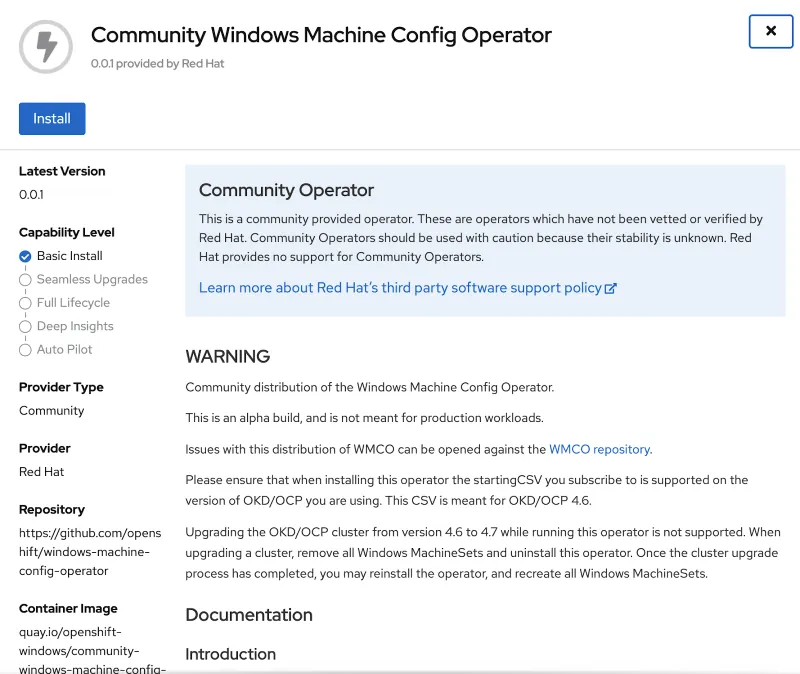
Create a MachineSet. Once the MachineSet and the corresponding Machine are created, you should be able to view them in the console.


You can also retrieve the MachineSet status using the following command
oc get machineset -n openshift-machine-api

It usually takes about 15 minutes for the Windows Machine to be configured as a worker node. Ensure the Windows Node is in a Ready state before deploying a workload

Deploy a sample Windows workload and ensure the deployment is successful.


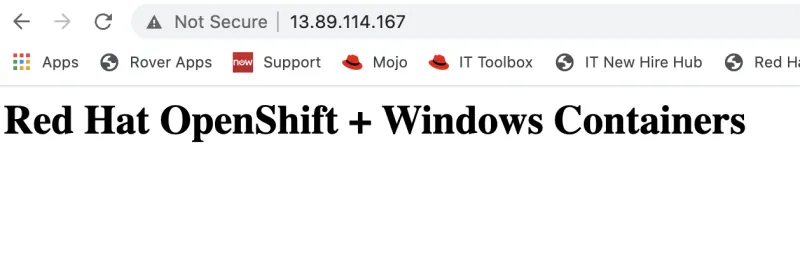
Access the sample application from a browser
Please take the Windows Community Operator for a spin from the on-cluster #OperatorHub and provide feedback by opening GitHub issues.
{{cta('1ba92822-e866-48f0-8a92-ade9f0c3b6ca')}}
저자 소개

채널별 검색

오토메이션
기술, 팀, 인프라를 위한 IT 자동화 최신 동향

인공지능
고객이 어디서나 AI 워크로드를 실행할 수 있도록 지원하는 플랫폼 업데이트

오픈 하이브리드 클라우드
하이브리드 클라우드로 더욱 유연한 미래를 구축하는 방법을 알아보세요

보안
환경과 기술 전반에 걸쳐 리스크를 감소하는 방법에 대한 최신 정보

엣지 컴퓨팅
엣지에서의 운영을 단순화하는 플랫폼 업데이트

인프라
세계적으로 인정받은 기업용 Linux 플랫폼에 대한 최신 정보

애플리케이션
복잡한 애플리케이션에 대한 솔루션 더 보기

가상화
온프레미스와 클라우드 환경에서 워크로드를 유연하게 운영하기 위한 엔터프라이즈 가상화의 미래
