
Sometimes you need to test something—maybe a basic command, some software behavior, or even an integration. Ceph is a hardware-neutral, software-defined storage platform for data analytics, artificial intelligence/machine learning (AI/ML), and other data-intensive workloads.
Because Ceph is common in many large-scale use cases, some simpler implementations may go unnoticed. But what if you need a fast Ceph cluster to learn or practice or to plug into a study OpenShift or OpenStack cluster and don't have a lot of hardware? It is possible to create a single-machine Ceph cluster by making a few adjustments.
[ Learn How OpenStack uses Ceph for storage. ]
All you need is a machine, virtual or physical, with two CPU cores, 4GB RAM, and at least two or three disks (plus one disk for the operating system).
You can use either Red Hat Ceph or the Ceph Community edition. This tutorial uses Red Hat Ceph 5; the equivalent community upstream is the Pacific version. Aside from activating the repository, every other command is the same in Ceph Community edition.
Remember, this is a simple Ceph cluster to study—don't expect high performance or data resiliency.
Prepare the machine
You need a Linux distribution installed on your machine. I'm using Red Hat Enterprise Linux (RHEL) 8.6, but you can use any Ceph-supported distribution.
This example will use four disks: one for the operating system and the other three for the Ceph Object Storage Daemons (OSDs). You can use libvirt to manage this virtual machine, and you can create the other disks with the graphical interface or with the qemu-img command:
$ cd /var/lib/libvirt/images/
$ qemu-img create -f qcow2 osd1.qcow2 100G
$ qemu-img create -f qcow2 osd2.qcow2 100G
$ qemu-img create -f qcow2 osd3.qcow2 100G
These disks are thin; they only occupy the effectively used space.
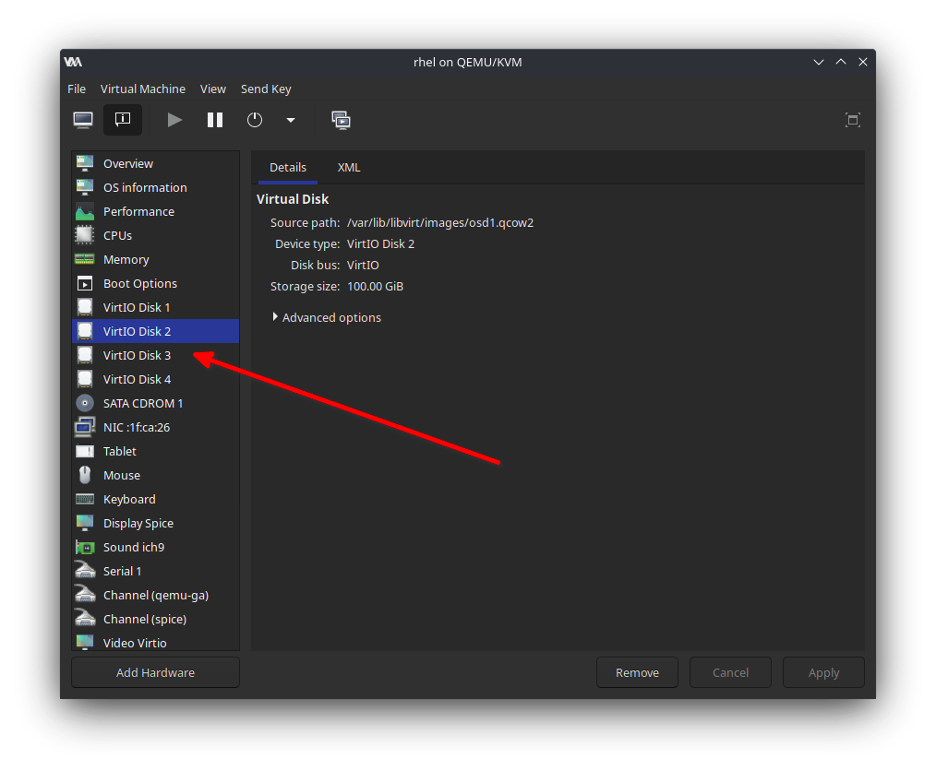
Next, attach the disks to the virtual machine. You have two options: the first uses the virsh attach-disk command:
$ sudo virsh attach-disk ceph /var/lib/libvirt/images/osd1.qcow2 vdb --persistent --subdriver qcow2
$ sudo virsh attach-disk ceph /var/lib/libvirt/images/osd1.qcow2 vdc --persistent --subdriver qcow2
$ sudo virsh attach-disk ceph /var/lib/libvirt/images/osd3.qcow2 vdd --persistent --subdriver qcow2
The second option uses the virt-manager interface:
[Cheat sheet: Old Linux commands and their modern replacements. ]
Install Ceph
With Linux installed and the three disks attached, add or enable the Ceph repositories. For RHEL, use:
$ sudo subscription-manager repos --enable=rhceph-5-tools-for-rhel-8-x86_64-rpmsYou can use cephadm, a new tool from the Ceph project, to provision the cluster based on containers. Along with that package, you also need Podman to manage the containers, ceph-common to use common Ceph commands, and ceph-base for some more advanced tools. Install them:
$ sudo dnf install podman cephadm ceph-common ceph-base -yIf you need to, install the Community version from the information in the docs.
After the package installs, use the cephadm command to bootstrap the Ceph cluster:
$ sudo cephadm bootstrap \
--cluster-network 192.168.122.0/24 \
--mon-ip 192.168.122.185 \
--registry-url registry.redhat.io \
--registry-username '<user>' \
--registry-password '<passwd>' \
--dashboard-password-noupdate \
--initial-dashboard-user admin \
--initial-dashboard-password ceph \
--allow-fqdn-hostname \
--single-host-defaults
The output has a lot of lines, but the ones that matter are:
Fetching dashboard port number...
Ceph Dashboard is now available at:
            URL: https://ceph.libvirt.local:8443/
           User: admin
       Password: ceph
Enabling client.admin keyring and conf on hosts with "admin" label
Enabling autotune for osd_memory_target
You can access the Ceph CLI as following in case of multi-cluster or non-default config:
       sudo /usr/sbin/cephadm shell --fsid 379755d0-8276-11ed-800c-5254003786af -c /etc/ceph/ceph.conf -k /etc/ceph/ceph.client.admin.keyring
Or, if you are only running a single cluster on this host:
       sudo /usr/sbin/cephadm shell
Please consider enabling telemetry to help improve Ceph:
       ceph telemetry on
For more information see:
       https://docs.ceph.com/en/pacific/mgr/telemetry/
Bootstrap complete.
The last parameter, --single-host-defaults, is available in cephadm versions newer than the Octopus community version. If you are using an older version, just remove it. This parameter tells Ceph three things:
- Change the
osd_crush_chooseleaf_typeto OSD (disks). - Change the
osd_pool_default_sizeto two (instead of three). - Deactivate
mgr_standby_modulessince you have a single machine and don't need more managers to redirect user connections from other machines on the Ceph cluster.
If you are using a Ceph version older than Red Hat Ceph Storage 5 or Ceph Pacific, or you just removed the --single-host-defaults option, I will address this below.
[ Cheat sheet: Get a list of Linux utilities and commands for managing servers and networks. ]
Configure Ceph
Now that the cluster is up and running, add some Object Storage Daemons (OSDs) to create disks, filesystems, or buckets. You need an OSD for each disk you create. The ceph -s command's output shows that you need at least two OSDs, or three if you bootstrap it without the --single-host-defaults option.
$ sudo ceph -s
  cluster:
	id: 	379755d0-8276-11ed-800c-5254003786af
	health: HEALTH_WARN
        	OSD count 0 < osd_pool_default_size 2
  services:
	mon: 1 daemons, quorum ceph.libvirt.local (age 4m)
	mgr: ceph.libvirt.local.gcukcy(active, since 12s), standbys: ceph.tzaciw
	osd: 0 osds: 0 up, 0 in
  data:
	pools:   0 pools, 0 pgs
	objects: 0 objects, 0 B
	usage:   0 B used, 0 B / 0 B avail
	pgs:

  progress:
	Updating node-exporter deployment (+1 -> 1) (0s)
  	[............................]
There are several ways to add an OSD inside a Ceph cluster. Two of them are:
$ sudo ceph orch daemon add osd ceph0.libvirt.local:/dev/sdband
$ sudo ceph orch apply osd --all-available-devicesThe first one should be executed for each disk, and the second can be used to automatically create an OSD for each available disk in each cluster node. I'll use the second option. It will take a while to update, but I can use ceph -s or even ceph orch ps to observe the new OSDs.
$ sudo ceph -s
 cluster:
   id:     379755d0-8276-11ed-800c-5254003786af
   health: HEALTH_OK
 services:
   mon: 1 daemons, quorum ceph.libvirt.local (age 5m)
   mgr: ceph.libvirt.local.gcukcy(active, since 5m), standbys: ceph.tzaciw
   osd: 3 osds: 3 up (since 1.48712s), 3 in (since 25s)
 data:
   pools:   1 pools, 1 pgs
   objects: 0 objects, 0 B
   usage:   10 MiB used, 200 GiB / 200 GiB avail
   pgs:     100.000% pgs unknown
            1 unknown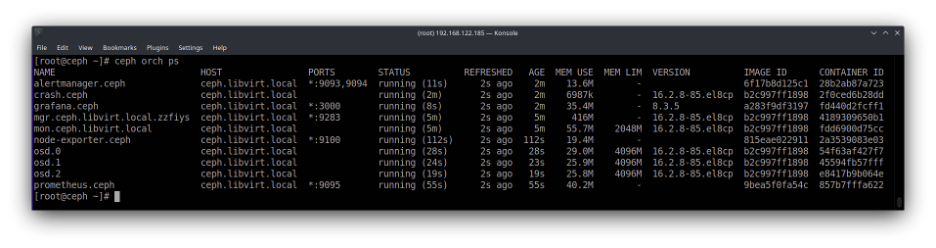
Since this image is difficult to read (even in a full-size view), here is a simplified view for easier visualization:
$ ceph orch ps
NAME                   PORTS        STATUS         MEM USE  MEM LIM
alertmanager.ceph      *:9093,9094  running (7m)   53.0M          -
crash.ceph                          running (7m)   20.2M          -
grafana.ceph           *:3000       running (7m)   139M           -
mgr.ceph.local.gcukcy  *:9283       running (7m)   485M           -
mgr.ceph.tzaciw        *:8443       running (7m)   437M           -
mon.ceph.local                      running (7m)   151M       2048M
node-exporter.ceph     *:9100       running (7m)   39.9M          -
osd.0                               running (2m)   36.0M      4096M
osd.1                               running (2m)   30.9M      4096M
osd.2                               running (2m)   29.8M      4096M
prometheus.ceph        *:9095       running (7m)   131M           -
If you bootstrapped the Ceph cluster with the virt --single-host-defaults option, the cluster is ready to be used. Using the command ceph -s will show you that Ceph is HEALTH_OK.
$ ceph -s
  cluster:
	id: 	89939394-8000-11ed-9010-0354fd865eaa
	health: HEALTH_OK
  services:
	mon: 1 daemons, quorum ceph (age 62s)
	mgr: ceph.dwolyc(active, since 42s), standbys: ceph.dpehde
	osd: 2 osds: 2 up (since 53s), 2 in (since 13h)
  data:
	pools:   2 pools, 33 pgs
	objects: 14 objects, 4.3 MiB
	usage:   14 MiB used, 200 GiB / 200 GiB avail
	pgs: 	33 active+clean
You can jump to Test the cluster if you are in a hurry.
If you are using an older Ceph version or omitted the --single-host-defaults option during bootstrap, you need to complete one more step before using the Ceph cluster. After a while, if you look at ceph -s, you will see a warning about data availability and data redundancy:
$ sudo ceph -s
  cluster:
	id: 	d0073d4e-827b-11ed-914b-5254003786af
	health: HEALTH_WARN
        	Reduced data availability: 1 pg inactive
        	Degraded data redundancy: 1 pg undersized
  services:
	mon: 1 daemons, quorum ceph.libvirt.local (age 4m)
	mgr: ceph.libvirt.local.zfedcq(active, since 2m)
	osd: 3 osds: 3 up (since 80s), 3 in (since 104s)
  data:
	pools:   1 pools, 1 pgs
	objects: 0 objects, 0 B
	usage:   15 MiB used, 300 GiB / 300 GiB avail
	pgs: 	100.000% pgs not active
         	1 undersized+peered
Why does this happen?
Each disk, filesystem, or bucket inside a Ceph cluster belongs to a pool—a logical partition that stores objects. Don't be fooled by this object; Ceph is based on RADOS (Reliable, Autonomic Distributed Object Store). This object is a unit that Ceph uses to organize any data inside it.
By default, each pool has some placement groups (PGs) to store data inside it, and each PG is replicated twice. Therefore, a single object has two copies in each copy of the same PG, but they're stored in different places. This "place," by default, is a host so that each PG will be replicated in different hosts.
That configuration is amazing and ensures high availability of data inside Ceph. The problem is that in this scenario, the Ceph cluster has only a single machine, making it impossible to replicate the PGs, rendering the cluster useless.
Fortunately, this is the default (and wise) configuration. You can tell Ceph to replicate each PG inside different OSDs instead of hosts. Do that by modifying the crush map.
If you forget to make this change, all commands that create disks, file systems, or buckets will hang indefinitely.
[ Network getting out of control? Check out Network automation for everyone, a complimentary book from Red Hat. ]
Modify the crush map
The crush map is a map of the cluster. It pseudo-randomly maps data to OSDs, distributing the information across the cluster by following a configured replication policy and failure domain. By default, the crush map tells Ceph to replicate the PGs into different hosts.
To modify this crush map, first extract the crush map:
$ sudo ceph osd getcrushmap -o crushmap.cmThen use crushtool to decompile the crushmap into a human-readable format:
$ sudo crushtool --decompile crushmap.cm -o crushmap.txtNext, modify the crush map replacing the word host with osd near the end of the file:
host ceph {
       id -3           # do not change unnecessarily
       id -4 class hdd         # do not change unnecessarily
       # weight 0.293
       alg straw2
       hash 0  # rjenkins1
       item osd.0 weight 0.098
       item osd.1 weight 0.098
       item osd.2 weight 0.098
}
root default {
       id -1           # do not change unnecessarily
       id -2 class hdd         # do not change unnecessarily
       # weight 0.293
       alg straw2
       hash 0  # rjenkins1
       item ceph weight 0.293
}
# rules
rule replicated_rule {
       id 0
       type replicated
       min_size 1
       max_size 10
       step take default
       step chooseleaf firstn 0 type osd # REPLACE HERE FROM host TO osd
       step emit
}
# end crush map
Recompile the crush map:
$ sudo crushtool --compile crushmap.txt -o new_crushmap.cmThen update the Ceph cluster with the new crush map:
$ sudo ceph osd setcrushmap -i new_crushmap.cmAfter a while, the ceph -s warning message disappears, and the cluster is ready for use:
$ ceph -s
 cluster:
   id:     d0073d4e-827b-11ed-914b-5254003786af
   health: HEALTH_OK
 services:
   mon: 1 daemons, quorum ceph.libvirt.local (age 11m)
   mgr: ceph.libvirt.local.zfedcq(active, since 8m)
   osd: 3 osds: 3 up (since 7m), 3 in (since 8m)
 data:
   pools:   1 pools, 1 pgs
   objects: 0 objects, 0 B
   usage:   15 MiB used, 300 GiB / 300 GiB avail
   pgs:     1 active+clean
[ Read Kubernetes: Everything you need to know ]
Test the cluster
The block storage provided by Ceph is named RBD, which stands for RADOS block device.
To create disks, you need a pool enabled to work with RBD. The commands below create a pool called rbd and then activate this pool for RBD:
$ sudo ceph osd pool create rbd
$ sudo ceph osd pool application enable rbd rbd
After that, you can use the rbd command line to create and list available disks:
$ sudo rbd create mysql --size 1G
$ sudo rbd create mongodb --size 2G
$ sudo rbd list
The output will be:
mongodb
mysql
Wrap up
Ceph is a robust solution that can provide various types of storage, but it can be a little scary if you think about Ceph as a huge cluster with many machines and petabytes of data.
Despite the platform's robustness, you can still use it in low-resource environments for study and practice.
[ Want to test your sysadmin skills? Take a skills assessment today. ]
저자 소개
Hector Vido serves as a consultant on the Red Hat delivery team. He started in 2006 working with development and later on implementation, architecture, and problem-solving involving databases and other solutions, always based on free software.
유사한 검색 결과
Red Hat Ansible 올스타: 네트워크 및 인프라 자동화의 미래를 주도합니다
Ansible Automation Platform을 위한 새로운 오토메이션 오케스트레이터로 IT 워크플로우를 규모에 맞게 통합
Random Acts Of Automation | Compiler
Untangling Networks | Compiler
채널별 검색

오토메이션
기술, 팀, 인프라를 위한 IT 자동화 최신 동향

인공지능
고객이 어디서나 AI 워크로드를 실행할 수 있도록 지원하는 플랫폼 업데이트

오픈 하이브리드 클라우드
하이브리드 클라우드로 더욱 유연한 미래를 구축하는 방법을 알아보세요

보안
환경과 기술 전반에 걸쳐 리스크를 감소하는 방법에 대한 최신 정보

엣지 컴퓨팅
엣지에서의 운영을 단순화하는 플랫폼 업데이트

인프라
세계적으로 인정받은 기업용 Linux 플랫폼에 대한 최신 정보

애플리케이션
복잡한 애플리케이션에 대한 솔루션 더 보기

가상화
온프레미스와 클라우드 환경에서 워크로드를 유연하게 운영하기 위한 엔터프라이즈 가상화의 미래
