
Installing, patching, and removing software packages on Linux machines is one of the common tasks every sysadmin has to do. Here is how to get started with Linux package management in Linux Red Hat-based distributions (distros).
Package management is a method of installing, updating, removing, and keeping track of software updates from specific repositories (repos) in the Linux system. Linux distros often use different package management tools. Red Hat-based distros use RPM (RPM Package Manager) and YUM/DNF (Yellow Dog Updater, Modified/Dandified YUM).
Yellow Dog Updater, Modified (YUM)
[ Editor's Note: DNF or Dandified YUM is the updated default since Red Hat Enterprise Linux 8, CentOS 8, Fedora 22, and any distros based on these. Generally, the options are the same. Read more about DNF here. ]
YUM is the primary package management tool for installing, updating, removing, and managing software packages in Red Hat Enterprise Linux. YUM performs dependency resolution when installing, updating, and removing software packages. YUM can manage packages from installed repositories in the system or from .rpm packages. The main configuration file for YUM is at /etc/yum.conf, and all the repos are at /etc/yum.repos.d.
[ Read: A quick guide to DNF for yum users ]
You can learn more about adding repositories to your system from this article on how to add a YUM repo from Amy Marrich.
It's easy to manage packages in Linux with YUM. At the command line, enter:
yum -option command
There are many options and commands available to use with YUM. I've listed some commonly-used commands for YUM below:
| Command | Purpose |
| yum install | Installs the specified packages |
| remove | Removes the specified packages |
| search | Searches package metadata for keywords |
| info | Lists description |
| update | Updates each package to the latest version |
| repolist | Lists repositories |
| history | Displays what has happened in past transactions |
The following are commonly-used options with YUM:
| Options | Purpose |
| -C | Runs from system cache |
| --security | Includes packages that provide a fix for a security issue |
| -y | Answers yes to all questions |
| --skip-broken | Skips packages causing problems |
| -v | Verbose |
The history option gives you an overview of what happened in past transactions. This provides some useful information, like the date when the transaction happened and what command was run.
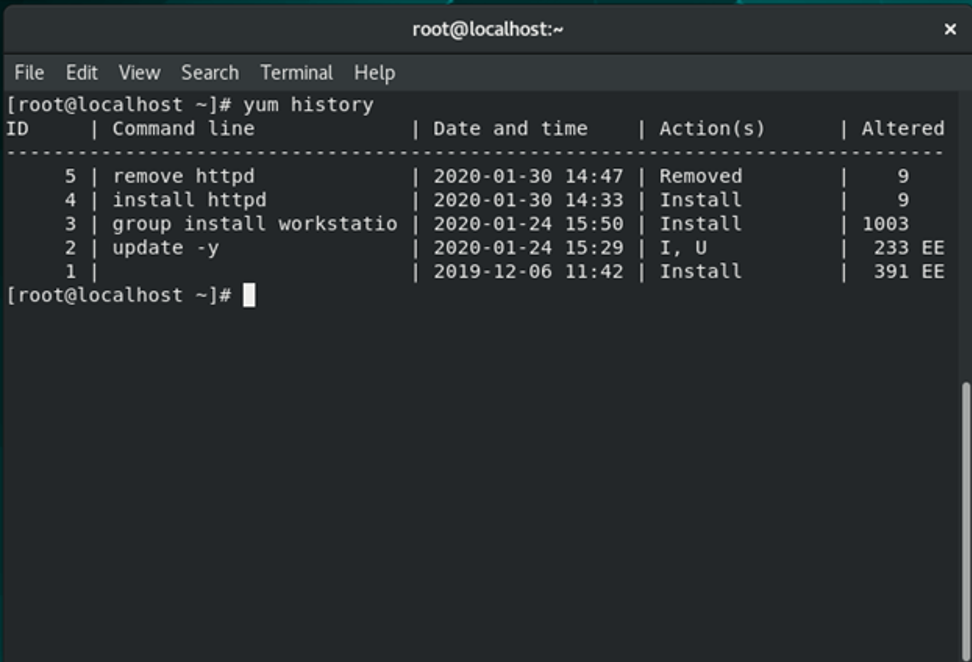
You can undo or redo certain transactions using the history command. Here is an example of undoing a transaction:
yum history undo <id>
YUM provides many options for package management. For detailed option information, look at man yum and yum –help. Also, here is a link to YUM documentation.
RPM (RPM Package Manager)
RPM is a popular package management tool in Red Hat Enterprise Linux-based distros. Using RPM, you can install, uninstall, and query individual software packages. Still, it cannot manage dependency resolution like YUM. RPM does provide you useful output, including a list of required packages. An RPM package consists of an archive of files and metadata. Metadata includes helper scripts, file attributes, and information about packages.
RPM maintains a database of installed packages, which enables powerful and fast queries. The RPM database is inside /var/lib, and the file is named __db*.
RPM has some basic modes: query, verify, install, upgrade, erase, show querytags, show configuration. At least one of these modes needs to be selected to perform package management tasks. Every mode has its own set of options. For example, install mode i has its own set of installation options. Options for the modes are found on the RPM man pages at man rpm.
Some commonly-used modes are listed below:
| Mode | Description |
| -i | Installs a package |
| -U | Upgrades a package |
| -e | Erases a package |
| -V | Verifies a package |
| -q | Queries a package |
Here are some commonly-used general options:
| General options | Purpose |
| -? | --help | Prints help |
| --version | Prints version number |
| -v | Prints verbose output |
To install or upgrade an .rpm package using RPM, issue this command:
rpm -i package-file
rpm -U package-file
rpm -ivh package-file
The flag -i is for install, U is for upgrade, v for verbose, h for hash (this option displays the # as a progress bar for the operation). In this example, v and h are optional flags.
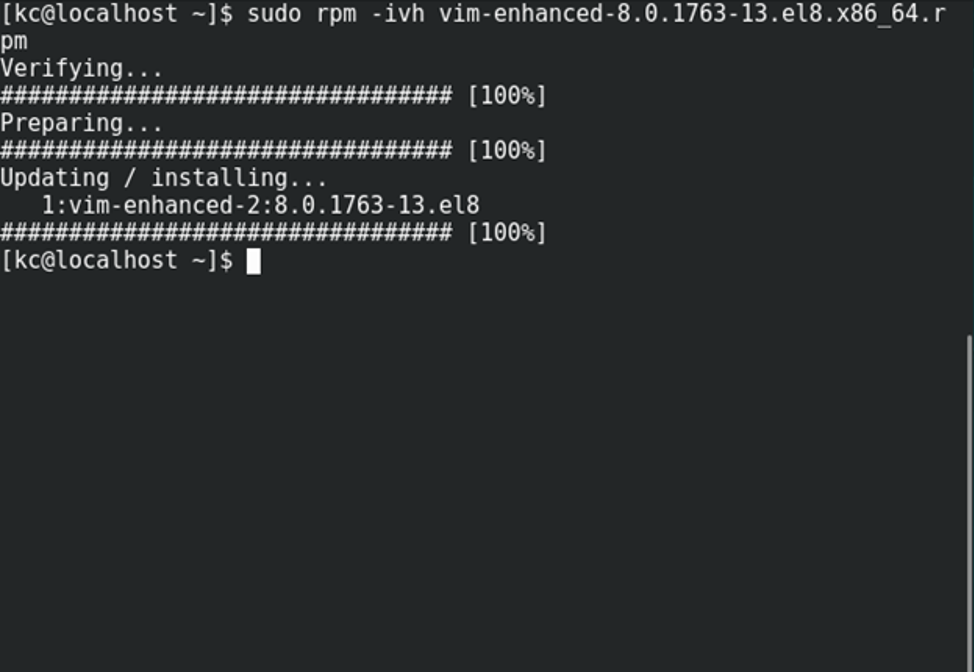
To query for a package using RPM issue following command:
rpm -q query-options package
rpm -qa vim-enhanced
Option a queries all installed packages on the system.
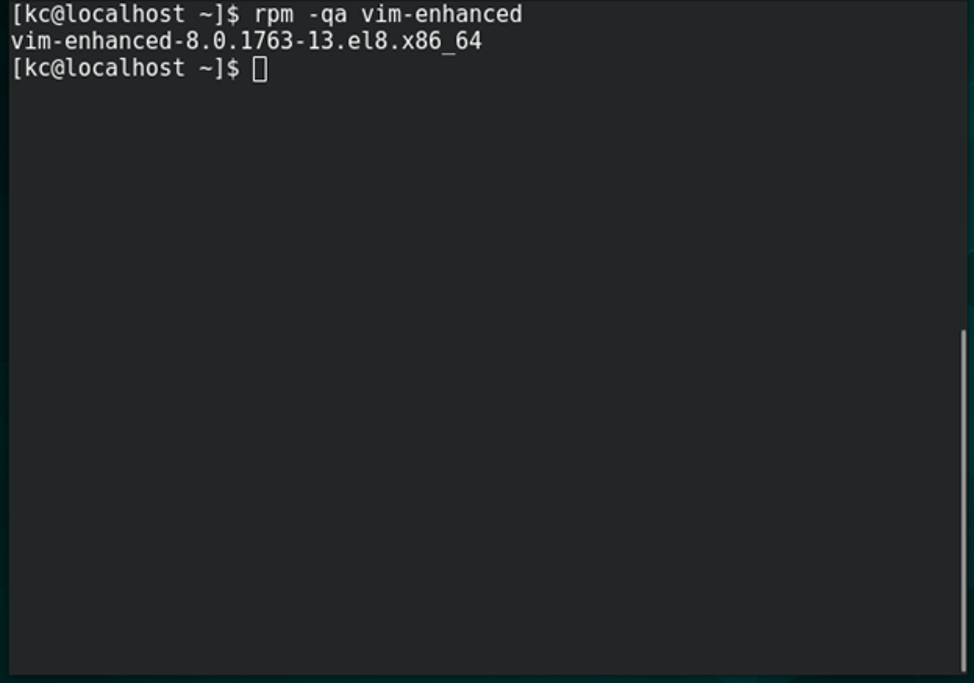
To erase a package, use the following command:
rpm -e erase-options package-name
rpm -evh vim-enhanced
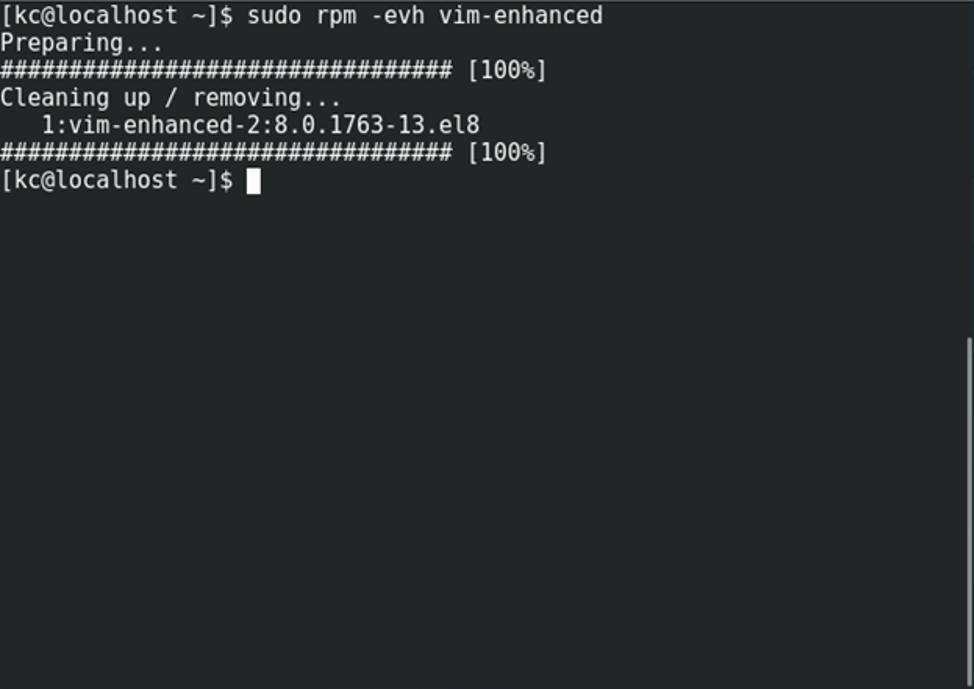
Wrap up
Package management is a common task for every system. YUM and RPM provide efficient ways to install, upgrade, remove, and track software packages on Red Hat Enterprise Linux systems.
[ Want to try out Red Hat Enterprise Linux? Download it now for free. ]
저자 소개
Keerthi is aspiring Cloud, DevOps engineer, he has been working with Windows and Linux systems. He believes in continuous learning (CL) and continuous sharing (CS), on his way building his very own CL CS pipeline. When he is not playing in the CLI, you will find him playing Cricket.
유사한 검색 결과
Red Hat Enterprise Linux Long-Life Add-On: 지원 종료 걱정 없는 RHEL 소개
인프라를 Red Hat Lightspeed에 어떻게 연결해야 할까요?
Infrastructure At The Edge | Compiler
Operating System Management | Compiler
채널별 검색

오토메이션
기술, 팀, 인프라를 위한 IT 자동화 최신 동향

인공지능
고객이 어디서나 AI 워크로드를 실행할 수 있도록 지원하는 플랫폼 업데이트

오픈 하이브리드 클라우드
하이브리드 클라우드로 더욱 유연한 미래를 구축하는 방법을 알아보세요

보안
환경과 기술 전반에 걸쳐 리스크를 감소하는 방법에 대한 최신 정보

엣지 컴퓨팅
엣지에서의 운영을 단순화하는 플랫폼 업데이트

인프라
세계적으로 인정받은 기업용 Linux 플랫폼에 대한 최신 정보

애플리케이션
복잡한 애플리케이션에 대한 솔루션 더 보기

가상화
온프레미스와 클라우드 환경에서 워크로드를 유연하게 운영하기 위한 엔터프라이즈 가상화의 미래
