This article discusses how to export and import Collections from one automation hub to another.
Ansible automation hub stores Collections within repositories and the Collections are versioned by the curator, so therefore many versions of the same Collection can exist in the same or different repositories at the same time.
Ansible automation hub repositories store Collections as TAR files, as created by ansible-galaxy during the curation and publishing process. This makes for easy downloading and transportation, especially during import and export workflows. You can be assured that the Collection you are importing to the new repository is the same one that was exported, or originally created by ansible-galaxy (assuming nothing malicious has happened to it; for that level of protection we have digital collection signing and can discuss that in a future article).
There are many reasons why you may wish to export or import Collections from one automation hub to another, so here are some common use cases.
Your production automation hub is on a disconnected network
This scenario means that you need to move content from an internet connected automation hub to another automation hub over an air gap. This could be done using a USB stick or other physical media to bridge the air gap.
As a content curator, you wish to deliver your final content
A content curator will publish Collections they are working on into their own personal private automation hub, testing the Collections as they go. Once they are happy with the Collection, they will deliver it to its final destination, which could be a GitHub repo, a content management system or another automation hub such as one in production or quality control.
Various methods
This document describes the following methods for importing and exporting Collection content:
- Exporting via the UI
- Exporting via the API
- Importing via the UI
- Importing via the CLI
Exporting a Collection via the UI
To export a Collection via the user interface (UI), simply locate the Collection you wish to export and select the download as TAR option. Upon doing this, you will have the tar downloaded to your default browser downloads folder where you can move the TAR to its next destination.
Here are examples of where the download tarball option is for:
- Console.redhat.com - Red Hat Ansible Certified Content
- Galaxy.ansible.com - Community Content
- Private automation hub - Red Hat Ansible Certified Content (change repository filter for certified, published or other repositories)
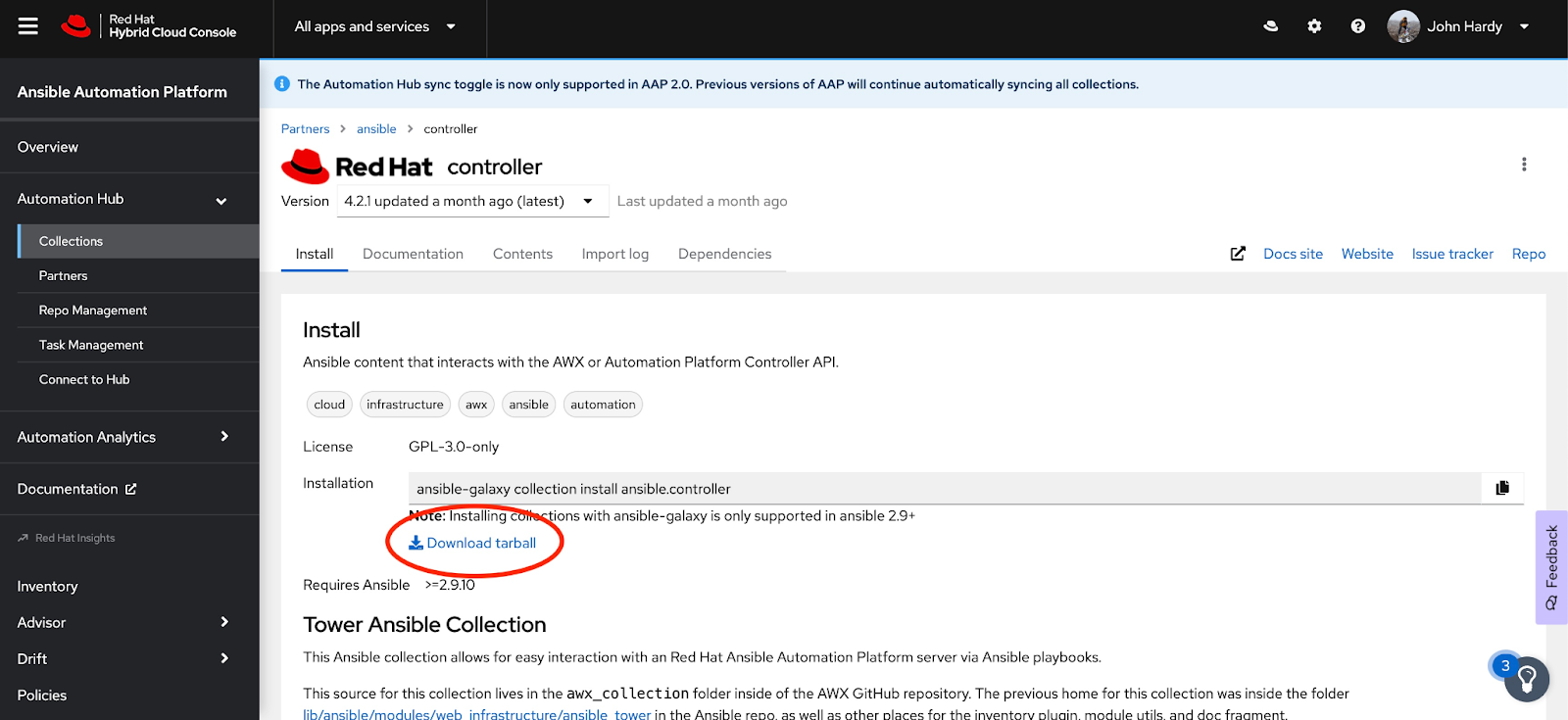
Example: console.redhat.com certified content.
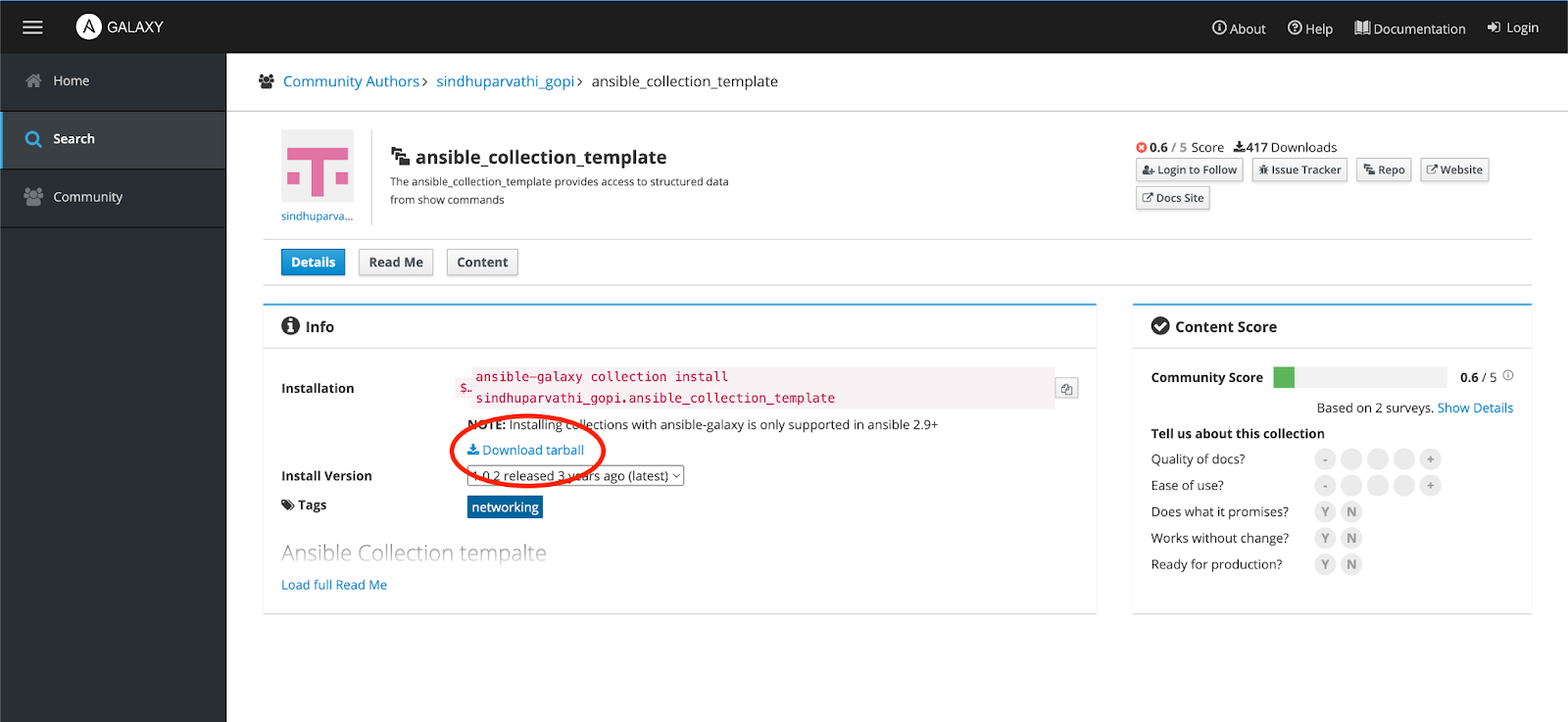
Example: galaxy.ansible.com community content
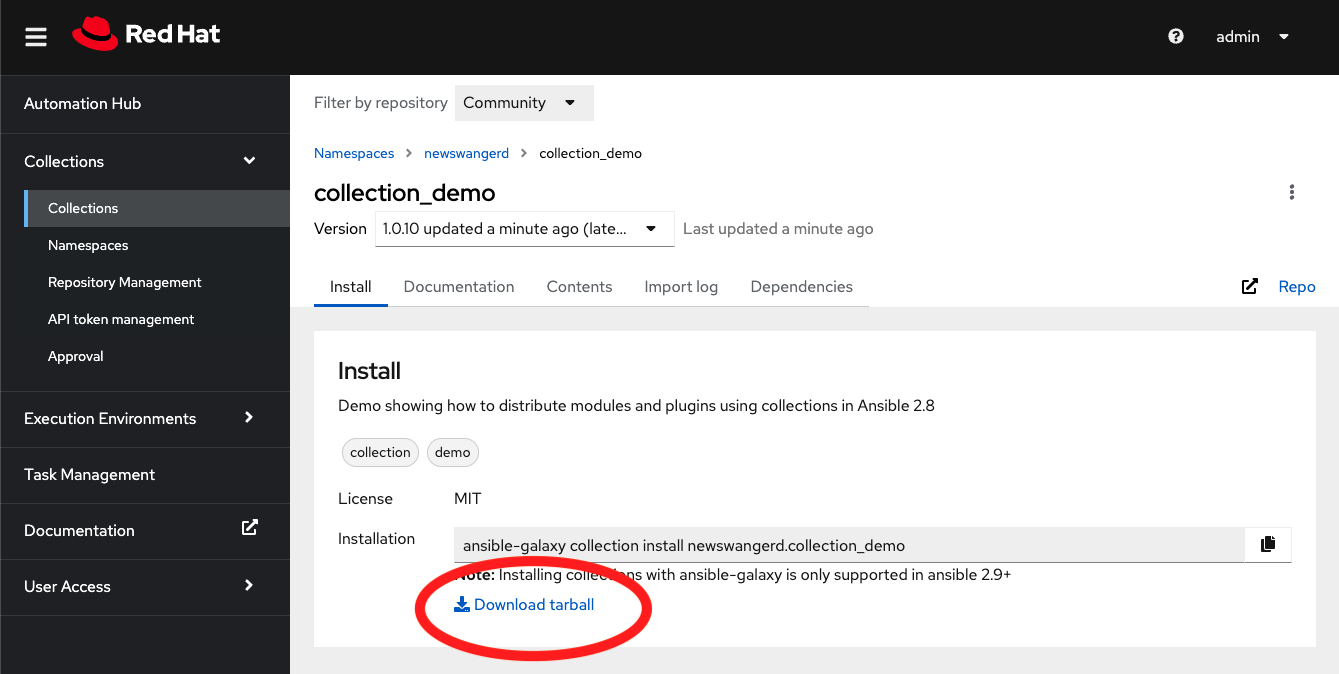
Example: private automation hub community content
Change repository filter for certified, published or others.
Exporting a Collection via the API
Collections can also be exported using the API, you can automate via Ansible Playbooks or other methods for use in continuous pipelines.
A prerequisite is that you have the Collection ready to import on a machine that can run curl.
The command to run will include the following items:
{username} - A user defined in automation hub for downloading content
{password} - {username}’s password
{host} - The IP address/hostname of the automation hub you wish to download from.
{repository} - The repository name (community, certified, published etc…)
{namespace}-{name}-{version} - The collection fully qualified name, example “redhat-ansible-1.0.0”
Command
curl -L -u {username}:{password} {host}/api/galaxy/v3/plugin/ansible/content/{repository}/collections/artifacts/{namespace}-{name}-{version}.tar.gz --output {namespace}-{name}-{version}.tar.gzImporting a Collection via the UI
Importing a Collection from the UI is very easy, you will need your tarball to complete this.
A prerequisite for this is that the Namespace for the Collection must exist in private automation hub. You need to remember to approve your Collection post import for it to show in the published repository.
Step 1
Create your namespace, you can find this in the name of the tarball itself such as:
awx-awx-21.6.0.tar = namespace-collectionname-versions.tar
So our namespace is “awx”.
Step 2

Click “upload collection”
Step 3
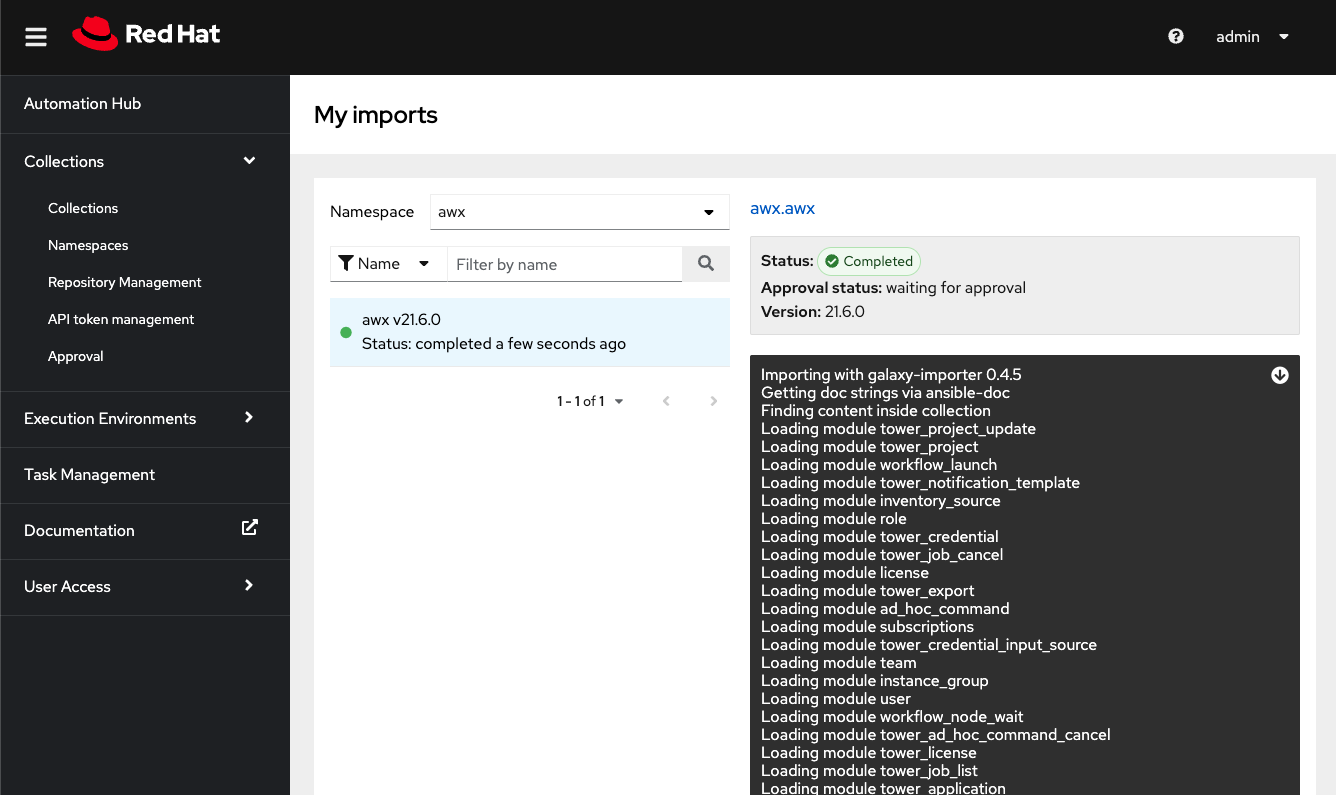
Watch the progress through to completion
Post Import Task
Make sure the approval setting is enabled and click on approval to either approve or reject the Collection import.
Completed Approved Collection
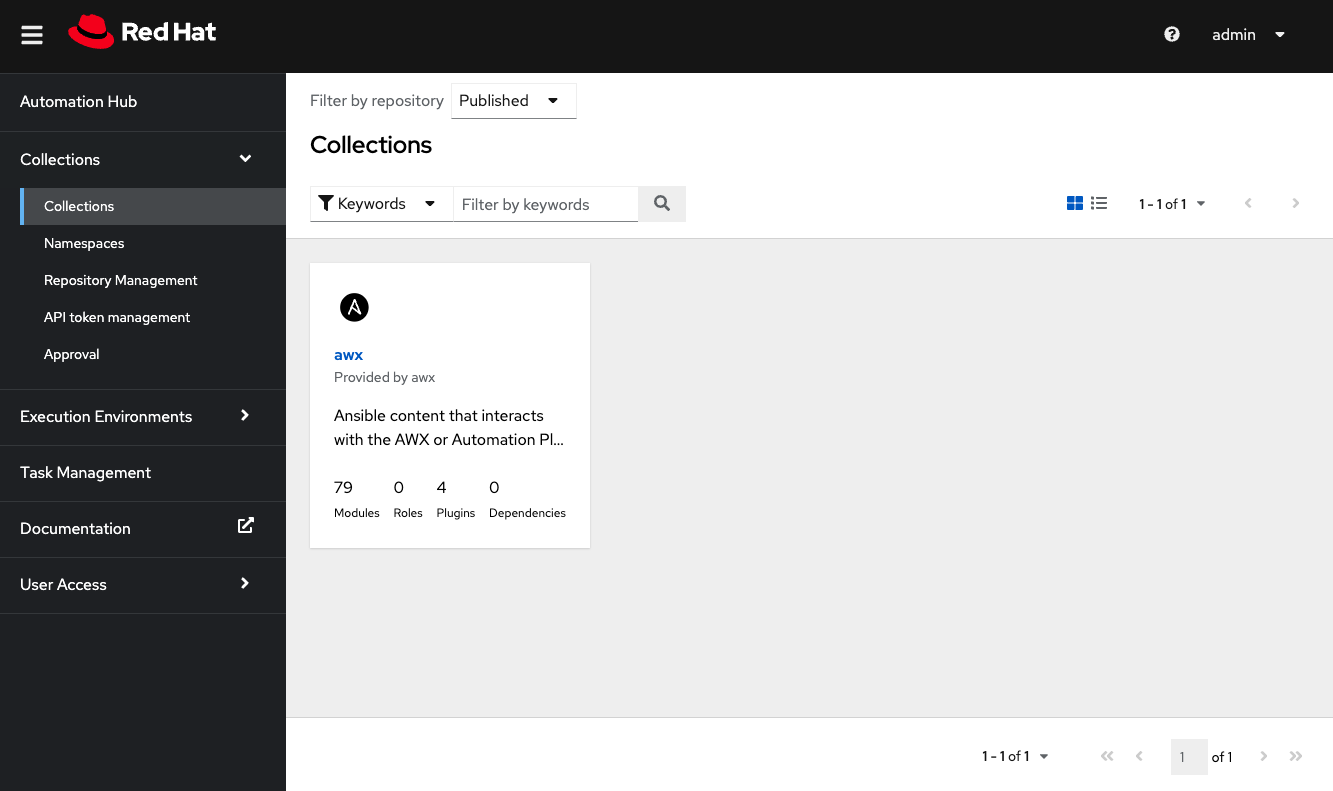
Importing a Collection using CLI
The ansible-galaxy CLI can be used to publish/import Collections as follows. Prerequisites are that you need your tarball file, the namespace pre-created in automation hub, your ansible.cfg configured for publish and access to ansible-galaxy cli.
Step 1
Create the namespace and configure the ansible.cfg to accept the upload. A tip here is after you have created the namespace, click on CLI configuration and copy the URL to your ansible.cfg, along with the token detail too that can be found on the remotes page.
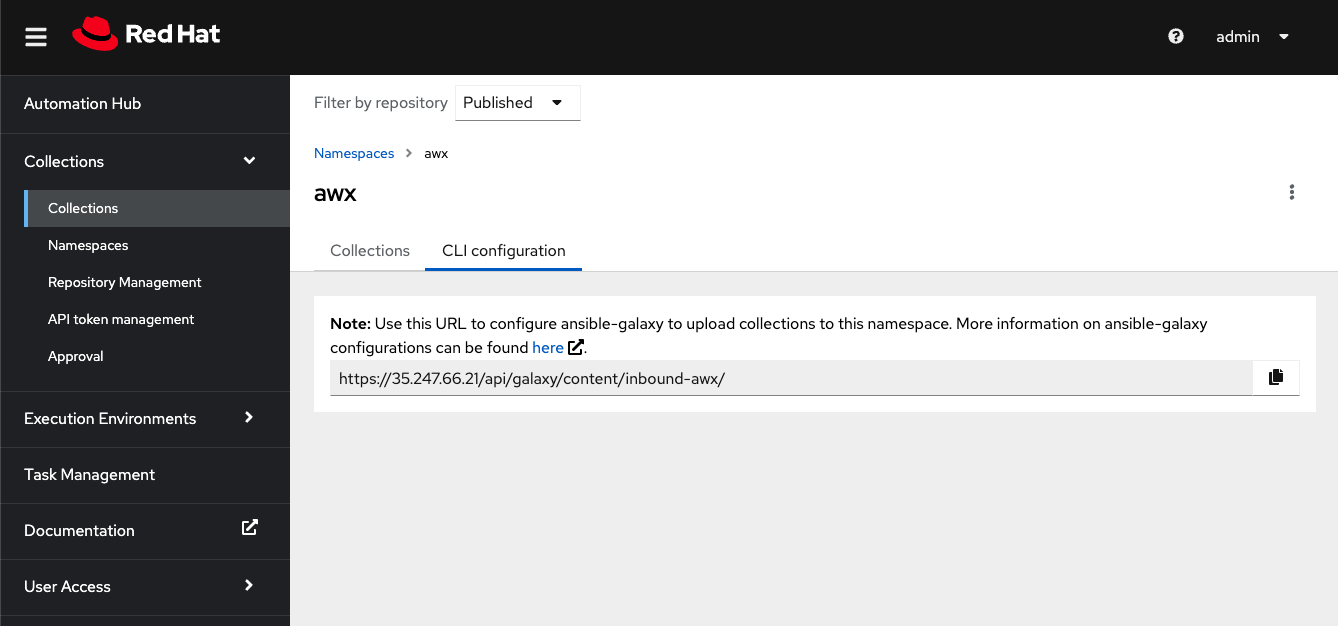
ansible.cfg as follows:
[galaxy]
server_list = staging_repo
[galaxy_server.staging_repo]
url=https://35.247.66.21/api/galaxy/content/inbound-awx/
token=1a38f6572ece08c6bf8ab9de8cdd1a122c3adf5a
Step 2
Run ansible-galaxy collection publish <name of tarball>
Example as follows:
[hubadmin@pah ~]$ ansible-galaxy collection publish awx-awx-21.6.0.tar.gz
Publishing collection artifact '/home/johnhardy/awx-awx-21.6.0.tar.gz' to staging_repo https://35.247.66.21/api/galaxy/content/inbound-awx/
Collection has been published to the Galaxy server staging_repo https://35.247.66.21/api/galaxy/content/inbound-awx/
Waiting until Galaxy import task https://35.247.66.21/api/galaxy/content/inbound-awx/v3/imports/collections/2ca6507c-13f9-40f3-bc47-c49e05aa1d52/ has completed
Collection has been successfully published and imported to the Galaxy server staging_repo https://35.247.66.21/api/galaxy/content/inbound-awx/
Post Import Task
Again, make sure approval is enabled to click on approval and either approve or reject the Collection import.
Completed Approved Collection
Importing a Collection via the API
Importing Collections using the API whilst can be technically achieved it is highly recommended to use the ansible-galaxy command line tool as described in the previous section.
When importing Collection, the ansible-galaxy cli sets up the task in automation hub and polls until it's done, none of which is done when using the API endpoint directly.
What can I do next?
Whether you are beginning your automation journey or a seasoned veteran, there are a variety of resources to enhance your automation knowledge:
- Self-paced exercises - We have interactive, in-browser exercises to learn and dive into Red Hat Ansible Automation Platform.
- Trial subscription - Are you ready to install on-premises? Get your own trial subscription for unlimited access to all the components of Ansible Automation Platform.
- Follow Red Hat Ansible Automation Platform on Twitter - Do you have questions or an automation project you want to show off? Tweet at us!
저자 소개

유사한 검색 결과
CVE-2026-31431: How Red Hat Advanced Cluster Security and Red Hat Advanced Cluster Management can help
Strengthening the enterprise foundation: Red Hat and Oracle’s expanding collaboration
Collaboration In Product Security | Compiler
Keeping Track Of Vulnerabilities With CVEs | Compiler
채널별 검색

오토메이션
기술, 팀, 인프라를 위한 IT 자동화 최신 동향

인공지능
고객이 어디서나 AI 워크로드를 실행할 수 있도록 지원하는 플랫폼 업데이트

오픈 하이브리드 클라우드
하이브리드 클라우드로 더욱 유연한 미래를 구축하는 방법을 알아보세요

보안
환경과 기술 전반에 걸쳐 리스크를 감소하는 방법에 대한 최신 정보

엣지 컴퓨팅
엣지에서의 운영을 단순화하는 플랫폼 업데이트

인프라
세계적으로 인정받은 기업용 Linux 플랫폼에 대한 최신 정보

애플리케이션
복잡한 애플리케이션에 대한 솔루션 더 보기

가상화
온프레미스와 클라우드 환경에서 워크로드를 유연하게 운영하기 위한 엔터프라이즈 가상화의 미래
