
The uptime command is straightforward and simple, but it can still be nice to see how some sysadmins use these common tools. Documenting the system's uptime may be important for service level agreements, performance monitoring, and general troubleshooting.
[ You might also like: Important Linux /proc filesystem files you need to know ]
The uptime command
The uptime command provides several useful results, depending on the information you need.

Breaking down the output here:
- Current time
- Up (the current status of the system)
- Total time the system has been running
- User count (number of current logged in users)
- System load averages over 1, 5, and 15 minutes
Note: The load average is based on both running and uninterruptable processes.
Documenting system uptime
So how can sysadmins use this information?
First, the command itself gives a quick look at a few general performance parameters. For example, you can see whether the system has restarted recently. You can also see how many users are logged in, letting you know whether the system is busy, if it can be rebooted, or even how useful the local services might be. Obviously, the ability to see the system load averages over time provides important system performance information.
Next, you can combine the uptime results with other commands to document the system's configuration and current status. Such a report might be important for service level agreements or general server availability queries by management. I have written a few quick examples of gathering system information below.
You can use general redirectors to document uptime results:
# uptime > system-doc.txt
Take a look at my recent article Five ways to use redirect operators in Bash for a reminder on using redirectors.
If there's already content in the system-doc.txt file, be sure to use the append redirector instead:
# uptime >> system-doc.txt
It is easy to combine the uptime results with the output of other commands to quickly report on the system's current status:
# date > system-doc.txt
# hostname >> system-doc.txt
# uptime >> system-doc.txt
# ip a >> system-doc.txt

There are plenty of ways to automate and streamline such commands.
The uptime options
The uptime command doesn't have many options. In fact, there are only four, and one of those is the help option to view the other three. That option is -h.
First, use the -p option to organize the uptime output into a "pretty" format. Using this option results in just the system's running time being displayed on the screen.

Redirect it into your documentation file like this:
# uptime -p >> system-doc.txt
Next, display the system date and time since the system started by using the -s option.

SCREEN uptime -s
Redirect it into your documentation file like this:
# uptime -s >> system-doc.txt
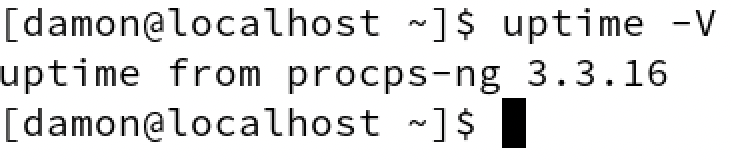
Finally, the -V option displays the version information for the uptime command.
# uptime -V
[ Getting started with containers? Check out this free course. Deploying containerized applications: A technical overview. ]
Wrap up
I think it's worth pointing out that the uptime results are also displayed in the first line of the top command's output. That's pretty handy information when troubleshooting performance issues using top. In that case, knowing the system load averages over the five and fifteen-minute ranges is good as related to the current information dynamically displayed in top. For a reminder on how to use and customize top, see this article here on Enable Sysadmin.
While the uptime command is simple, I think it's useful for displaying basic system information. It can answer questions regarding how long the system has been available and give a general idea of performance based on user load.
저자 소개
Damon Garn owns Cogspinner Coaction, LLC, a technical writing, editing, and IT project company based in Colorado Springs, CO. Damon authored many CompTIA Official Instructor and Student Guides (Linux+, Cloud+, Cloud Essentials+, Server+) and developed a broad library of interactive, scored labs. He regularly contributes to Enable Sysadmin, SearchNetworking, and CompTIA article repositories. Damon has 20 years of experience as a technical trainer covering Linux, Windows Server, and security content. He is a former sysadmin for US Figure Skating. He lives in Colorado Springs with his family and is a writer, musician, and amateur genealogist.
유사한 검색 결과
지금 바로 시작해야 하는 이유: 금융 서비스를 위한 포스트 양자 보안을 지금 시작해야 하는 이유
Red Hat Enterprise Linux Long-Life Add-On: 지원 종료 걱정 없는 RHEL 소개
Infrastructure At The Edge | Compiler
Operating System Management | Compiler
채널별 검색

오토메이션
기술, 팀, 인프라를 위한 IT 자동화 최신 동향

인공지능
고객이 어디서나 AI 워크로드를 실행할 수 있도록 지원하는 플랫폼 업데이트

오픈 하이브리드 클라우드
하이브리드 클라우드로 더욱 유연한 미래를 구축하는 방법을 알아보세요

보안
환경과 기술 전반에 걸쳐 리스크를 감소하는 방법에 대한 최신 정보

엣지 컴퓨팅
엣지에서의 운영을 단순화하는 플랫폼 업데이트

인프라
세계적으로 인정받은 기업용 Linux 플랫폼에 대한 최신 정보

애플리케이션
복잡한 애플리케이션에 대한 솔루션 더 보기

가상화
온프레미스와 클라우드 환경에서 워크로드를 유연하게 운영하기 위한 엔터프라이즈 가상화의 미래
