
Python has many graphical user interface (GUI) frameworks available. Most of them are very mature with open source and commercial support; others are primarily bindings to available C/C++ UI libraries. In any case, the choice of which library to use comes down to three factors:
- Maturity: Is it stable and well supported by the community, and does it have good documentation?
- Integration with Python: You may think this is an odd understatement, but it may pose a significant entry barrier to the toolkit (you don't want to feel you are writing a GUI in an assembler; after all, it is Python).
- Does it support your use case? If you mostly want to write forms, then libraries like Pyforms or Tkinter may be better for you. (Tkinker is very well known.) If your GUI is more complex, then wxPython may be a better fit, as it supports a wide range of features.
A good system administrator should know how to create user-friendly applications. You will be surprised how much they can improve your productivity and also your users' productivity.
You have a lot of frameworks to choose from. In this article, I'll provide overviews of three of them: Rich, Tkinter, and DearPyGui.
A quick detour: Prepare your environment
If you want to follow along with this short tutorial, prepare your environment by running:
$ git clone https://github.com/josevnz/rpm_query
$ cd rpm_query
$ python3 -m venv --system-site-packages ~/virtualenv/rpm_query
$ . ~/virtualenv/rpm_query/bin/activate
$ python3 setup.py build
$ cp reporter build/scripts-3.?
You are good to go.
Show the list of RPMs sorted by size
This example application is not very complex. It should show the following output nicely:
$ ./rpmq_simple.py --limit 10
linux-firmware-20210818: 395,099,476
code-1.61.2: 303,882,220
brave-browser-1.31.87: 293,857,731
libreoffice-core-7.0.6.2: 287,370,064
thunderbird-91.1.0: 271,239,962
firefox-92.0: 266,349,777
glibc-all-langpacks-2.32: 227,552,812
mysql-workbench-community-8.0.23: 190,641,403
java-11-openjdk-headless-11.0.13.0.8: 179,469,639
iwl7260-firmware-25.30.13.0: 148,167,043
It should also allow the user to rerun their query while overriding the number of matches and package names, as well as sort them by size in bytes.
[ Sign up for the free online course Red Hat Enterprise Linux Technical Overview. ]
Now that everything is set up, you can start creating an application. Here are three frameworks to consider.
1. Rich
Will McGugan wrote an incredibly easy-to-use framework called Rich. It doesn't offer tons of widgets (a sister project still in beta named Textual is more component-oriented. Check this table example).
Install Rich
Install the Rich framework:
$ pip install rich
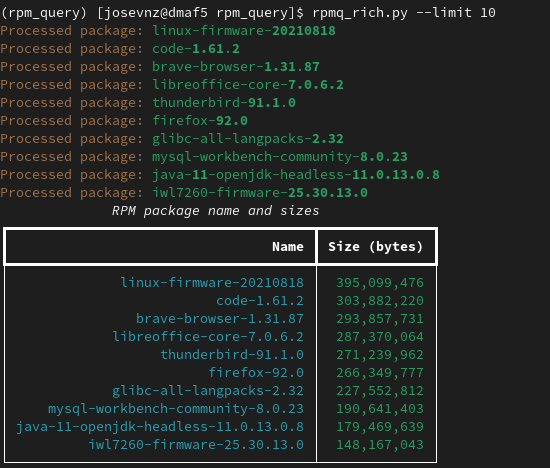
Here is the code from my Python script in Rich. It produces a progress bar and results on a really nice table:
#!/usr/bin/env python
"""
# rpmq_rich.py - A simple CLI to query the sizes of RPM on your system
Author: Jose Vicente Nunez
"""
import argparse
import textwrap
from reporter import __is_valid_limit__
from reporter.rpm_query import QueryHelper
from rich.table import Table
from rich.progress import Progress

if __name__ == "__main__":

    parser = argparse.ArgumentParser(description=textwrap.dedent(__doc__))
    parser.add_argument(
        "--limit",
        type=__is_valid_limit__,  # Custom limit validator
        action="store",
        default=QueryHelper.MAX_NUMBER_OF_RESULTS,
        help="By default results are unlimited but you can cap the results"
    )
    parser.add_argument(
        "--name",
        type=str,
        action="store",
        help="You can filter by a package name."
    )
    parser.add_argument(
        "--sort",
        action="store_false",
        help="Sorted results are enabled bu default, but you fan turn it off"
    )
    args = parser.parse_args()

    with QueryHelper(
            name=args.name,
            limit=args.limit,
            sorted_val=args.sort
    ) as rpm_query:
        rpm_table = Table(title="RPM package name and sizes")
        rpm_table.add_column("Name", justify="right", style="cyan", no_wrap=True)
        rpm_table.add_column("Size (bytes)", justify="right", style="green")
        with Progress(transient=True) as progress:
            querying_task = progress.add_task("[red]RPM query...", start=False)
            current = 0
            for package in rpm_query:
                if current >= args.limit:
                    break
                rpm_table.add_row(f"{package['name']}-{package['version']}", f"{package['size']:,.0f}")
                progress.console.print(f"[yellow]Processed package: [green]{package['name']}-{package['version']}")
                current += 1
            progress.update(querying_task, advance=100.0)
            progress.console.print(rpm_table)
It is amazing how easy it is to add a table and a progress bar to the original script.
Here's how the new and improved text UI looks.
2. Tkinter
Tkinter is a collection of frameworks: TCL, TK, and widgets (Ttk).
The framework is mature, and it has lots of documentation and examples. There is also poor documentation out there, so I suggest you stick with the official tutorial and then, once you master the basics, move on to other tutorials that interest you.
Here are a few things to note:
- Check if your system has Tkinter properly installed like this:
python -m tkinter. - Make your GUI responsive to events by using callback functions (
command=). - Tkinter communicates using special variables that track changes for you (
Var, likeStringVar).
What does the code look like in Tkinter?
#!/usr/bin/env python
"""
# rpmq_tkinter.py - A simple CLI to query the sizes of RPM on your system
This example is more complex because:
 * Uses callbacks (commands) to update the GUI and also deals
 * Deals with the placement of components using a frame with Grid and a flow layout
Author: Jose Vicente Nunez
"""
import argparse
import textwrap
from tkinter import *
from tkinter.ttk import *
from reporter import __is_valid_limit__
from reporter.rpm_query import QueryHelper


def __initial__search__(*, window: Tk, name: str, limit: int, sort: bool, table: Treeview) -> NONE:
    """
    Populate the table with an initial search using CLI args
    :param window:
    :param name:
    :param limit:
    :param sort:
    :param table:
    :return:
    """
    with QueryHelper(name=name, limit=limit, sorted_val=sort) as rpm_query:
        row_id = 0
        for package in rpm_query:
            if row_id >= limit:
                break
            package_name = f"{package['name']}-{package['version']}"
            package_size = f"{package['size']:,.0f}"
            table.insert(
                parent='',
                index='end',
                iid=row_id,
                text='',
                values=(package_name, package_size)
            )
            window.update()  # Update the UI as soon we get results
            row_id += 1


def __create_table__(main_w: Tk) -> Treeview:
    """
    * Create a table using a tree component, with scrolls on both sides (vertical, horizontal)
    * Let the UI 'pack' or arrange the components, not using a grid here
    * The table reacts to the actions and values of the components defined on the filtering components.
    :param main_w
    """
    scroll_y = Scrollbar(main_w)
    scroll_y.pack(side=RIGHT, fill=Y)
    scroll_x = Scrollbar(main_w, orient='horizontal')
    scroll_x.pack(side=BOTTOM, fill=X)
    tree = Treeview(main_w, yscrollcommand=scroll_y.set, xscrollcommand=scroll_x.set)
    tree.pack()
    scroll_y.config(command=tree.yview)
    scroll_x.config(command=tree.xview)
    tree['columns'] = ('package_name', 'package_size')
    tree.column("#0", width=0, stretch=NO)
    tree.column("package_name", anchor=CENTER, width=500)
    tree.column("package_size", anchor=CENTER, width=100)
    tree.heading("#0", text="", anchor=CENTER)
    tree.heading("package_name", text="Name", anchor=CENTER)
    tree.heading("package_size", text="Size (bytes)", anchor=CENTER)
    return tree


def __cli_args__() -> argparse.Namespace:
    """
    Command line argument parsing
    :return:
    """
    parser = argparse.ArgumentParser(description=textwrap.dedent(__doc__))
    parser.add_argument(
        "--limit",
        type=__is_valid_limit__,  # Custom limit validator
        action="store",
        default=QueryHelper.MAX_NUMBER_OF_RESULTS,
        help="By default results are unlimited but you can cap the results"
    )
    parser.add_argument(
        "--name",
        type=str,
        action="store",
        default="",
        help="You can filter by a package name."
    )
    parser.add_argument(
        "--sort",
        action="store_false",
        help="Sorted results are enabled bu default, but you fan turn it off"
    )
    return parser.parse_args()


def __reset_command__() -> None:
    """
    Callback to reset the UI form filters
    Doesn't trigger a new search. This is on purpose!
    :return:
    """
    query_v.set(args.name)
    limit_v.set(args.limit)
    sort_v.set(args.sort)


def __ui_search__() -> None:
    """
    Re-do a search using UI filter settings
    :return:
    """
    for i in results_tbl.get_children():
        results_tbl.delete(i)
        win.update()
    __initial__search__(
        window=win, name=query_v.get(), limit=limit_v.get(), sort=sort_v.get(), table=results_tbl)


def test(arg):
    print(arg)


if __name__ == "__main__":
    args = __cli_args__()
    win = Tk()
    win.title("RPM Search results")
    # Search frame with filtering options. Force placement using a grid
    search_f = LabelFrame(text='Search options:', labelanchor=N, relief=FLAT, padding=1)
    query_v = StringVar(value=args.name)
    query_e = Entry(search_f, textvariable=query_v, width=25)
    limit_v = IntVar(value=args.limit)
    limit_l = Label(search_f, text="Limit results: ")
    query_l = Spinbox(
        search_f,
        from_=1,  # from_ is not a typo and is annoying!
        to=QueryHelper.MAX_NUMBER_OF_RESULTS,
        textvariable=limit_v
    )
    sort_v = BooleanVar(value=args.sort)
    sort_c = Checkbutton(search_f, text="Sort by size", variable=sort_v)
    search_btn = Button(search_f, text="Search RPM", command=__ui_search__)
    clear_btn = Button(search_f, text="Reset filters", command=__reset_command__)
    package_l = Label(search_f, text="Package name: ").grid(row=0, column=0, sticky=W)
    search_f.grid(column=0, row=0, columnspan=3, rowspan=4)
    limit_l.grid(row=1, column=0, sticky=W)
    query_e.grid(row=0, column=1, columnspan=2, sticky=W)
    query_l.grid(row=1, column=1, columnspan=1, sticky=W)
    sort_c.grid(row=2, column=0, columnspan=1, sticky=W)
    search_btn.grid(row=3, column=0, columnspan=2, sticky=W)
    clear_btn.grid(row=3, column=1, columnspan=1, sticky=W)
    search_f.pack(side=TOP, fill=BOTH, expand=1)
    results_tbl = __create_table__(win)
    results_tbl.pack(side=BOTTOM, fill=BOTH, expand=1)
    __initial__search__(
        window=win, name=query_v.get(), limit=limit_v.get(), sort=sort_v.get(), table=results_tbl)
    win.mainloop()
The code is more verbose, mostly due to the event handling.
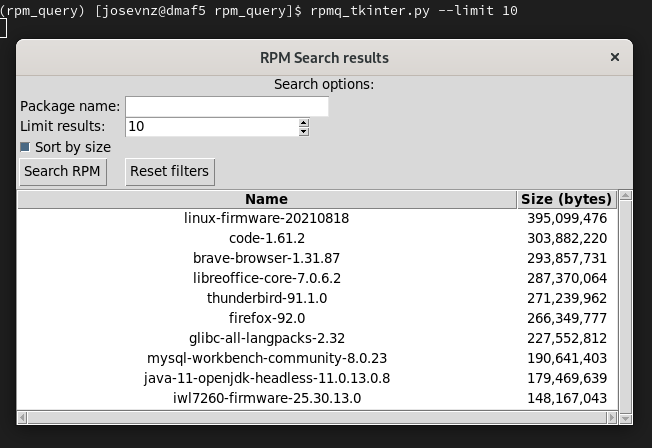
However, it also means you can rerun your queries once the script starts by tweaking the parameters on the search options frame.
3. DearPyGui
DearPyGui by Jonathan Hoffstadt is cross-platform (Linux, Windows, macOS) and it has some nice capabilities.
Install DearPyGui
If you have a current system (like Fedora 33 or Windows 10 Pro), installation should be easy enough:
$ pip install dearpyguiHere's the application rewritten in DearPyGui:
#!/usr/bin/env python
"""
# rpmq_dearpygui.py - A simple CLI to query the sizes of RPM on your system
Author: Jose Vicente Nunez
"""
import argparse
import textwrap

from reporter import __is_valid_limit__
from reporter.rpm_query import QueryHelper
import dearpygui.dearpygui as dpg

TABLE_TAG = "query_table"
MAIN_WINDOW_TAG = "main_window"


def __cli_args__() -> argparse.Namespace:
    """
    Command line argument parsing
    :return:
    """
    parser = argparse.ArgumentParser(description=textwrap.dedent(__doc__))
    parser.add_argument(
        "--limit",
        type=__is_valid_limit__,  # Custom limit validator
        action="store",
        default=QueryHelper.MAX_NUMBER_OF_RESULTS,
        help="By default results are unlimited but you can cap the results"
    )
    parser.add_argument(
        "--name",
        type=str,
        action="store",
        default="",
        help="You can filter by a package name."
    )
    parser.add_argument(
        "--sort",
        action="store_false",
        help="Sorted results are enabled bu default, but you fan turn it off"
    )
    return parser.parse_args()


def __reset_form__():
    dpg.set_value("package_name", args.name)
    dpg.set_value("limit_text", args.limit)
    dpg.set_value("sort_by_size", args.sort)


def __run_initial_query__(
        *,
        package: str,
        limit: int,
        sorted_elem: bool
) -> None:
    """
    Need to ensure the table gets removed.
    See issue: https://github.com/hoffstadt/DearPyGui/issues/1350
    :return:
    """
    if dpg.does_alias_exist(TABLE_TAG):
        dpg.delete_item(TABLE_TAG, children_only=False)
    if dpg.does_alias_exist(TABLE_TAG):
        dpg.remove_alias(TABLE_TAG)
    with dpg.table(header_row=True, resizable=True, tag=TABLE_TAG, parent=MAIN_WINDOW_TAG):
        dpg.add_table_column(label="Name", parent=TABLE_TAG)
        dpg.add_table_column(label="Size (bytes)", default_sort=True, parent=TABLE_TAG)
        with QueryHelper(
                name=package,
                limit=limit,
                sorted_val=sorted_elem
        ) as rpm_query:
            current = 0
            for package in rpm_query:
                if current >= args.limit:
                    break
                with dpg.table_row(parent=TABLE_TAG):
                    dpg.add_text(f"{package['name']}-{package['version']}")
                    dpg.add_text(f"{package['size']:,.0f}")
                current += 1


def __run__query__() -> None:
    __run_initial_query__(
        package=dpg.get_value("package_name"),
        limit=dpg.get_value("limit_text"),
        sorted_elem=dpg.get_value("sort_by_size")
    )


if __name__ == "__main__":

    args = __cli_args__()

    dpg.create_context()
    with dpg.window(label="RPM Search results", tag=MAIN_WINDOW_TAG):
        dpg.add_text("Run a new search")
        dpg.add_input_text(label="Package name", tag="package_name", default_value=args.name)
        with dpg.tooltip("package_name"):
            dpg.add_text("Leave empty to search all packages")
        dpg.add_checkbox(label="Sort by size", tag="sort_by_size", default_value=args.sort)
        dpg.add_slider_int(
            label="Limit",
            default_value=args.limit,
            tag="limit_text",
            max_value=QueryHelper.MAX_NUMBER_OF_RESULTS
        )
        with dpg.tooltip("limit_text"):
            dpg.add_text(f"Limit to {QueryHelper.MAX_NUMBER_OF_RESULTS} number of results")
        with dpg.group(horizontal=True):
            dpg.add_button(label="Search", tag="search", callback=__run__query__)
            with dpg.tooltip("search"):
                dpg.add_text("Click here to search RPM")
            dpg.add_button(label="Reset", tag="reset", callback=__reset_form__)
            with dpg.tooltip("reset"):
                dpg.add_text("Reset search filters")
        __run_initial_query__(
            package=args.name,
            limit=args.limit,
            sorted_elem=args.sort
        )

    dpg.create_viewport(title='RPM Quick query tool')
    dpg.setup_dearpygui()
    dpg.show_viewport()
    dpg.start_dearpygui()
    dpg.destroy_context()
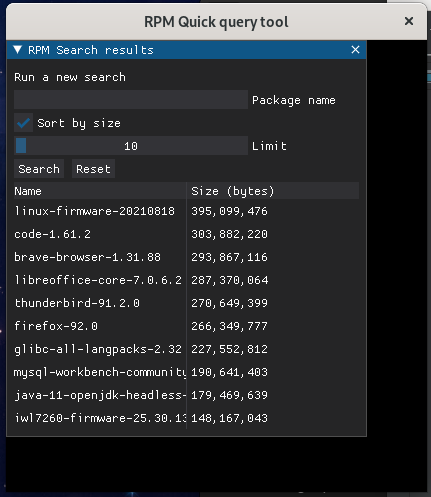
Notice that DearPyGui uses contexts when nesting components, making it much easier when creating the GUI. The code is also less verbose than the Tkinter code, and the support for types is much better (for example, PyCharm offers to autocomplete arguments to methods, etc.).
[ Learn how IT modernization works on multiple levels to eliminate technical debt in both time and money. Download Alleviate technical debt. ]
DearPyGui is still very young (version 1.0.3 at the time of this writing) and has a few bugs, especially on older Linux distributions, but it looks very promising and is in the active development stage.
So what does the UI look like in DearPyGui?
More tips for improving your user applications
- You have many options in Python to make your scripts more user-friendly. Even simple actions like using Argparse will make a big impact on how a script is used.
- Look for official documentation and user groups. Also, don't forget there are good tutorials out there.
- Rich and Tkinter are mature alternatives to make your UI much better, and DearPyGUI looks very promising.
- Not everything needs a complex UI. But frameworks like Rich make it trivial to improve your programs by making exceptions and objects inspections more readable on your text-only scripts.
저자 소개
Proud dad and husband, software developer and sysadmin. Recreational runner and geek.
유사한 검색 결과
귀사의 Lightwell 전략에 단순한 패치 그 이상이 필요한 5가지 이유
Red Hat OpenShift에서 데이터베이스 워크로드 현대화
Container Roundup | Compiler
Untangling Networks | Compiler
채널별 검색

오토메이션
기술, 팀, 인프라를 위한 IT 자동화 최신 동향

인공지능
고객이 어디서나 AI 워크로드를 실행할 수 있도록 지원하는 플랫폼 업데이트

오픈 하이브리드 클라우드
하이브리드 클라우드로 더욱 유연한 미래를 구축하는 방법을 알아보세요

보안
환경과 기술 전반에 걸쳐 리스크를 감소하는 방법에 대한 최신 정보

엣지 컴퓨팅
엣지에서의 운영을 단순화하는 플랫폼 업데이트

인프라
세계적으로 인정받은 기업용 Linux 플랫폼에 대한 최신 정보

애플리케이션
복잡한 애플리케이션에 대한 솔루션 더 보기

가상화
온프레미스와 클라우드 환경에서 워크로드를 유연하게 운영하기 위한 엔터프라이즈 가상화의 미래
