
As a systems administrator, you probably spend the better part of your day on somebody else's computer, even when you're at your own computer. Editing files on a remote machine is one of a sysadmin's most common tasks, and there are a lot of different ways to complete that task on Linux.
[ Learn how to manage your Linux environment for success. ]
Here are five ways to edit files remotely from a Linux machine. Review your options, and weigh in on the poll above to let us know your favorite.
1. SSH
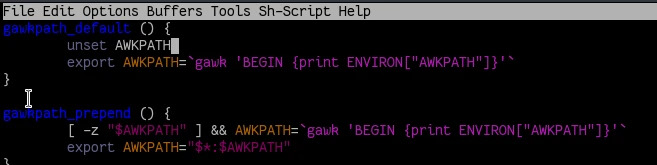
For many sysadmins, the "obvious" solution for editing a remote file is to open a secure shell (SSH) on a remote machine. From within that remote shell, you can open a file in a terminal-based text editor like Nano or Vim or Emacs and edit it as if it were on your own computer. Using a multiplexer like GNU Screen or Tmux gives you added flexibility and can even make it possible to edit the same file across several hosts at the same time.
Of course, an SSH session doesn't have to be interactive, so you can also make edits to files with a single command, just as you might on your local machine:
$ ssh myhost -c sed -i 's/foo/bar/g' /etc/example.conf
No matter how you use SSH, it's a fast and convenient way to access files on a remote machine, especially if you're an experienced admin or Linux user who lives mostly in a terminal.
2. File manager

From a Linux desktop like GNOME or KDE Plasma Desktop, you can connect to a remote system using your file manager.
KDE Plasma Desktop uses the fish:// protocol, which is a wrapper around SSH, while GNOME uses ssh://.
In GNOME's file manager, navigate to Other Locations in the left panel. At the bottom of the window, enter ssh:// followed by the user name and the host or IP address of the server you want to connect to (for instance, ssh://tux@10.0.1.129), and then click the Connect button.
On the Plasma Desktop, you can connect by entering a custom Uniform Resource Identifier (URI) in Dolphin, using the fish:// prefix (for instance, fish://tux@10.0.1.129).
3. VNC
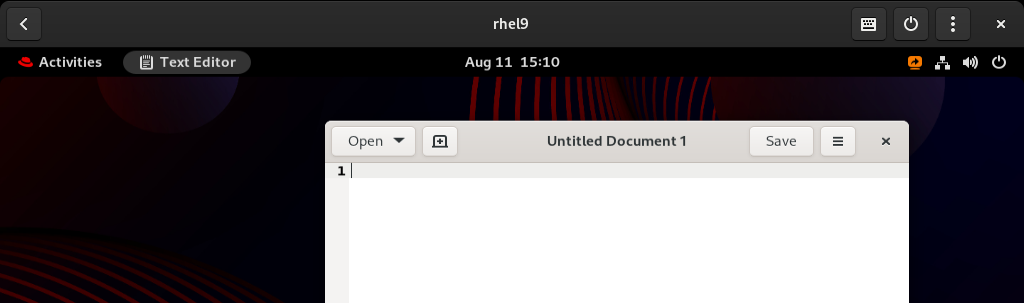
Similar to SSH but with a lot more graphics, a VNC connection is the preferred protocol for sharing a desktop over a network, especially as the Wayland display protocol replaces X11.
The GNOME Connections is the default VNC application for the GNOME desktop, but there are plenty of other options, too. With Connections, as long as the target computer has Sharing enbled in Settings, you can either force the remote machine to prompt you for a password or prompt the user to give you access.
[ Get a cheat sheet for Linux utilities and commands for managing servers and networks. ]
4. Tramp-mode

The Emacs editor has a built-in remote editing mode called tramp. To access a remote system, just prefix your standard open file command with /ssh:, followed by your destination's hostname or IP address. After you authenticate, you have standard access to the filesystem, all from your Emacs window. Because Emacs can be a little tricky for the uninitiated, the exact sequence is this:
- Ctrl+X
- Ctrl+F
/ssh:myhost:~/example.txt- Authentication challenge
- Open a remote file for editing
If you're an experienced Emacs user but you're new to Tramp, then be aware that packages that add auto-completion to C-x C-f can make Tramp difficult to use.
[ Get started with IT automation with the Ansible Automation Platform beginner's guide. ]
5. Ansible

The best way to manage files on remote computers is to not manage remote files on remote computers, and instead make Ansible do it for you. Using the ansible.builtin.file module, you can perform common file-management tasks, including ensuring that a given file exists on a remote machine. Admittedly, this isn't exactly editing a file on a remote machine, but sometimes the easiest way to "edit" a file is to just copy the correct version of it into place.
Bonus: netcat
As sysadmins know, there's nothing netcat can't do, and that includes editing remote files. It's probably not something you'd do on a daily basis, but I guarantee there's a weird edge case out there waiting to happen, and that it can be solved with netcat. For instance, on the remote machine:
$ ncat -l -p 12345 > myfile.txt
On your local machine:
$ ncat 192.168.1.2 12345 << EOF
> hello.txt
> EOF
All the other ways
This isn't all the ways to edit files on a remote machine. There are other protocols and other applications that have achieved sufficient network transparency to allow you to interact with remote files. What's your favorite method of dealing with remote files? Why not write about it and submit your story to us?
Sobre o autor
Seth Kenlon is a Linux geek, open source enthusiast, free culture advocate, and tabletop gamer. Between gigs in the film industry and the tech industry (not necessarily exclusive of one another), he likes to design games and hack on code (also not necessarily exclusive of one another).
Mais como este
Cinco motivos para não limitar sua estratégia do Lightwell aos patches
Por que a segurança pós-quântica financeira deve começar já
Container Roundup | Compiler
Untangling Networks | Compiler
Navegue por canal

Automação
Últimas novidades em automação de TI para empresas de tecnologia, equipes e ambientes

Inteligência artificial
Descubra as atualizações nas plataformas que proporcionam aos clientes executar suas cargas de trabalho de IA em qualquer ambiente

Nuvem híbrida aberta
Veja como construímos um futuro mais flexível com a nuvem híbrida

Segurança
Veja as últimas novidades sobre como reduzimos riscos em ambientes e tecnologias

Edge computing
Saiba quais são as atualizações nas plataformas que simplificam as operações na borda

Infraestrutura
Saiba o que há de mais recente na plataforma Linux empresarial líder mundial

Aplicações
Conheça nossas soluções desenvolvidas para ajudar você a superar os desafios mais complexos de aplicações

Virtualização
O futuro da virtualização empresarial para suas cargas de trabalho on-premise ou na nuvem
