
Let's face it: The most fundamental thing we do with computers is turn them on and off. Everything else happens between those two particular events. And sometimes, restarting the system is a key component of troubleshooting or completing installation processes.
Typically, you need root privileges to shut down or reboot the system. Ensure your account is configured in /etc/sudoers for this authority. Remember, it's generally a bad idea to log on directly as root.
Boot the system
Starting the system is as simple as pressing the power button. What happens from there varies a bit depending on your hardware, but in general, the process looks like this:
- The firmware (BIOS or UEFI) finds the boot media.
- The boot loader starts, and the Master Boot Record (MBR) or GUID Partition Table (GPT) loads.
- The operating system selection menu appears.
- The boot loader stage 2 starts and loads the selected kernel.
- The kernel and drivers load and mount the root filesystem.
- systemd launches as PID 1.
- The default.target file loads.
- The user is prompted to authenticate.
The system launches to the default.target (providing either a command-line interface or graphical environment). Changing these targets is outside the scope of this article but is something I cover in How to switch between the CLI and GUI on a Linux server.
Shut down the system
When Red Hat Enterprise Linux (RHEL) adopted systemd with RHEL 7, what happened to the venerable Linux shutdown command? It remains—but now it maps to systemd's shutdown functions.
The shutdown command features two options: --halt and --poweroff. The --halt option stops the operating system while the --poweroff option turns off the system.
[ Free download: Advanced Linux commands cheat sheet. ]
One of the main benefits of the shutdown command is the ability to define a shutdown delay to give users time to save their work and log off the system. Schedule a time that suits your needs by using the format hh:mm (24-hour time designations).
For example, to halt the system at 10pm, type:
$ sudo shutdown --halt 22:00It's more likely that you'll want to halt the operating system a few minutes into the future. In that case, specify the number of minutes from now to begin the shutdown process.
For example, to halt the system after a five-minute delay, type:
$ sudo shutdown --halt +5You can append a message to all users by entering it after the time specification, like this:
$ sudo shutdown --halt +5 “Attention. The system is going down in five minutes.”Cancel a timed shutdown by using the -c option:
$ sudo shutdown -cYou can also use the systemctl command to shut down the system. For example, type systemctl halt or systemctl poweroff to achieve similar results to the shutdown command. The main disadvantage of using systemctl is losing the ability to schedule or cancel the shutdown process.
Reboot the system
When someone approaches you for help with their computer, I suspect one of your first responses is, "Did you reboot it?" Restarting a computer helps with various problems and may even be necessary to finalize some configurations. However, restarting is considered downtime on a server and should be avoided if possible. Try to use systemctl restart {service-name} to restart services rather than reboot the whole system.
However, sometimes a restart is inevitable. The option for restarting the system immediately with the shutdown command is -r, so it looks like this:
$ sudo shutdown -r nowYou can still specify a delayed time using the hh:mm format explained above.
You can also use systemctl to reboot the device by typing:
$ sudo systemctl rebootAgain, the disadvantage with systemctl is the inability to delay the process.
Suspend the system
There are a couple of ways to place the system in a reduced or no-power mode. The first is suspend and the second is hibernate.
When you suspend the system:
- Contents of memory are moved to the swap location.
- The boot loader is configured to boot directly to the current kernel.
- The system shuts down (no-power mode).
- Upon power up, the system reloads itself from swap.
When you hibernate the system:
- Applications are stopped.
- System state is moved to RAM.
- The system remains powered on in a low-power state.
You can also suspend and hibernate the system by using the systemctl command. The commands are exactly what you'd expect:
$ sudo systemctl suspend

$ sudo systemctl hibernate

$ sudo systemctl hybrid-sleep
The systemctl hybrid-sleep command both suspends and hibernates the system.
Use the GUI
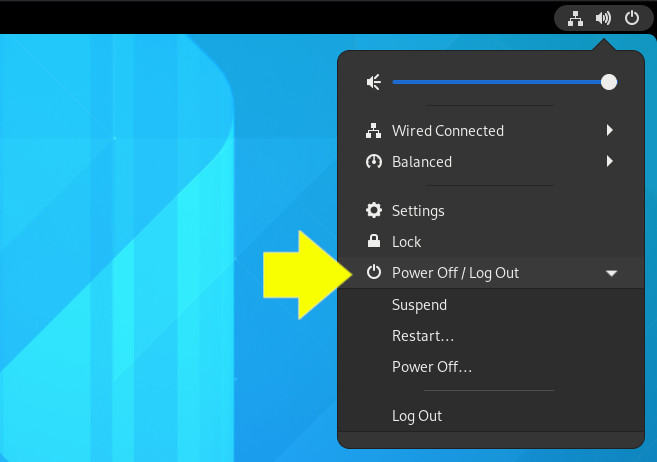
Depending on the graphical user interface (GUI) environment you have installed, you can initiate a reboot or shutdown from a menu. Many people rely on a graphical desktop like GNOME, so this is certainly a viable option.
[ Because sudo is something you don't configure often, it can be hard to remember its nuances. Download the Linux sudo cheat sheet. ]
Wrap up
The familiar shutdown command now maps to systemd and executes timed shutdowns and reboots. You can use systemctl if you wish, but being able to schedule the shutdown is helpful. In addition, systemctl also offers suspend and hibernate options. Try to avoid bringing down the system when possible, but sometimes it's necessary.
À propos de l'auteur
Damon Garn owns Cogspinner Coaction, LLC, a technical writing, editing, and IT project company based in Colorado Springs, CO. Damon authored many CompTIA Official Instructor and Student Guides (Linux+, Cloud+, Cloud Essentials+, Server+) and developed a broad library of interactive, scored labs. He regularly contributes to Enable Sysadmin, SearchNetworking, and CompTIA article repositories. Damon has 20 years of experience as a technical trainer covering Linux, Windows Server, and security content. He is a former sysadmin for US Figure Skating. He lives in Colorado Springs with his family and is a writer, musician, and amateur genealogist.
Plus de résultats similaires
Red Hat Enterprise Linux Long-Life Add-On : votre solution RHEL sans date de fin prédéterminée
Comment votre infrastructure doit-elle se connecter à Red Hat Lightspeed ?
Infrastructure At The Edge | Compiler
Operating System Management | Compiler
Parcourir par canal

Automatisation
Les dernières nouveautés en matière d'automatisation informatique pour les technologies, les équipes et les environnements

Intelligence artificielle
Actualité sur les plateformes qui permettent aux clients d'exécuter des charges de travail d'IA sur tout type d'environnement

Cloud hybride ouvert
Découvrez comment créer un avenir flexible grâce au cloud hybride

Sécurité
Les dernières actualités sur la façon dont nous réduisons les risques dans tous les environnements et technologies

Edge computing
Actualité sur les plateformes qui simplifient les opérations en périphérie

Infrastructure
Les dernières nouveautés sur la plateforme Linux d'entreprise leader au monde

Applications
À l’intérieur de nos solutions aux défis d’application les plus difficiles

Virtualisation
L'avenir de la virtualisation d'entreprise pour vos charges de travail sur site ou sur le cloud
