
Few sysadmins in the Linux world need to be convinced of the power and importance of scripts. Scripts are everywhere, and you know they're essential to Linux system administration. Many scripts run silently, even if they are initiated manually by a user or an admin.
Some scripts, however, pass information to users or solicit information from them. You can use scripting features such as echo or read to accomplish these goals. Unfortunately, neither of these tools display the information in a fancy way or in a manner that gets the user's attention.
Whiptail adds a more interactive dialog box to your scripts. These boxes provide information, solicit input, or force an acknowledgment. The content displayed is in a text-based user interface (TUI) format and is navigated with the Tab key. Selections are chosen with the Space key.
In this article, I walk you through the installation of whiptail (it's easy!) and then demonstrate a few basic examples.
[ Readers also liked: Which programming languages are useful for sysadmins? ]
Install whiptail
Installation is easy. I am using Fedora 33 for these examples. Whiptail is included as part of the larger newt library, which adds functionality to TUI windows.
Install whiptail by using the following command:
[damon@localhost ~]$ sudo dnf install newt
That's it for the installation.
In this article, you will create individual vim files with the whiptail-specific code. Remember to accomplish the following tasks for each demonstrated file:
- Name it clearly
- Make it executable by typing
chmod 744 demo.sh - Run it by using
./before the filename if the location is not along the PATH
Note: I assume vim because I prefer it. Nano or any other text editor is sufficient.
Next, it's time to get some scripts involved.
Display a basic dialog box
You don't actually need a script to display a basic dialog box from whiptail. In this example, you'll declare and then call a variable. The variable is merely a message of some sort that will be acknowledged with an OK button. No choices are offered, and no navigation is used.
At the command prompt, type the following information:
[damon@localhost ~]$ message="Today, we will learn about Whiptail."
[damon@localhost ~]$ whiptail --msgbox --title "Intro to Whiptail" "$message" 25 80

Once the interface is displayed, notice the title that you specified appears in the top bar. Your message is also present. The OK button is available. In the whiptail command, you entered two
values: 25 and 80. Those values are column measurements and may be adjusted. They define the size of the interface window. Be careful to select a size that doesn't consume the entire screen and prevent the user from seeing the whole message or selecting OK. Most Terminal windows will be set to 80 columns or more.
Once you have observed all of the components of the interface, select OK by pressing the Enter key.
In this example, you used two options: --msgbox and --title
And now a more interesting example.
Generate a query
Scripts may be written that accepts a user's input. If you are writing a script that will interact with non-technical users, it may be beneficial to create a more user-friendly interface. In this example, the user will be asked two questions: Name and country.
Create a file named query.sh with the following content.
#Part 1 - Query for the user's name
NAME=$(whiptail --inputbox "What is your name?" 8 39 --title "Getting to know you" 3>&1 1>&2 2>&3)

exitstatus=$?
if [ $exitstatus = 0 ]; then
echo "Greetings," $NAME
else
echo "User canceled input."
fi

echo "(Exit status: $exitstatus)"

#Part 2 - Query for the user's country

COUNTRY=$(whiptail --inputbox "What country do you live in?" 8 39 --title "Getting to know you" 3>&1 1>&2 2>&3)

exitstatus=$?
if [ $exitstatus = 0 ]; then
echo "I hope the weather is nice in" $COUNTRY
else
echo "User canceled input."
fi

echo "(Exit status: $exitstatus)"
Observe that in this example, you used --inputbox instead of --msgbox. You've organized the whiptail code as an if/then statement.
The 8 and 39 values define the size of the dialog box. If you are following along in your own lab environment, replace 39 with 10, save your changes, and rerun the whiptail code. You will see that the dialog box is too small to be useful. Use the Tab key to select Cancel, and then set the size value back to 39 from 10.
Don't forget to set the permissions to make the file executable and use ./ to run it from the current location.
[damon@localhost ~]$ chmod 777 query.sh
[damon@localhost ~]$ ./query.sh
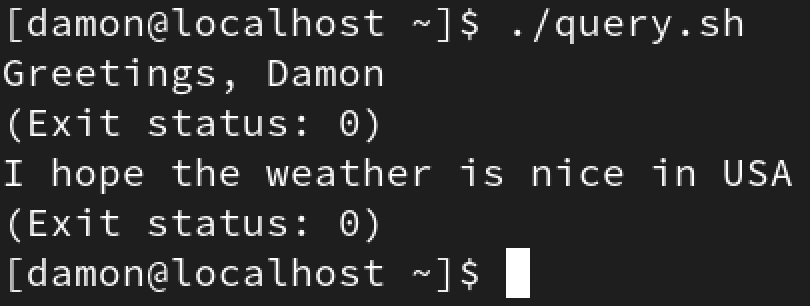
Here is a look at the results after completing the dialog box:
You've given users information via a message box and gathered information from the user via an input box. Next, ask the user some additional questions.
Create a yes/no dialog box
There are plenty of variations for asking questions of the user. In this case, you'll use a simple yes/no query to discover whether today is Tuesday. You can do this by creating a test file named tuesday.sh and placing the following content into it:
if (whiptail --title "Is it Tuesday?" --yesno "Is today Tuesday?" 8 78); then
    echo "Happy Tuesday, exit status was $?."
else
    echo "Maybe it will be Tuesday tomorrow, exit status was $?."

fi
Instead of the --inputbox or --msgbox from the earlier examples, you used the --yesno option. Like the previous example, this one is organized as an if/then query.

Here is the resulting output:

The --yesno box option also permits us to edit the content of the "Yes" and "No" fields. Here is an example:
if (whiptail --title "Is it Tuesday?" --yesno "Is today Tuesday?" 8 78 --no-button "Not Tuesday" --yes-button "Tuesday"); then
echo "Happy Tuesday, exit status was $?."
else
echo "Maybe it will be Tuesday tomorrow, exit status was $?."
fi
The only modification to the example is the addition of the two --no-button and --yes-button options, with their corresponding text (in this case, "Not Tuesday" and "Tuesday").
Here is what the resulting dialog box looks like:

One last thing. Whiptail sends the user's input to stderr. Yes, you read that correctly: stderr, and
not stdout, which is where you pick up the user's input to consume it in the script. The way around this issue is to reverse the redirection so that the user's input goes to stdout.
Here is the phrase for doing that:
3>&1 1>&2 2>&3
Explanation:
- Create a file descriptor 3 that points to 1 (stdout)
- Redirect 1 (stdout) to 2 (stderr)
- Redirect 2 (stderr) to the 3 file descriptor, which is pointed to stdout
Here is how it looks in a script snippet from the above --inputbox example:
NAME=$(whiptail --inputbox "What is your name?" 8 39 --title "Getting to know you" 3>&1 1>&2 2>&3)
[ Free cheat sheet: Kubernetes glossary ]
Wrap up
I've shown several basic examples, but whiptail can do a lot more. I've provided enough here to get you going and there are many useful tutorials online. Your scripts will need a way to consume the input the users have entered. I encourage you to review your interactive scripts to determine whether adding TUI dialog boxes would helpful.
Here's a list of the primary box options available for whiptail:
- --title
- --infobox
- --msgbox
- --yesno
- --inputbox
- --passwordbox
- --menu
- --textbox
- --checklist
- --radiolist
- --gauge
À propos de l'auteur
Damon Garn owns Cogspinner Coaction, LLC, a technical writing, editing, and IT project company based in Colorado Springs, CO. Damon authored many CompTIA Official Instructor and Student Guides (Linux+, Cloud+, Cloud Essentials+, Server+) and developed a broad library of interactive, scored labs. He regularly contributes to Enable Sysadmin, SearchNetworking, and CompTIA article repositories. Damon has 20 years of experience as a technical trainer covering Linux, Windows Server, and security content. He is a former sysadmin for US Figure Skating. He lives in Colorado Springs with his family and is a writer, musician, and amateur genealogist.
Plus de résultats similaires
Red Hat Ansible All-Stars : piloter l'avenir de l'automatisation du réseau et de l'infrastructure
Unifiez les workflows grâce à l’orchestrateur d'automatisation pour Ansible Automation Platform
Random Acts Of Automation | Compiler
Untangling Networks | Compiler
Parcourir par canal

Automatisation
Les dernières nouveautés en matière d'automatisation informatique pour les technologies, les équipes et les environnements

Intelligence artificielle
Actualité sur les plateformes qui permettent aux clients d'exécuter des charges de travail d'IA sur tout type d'environnement

Cloud hybride ouvert
Découvrez comment créer un avenir flexible grâce au cloud hybride

Sécurité
Les dernières actualités sur la façon dont nous réduisons les risques dans tous les environnements et technologies

Edge computing
Actualité sur les plateformes qui simplifient les opérations en périphérie

Infrastructure
Les dernières nouveautés sur la plateforme Linux d'entreprise leader au monde

Applications
À l’intérieur de nos solutions aux défis d’application les plus difficiles

Virtualisation
L'avenir de la virtualisation d'entreprise pour vos charges de travail sur site ou sur le cloud
