
Text editing is essential to Linux users. Historically, the Vim text editor has been the default tool for managing file contents. Today, many systems and many sysadmins prefer to use the nano text editor.
This is the second article in a series that covers some essential Linux tools. My first article discusses: "The four things you must be able to do in Vim." It is a companion article to this one.
Nano is quite a bit more intuitive than Vim, but it's still worth taking a brief look at its most fundamental features. You must be able to accomplish the following four tasks with nano:
- Create/open a file
- Edit the file
- Save changes
- Exit the file
Create or open a file
To create a new file by using nano, type nano /path/filename. This is the same syntax Vim uses. The new file is created and opened for editing. To create a new file named "RHEL_versions," I type the following:
# nano ~/Documents/RHEL_versions
The file may now be edited. Nano does not use the concept of modes like Vim. Once the file opens in nano, if you type on the keyboard, text is inserted into the file.
Use the same command syntax to open an existing file, such as the "demo" file:
# nano ~/Documents/demo
[ You might also enjoy, Getting started with Nano ]
Edit a file
Because nano does not use modes, you may begin editing the file immediately without navigating between Command mode and Insert mode. This certainly makes nano easier to use, but it also makes it less flexible. However, for basic file edits, such flexibility is often overkill.
Save a file
The Ctrl key activates nano's commands on your keyboard. There is an abbreviated list of commands displayed at the bottom of the nano interface, and these cover most basic needs. You "write out" a file to save its contents by using Ctrl+O.
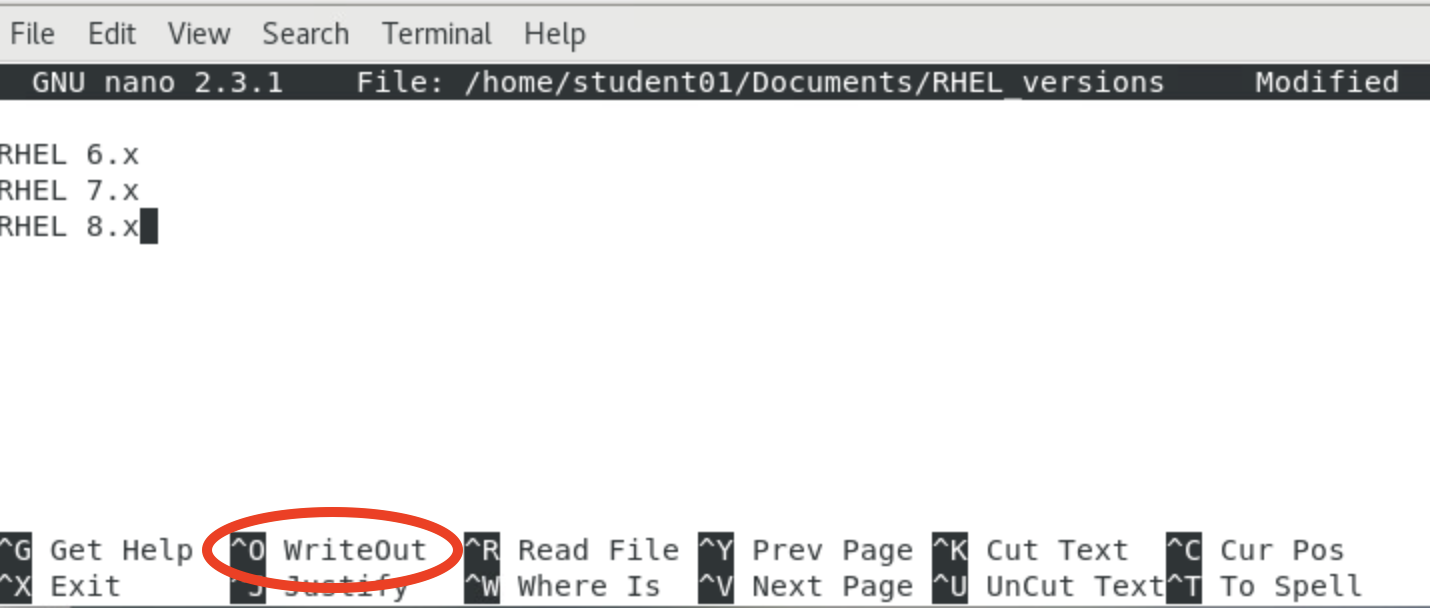
Note: There are many additional commands available within nano that are not displayed in the primary menu.
Exit nano
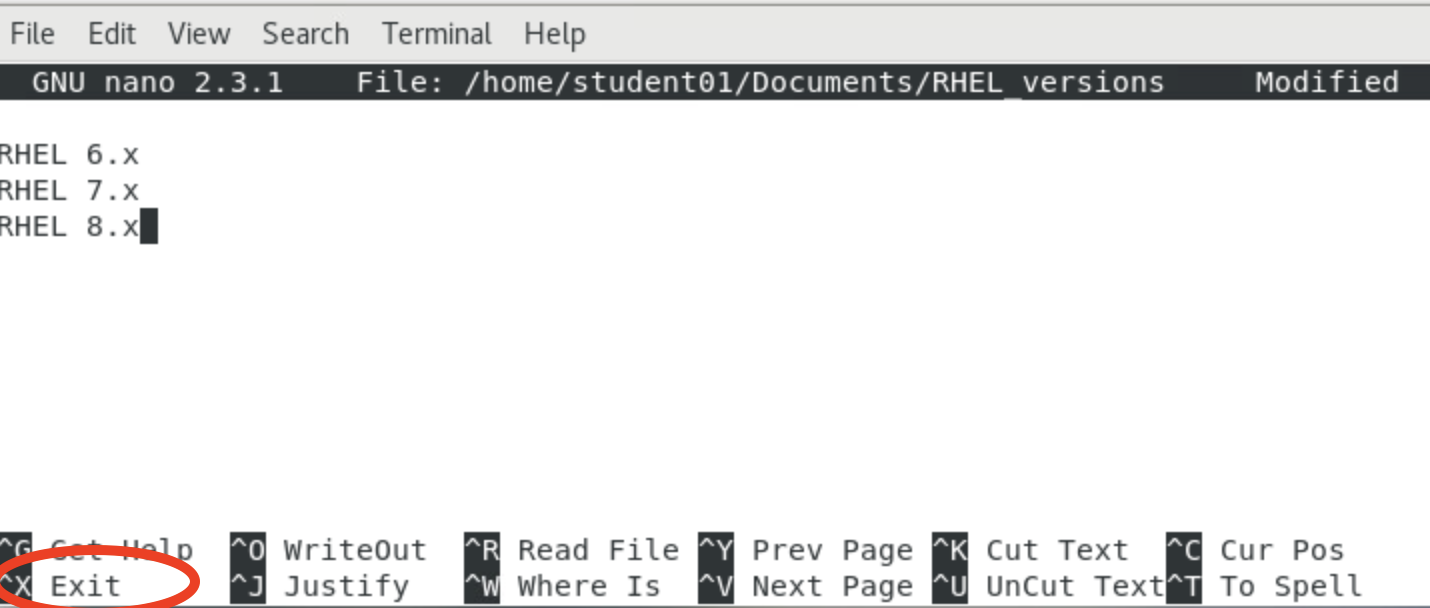
If you examine the list of available commands at the bottom of nano's interface, you discover that you won't "quit" nano, but instead "exit" nano by using Ctrl+X.
[ Free download: Advanced Linux commands cheat sheet. ]
Wrap up
In some ways, using nano is more like using the keyboard shortcuts in Microsoft Word or LibreOffice Writer. Nano is significantly more powerful than I am showing here, so be sure to check the documentation for more tricks. If you're a Vim user and you find yourself on a distribution that only has nano available, at least you'll know these simple functions.
I guess I'm old school (or just old), but I prefer Vim, even for very short and simple edits. I acknowledge that nano is easier, but I am in the habit of using Vim. In fact, I have it installed on my Mac and Windows computers, too.
Sobre o autor
Damon Garn owns Cogspinner Coaction, LLC, a technical writing, editing, and IT project company based in Colorado Springs, CO. Damon authored many CompTIA Official Instructor and Student Guides (Linux+, Cloud+, Cloud Essentials+, Server+) and developed a broad library of interactive, scored labs. He regularly contributes to Enable Sysadmin, SearchNetworking, and CompTIA article repositories. Damon has 20 years of experience as a technical trainer covering Linux, Windows Server, and security content. He is a former sysadmin for US Figure Skating. He lives in Colorado Springs with his family and is a writer, musician, and amateur genealogist.
Mais como este
Por que a segurança pós-quântica financeira deve começar já
Red Hat Enterprise Linux Long-Life Add-On
Infrastructure At The Edge | Compiler
Operating System Management | Compiler
Navegue por canal

Automação
Últimas novidades em automação de TI para empresas de tecnologia, equipes e ambientes

Inteligência artificial
Descubra as atualizações nas plataformas que proporcionam aos clientes executar suas cargas de trabalho de IA em qualquer ambiente

Nuvem híbrida aberta
Veja como construímos um futuro mais flexível com a nuvem híbrida

Segurança
Veja as últimas novidades sobre como reduzimos riscos em ambientes e tecnologias

Edge computing
Saiba quais são as atualizações nas plataformas que simplificam as operações na borda

Infraestrutura
Saiba o que há de mais recente na plataforma Linux empresarial líder mundial

Aplicações
Conheça nossas soluções desenvolvidas para ajudar você a superar os desafios mais complexos de aplicações

Virtualização
O futuro da virtualização empresarial para suas cargas de trabalho on-premise ou na nuvem
