
What would your initial reaction be if someone asked you if a six-year-old with no prior Red Hat Enterprise Linux (RHEL) experience or knowledge would be able to create a new user account, reset the root account’s password, start the chronyd service, turn on SELinux, and install updates on a RHEL 8 server?
Your initial thought might be that there is simply no possible way an untrained six-year-old could complete these tasks. I recently put this to the test and you might be surprised by the results.
[ You might also like: Sysadmin truths: What my family thinks I do all day ]
Red Hat has been putting a large focus on making products easier to use and manage. The RHEL web console has seen many new features and improvements, especially in RHEL 8. It has always amazed me how easy the web console makes complex RHEL administration tasks that otherwise would require a high degree of command-line knowledge. As an illustration of how easy the Cockpit interface is, I created this overview demo video.
I thought it would be interesting to see if my son, Luke, could use the RHEL web console to accomplish some system administration tasks. He is six years old and in the first grade. Although he hears me talk about RHEL and Linux all the time, he lacks any Linux experience himself.
I opened up a web browser on his tablet device, logged in to the web console on a RHEL 8 system, and handed him a paper listing five tasks to complete:
- Create a new account named
lukewith passwordlukeiscool - Set password for root account to
lukeiscool - Turn on the
chronydservice - Turn on SELinux
- Install All Software Updates
I also drew pictures on the paper of what the "on" (blue) and "off" (gray) state of the toggle switches looked like, as I figured this might not be familiar to him.
It was very interesting to watch him try to get started with the tasks. Luke began by scrolling around and clicking on different options in the menu for a couple of minutes, somewhat aimlessly. He then found the search box in the menu and searched for "new account," but the search didn’t return any results (searching for just “account” would have worked). Luke eventually noticed Accounts in the menu, and I could visually see him have an "Aha" moment. Once in the Accounts menu, he almost immediately found the Create New Account button.
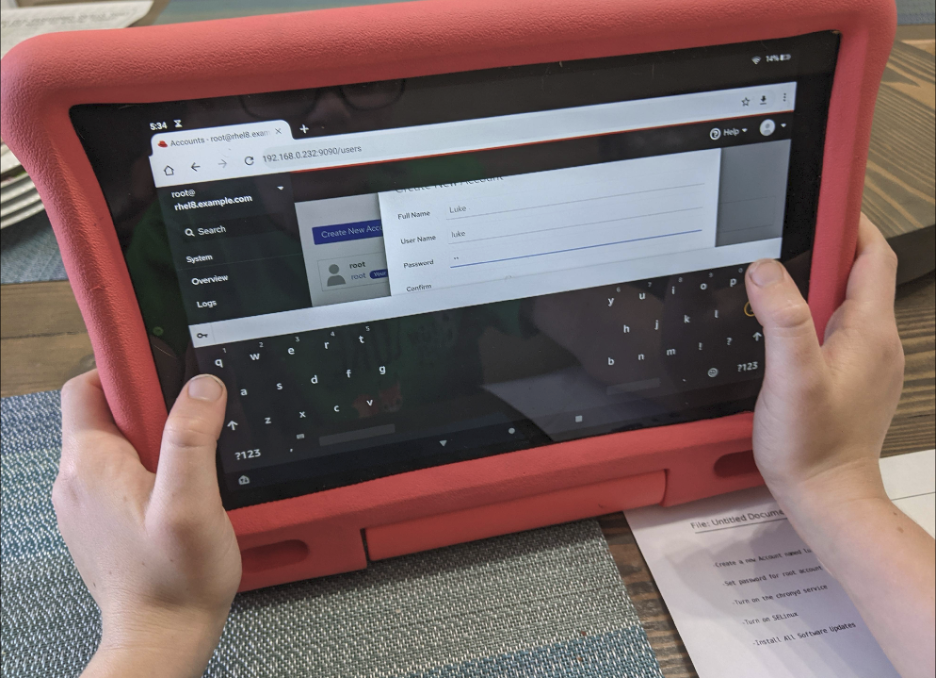
He struggled with setting a password for the account. The first time he typed a password but left the confirm password field blank. When he clicked Create, Luke got the message that the passwords didn’t match, and he figured out he needed to type the password again in the confirm field. After struggling for a couple of minutes to type the same password twice (haven’t we all been here?), often changing the password’s uppercase and lowercase letters between the two fields, I stepped in and just let him know that the uppercase and lowercase letters had to be the same in both of them. This was the only time I had to intervene and provide guidance.
Once he created the new luke user account, he moved on to resetting the root account’s password. He was already on the account page and quickly saw the root account, clicked on it, and changed the password.
At this point, he was on a roll and had figured out how the menu works. He promptly found the Services menu option, found the chronyd service, and clicked the toggle button to enable it.
He kept up the pace and quickly went to the SELinux menu, clicked the toggle button to enable it as well, then went to the Software Updates menu and clicked the Install All Updates button.
After a total of approximately ten minutes, he had completed all five tasks by himself, except for the guidance I provided him about the case sensitivity of confirming the password.
To be fair, the tasks I asked him to complete were carefully worded to include key words that matched up to the menu options, and he didn’t understand what SELinux or the chronyd service actually did (so getting training and understanding the underlying concepts are still very important to effectively managing RHEL systems). Hopefully, the point comes through that from a usability perspective, the web console in RHEL is so easy to use, literally a six-year-old can use it.
I’m a long-time command-line user, and even I have started using the web console to save time. For example, if I need to expand a volume group with a new disk and grow a filesystem, I know how to do it from the command line, but it is quicker and easier for me to do it from the web console.
And even as a long-time RHEL user, there are some tasks, such as adding a network bond or network team, I wouldn’t be able to do from the command line without looking up how to do it. However, from the web console, admins can easily complete these tasks.
[ Improve your skills managing and using SELinux with this helpful guide. ]
So no matter where you are with RHEL system administration experience, from beginner to expert, give the RHEL web console a try to help you more quickly and efficiently manage your RHEL systems. If you want to try out the web console in an interactive lab environment, check out the Using Web Console to Manage Updates and Configuring Terminal Session Recording labs.
Sobre o autor
Brian Smith is a product manager at Red Hat focused on RHEL automation and management. He has been at Red Hat since 2018, previously working with public sector customers as a technical account manager (TAM).
Mais como este
Por que a segurança pós-quântica financeira deve começar já
Red Hat Enterprise Linux Long-Life Add-On
Infrastructure At The Edge | Compiler
Operating System Management | Compiler
Navegue por canal

Automação
Últimas novidades em automação de TI para empresas de tecnologia, equipes e ambientes

Inteligência artificial
Descubra as atualizações nas plataformas que proporcionam aos clientes executar suas cargas de trabalho de IA em qualquer ambiente

Nuvem híbrida aberta
Veja como construímos um futuro mais flexível com a nuvem híbrida

Segurança
Veja as últimas novidades sobre como reduzimos riscos em ambientes e tecnologias

Edge computing
Saiba quais são as atualizações nas plataformas que simplificam as operações na borda

Infraestrutura
Saiba o que há de mais recente na plataforma Linux empresarial líder mundial

Aplicações
Conheça nossas soluções desenvolvidas para ajudar você a superar os desafios mais complexos de aplicações

Virtualização
O futuro da virtualização empresarial para suas cargas de trabalho on-premise ou na nuvem
