
The basics
Before we get into commands, let’s talk about important special characters. The dot (.) , dot-dot (..) , forward slash (/), and tilde (~), all have special functionality in the Linux filesystem:
- The dot (
.) represents the current directory in the filesystem. - The dot-dot (
..) represents one level above the current directory. - The forward slash (
/) represents the "root" of the filesystem. (Every directory/file in the Linux filesystem is nested under the root/directory.) - The tilde (
~) represents the home directory of the currently logged in user.
I believe that the best way to understand any concept is by putting it into practice. This navigation command overview will help you to better understand how all of this works.
Print working directory (pwd)
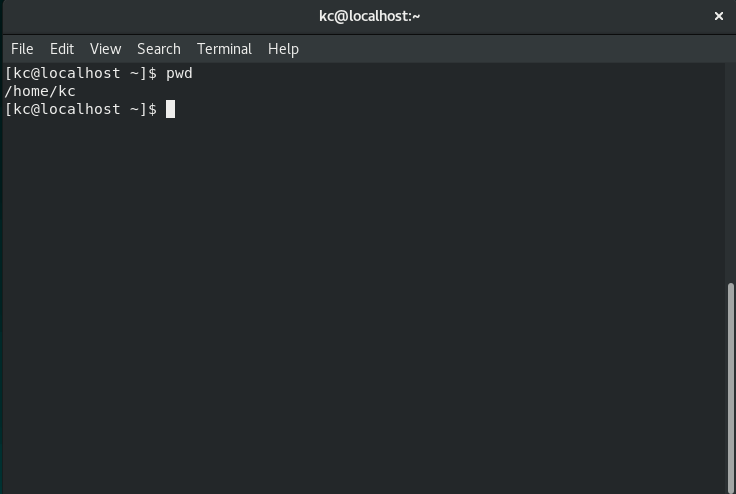
The pwd command prints the current/working directory, telling where you are currently located in the filesystem. This command comes to your rescue when you get lost in the filesystem, and always prints out the absolute path.
What is an absolute path? An absolute path is the full path to a file or directory. It is relative to the root directory (/). Note that it is a best practice to use absolute paths when you use file paths inside of scripts. For example, the absolute path to the ls command is: /usr/bin/ls.
If it’s not absolute, then it’s a relative path. The relative path is relative to your present working directory. If you are in your home directory, for example, the ls command's relative path is: ../../usr/bin/ls.
Change directory (cd)
The cd command lets you change to a different directory. When you log into a Linux machine or fire up a terminal emulator, by default your working directory is your home directory. My home directory is /home/kc. In your case, it is probably /home/<your username>.
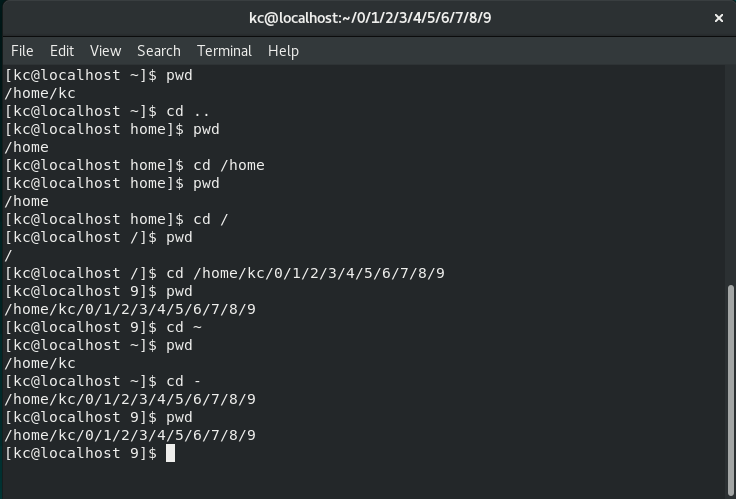
Absolute and relative paths make more sense when we look at examples for the cd command. If you need to move one level up from your working directory, in this case /home, we can do this couple of ways. One way is to issue a cd command relative to your pwd:
$ cd ..
Note: Remember, .. represents the directory one level above the working directory.
The other way is to provide the absolute path to the directory:
$ cd /home
Either way, we are now inside /home. You can verify this by issuing pwd command. Then, you can move to the filesystem’s root (/) by issuing this command:
$ cd /
If your working directory is deeply nested inside the filesystem and you need to return to your home directory, this is where the ~ comes in with the cd command. Let’s put this into action and see how cool this command can be. It helps you save a ton of time while navigating in the filesystem.
My present working directory is root (/). If you’re following along, yours should be same, or you can find out yours by issuing pwd. Let’s cd to another directory:
$ cd /home/kc/0/1/2/3/4/5/6/7/8/9
$ pwd
/home/kc/0/1/2/3/4/5/6/7/8/9
To navigate back to your home directory, simply issue ~ with the cd command:
$ cd ~
Again, check your present working directory with the pwd command:
$ pwd
/home/kc
The dash (-) navigates back to the previous working directory, similar to how you can navigate to your user home directory with ~. If you need to go back to our deeply nested directory 9 under your user home directory (this was my previous working directory), you would issue this command:
$ cd –
Wrapping up
These commands are your navigation tools inside the Linux filesystem. With what you learned here, you can always find your way to the home (~) directory. If you want to learn more and master the command line, check out 10 basic Linux commands.
Want to try out Red Hat Enterprise Linux? Download it now for free.
Sobre el autor
Keerthi is aspiring Cloud, DevOps engineer, he has been working with Windows and Linux systems. He believes in continuous learning (CL) and continuous sharing (CS), on his way building his very own CL CS pipeline. When he is not playing in the CLI, you will find him playing Cricket.
Más como éste
Por qué la seguridad post-cuántica para los servicios financieros debe comenzar ahora
Red Hat Enterprise Linux Long-Life Add-On: RHEL sin una fecha de finalización predeterminada
Infrastructure At The Edge | Compiler
Operating System Management | Compiler
Navegar por canal

Automatización
Las últimas novedades en la automatización de la TI para los equipos, la tecnología y los entornos

Inteligencia artificial
Descubra las actualizaciones en las plataformas que permiten a los clientes ejecutar cargas de trabajo de inteligecia artificial en cualquier lugar

Nube híbrida abierta
Vea como construimos un futuro flexible con la nube híbrida

Seguridad
Vea las últimas novedades sobre cómo reducimos los riesgos en entornos y tecnologías

Edge computing
Conozca las actualizaciones en las plataformas que simplifican las operaciones en el edge

Infraestructura
Vea las últimas novedades sobre la plataforma Linux empresarial líder en el mundo

Aplicaciones
Conozca nuestras soluciones para abordar los desafíos más complejos de las aplicaciones

Virtualización
El futuro de la virtualización empresarial para tus cargas de trabajo locales o en la nube
