
Working with shell scripts has always been interesting for programmers and sysadmins because the output helps both of them with debugging and monitoring. The configuration of most Linux distributions is largely based on files, so it is important to understand the concept of writing data to a text file using a script or redirecting output at the command line.
Linux uses three main data streams while communicating to the user and the computer:
- stdin (STandarD INput)
- stdout (STandarD OUTput)
- stderr (STandarD ERRor)
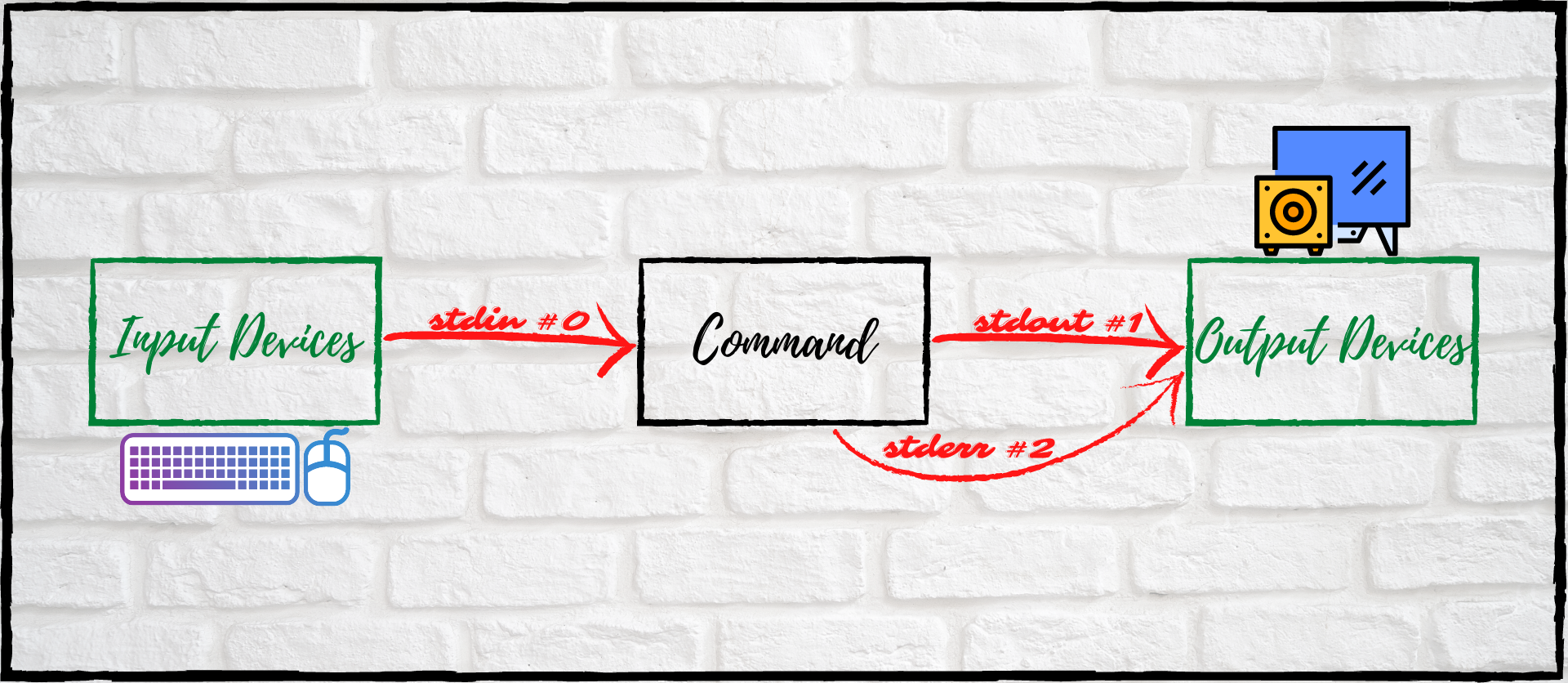
1. stdin
This is the data stream for the input of information. Any input from any device such as a keyboard or a mouse comes under the standard input data stream. stdin is represented by 0 Stream ID.
[ You might also enjoy reading: Five ways to use redirect operators in bash ]
2. stdout
This is the data stream for the output of data. The output from devices (like monitor, speaker, etc.) comes under the standard output data stream. stdout is represented by 1 Stream ID.
3. stderr
Standard error is used to handle any errors produced by the commands. Any device stream (like monitor, speaker, etc.) that warns the user that something has gone wrong comes under stderr. stderr is represented by 2 Stream ID.
How do you write data to a file?
Use redirection operators to fetch the data from the stdout and stderr streams and redirect them to a text file.
Redirection: Redirection is a Linux feature used to change input/output devices while executing a command.
Output/error redirection
To write data to a text file from a Bash script, use output/error redirection with the > and >> redirection operators.
> Overwrites data in a text file.
>> Appends data to a text file.
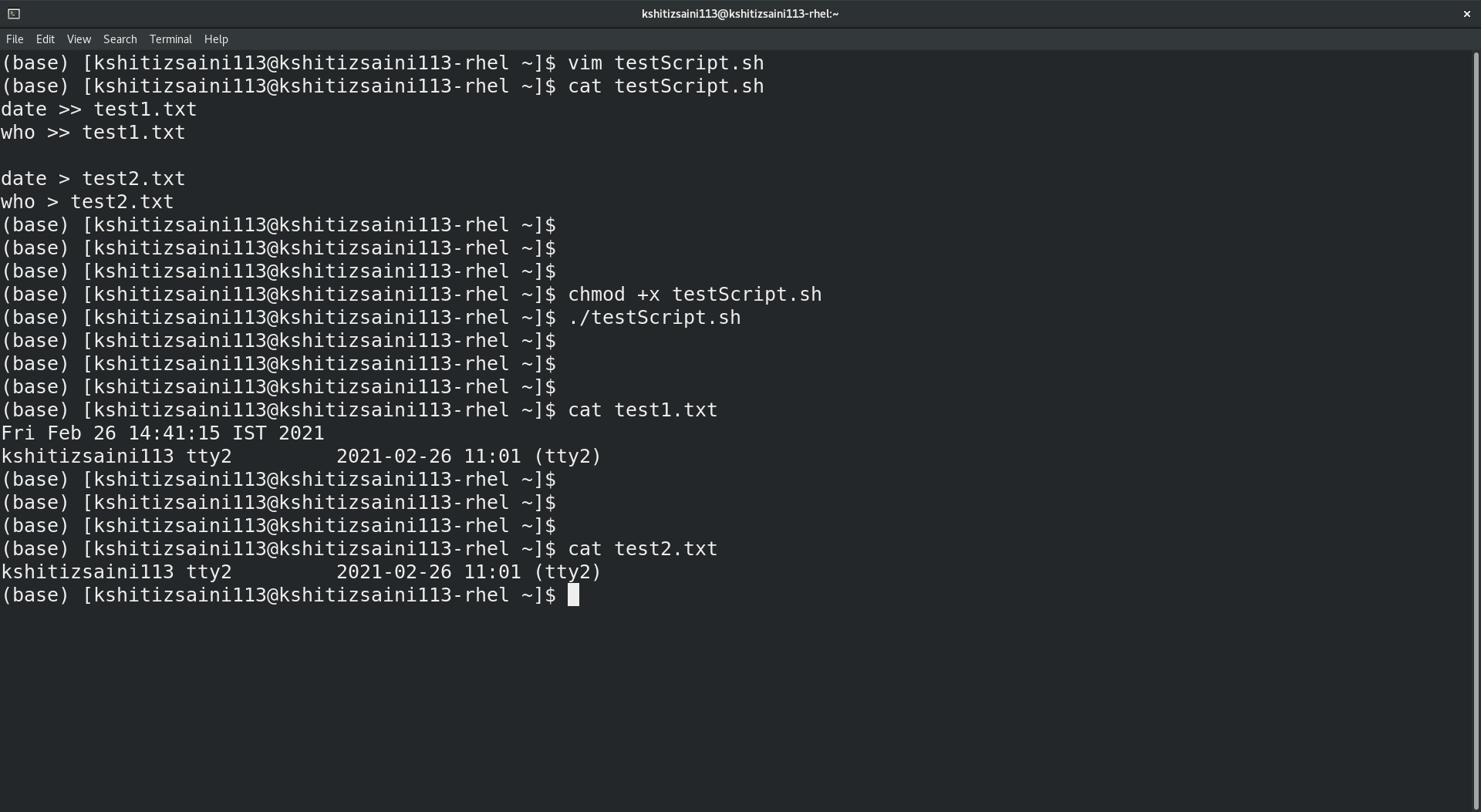
Creating a basic script and understanding the redirection
date >> test1.txt
who >> test1.txt

date > test2.txt
who > test2.txt
Here the output of both commands will be appended to test1.txt while test2.txt will contain only the output of the who command.
Working further with redirection
The above script will redirect only the output and will fail in case of error. To work with redirection for output, error, or both, you must specify the extra parameters.
For redirecting output: > or >> or 1> or 1>>
For redirecting error: 2> or 2>>
For redirecting both: &> or &>>
Redirecting errors
date --who 2>> test1.txt
who 2>> test1.txt
For redirecting only the errors, you've specified the specific parameter for the error. The output file will contain only the output of the first command because it has a wrong argument.

Other arguments can be used interchangeably to achieve different functionality.
Writing the script for other commands is the same as the above script and requires the operators displayed above.
[ Download now: A sysadmin's guide to Bash scripting. ]
Wrap up
Redirecting data to stdout or stderr is very useful to developers and sysadmins alike. Understanding these tools and their results will help you create new files, troubleshoot, and gather system information.
Sobre o autor
Kshitiz Saini is a pre-final year as a Computer Science undergraduate at the University of Petroleum and Energy Studies, Dehradun, and a tech enthusiast who seeks experience by learning to increase his knowledge along with having some fun. Kshitiz is a C++ developer who loves to explore new technologies, develop software solutions, and use quick hacks. He is skilled in DevOps and Cloud Computing and is actively looking for summer internship opportunities.
Kshitiz is the founder of a tech-community dotQuestionmark which aims to provide tech geeks with the latest tech information and an instructor at dotQuestionmark where he has mentored more than 1500 students in Git, Python, Linux, and C++. Previously, he was an intern at Clay Engage and OpenGenus Foundations where he worked as a Web and App Developer intern and a Software Developer intern, respectively.
Mais como este
Por que a segurança pós-quântica financeira deve começar já
Red Hat Enterprise Linux Long-Life Add-On
Infrastructure At The Edge | Compiler
Operating System Management | Compiler
Navegue por canal

Automação
Últimas novidades em automação de TI para empresas de tecnologia, equipes e ambientes

Inteligência artificial
Descubra as atualizações nas plataformas que proporcionam aos clientes executar suas cargas de trabalho de IA em qualquer ambiente

Nuvem híbrida aberta
Veja como construímos um futuro mais flexível com a nuvem híbrida

Segurança
Veja as últimas novidades sobre como reduzimos riscos em ambientes e tecnologias

Edge computing
Saiba quais são as atualizações nas plataformas que simplificam as operações na borda

Infraestrutura
Saiba o que há de mais recente na plataforma Linux empresarial líder mundial

Aplicações
Conheça nossas soluções desenvolvidas para ajudar você a superar os desafios mais complexos de aplicações

Virtualização
O futuro da virtualização empresarial para suas cargas de trabalho on-premise ou na nuvem
