
Application programming interfaces (APIs) are like fuel for digital transformation, enabling companies to develop applications and microservices quickly. DataTrucker.IO is a new, free and open source (Apache 2.0) no-code/less-code API backend that decreases the time required to build APIs.
DataTrucker reads simple JSON and YAML configs and produces the code to convert it into an API. In addition to creating the code, it also hosts the codebase on a Node.js server and makes it immediately available for public consumption.
DataTrucker handles most of the everyday activities a developer needs to do on a new project, including:
- Creating an API endpoint with specified business logic (using simple plugins)
- Applying standard role-based access control (RBAC)
- Applying authorization logic
- Applying hardening on endpoints
- Handling log management
- Connecting to a variety of systems
- Modularizing business logic
- Doing it all with little to no code
Installing DataTrucker
This tutorial shows how to install DataTrucker on OpenShift and build an API for a Postgres database. The process is similar in the Kubernetes environment.
[ Download The API owner's manual to learn 7 best practices of effective API programs. ]
Step 1: Create a namespace called trucker
oc new-project truckerStep 2: Download and install the application
DataTrucker.IO is available in OpenShift's OperatorHub and can be added to your cluster as an Operator.
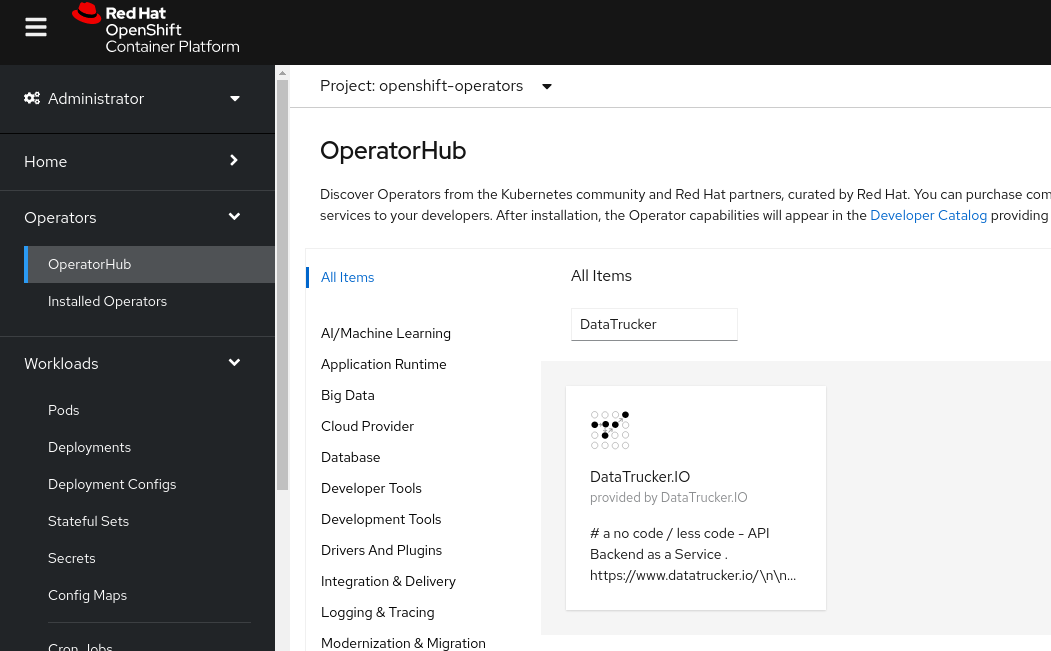
Step 3: Navigate into the Operators
Click Operators in the left navigation pane and open the DataTrucker.IO Operator.
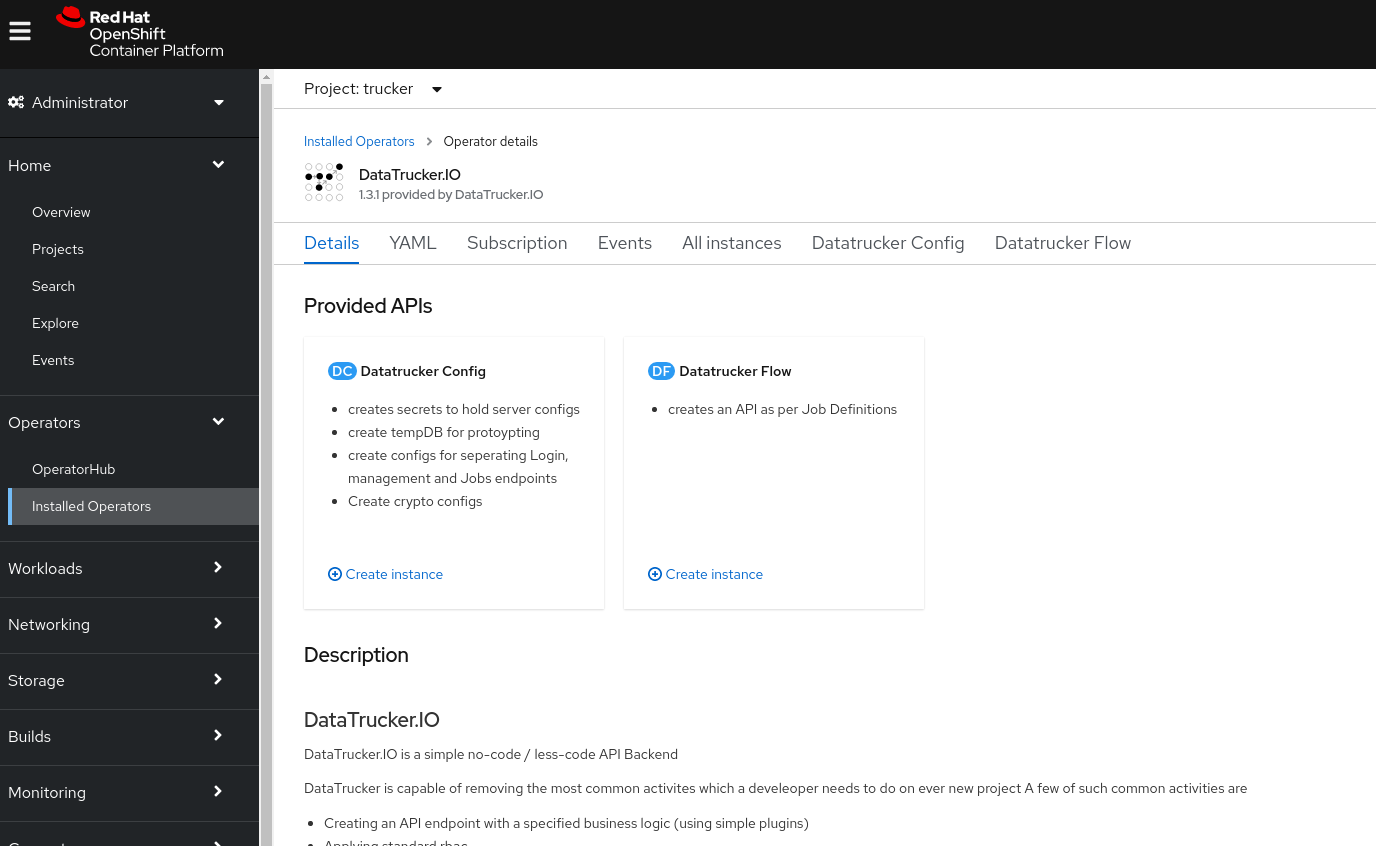
Step 4: Create a DataTrucker config by running the YAML object
Create a Persistent Volume Claim (PVC) for a database backend. (Note: The Postgres database provided below uses Crunchy Data containers to get started. I recommend using a hardened geo-redundant database for a production workload.)
- Create a PVC called
samplepvc. - Create an instance of a DatatruckerConfig object.
- Before you click Create, ensure
TempDB.enabledis True in the DatatruckerConfig object. This is required for prototyping the demo below.
You can find an example in DataTrucker's GitLab repository.
oc apply -f DatatruckerConfig.yamlThe config object Kind: DatatruckerConfig creates the following:
Postgres database: You can create a temporary non-hardened Crunchy Data database for following this tutorial by enabling the following in the DataTrucker config (recall that for a production workload, you should use a hardened geo-redundant database):
  TempDB:
    enabled: true
    pvc: samplepvc
Database configuration: In production systems, use a geo-redundant Postgres database:
    user: testuser
    password: password
    databasename: userdb
    hostname: db
    type: pg
    port: 5432
Crypto configuration: Create the crypto configuration:
 API:
    cryptokeys: |-
       ....
See detailed information in the Production hardening section of the DataTrucker.IO documentation.
API server backend configuration: Create the API server backend configuration:
 API:
    name: API
    loginServer: |-
       ....
    managementServer: |-
       ....
    jobsServer: |-
       ....
Step 5: Create a login and management endpoints
Create an endpoint for obtaining a login token:
apiVersion: datatrucker.datatrucker.io/v1
kind: DatatruckerFlow
metadata:
  name: login-endpoint
spec:
  Type: Login
  DatatruckerConfig: < the name of the config object created in step 4 >
Create an endpoint for RBAC management and credentials:
apiVersion: datatrucker.datatrucker.io/v1
kind: DatatruckerFlow
metadata:
  name: management-endpoint
spec:
  Type: Management
  DatatruckerConfig: < the name of the config object created in step 4 >
The items above create the deployments and service endpoints for the user interface (UI) and the management API.
Step 6: Expose the management endpoint
Expose the routes:
$ oc get svc | grep endpoint
login-endpoint                                            ClusterIP   10.217.5.89    <none>        80/TCP     3m43s
management-endpoint                                       ClusterIP   10.217.5.220   <none>        80/TCP     3m29s
management-endpoint-ui                                    ClusterIP   10.217.4.42    <none>        80/TCP     3m28s


$ oc expose svc management-endpoint-ui
route.route.openshift.io/management-endpoint-ui exposed

$ oc expose svc login-endpoint
route.route.openshift.io/login-endpoint exposed


$ oc get routes
NAME                     HOST/PORT                                         PATH   SERVICES                 PORT   TERMINATION   WILDCARD
login-endpoint           login-endpoint-trucker.apps-crc.testing                  login-endpoint           8080                 None
management-endpoint-ui   management-endpoint-ui-trucker.apps-crc.testing          management-endpoint-ui   9080                 None
Step 7: Log into the UI with a web browser
Create an admin user:
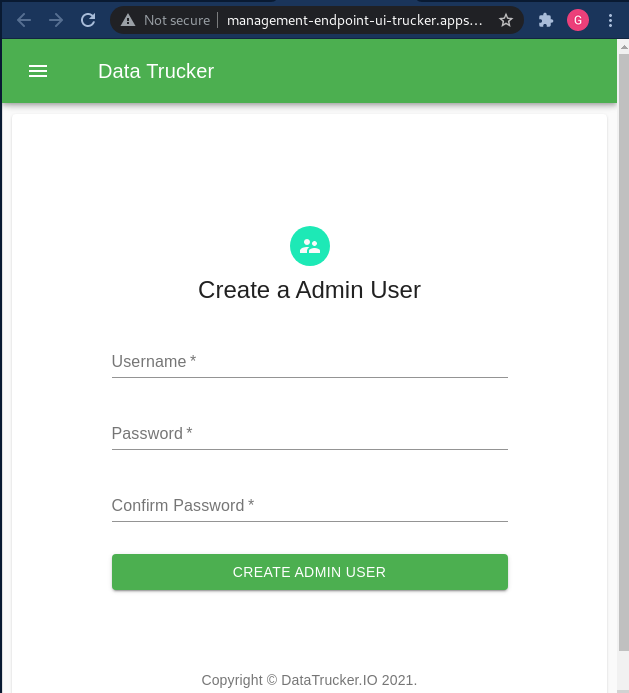
Log in as that admin user:
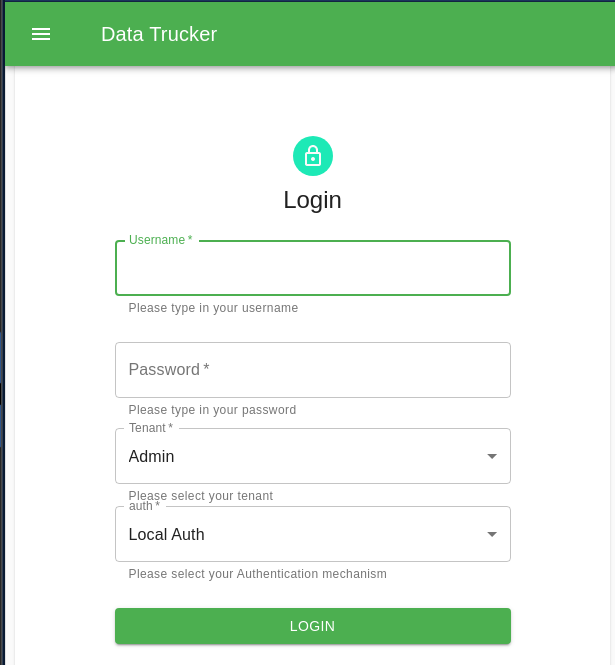
Step 8: Create a Postgres credential for the API
Now that DataTrucker is installed and configured, you are ready to build an API.
Create Postgres credentials for the database of your choice:
- Expand the left navigation bar.
- Select Credentials.
- Open the Postgres Credentials pane.
- Click Create Credentials.
- Enter your database details.

Step 9: Create a Postgres API
Create a Flow object with the following job spec.
---
apiVersion: datatrucker.datatrucker.io/v1
kind: DatatruckerFlow
metadata:
  name: my-first-api
spec:
  DatatruckerConfig: datatruckerconfig-sample
  JobDefinitions:
    - credentialname: db   < cred name from step 8 >
      job_timeout: 600
      name: postgres1
      restmethod: POST
      script: 'select ''[[userinput]]'' as userinput; '  < query you want to execute>
      tenant: Admin
      type: DB-Postgres
      validations:
        properties:
          userinput:
            maxLength: 18
            pattern: '^[a-z0-9]*$'
            type: string
        type: object
    - credentialname: db < cred name from step 8 >
      job_timeout: 600
      name: postgres2
      restmethod: GET
      script: select * from information_schema.tables < query you want to execute>
      tenant: Admin
      type: DB-Postgres
  Type: Job
This spec creates a new microservice to host the API, and the microservice has two APIs on its route:
- postgres1:
- Gets current date and user sent parameter into the SQL
- Is a POST request
- Sanitizes input for the user-input variable
userinput
- postgres2:
- Gets a list of tables available
- Is a GET request
[ Free download: Advanced Linux commands cheat sheet. ]
Now, search for the service:
$. oc get svc | grep my-first-api
my-first-api                                              ClusterIP   10.217.5.116   <none>        80/TCP     45s

$. oc expose svc my-first-api
route.route.openshift.io/my-first-api exposed

$. oc get routes  | grep my-first-api
my-first-api             my-first-api-trucker.apps-crc.testing                    my-first-api             8080                 None
Now that you have a URL, go test it out.
The URL is in the following form:
http://<your api route>/api/v1/jobs/<name of the JobDefinitions defined in the yaml>In the above example, you created two JobDefinitions:
- postgres1 of type POST
- postgres2 of type GET
Step 10: Test out your APIs
Get a login token from the login endpoint:
curl --location --request POST 'http://login-endpoint-trucker.<wilcard.domain>/api/v1/login' \
--header 'Content-Type: application/json' \
--data-raw '{
 "username": "xxx",
 "password": "xxxxxxxx",
 "tenant": "Admin"
}'

Response:
{
    "status": true,
    "username": "xxx",
    "token": "xxxxxxxxxxxx"
}
Now use the login token against your APIs:
The first API:
curl --location --request POST 'http://my-first-api-trucker.<wilcard.domain>/api/v1/jobs/postgres1' \
--header 'Authorization: Bearer xxxxxxxxxxxxxxxxxxxxxxxxxxxxxxxxxxxxxxxxxx \
--header 'Content-Type: application/json' \
--data-raw '{
    "userinput": "myfirstresponse"
}'

Response:
{
    "reqCompleted": true,
    "date": "2021-09-05T22:05:58.064Z",
    "reqID": "req-3w",
    "data": {
        "command": "SELECT",
        "rowCount": 1,
        "oid": null,
        "rows": [
           .............
The second API:
curl --location --request GET 'http://my-first-api-trucker.<wilcard.domain>/api/v1/jobs/postgres2' \
--header 'Authorization: Bearer xxxxxxxxxxxxxxxxxxxxxxxxxxxxxxxxxxxxx'

Response:
{
    "reqCompleted": true,
    "date": "2021-09-05T22:03:58.389Z",
    "reqID": "req-35",
    "data": {
        "command": "SELECT",
        "rowCount": 185,
        "oid": null,
        "rows": [
            {
                " .......
For more information, watch DataTrucker.IO's overview video.
This article is adapted from the DataTrucker.IO blog and is republished with permission.
À propos de l'auteur
Gaurav Shankar is a Senior App Dev Consultant at Red Hat Canada, where he specializes in application development on OpenShift.
He has been an application architect for over 10 years, working in a variety of applications like databases, ETL tools, web servers, Java, NodeJS, Ansible, React, and more. He is the creator and maintainer of the open source project Datatrucker.IO which is a no-code API backend.
Gaurav enjoys spending time exploring new tech, building new tools, and playing with his kid and his dog.
Plus de résultats similaires
Votre plateforme d'applications est-elle prête pour l'avenir ?
Validation de l'expertise ciblée : mises à jour majeures des certifications Red Hat
Heroes in a Bash Shell | Command Line Heroes
Open source for climate finance | Technically Speaking
Parcourir par canal

Automatisation
Les dernières nouveautés en matière d'automatisation informatique pour les technologies, les équipes et les environnements

Intelligence artificielle
Actualité sur les plateformes qui permettent aux clients d'exécuter des charges de travail d'IA sur tout type d'environnement

Cloud hybride ouvert
Découvrez comment créer un avenir flexible grâce au cloud hybride

Sécurité
Les dernières actualités sur la façon dont nous réduisons les risques dans tous les environnements et technologies

Edge computing
Actualité sur les plateformes qui simplifient les opérations en périphérie

Infrastructure
Les dernières nouveautés sur la plateforme Linux d'entreprise leader au monde

Applications
À l’intérieur de nos solutions aux défis d’application les plus difficiles

Virtualisation
L'avenir de la virtualisation d'entreprise pour vos charges de travail sur site ou sur le cloud
