
Troubleshooting a network is fun, challenging, and interesting, especially for sysadmins. Linux comes with various tools under its belt to help you along the way, including Nmap, ping, traceroute, netstat, ns lookup, and dig. For the purpose of this article, I will stick to Nmap and will explain the steps for how to troubleshoot a network.
Nmap is a useful tool for troubleshooting networks by detecting open ports, the OS version, routes between servers, and much more. Read the official documentation yourself to get a more in-depth look at this tool. Now, let’s dive into using some of the Nmap commands. First, check the version of Nmap (I’m using Red Hat Enterprise Linux 7.5), like this:
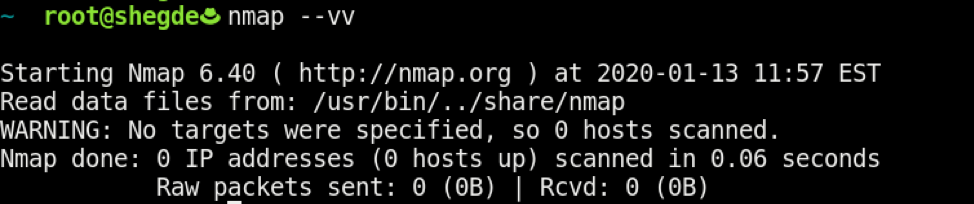
If Nmap is not installed, type the following on an RHEL-based system:
$ sudo yum install -y nmap
Now, run Nmap on our gateway IP:
$ sudo nmap -sn <Your-IP>
The results look like this:

[ Related Story: How to validate your security measures ]
Determine this host's OS with the -O switch:
$ sudo nmap -O <Your-IP>
The results look like this:

[ You might also like: Six practical use cases for Nmap ]
Then, run the following to check the common 2000 ports, which handle the common TCP and UDP services. Here, -Pn is used to skip the ping scan after assuming that the host is up:
$ sudo nmap -sS -sU -PN <Your-IP>
The results look like this:
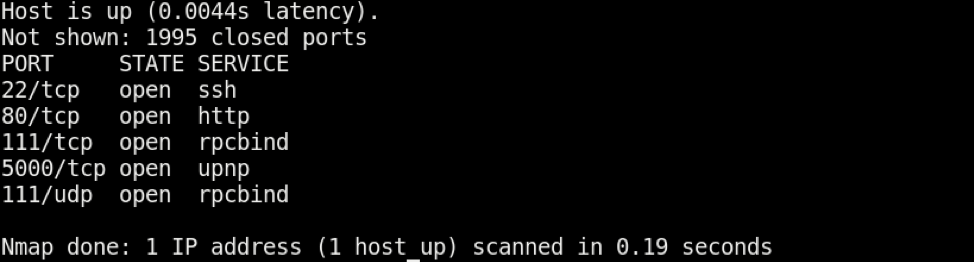
Note: The -Pn combo is also useful for checking if the host firewall is blocking ICMP requests or not.
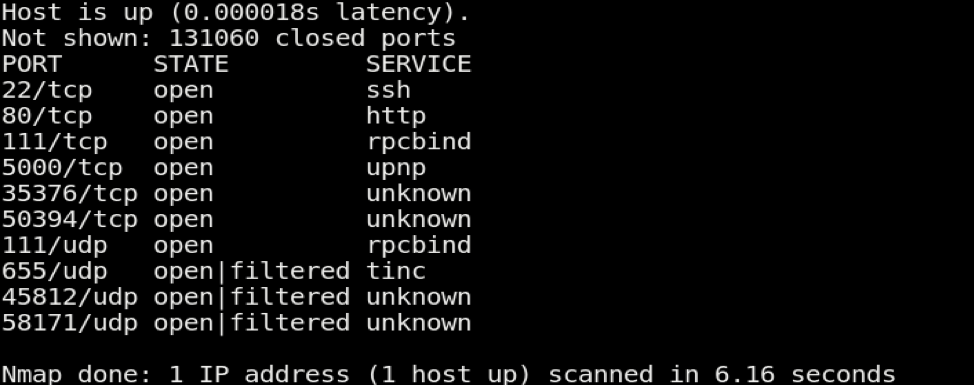
Also, as an extension to the above command, if you need to scan all ports instead of only the 2000 ports, you can use the following to scan ports from 1-66535:
$ sudo nmap -sS -sU -PN -p 1-65535 <Your-IP>
The results look like this:
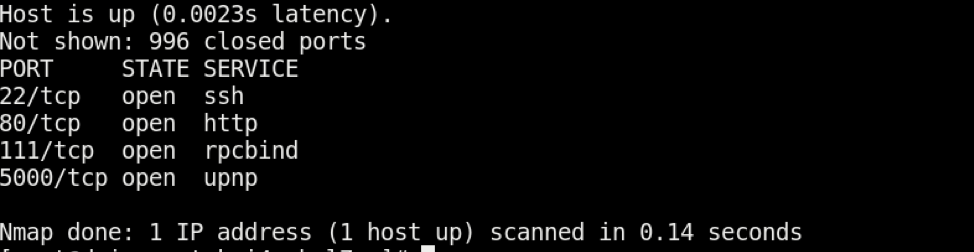
You can also scan only for TCP ports (default 1000) by using the following:
$ sudo nmap -sT <Your-IP>
The results look like this:
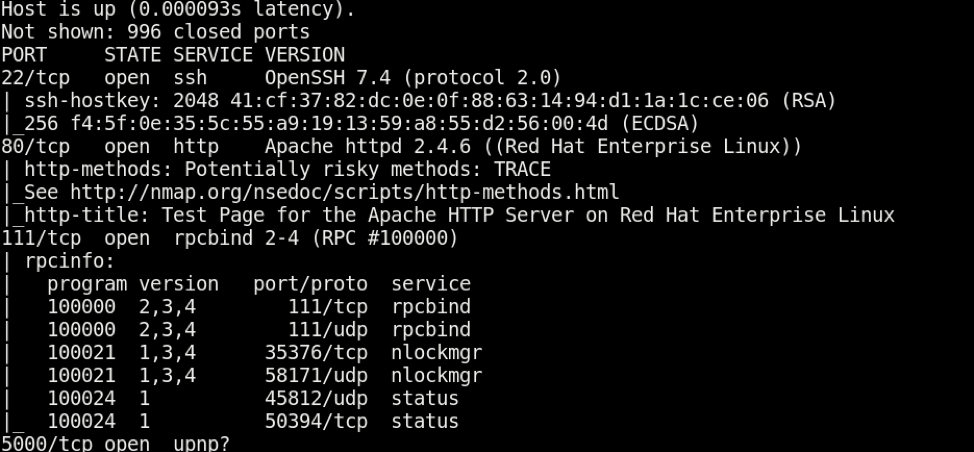
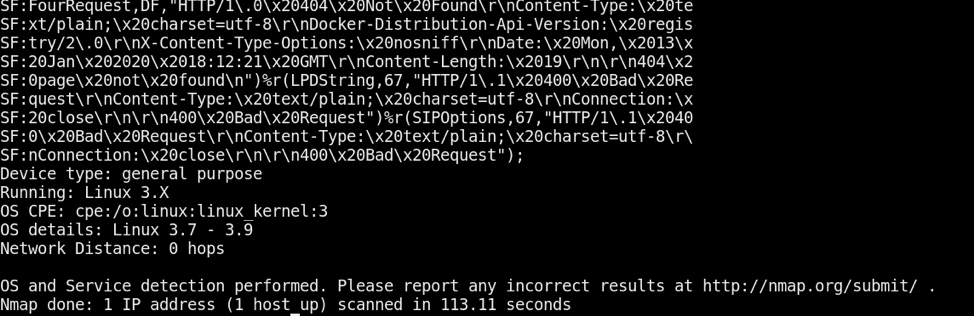
Now, after all of these checks, you can also perform the "all" aggressive scans with the -A option, which tells Nmap to perform OS and version checking using -T4 as a timing template that tells Nmap how fast to perform this scan (see the Nmap man page for more information on timing templates):
$ sudo nmap -A -T4 <Your-IP>
The results look like this, and are shown here in two parts:
There you go. These are the most common and useful Nmap commands. Together, they provide sufficient network, OS, and open port information, which is helpful in troubleshooting. Feel free to comment with your preferred Nmap commands as well.
[ Readers also liked: My 5 favorite Linux sysadmin tools ]
À propos de l'auteur
I work as a Solutions Engineer at Red Hat and my day-to-day work involves OpenShift and Ansible. I'm highly passionate about open source software, cloud, security, and networking technologies.
Plus de résultats similaires
Red Hat Enterprise Linux Long-Life Add-On : votre solution RHEL sans date de fin prédéterminée
Comment votre infrastructure doit-elle se connecter à Red Hat Lightspeed ?
Standardizing the AI stack with PyTorch
Scaling with Orchestrators | Compiler
Parcourir par canal

Automatisation
Les dernières nouveautés en matière d'automatisation informatique pour les technologies, les équipes et les environnements

Intelligence artificielle
Actualité sur les plateformes qui permettent aux clients d'exécuter des charges de travail d'IA sur tout type d'environnement

Cloud hybride ouvert
Découvrez comment créer un avenir flexible grâce au cloud hybride

Sécurité
Les dernières actualités sur la façon dont nous réduisons les risques dans tous les environnements et technologies

Edge computing
Actualité sur les plateformes qui simplifient les opérations en périphérie

Infrastructure
Les dernières nouveautés sur la plateforme Linux d'entreprise leader au monde

Applications
À l’intérieur de nos solutions aux défis d’application les plus difficiles

Virtualisation
L'avenir de la virtualisation d'entreprise pour vos charges de travail sur site ou sur le cloud
