
In the very first article I ever wrote for this site, I talked about a program that allowed the user to create custom hotkeys for use across their system. This "if you ain’t cheating, then you ain’t trying” mentality permeates a lot of sysadmins’ thought processes. The age old question of how we can do more with less or optimize our time/efforts etc. is what drives me to explore this concept again. That article was specific to Windows, however, this will be localized to the GNOME desktop.
The GNOME desktop comes prepped and ready with a multitude of shortcuts that can be put to use if you take the time to learn them. That is what we are going to focus on here. What are the shortcuts to know and what will they look like when used? Let’s dig in.
A quick note: if you are not a native Linux user (like myself) you will probably be a bit confused by the Super key. This is the Windows key for Windows users and the command key for MacOS. When you see the alt key referenced, this is the option key for MacOS.
Keyboard shortcuts
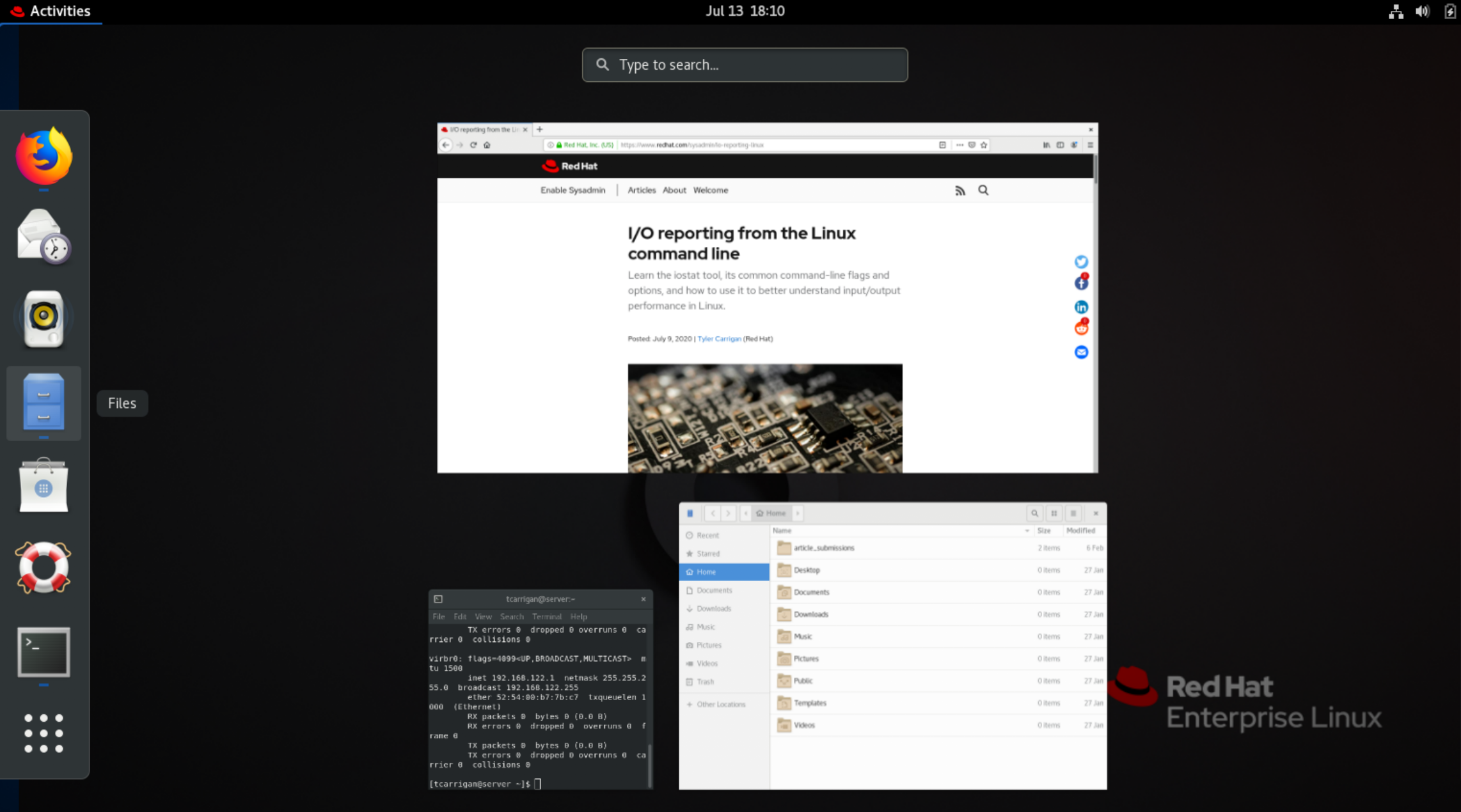
Alt + F1 —This shortcut allows you to switch between the standard desktop and the Activities overview. It will give you a deconstructed desktop so you can see each open window and application as well as access the search bar.
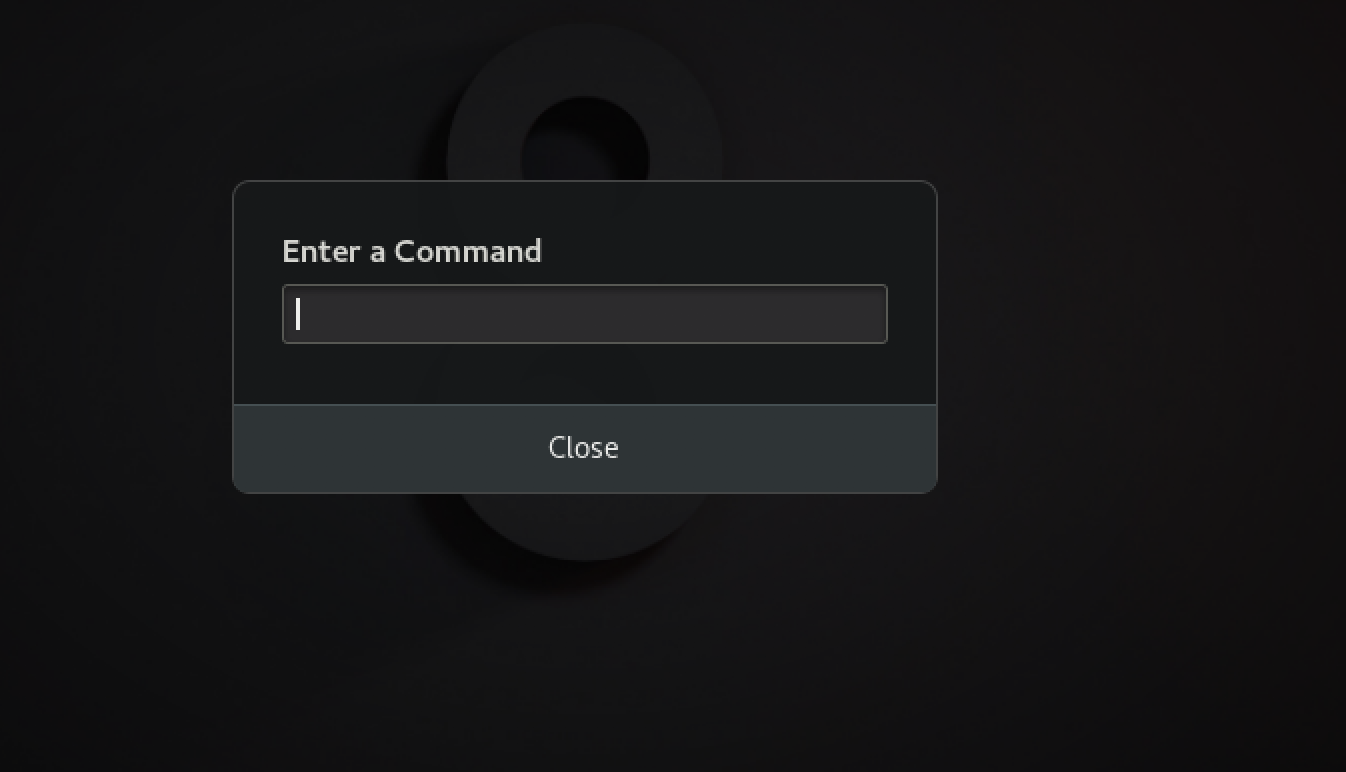
Alt + F2 —This shortcut is actually really nice. Many distros dont have an applications dock pinned to the desktop. This means that you have to manually go and click somewhere to access the search bar or applications. With this quick shortcut, you can get right to the CLI, which is almost always my first stop.
Alt + Tab —If you are a Windows user, you will be familiar with this one, and it carries over into GNOME. If you want to switch between open windows quickly, you can do so with this command.
Alt + ` (located right above Tab)—This shortcut allows the user to switch between various windows inside of an application, ie. if you have multiple windows (not tabs) of Firefox or Chrome.
Alt + Esc —Allows the user to switch between active windows quickly. Similar to Alt + Tab but preferable if you have a small number of windows open.
Monitor shortcuts
I wish I had known these three years ago. These quick shortcuts will allow you to quickly rearrange your monitors/windows to optimize your workflow.
Shft + Super + Left arrow —This shortcut allows the user to move the active window one monitor screen to the left.
Shft + Super + Right arrow —This shortcut, like the one above, allows you to move the active window over one monitor to the right.
Text editor shortcuts
These are pretty standard across operating systems, but they are huge quality of life improvements that you don’t miss until they are gone.
Ctrl + C —Copies all selected text to the clipboard.
Ctrl + V —Pastes copied text from the clipboard to the cursor point.
Ctrl + A —Selects all text within a given window or document.
Ctrl + X —Cuts all selected text, which is then copied to the clipboard.
Ctrl + Z —This shortcut still acts as an “undo last action” keystroke.
Closing
While many of these are pretty basic across various operating systems, there are definately some Linux specifc shortcuts that helped me during my time as a support engineer. I am confident that they will help you in your basic, everyday Linux use as well as your system administration duties. Be sure to add a few of these to your workflow and I am sure that you will become a more efficient user.
[ Want even more GNOME shortcuts? Download this free GNOME 3 cheat sheet. ]
Sull'autore
Tyler is the Sr. Community Manager at Enable Sysadmin, a submarine veteran, and an all-round tech enthusiast! He was first introduced to Red Hat in 2012 by way of a Red Hat Enterprise Linux-based combat system inside the USS Georgia Missile Control Center. Now that he has surfaced, he lives with his wife and son near Raleigh, where he worked as a data storage engineer before finding his way to the Red Hat team. He has written numerous technical documents, from military procedures to knowledgebase articles and even some training curricula. In his free time, he blends a passion for hiking, climbing, and bushcraft with video games and computer building. He is loves to read and enjoy a scotch or bourbon. Find him on Twitter or on LinkedIn.
Altri risultati simili a questo
Il tempo è prezioso: perché per il settore finanziario è necessario attivare subito la sicurezza post-quantistica
Red Hat Enterprise Linux Long-Life Add-On: un percorso verso RHEL senza una scadenza predeterminata
Infrastructure At The Edge | Compiler
Operating System Management | Compiler
Ricerca per canale

Automazione
Novità sull'automazione IT di tecnologie, team e ambienti

Intelligenza artificiale
Aggiornamenti sulle piattaforme che consentono alle aziende di eseguire carichi di lavoro IA ovunque

Hybrid cloud open source
Scopri come affrontare il futuro in modo più agile grazie al cloud ibrido

Sicurezza
Le ultime novità sulle nostre soluzioni per ridurre i rischi nelle tecnologie e negli ambienti

Edge computing
Aggiornamenti sulle piattaforme che semplificano l'operatività edge

Infrastruttura
Le ultime novità sulla piattaforma Linux aziendale leader a livello mondiale

Applicazioni
Approfondimenti sulle nostre soluzioni alle sfide applicative più difficili

Virtualizzazione
Il futuro della virtualizzazione negli ambienti aziendali per i carichi di lavoro on premise o nel cloud
